

Introduction
Windows 8 has comes with a new and exciting feature, the Charms Bar. The Charms Bar provides utilities for switching among the executing applications.
When you move your mouse pointer to the left corner or on the bottom-right of the screen, you will see all the applications that are running in the background and you can easily switch to another application.
The Charms Bars also allows us to use Search, Share or shut down the system and other settings.
So, in this article, we are going to learn a simple trick to disable the Charms Bars in Windows 8.
Note: It will not disable the Charms Bar permanently; it only turns off the Charms Bar hint, so that the Charms Bar will not appear as soon as you move the cursor to the top-right or bottom-right corners.
To disable the Charms Bars you need to apply the setting in Registry Editor.
Step 1
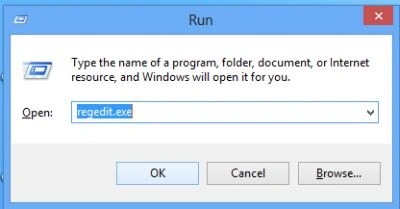
Open the Registry Editor.
In the Run box, enter regedit.exe and press Ok.
 Step 2
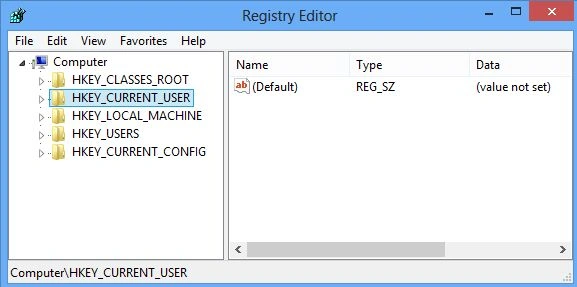
The Registry Editor window is opened.
Step 2
The Registry Editor window is opened.
 Step 3
Go to the following path in the left panel of the Registry Editor.
Step 3
Go to the following path in the left panel of the Registry Editor.
 Step 4
Follow these steps
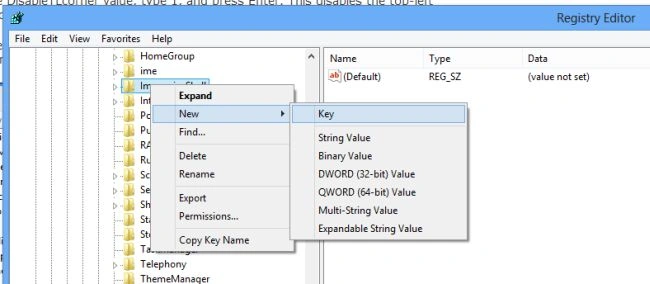
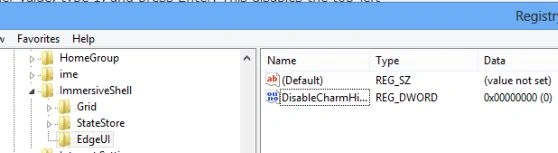
- Right-click on the ImmersiveShell.
- Select New->Key.
- Rename it with EdgeUI.
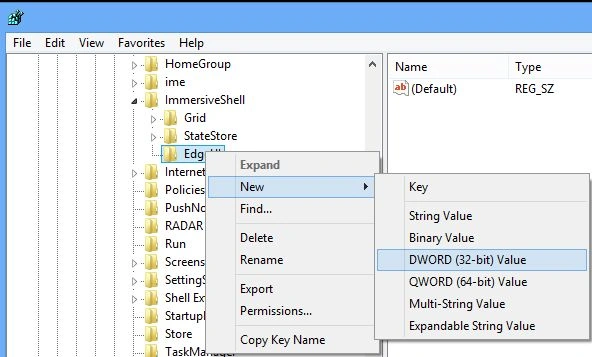
- Now, right-click the EdgeUI key.
- Point to New -> select DWORD (32-bit) Value.
- Rename it with any value and press Enter.
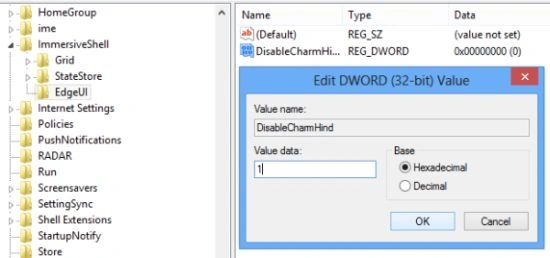
Now you need not restart your computer, this change has an immediate effect.
Summary
In this article, we learned about How to Disable Charms Hints in Windows 8.
Join the conversation! Your thoughts help the community grow.