

Introduction
Metro Welcome Screen in Windows 8 is the latest welcome screen which is very attractive and provides more safety to the user's account. Moreover, Windows 8 is constructed with many user-friendly features and characteristics. Sometimes most users prefer a classical type of login screen than the new Metro style of the login screen. Therefore we can get back Windows 7's welcome screen in Windows 8.
So in this article, we will concentrate on how to disable the Metro welcome screen in Windows 8.
How to disable the Metro welcome screen in Windows 8?
Step 1
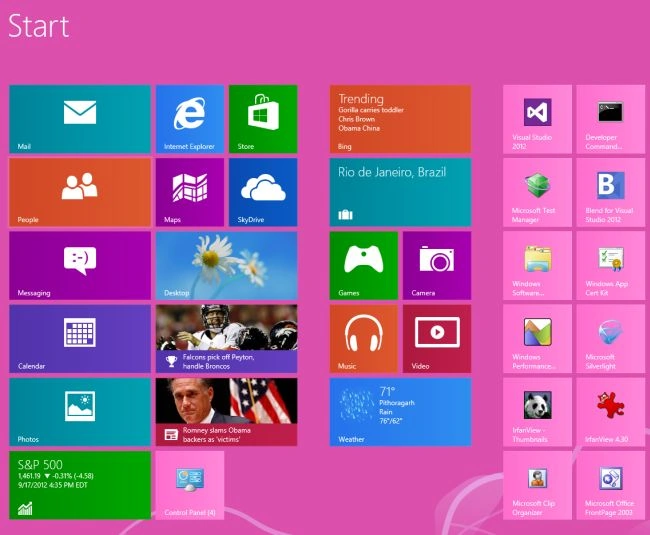
First of all, we have to move on to the Start screen window of Windows 8.
Step 2
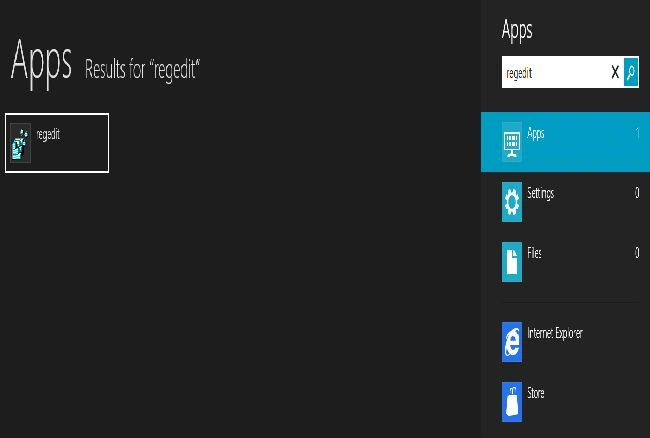
Then move the cursor on the bottom-right of the window screen and click the search box which is helpful to search in Windows 8.

Step 3
Then in the search box type "regedit" and click on Apps tab from the right sidebar then click regedit in the main window.
Step 4
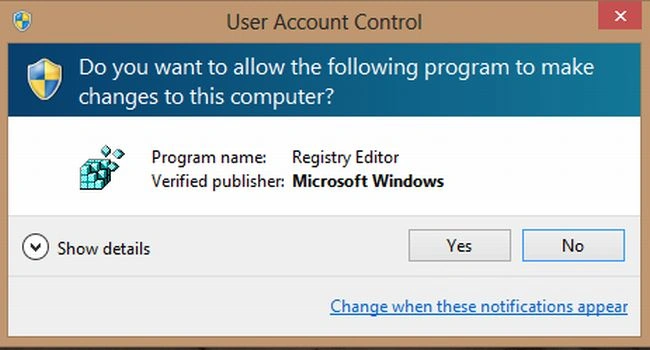
Then you will see a new window named "User Account Window". Just click on the Yes button.
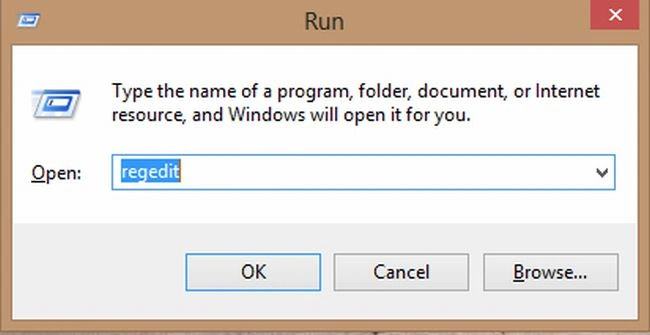
We can open this window as in the following image which is opened by Windows logo key + R on your keypad and just type "regedit" and click on OK button.
Step 5
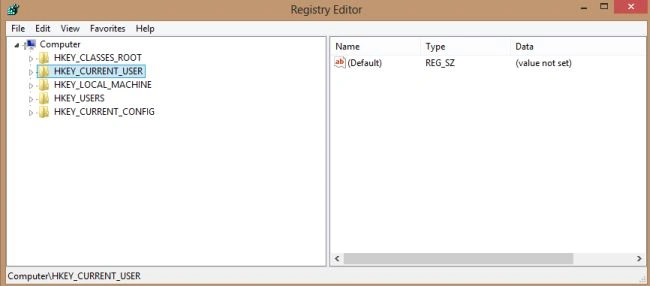
On performing this action a new window will appear on your screen named Registry Editor as shown in the following image.
Step 6
Now in the registry editor just use the following path.
HKEY_LOCAL_MACHINE >> SOFTWARE >> Microsoft >> Windows >> CurrentVersion >> Explorer
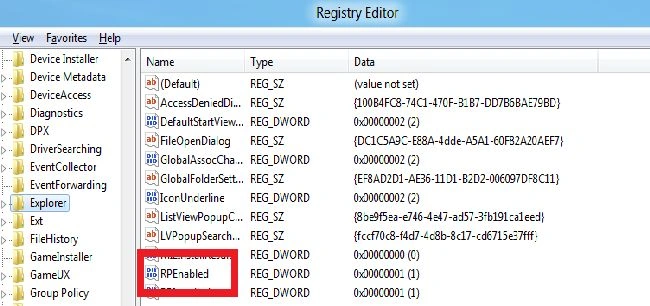
Now you have to locate a file labeled RPEnabled as shown in the following image.
Step 7
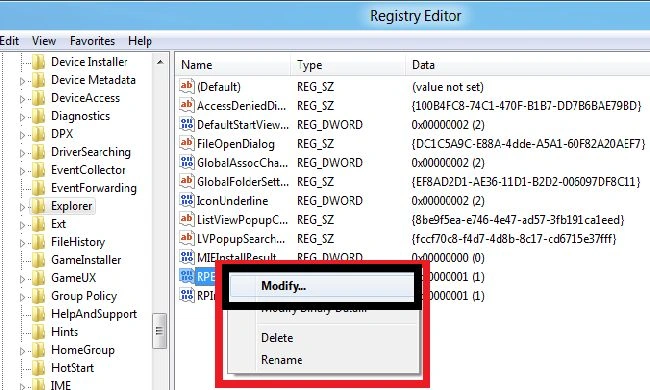
Now right-click on this file and click on the Modify tab in the dropdown menu.
Step 9
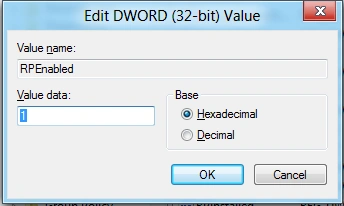
Finally, a new window will appear on your screen as shown in the following image.
Note
In this window, if the value is 1(enable) then modified to 0 (disable) and click on the Ok button and restart your system.
Summary
In this article, we learned about How to Disable Metro Welcome Screen in Windows 8.
Join the conversation! Your thoughts help the community grow.