

Introduction
Running many programs simultaneously can make the system slow even in Windows 10 at the booting process (startup time). Often a user doesn't need to work on a particular program for a long time. So, he does not require that particular program to open at startup time.
The user should also remember that more programs, files, and folders running simultaneously at startup can cause a slowdown of the booting process which will be very irritating. Then you should know the procedure to disable the startup programs, files, and folders in Windows 10.
If you want to create or run the programs automatically at startup time in your laptop/PC then read this article on the topic of, "How To Run Programs, Files And Folders At Startup In Windows 10".
This tutorial will show you various ways on, how to disable the startup programs or apps, files, and folders in Windows 10.
Method 1 - Using Startup Folder
Step 1
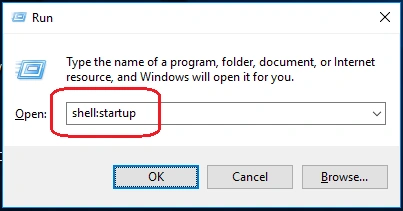
From the Start menu, open the Run dialog box or you can Press the "Window + R" key to open the RUN window.
Step 2
Type "shell:startup" and press enter to open the "Startup" folder.
Step 3
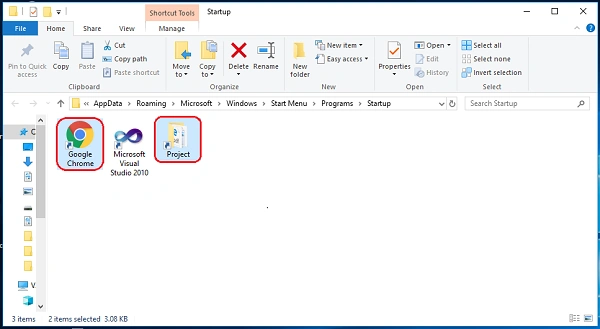
Select the added programs or apps, files, and folders that you want to remove.
Step 4
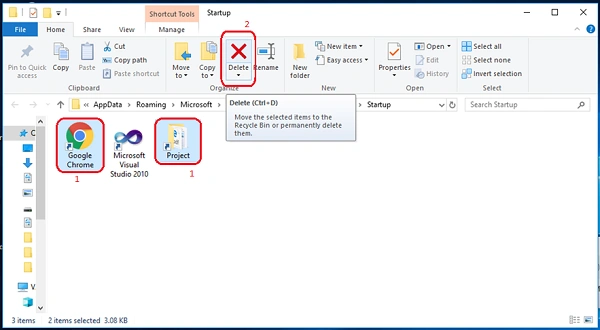
Simply delete it from the startup folder.
Method 2 - Using Taskbar
Step 1
Open the Task Manager in the following ways:
- Click Start and type Task Manager. Then click Task Manager to open Task Manager Windows.
- Press the "Windows + X" key, and click Task Manager to open it.
- Press the "Ctrl + Alt + Delete" key to open it.
- Press the "Ctrl+ Shift + Esc" key to open it.
Step 2
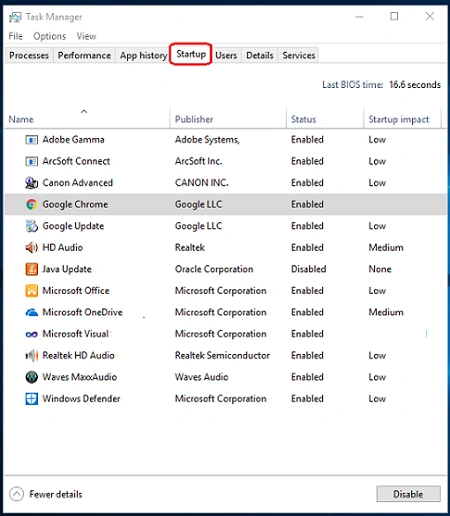
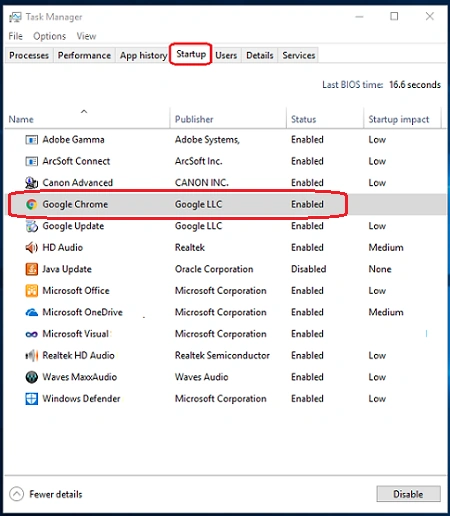
Click on Startup Tab and the list of various startup programs or apps, files and folders will appear on the screen.
Step 3
Select the program or app that you want to disable.
Step 4
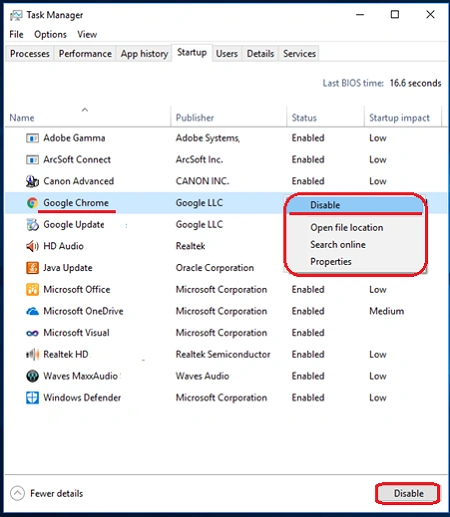
Right-click on it and click on Disable option.
Method 3 - Through Settings
Step 1
From the Start menu, select Settings.
Step 2
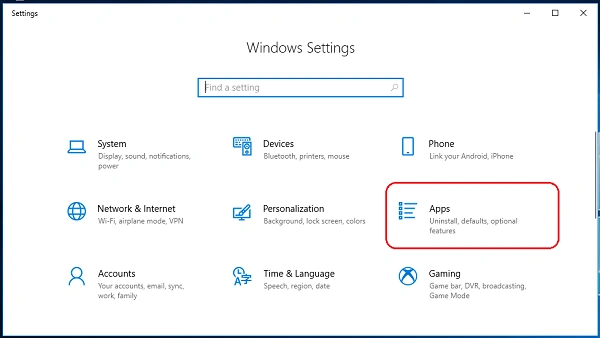
Select "Apps".
Step 3
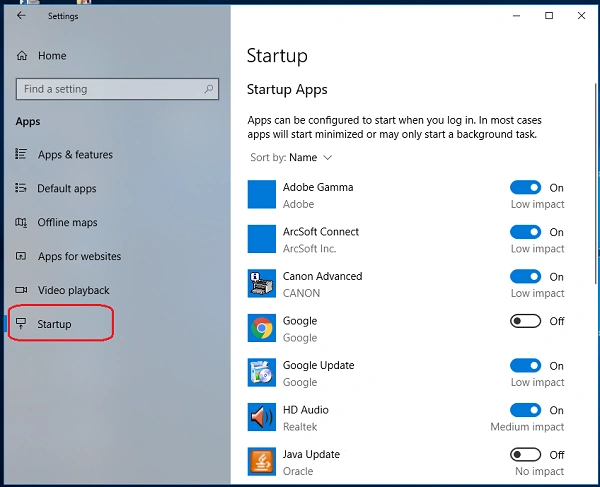
Click on "Startup" options.
Step 4
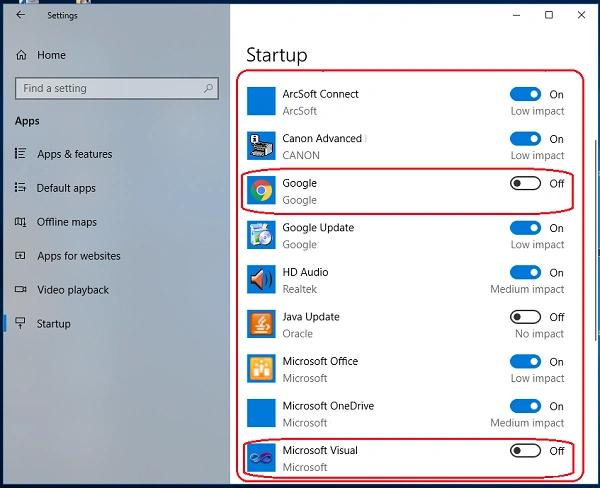
Here, the list of apps or programs, files and folders will be shown on the screen and then the user can disable them to run automatic start when logging in or booting up.
Conclusion
By following any of the above methods, you can disable the programs or apps, files, and folders at startup in Windows 10.
I hope you enjoyed this article. Follow C# Corner to learn more new and amazing things about Windows 10.
Thanks for reading this article.
Sourav Kumar DasPosted Jan 25, 2020, 12:33 PM
Informative article on startup of windows 10.
Priyanka SinghPosted Jan 25, 2020, 10:36 AM
Informative and useful article