

Containerizing applications has become a best practice for modern software development, allowing developers to create portable, reproducible environments. Among various tools, Docker stands out as a powerful solution to streamline development and deployment. In this guide, we will walk through the process of Dockerizing a Django application, ensuring consistency and efficiency across environments. This tutorial is aimed at beginners with basic Django knowledge but little to no experience with Docker.
Why Containerize Your Django Application?
Containerizing a Django application with Docker offers multiple benefits:
-
Stable Environment: Docker ensures your application runs in the same environment, regardless of the host system. No more "it works on my machine" problems. All dependencies are bundled within the container, making reproducing the setup on any server or machine easy.
-
Reproducibility and Portability: A Dockerized app contains all its dependencies, environment variables, and configurations, ensuring it runs consistently in development, testing, and production.
-
Team Collaboration: Developers can work in a unified environment using Docker images, reducing conflicts due to different system configurations.
-
Efficient Deployment Docker simplifies deployments by removing the need for manual environment setups. It allows you to quickly spin up environments for development, staging, or production.
Prerequisites
Before you begin, ensure you have the following:
- Docker Desktop and Docker Compose are installed on your system.
- A Docker Hub accounts for storing and managing Docker images (optional but recommended).
- A Django project is already set up. If not, we’ll create one as part of this guide.
Step 1. Set Up Your Django Project
-
Create a Django Project: If you don’t already have a Django project, start by creating one:
django-admin startproject my_docker_django_app_web cd my_docker_django_app_web -
Create a
requirements.txtFile: Generate arequirements.txtfile to manage dependencies:pip freeze > requirements.txt -
Environment-Specific Settings: Update
settings.pyto use environment variables for sensitive and dynamic settings:import os SECRET_KEY = os.environ.get("SECRET_KEY", "default_secret_key") DEBUG = bool(os.environ.get("DEBUG", 0)) ALLOWED_HOSTS = os.environ.get("DJANGO_ALLOWED_HOSTS", "127.0.0.1").split(",")
Step 2. Create a Dockerfile
A Dockerfile defines how your Docker image is built. Create a file named Dockerfile in the root of your project:
# Use the official Python image
FROM python:3.10-slim

# Set environment variables
ENV PYTHONDONTWRITEBYTECODE 1
ENV PYTHONUNBUFFERED 1

# Set working directory
WORKDIR /app

#Install dependencies
RUN apt-get update && apt install -y gcc libpq-dev && pip install --upgrade pip

# Copy dependencies and install them
COPY requirements.txt /app/
RUN pip install --no-cache-dir -r requirements.txt

# Install Gunicorn
RUN pip install gunicorn

# Copy project files to the container
COPY . /app

# Add a non-root user for better security
RUN useradd -m -r appuser && chown -R appuser /app
USER appuser

# Expose the application port and define the startup command
EXPOSE 8000
CMD ["gunicorn", "--bind", "0.0.0.0:8000", "--workers", "3", "$django_project_name.wsgi:application"]
Build and Test the Image
To build your Docker image:
docker build -t django-docker .
To verify the image was created:
docker image list
Run the container to test the setup:
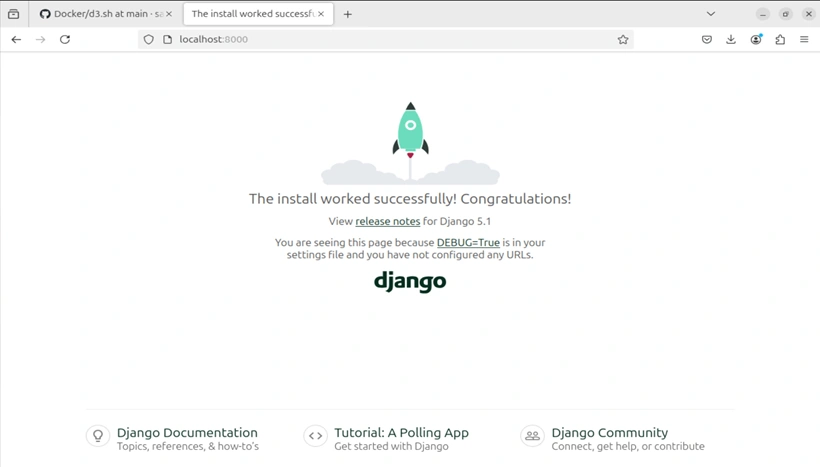
docker run -p 8000:8000 django-docker
Step 3. Optimize the Dockerfile for Production
The initial Dockerfile works for development but isn’t suitable for production. Let’s make improvements:
-
Use Gunicorn for a production-ready server: Add Gunicorn to
requirements.txt:Django>=4.2,<5.0 psycopg2>2.9 gunicorn>=20.1 -
Update the Dockerfile
# Multi-stage build
FROM python:3.13-slim AS builder

# Set working directory and environment variables
WORKDIR /app
ENV PYTHONDONTWRITEBYTECODE 1
ENV PYTHONUNBUFFERED 1

# Install dependencies
COPY requirements.txt /app/
RUN pip install --no-cache-dir -r requirements.txt

# Final stage
FROM python:3.13-slim
COPY --from=builder /usr/local /usr/local
COPY . /app

# Add a non-root user for better security
RUN useradd -m -r appuser && chown -R appuser /app
USER appuser

# Expose the application port and define the startup command
EXPOSE 8000
CMD ["gunicorn", "--bind", "0.0.0.0:8000", "--workers", "3", "my_docker_django_app.wsgi:application"]
This updated Dockerfile reduces the image size, adds a production-ready WSGI server, and ensures better security by running the container as a non-root user.
Build the Docker image again:
docker build -t django-docker .Verify the image size reduction:
docker image listThe image size should now be significantly smaller, optimizing deployment speed and storage costs.
Join the conversation! Your thoughts help the community grow.