

Introduction
In this article, we will see how to dynamically add new values to a SharePoint choice column using Power Automate
Prerequisite
Basic knowledge of Microsoft SharePoint and Microsoft Power Automate.
Basic understanding of the SharePoint HTTP action in Microsoft Power Automate.
Requirement
I have a SharePoint list called “IT Support Help Desk List” with a choice column named “IssueType". and, I want to automatically add it as a new choice value in the IssueType column using Power Automate.
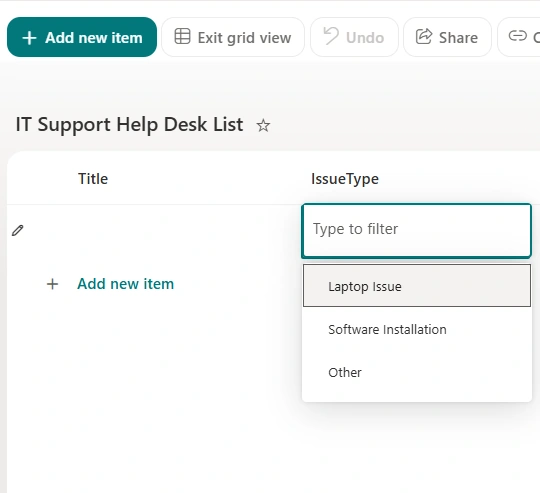
End Result
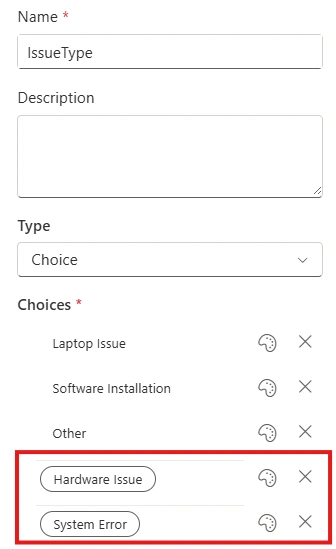
Below are the steps to configure Power Automate to dynamically add new choice values to a SharePoint choice column.
Step 1
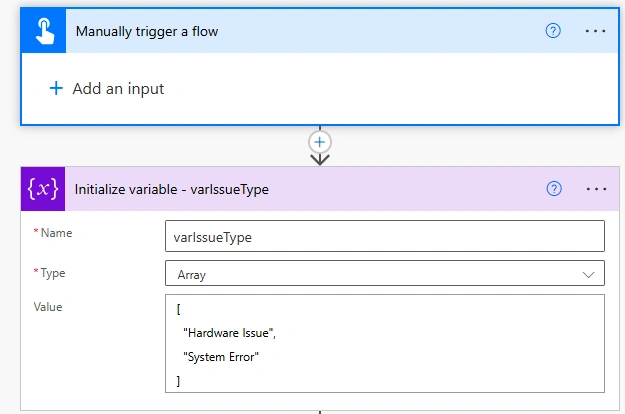
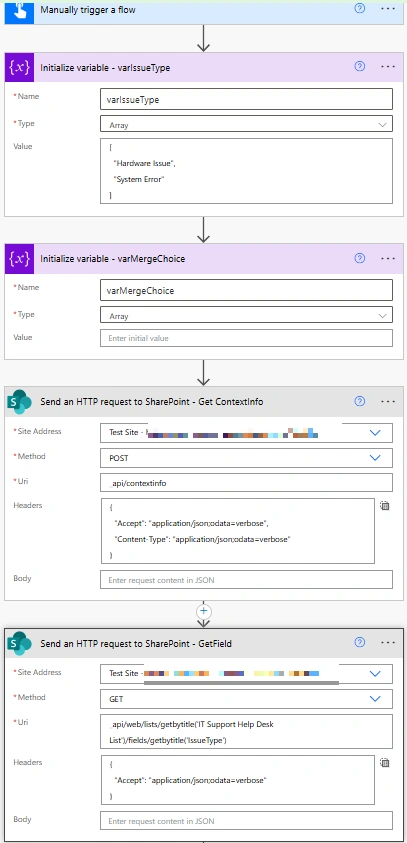
Create a manually triggered flow in Power Automate. Then add an Initialize variable action, set the variable name as varIssueType, select Array as the type, and add the value as shown in the image.
Step 2
Add a Send an HTTP request to SharePoint action. Set the method to POST, enter _api/contextinfo in the URI, and add the headers as shown in the image. This will get the request digest value required for the next SharePoint HTTP request.
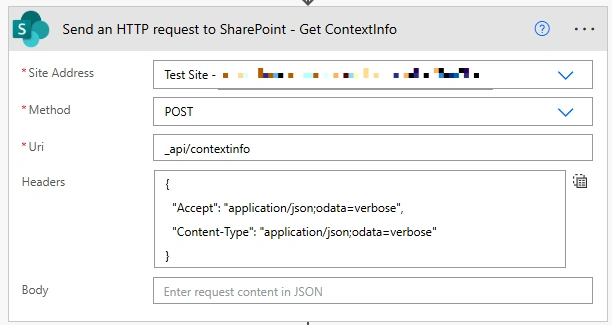
Uri
_api/contextinfoHeader
{
  "Accept": "application/json;odata=verbose",
  "Content-Type": "application/json;odata=verbose"
}
Step 3
Add another Send an HTTP request to SharePoint action. Set the method to GET and enter the URI as shown in the image to get the details of the IssueType choice column from the list.
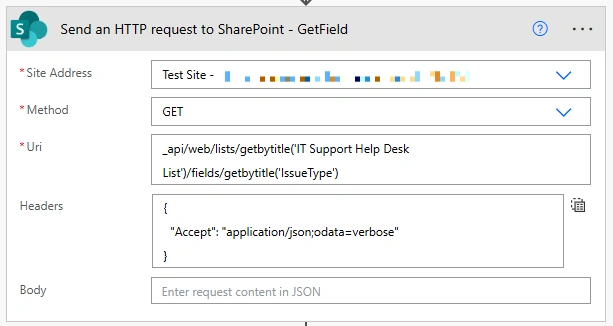
Uri
_api/web/lists/getbytitle('<YourListName>')/fields/getbytitle('<YourChoiceColumnInternalName>')Header
{
  "Accept": "application/json;odata=verbose"
}
Step 4
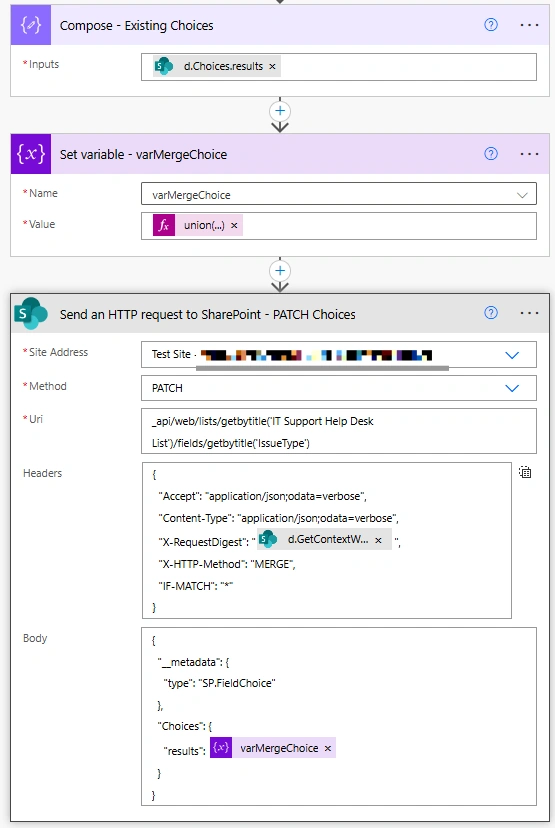
Run the flow and check the output to identify the existing choice values. Then add a Compose action and use the formula below to extract the existing choices from the IssueType column.
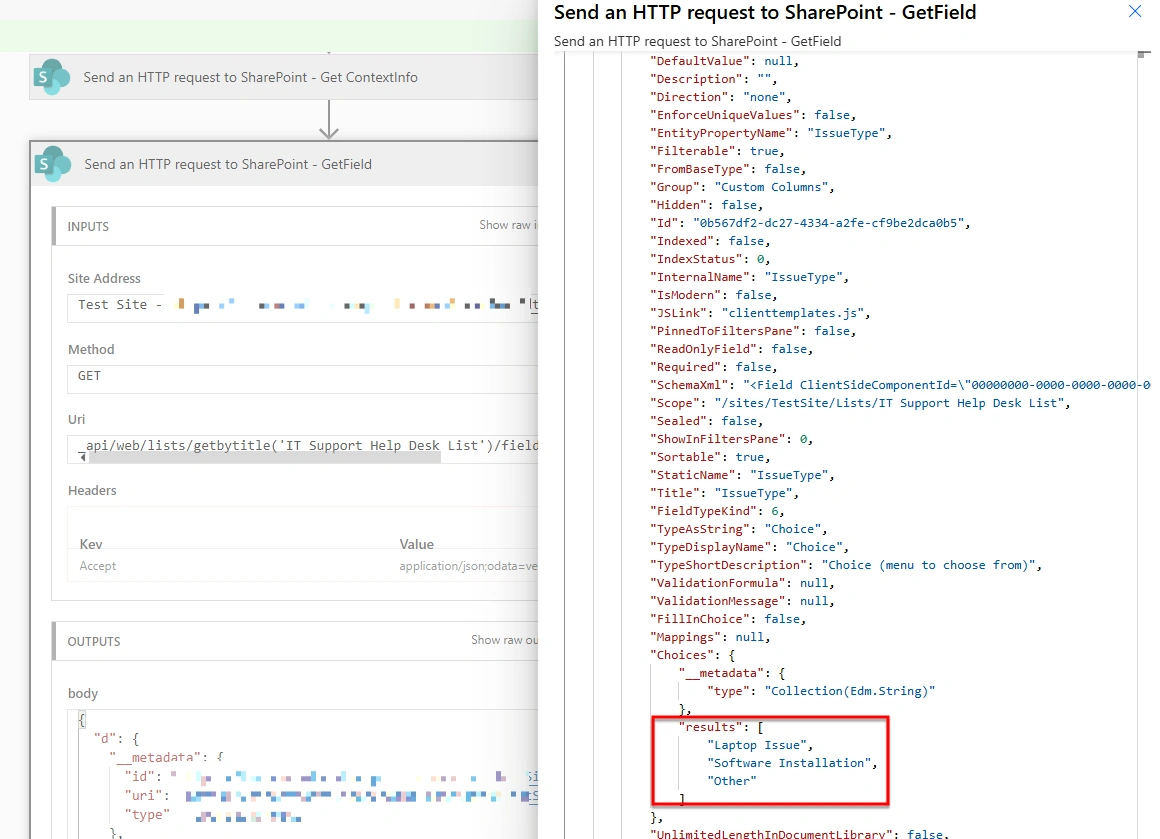

body('Send_an_HTTP_request_to_SharePoint_-_GetField')?['d']?['Choices']?['results']Step 5
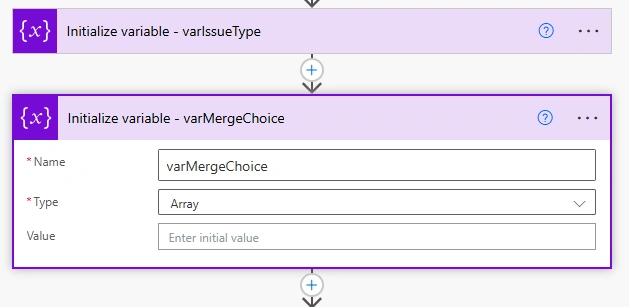
Add one more Initialize variable action and set the variable name as varMergeChoice with Array as the type. This variable will store the merged list of existing choice values along with the new choices that need to be added.
Step 6
Add a Set variable action for varMergeChoice and use the formula shown in the image. This will merge the existing choice values with the new values and remove any duplicate entries.
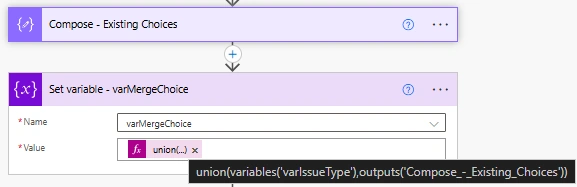
union(variables('varIssueType'),outputs('Compose_-_Existing_Choices'))Step 7
This step updates the SharePoint Choice column by automatically adding the merged choice values to the column.
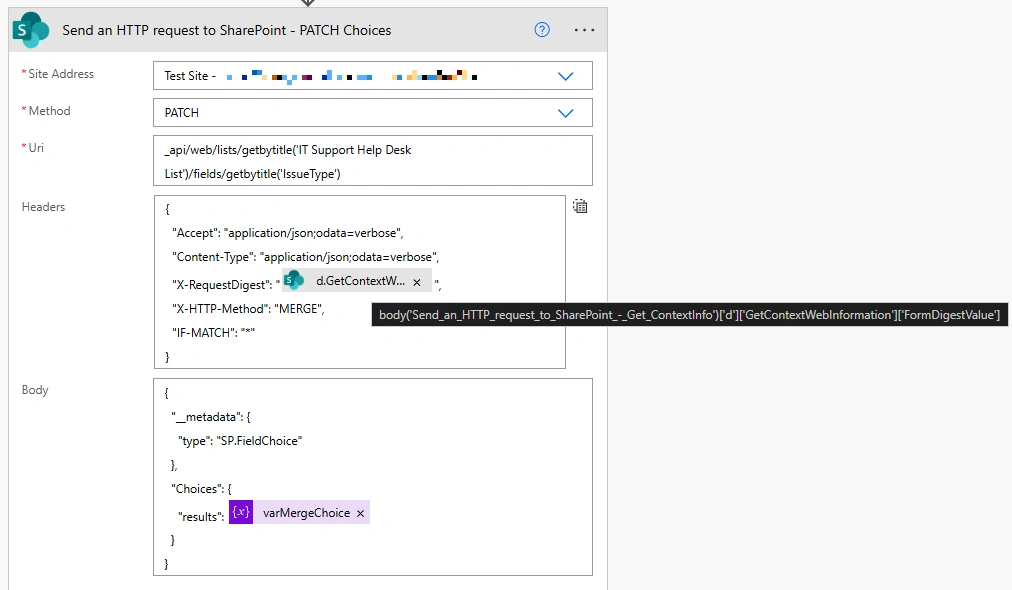
Uri
_api/web/lists/getbytitle('<YourListName>')/fields/getbytitle('IssueType')Header
{
  "Accept": "application/json;odata=verbose",
  "Content-Type": "application/json;odata=verbose",
  "X-RequestDigest": "body('Send_an_HTTP_request_to_SharePoint_-_Get_ContextInfo')['d']['GetContextWebInformation']['FormDigestValue']",
  "X-HTTP-Method": "MERGE",
  "IF-MATCH": "*"
}
Body
{
  "__metadata": {
    "type": "SP.FieldChoice"
  },
  "Choices": {
    "results": variables('varMergeChoice')
  }
}
Overall Flow
Conclusion
By following these steps, you can easily add SharePoint Choice column values dynamically using Power Automate.
Join the conversation! Your thoughts help the community grow.