

Introduction
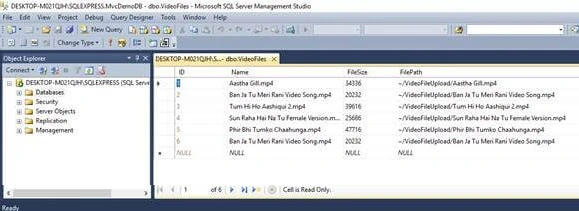
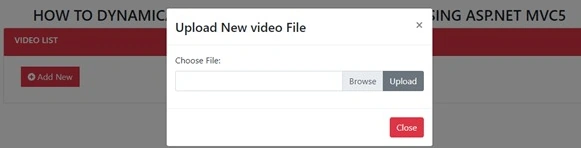
This article demonstrates how to upload a video file of up to 100MB and play dynamically using ASP.NET MVC 5. I will upload the video file to my project folder name (VideoFileUpload) and add its path in SQL Server database table. I will display all uploaded video files and their names.
Step 1. Create a database in the SQL Server of your choice.
CREATE TABLE [dbo].[VideoFiles](
    [ID] [int] IDENTITY(1,1) NOT NULL,
      NULL,
    [FileSize] [int] NULL,
      NULL,
    CONSTRAINT [PK_VideoFiles] PRIMARY KEY CLUSTERED
    (
        [ID] ASC
    )WITH (PAD_INDEX = OFF, STATISTICS_NORECOMPUTE = OFF, IGNORE_DUP_KEY = OFF, ALLOW_ROW_LOCKS = ON, ALLOW_PAGE_LOCKS = ON) ON [PRIMARY]
)
ON [PRIMARY]
GO
CREATE procedure [dbo].[spAddNewVideoFile]
(
@Name nvarchar(50),
@FileSize int,
@FilePath nvarchar(100)
)
as
begin
insert into VideoFiles (Name,FileSize,FilePath)
values (@Name,@FileSize,@FilePath)
end
CREATE procedure [dbo].[spGetAllVideoFile]
as
begin
select ID,Name,FileSize,FilePath from VideoFiles
end
Step 2. Open Visual Studio 2015. Create an empty ASP.NET Web Application project in it. As shown in the below screenshot, click on new project >> choose web template >> choose ASP.NET Web Application and give it a meaningful name to click ok.
Screenshot 1

Choose empty from ASP.NET Templates, select checkbox MVC, and click on OK, as shown in the image below.
Screenshot 2

Step 3. Double-click and open the web config file to add the database connection.
<connectionStrings>
    <add name="DBCS" connectionString="data source=FARHAN\SQLEXPRESS; database=MvcDemo; integrated security=true;" />
</connectionStrings>
Add the below code in the web config file to allow a 100MB file to upload.
<httpRuntime executionTimeout="3600" maxRequestLength="104857600" enable="true" />
<system.webServer>
    <security>
        <requestFiltering>
            <requestLimits maxAllowedContentLength="104857600" />
        </requestFiltering>
    </security>
</system.webServer>
Step 4. Right-click on Project Add select New Folder, and name it VideoFileUpload to upload all the audio files in that folder.
Step 5. Right-click on the Models folder, select Add, then select Class.
Screenshot for creating model class 1

A window will appear. Choose Class, give it the name VideoFiles, then click on Add.
Screenshot for creating model class 2

Write the class field and property as we have in the database table.
using System;
using System.Collections.Generic;
using System.Linq;
using System.Web;
namespace MvcUploadVideoFile_Demo.Models
{
    public class VideoFiles
    {
        public int ID { get; set; }
        public string Name { get; set; }
        public Nullable<int> FileSize { get; set; }
        public string FilePath { get; set; }
    }
}
Step 6. Right-click on the Controllers folder, select Add, then select Controller. HomeController.
Screenshot for creating controller 1

After clicking on controller a window will appear; choose MVC 5 Controller-Empty and click on Add.
Screenshot for creating controller 2

After that, another window will appear with DefaultController. Remember, don’t change the suffix name of the controller here. Click on Add and a Home Controller will be added in the Controllers folder.
Screenshot for creating controller 3

Add the following namespace
using MvcUploadVideoFile_Demo.Models;
using System.Configuration;
using System.Data;
using System.Data.SqlClient;
using System.IO;
Create a UploadVideo action method with [HttpGet] in the controller. Write the following code to retrieve the data from the database table.
[HttpGet]
public ActionResult UploadVideo()
{
    List<VideoFiles> videolist = new List<VideoFiles>();
    string CS = ConfigurationManager.ConnectionStrings["DBCS"].ConnectionString;
    using (SqlConnection con = new SqlConnection(CS))
    {
        SqlCommand cmd = new SqlCommand("spGetAllVideoFile", con);
        cmd.CommandType = CommandType.StoredProcedure;
        con.Open();
        SqlDataReader rdr = cmd.ExecuteReader();
        while (rdr.Read())
        {
            VideoFiles video = new VideoFiles();
            video.ID = Convert.ToInt32(rdr["ID"]);
            video.Name = rdr["Name"].ToString();
            video.FileSize = Convert.ToInt32(rdr["FileSize"]);
            video.FilePath = rdr["FilePath"].ToString();

            videolist.Add(video);
        }
    }
    return View(videolist);
}
Create a UploadVideo action method with [HttpPost] in the controller. Write the following code to insert data into the database and upload the file in the VideoFileUpload folder of the project.
[HttpPost]
public ActionResult UploadVideo(HttpPostedFileBase fileupload)
{
    if (fileupload != null)
    {
        string fileName = Path.GetFileName(fileupload.FileName);
        int fileSize = fileupload.ContentLength;
        int Size = fileSize / 1000;
        fileupload.SaveAs(Server.MapPath("~/VideoFileUpload/" + fileName));
        string CS = ConfigurationManager.ConnectionStrings["DBCS"].ConnectionString;
        using (SqlConnection con = new SqlConnection(CS))
        {
            SqlCommand cmd = new SqlCommand("spAddNewVideoFile", con);
            cmd.CommandType = CommandType.StoredProcedure;
            con.Open();
            cmd.Parameters.AddWithValue("@Name", fileName);
            cmd.Parameters.AddWithValue("@FileSize", Size);
            cmd.Parameters.AddWithValue("FilePath", "~/VideoFileUpload/" + fileName);
            cmd.ExecuteNonQuery();
        }
    }
    return RedirectToAction("UploadVideo");
}
Complete HomeController code.



William OniszkoPosted Feb 7, 2023, 2:05 PM
I am having trouble playing the video files. the videos show in the card layout, but they never play.
Bartolomeu LemosPosted Oct 27, 2022, 3:24 PM
Is possible a public version aspnet webform, please.
Bartolomeu LemosPosted Oct 27, 2022, 3:24 PM
Very good.
jothish jPosted Oct 19, 2022, 12:12 AM
Will this work in mvc 6 ?
sandy jadavPosted Mar 11, 2022, 6:25 PM
Sir please can you create in posgresql than create all code please please
hitesh kumarPosted Oct 7, 2021, 2:09 PM
This program is running perfectly but nothing is happening on AddNew Click. can you please guide me ?
jamael JPosted Sep 13, 2020, 3:50 AM
While i running the program..............HTTP Error 500.19 - Internal Server Error The requested page cannot be accessed because the related configuration data for the page is invalid. Config Source: 9: </connectionStrings> 10: <httpRuntime executionTimeout="3600" maxRequestLength="104857600" enable="true" /> 11:
jamael JPosted Sep 13, 2020, 3:47 AM
I got this type of error..........Cannot define a class or member that utilizes 'dynamic' because the compiler required type 'System.Runtime.CompilerServices.DynamicAttribute' cannot be found. Are you missing a reference?
jamael JPosted Sep 13, 2020, 3:46 AM
The type or namespace name 'Linq' does not exist in the namespace 'System' (are you missing an assembly reference?)
harry zPosted Aug 25, 2020, 5:49 PM
When run the app, the browser gives Module IIS Web CoreNotification Unknown Handler Not yet determined Error Code 0x80070032 Config Error The configuration section 'httpRuntime' cannot be read because it is missing a section declaration it is caused by the config source: <httpRuntime executionTimeout="3600" maxRequestLength="104857600" enable="true" />, how to fix this?
harry zPosted Aug 25, 2020, 5:48 PM
When I run the application, the website gives error <httpRuntime executionTimeout="3600" maxRequestLength="104857600" enable="true" />
Dương NguyễnPosted Apr 7, 2020, 11:51 PM
Where is right place to put this code:<httpRuntime executionTimeout="3600" maxRequestLength="104857600" enable="true" /> <system.webServer> <security> <requestFiltering> <requestLimits maxAllowedContentLength="104857600" /> </requestFiltering> </security> </system.webServer> . When i put this code inside web config file, i got error HTTP Error 500.19 - Internal Server Error The requested page cannot be accessed because the related configuration data for the page is invalid. Config Error: The configuration section 'httpRuntime' cannot be read because it is missing a section declaration Config File: \\?\C:\Users\Nguyen Thai Duong\source\repos\WebNCT\WebNCT\web.config. Please help me, thank you very much.
Lodhi SohilkhanPosted Dec 10, 2019, 11:01 PM
Aslaumu Alaikum Bhaii Kya hum Jyada mb Ki video upload kr sakte haii ? Like 1Gb ki...
Sreekanth ReddyPosted Jul 5, 2019, 4:17 AM
Will supports to all formats ?
Mohammad UllahPosted Mar 30, 2019, 2:25 AM
I have done every thing in it.But at last Html.Begin form create error that html helper cannot contain beginform definition...
pratik jainPosted Mar 23, 2019, 3:07 AM
How I can download the code ?
MWENDAPOLE NAPOLEONPosted Aug 15, 2018, 1:52 AM
I am beginner in c# ,while i was creating table by using your code i got error that 'CREATE PROCEDURE ' must be the only statement in batch.
zeeshan akramPosted May 14, 2018, 8:07 AM
AWESOME Dear Very good Effort Keep it up .