

Introduction
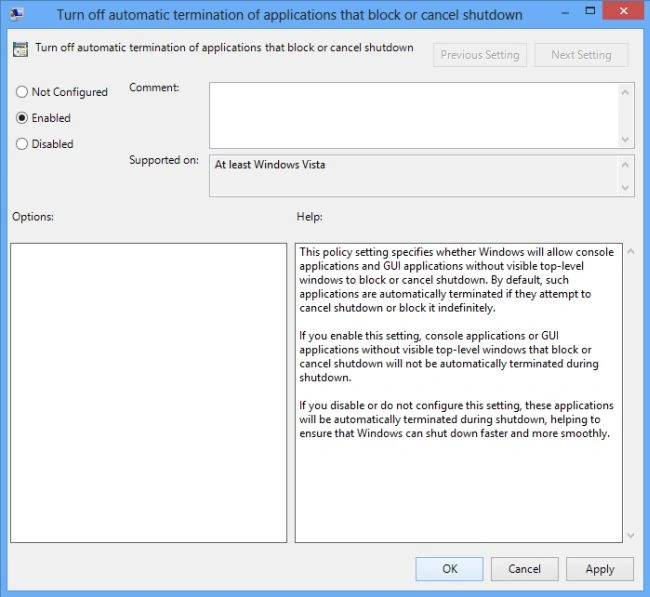
As we already know Windows 8 has an auto-quit applications feature. This feature is helpful for all active console & GUI-based applications at system shutdown and restart and forcibly closes them. Therefore any user belonging to the Administrators group can enable or disable auto-termination of programs at system shutdown with the help of Local Group Policy Editor. So in this article we will learn how to enable Auto-Termination of Applications in Windows 8.
NOTE - Before starting the process we have to be logged in as an Administrator or have the required administrative rights to open and change local policies.
How to enable Auto-Termination of applications in Windows 8
Step 1
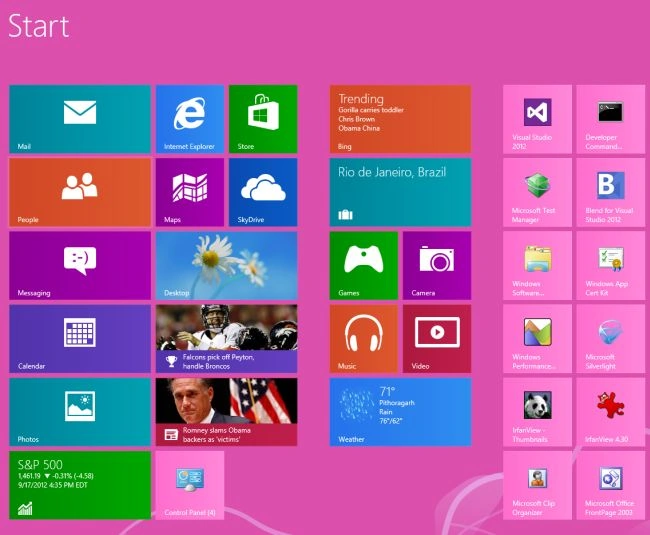
First of all we have to go to the Start window screen in Windows 8.
Step 2
Then move the cursor on the bottom-right of the window screen and click the search box which is helpful to search in Windows 8.

Step 3
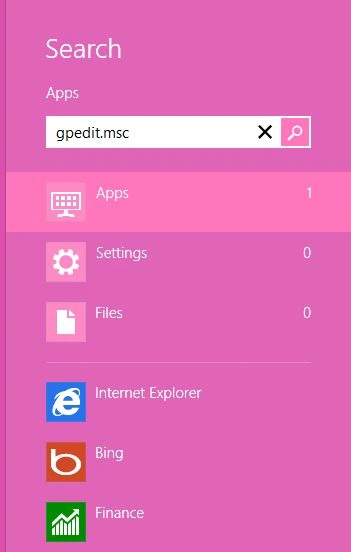
Then in the search box type "gpedit.msc" and click on Apps from the right sidebar then click gpedit.msc in the main window.
Step 4
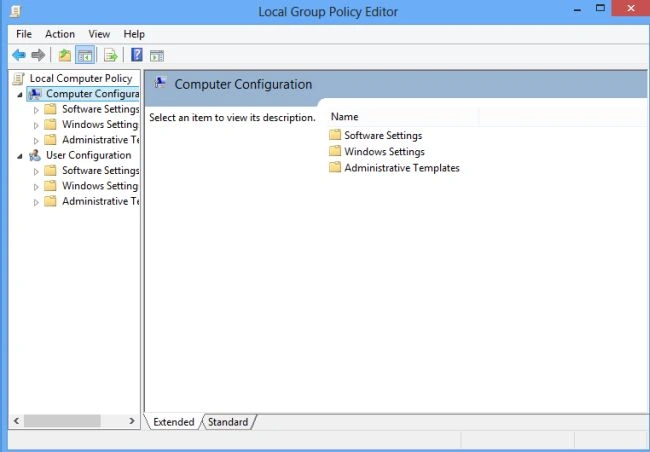
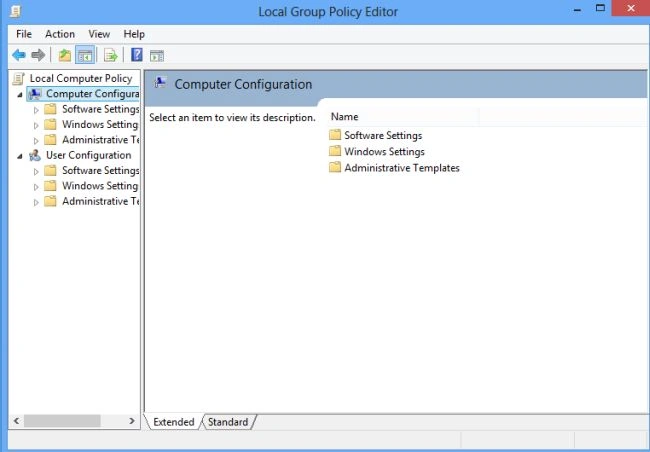
When we click on gpedit.msc in the main window the Local Group Policy Editor will open as follows:
Step 5
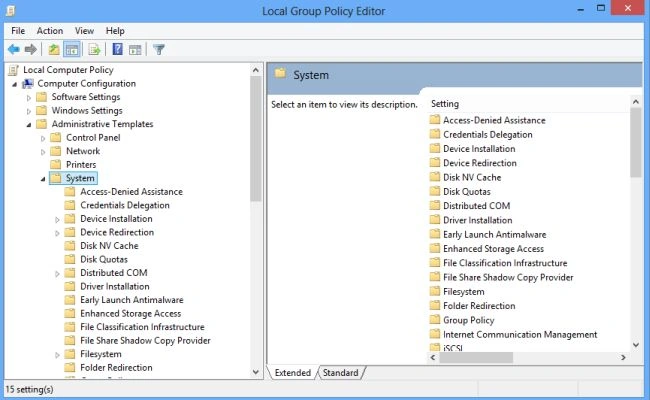
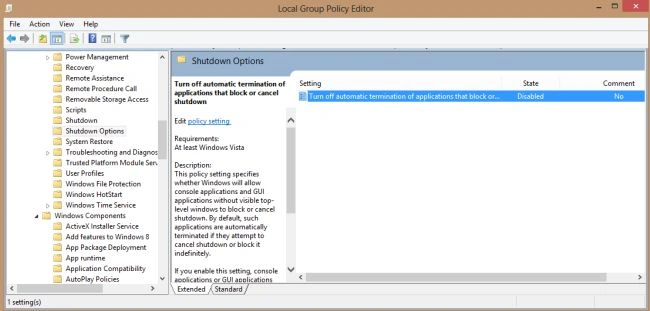
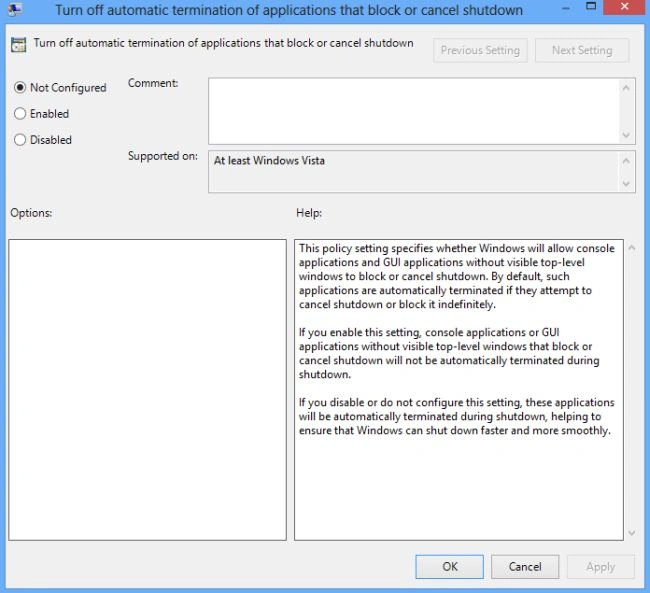
Once the Local Group Policy is opened then use the following:
Join the conversation! Your thoughts help the community grow.