

Introduction
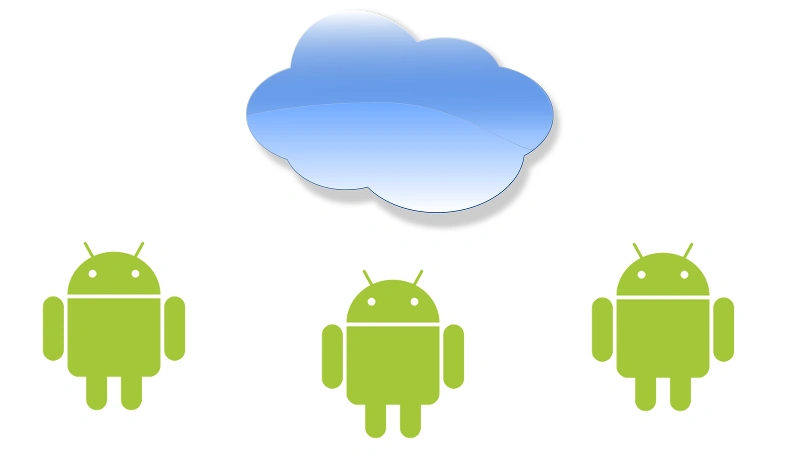
Many times your Android app needs to fetch data from the
internet, to provide users with fresh information and/or data. There are
different ways your app could achieve this.
You could set up your own web
service/API, or you could be fetching from an already existing service/API. In
this article, we will discuss how to use a Web API within your Android app, to
fetch data for your users. There are two major methods for retrieving data from
most web services, XML or JSON. XML stands for extensible Markup Language, and
its syntax somewhat resembles HTML (Hyper Text Markup Language), in that they
are both markup languages. The sample XML representation of a human can be.
Let us drive to the destination.
This is an API that has data in JSON format from where we will fetch.
The process to fetch data from API.
- Create a list view XML file which has a list that will show when you finish it.
- <?xml version="1.0" encoding="utf-8"?>
- <LinearLayout xmlns:android="http://schemas.android.com/apk/res/android" android:layout_width="fill_parent" android:layout_height="fill_parent">
- <ListView android:id="@+id/list_title_list" android:layout_width="match_parent" android:layout_height="match_parent"> </ListView>
- </LinearLayout>
- Create an XML file; it will have the element which you want to show in your list. That means in a section of list what do you want to show meant TextView, ImageView and so on.
- <?xml version="1.0" encoding="utf-8"?>
- <RelativeLayout xmlns:android="http://schemas.android.com/apk/res/android"
- android:layout_width="fill_parent"
- android:layout_height="80dp"
- android:orientation="vertical"
- android:padding="5dp" >
- <ImageView
- android:id="@+id/iv_icon_social"
- android:layout_width="60dp"
- android:layout_height="60dp"
- android:layout_centerVertical="true"
- android:visibility="gone" />
- <LinearLayout
- android:id="@+id/thumbnail"
- android:layout_width="fill_parent"
- android:layout_height="85dp"
- android:layout_marginRight="50dp"
- android:layout_marginTop="0dp"
- android:layout_toRightOf="@+id/iv_icon_social"
- android:gravity="center_vertical"
- android:orientation="vertical"
- android:padding="5dip"
- android:visibility="visible" >
- <TextView
- android:id="@+id/txt_ttlsm_row"
- android:layout_width="fill_parent"
- android:layout_height="wrap_content"
- android:paddingLeft="10dp"
- android:text="Sample text"
- android:textSize="18dp"
- android:textStyle="bold" />
- <TextView
- android:id="@+id/txt_ttlcontact_row2"
- android:layout_width="fill_parent"
- android:layout_height="wrap_content"
- android:layout_marginBottom="0dp"
- android:layout_marginTop="3dp"
- android:paddingLeft="10dp"
- android:maxEms="20"
- android:maxLines="2"
- android:singleLine="false"
- android:ellipsize="end"
- android:text="Sample text2"
- android:textColor="#808080"
- android:textSize="15dp"
- android:textStyle="normal" />
- </LinearLayout>
- </RelativeLayout>
- Now we will go to the main activity where we will find how to fetch data from API. There we should understand two things when we are going to work on networking. We could not do this on main thread so we will use AsyncTask and we have to get response from network as it is the response of request.
AsyncTask- It is nothing but a thread to do process in background and show result in UI. This is because when you do all network process in the main thread that will crash the application so we will use this.
- class DownloadFilesTask extends AsyncTask < Void, Void, String >
- {
- private final ProgressDialog dialog = new ProgressDialog(MainActivity.this);
- @Override
- protected void onPreExecute()
- {
- super.onPreExecute();
- this.dialog.setMessage("Signing in...");
- this.dialog.show();
- }
- @Override
- protected String doInBackground(Void...params)
- {
- ServiceHandler sh = new ServiceHandler();
- String jsonStr = sh.makeServiceCall("http://jsonplaceholder.typicode.com/albums/", ServiceHandler.GET);
- Log.d("res1", jsonStr);
- return jsonStr;
- }
- @Override
- protected void onPostExecute(String response)
- {
- super.onPostExecute(response);
- Log.d("res2", response);
- dialog.dismiss();
- if (response != null)
- {
- try
- {
- JSONArray arr = new JSONArray(response);
- DataModel mDatModel = new DataModel();
- for (int i = 0; i < arr.length(); i++)
- {
- JSONObject c = arr.getJSONObject(i);
- String id = c.getString(ID);
- String title = c.getString(TITLE);
- String uid = c.getString(USER_ID);
- id_array.add(id);
- // Toast.makeText(getApplicationContext(), title, Toast.LENGTH_LONG).show();
- }
- adapter = new AAdapter(MainActivity.this, id_array);
- l.setAdapter(adapter);
- }
- catch (Exception e)
- {}
- }
- }
- }
- MainActivity.java
- public class MainActivity extends AppCompatActivity implements AdapterView.OnItemClickListener
- {
- AAdapter adapter;
- ArrayList < String > id_array = new ArrayList < String > ();
- ArrayList < String > notice_array = new ArrayList < String > ();
- Button b1;
- ListView l;
- private final static String SERVICE_URI = "http://jsonplaceholder.typicode.com/albums/";
- private static final String TAG_QUESTIONS = "Questions";
- private static final String USER_ID = "userId";
- private static final String ID = "id";
- private static final String TITLE = "title";
- JSONArray questions = null;
- protected void onSaveInstanceState(Bundle outState)
- {
- super.onSaveInstanceState(outState);
- }
- protected void onRestoreInstanceState(Bundle savedInstanceState)
- {
- super.onRestoreInstanceState(savedInstanceState);
- }
- @Override
- protected void onCreate(Bundle savedInstanceState)
- {
- super.onCreate(savedInstanceState);
- setContentView(R.layout.activity_main);
- l = (ListView) findViewById(R.id.list);
- new DownloadFilesTask().execute();
- l.setOnItemClickListener(new AdapterView.OnItemClickListener()
- {
- @Override
- public void onItemClick(AdapterView < ? > parent, View view, int position, long id)
- {
- String abc = id_array.get(position);
- Toast.makeText(getBaseContext(), id_array.get(position), Toast.LENGTH_LONG).show();
- Intent n = new Intent(MainActivity.this, Titleshow.class);
- n.putExtra("id", id_array.get(position));
- startActivity(n);
- }
- });
- }
- @Override
- public void onItemClick(AdapterView < ? > parent, View view, int position, long id)
- {}
- Response in your main activity; there is a code as in the following,
- ServiceHandler sh = new ServiceHandler();
- String jsonStr = sh.makeServiceCall("http://jsonplaceholder.typicode.com/albums/", ServiceHandler.GET);
- this nothing but a service handle class to request and get the respose from web api so we will do all this from web api.
- ServiceHandler.java
- class ServiceHandler
- {
- static String response = null;
- public final static int GET = 1;
- public final static int POST = 2;
- public ServiceHandler()
- {}
- /**
- * Making service call
- *
- * @url - url to make request
- * @method - http request method
- */
- public String makeServiceCall(String url, int method)
- {
- return this.makeServiceCall(url, method, null);
- }
- /**
- * Making service call
- *
- * @url - url to make request
- * @method - http request method
- * @params - http request params
- */
- public String makeServiceCall(String url, int method, List < NameValuePair > params)
- {
- try
- {
- // http client
- DefaultHttpClient httpClient = new DefaultHttpClient();
- HttpEntity httpEntity = null;
- HttpResponse httpResponse = null;
- // Checking http request method type
- if (method == POST)
- {
- HttpPost httpPost = new HttpPost(url);
- // adding post params
- if (params != null)
- {
- httpPost.setEntity(new UrlEncodedFormEntity(params));
- }
- httpResponse = httpClient.execute(httpPost);
- }
- else if (method == GET)
- {
- // appending params to url
- if (params != null)
- {
- String paramString = URLEncodedUtils.format(params, "utf-8");
- url += "?" + paramString;
- }
- HttpGet httpGet = new HttpGet(url);
- httpResponse = httpClient.execute(httpGet);
- }
- httpEntity = httpResponse.getEntity();
- response = EntityUtils.toString(httpEntity);
- }
- catch (UnsupportedEncodingException e)
- {
- e.printStackTrace();
- }
- catch (ClientProtocolException e)
- {
- e.printStackTrace();
- }
- catch (IOException e)
- {
- e.printStackTrace();
- }
- return response;
- }
- }
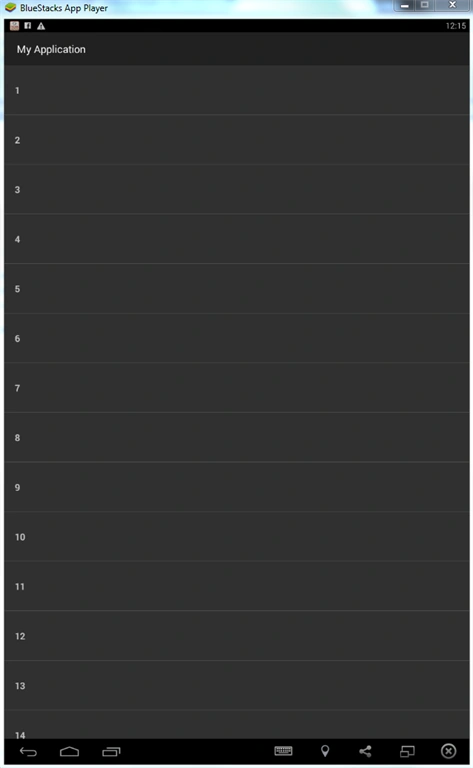
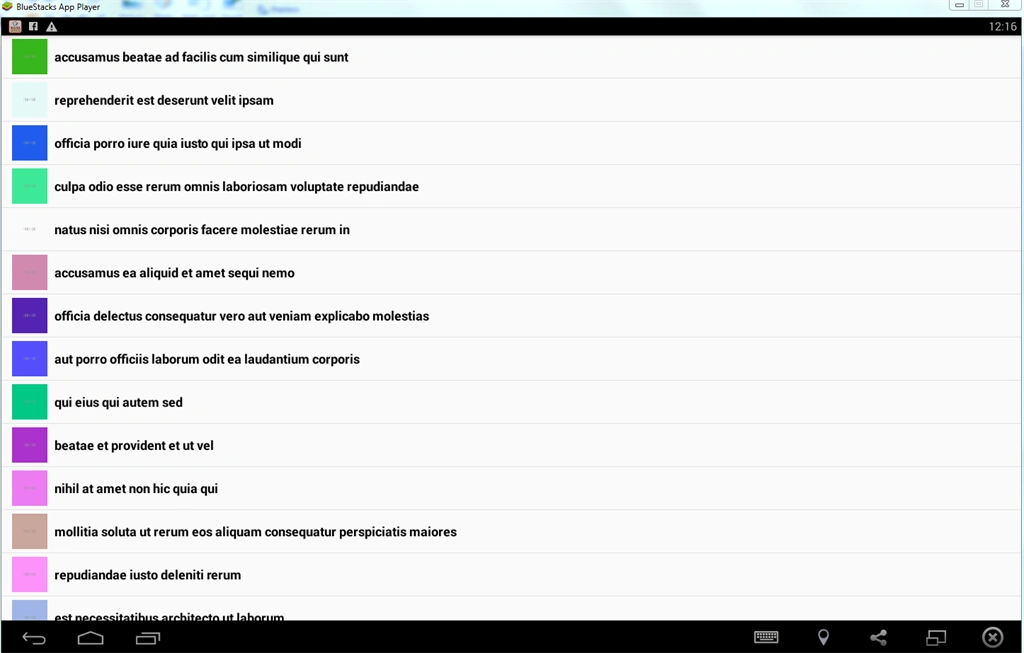
- In your async Task you will get Adapter class which have set adapter method in the following Adapter. We will make our custom adapter here, so here's the code.
- public class AAdapter extends BaseAdapter
- {
- private Activity activity;
- // private ArrayList<HashMap<String, String>> data;
- private static ArrayList title;
- private static LayoutInflater inflater = null;
- public AAdapter(Activity a, ArrayList b)
- {
- activity = a;
- this.title = b;
- inflater = (LayoutInflater) activity.getSystemService(Context.LAYOUT_INFLATER_SERVICE);
- }
- public int getCount()
- {
- return title.size();
- }
- public Object getItem(int position)
- {
- return position;
- }
- public long getItemId(int position)
- {
- return position;
- }
- public View getView(int position, View convertView, ViewGroup parent)
- {
- View vi = convertView;
- if (convertView == null) vi = inflater.inflate(R.layout.abcd, null);
- TextView title2 = (TextView) vi.findViewById(R.id.txt_ttlsm_row); // title
- String song = title.get(position).toString();
- title2.setText(song);
- TextView title22 = (TextView) vi.findViewById(R.id.txt_ttlcontact_row2); // notice
- String song2 = title.get(position).toString();
- title22.setText(song2);
- return vi;
- }
- }
Shagun ChoudharyPosted Apr 22, 2018, 9:08 PM
I am creating an app in which I want to load articles from geek to geek subj wise please help me in it as I have no idea. [email protected]
Santhakumar MunuswamyPosted Dec 4, 2015, 7:30 AM
Good one