
If you have created an external content type and are trying to access it in a list and get "AccessDenied" then that is because you have not given permissions to the logged in user to use that external content type. You can easily give permissions to that user or to all users in your site by going to the Central Administration site and configuring the business connectivity service. For the exact procedure of how to do it read the following.
SharePoint 2013 Business Connectivity Service Access DeniedError: http://mosshosting.asphostportal.com/?p=2650
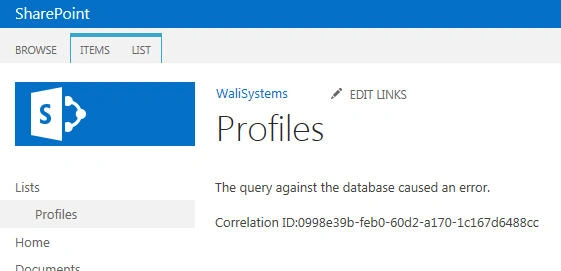
Some users get another very interesting error message after they have assigned permissions on the external content type. The error message is:
Message from ExternalSystem: "Login failed for user 'NT AUTHORITY\IUSR'.".
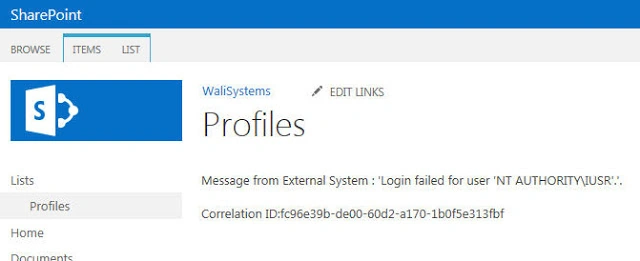
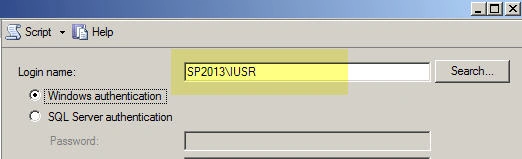
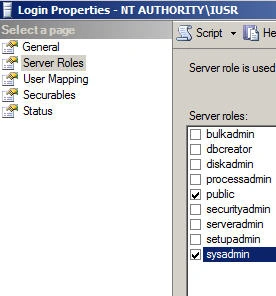
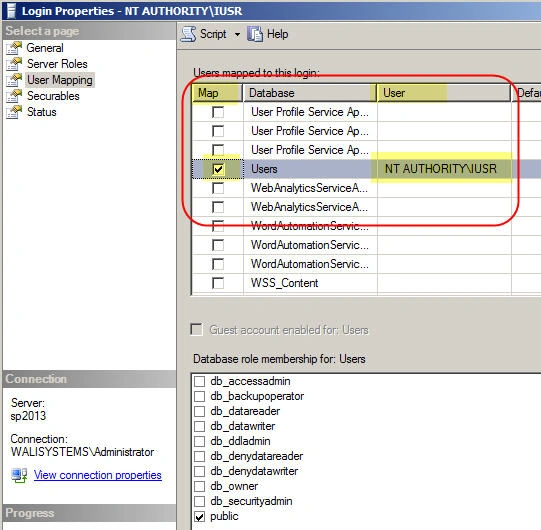
This error occurs because the database does recognize the credentials passed from SharePoint. Which database? The database that you are connecting to in your external content type! It depends on whether you have setup an application pool identity in SharePoint. If you are not using a managed service account for your services then you are most likely to get this error. This is not likely to occur in corporate environments but in home or test environments where users use "LOCAL SYSTEM" or "NETWORK SERVICE" in application pools, this error will occur. This is because" NETWORKSERVICE" translates to "NTAUTHORITY\IUSR" when credentials are passed from a web server to the database server. "IUSR" is used when user credentials are not available, for example, for anonymous users. To resolve this problem, either change the application pool identity or add "NT AUTHORITY\IUSR" to the database permissions. The first scenario is quite common. You can change application pool identity by going to the web server and updating the application pools or by logging into the SharePoint Central Administration site and going to" ManageService Accounts". We will cover the second scenario here; that is, to add IUSR to the database.
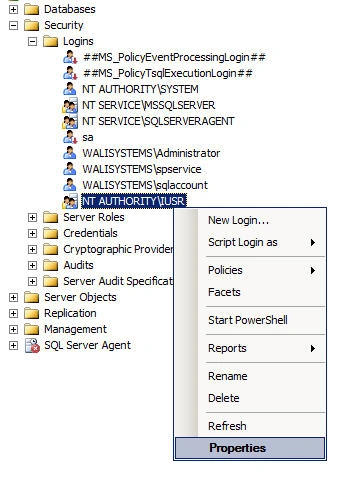
1. Go to Microsoft SQL Server Management Studio and connect to your database server.
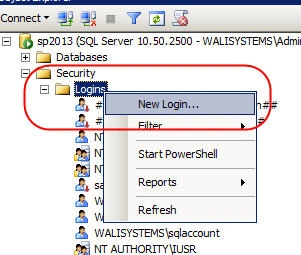
2. Expand the Security node and right-click the Logins node and select New Login.
kalu singh raoPosted Jul 6, 2016, 1:50 AM
Nice...
NeerajaPosted Sep 29, 2015, 2:57 AM
Thanks, This helped me.
Vijay BhaskarPosted Feb 11, 2015, 3:29 PM
check this link.. given easy solution.... http://ragavj.blogspot.co.uk/2012/03/how-to-resolve-bcs-sharepoint-2010.html