

Introduction
When a Power Automate flow works successfully in DEV but fails in PROD, especially with a 401 Unauthorized error, the issue is often related to the production environment rather than the flow logic.
Differences in connection references, authentication, permissions, environment variables, API configuration, or security policies can cause the same flow to behave differently after deployment. This article provides a simple step-by-step checklist to identify and resolve these issues.
When a Power Automate flow works correctly in DEV but fails in PROD with 401 Unauthorized, the issue is usually related to connection, authentication, or permissions, not the flow logic.
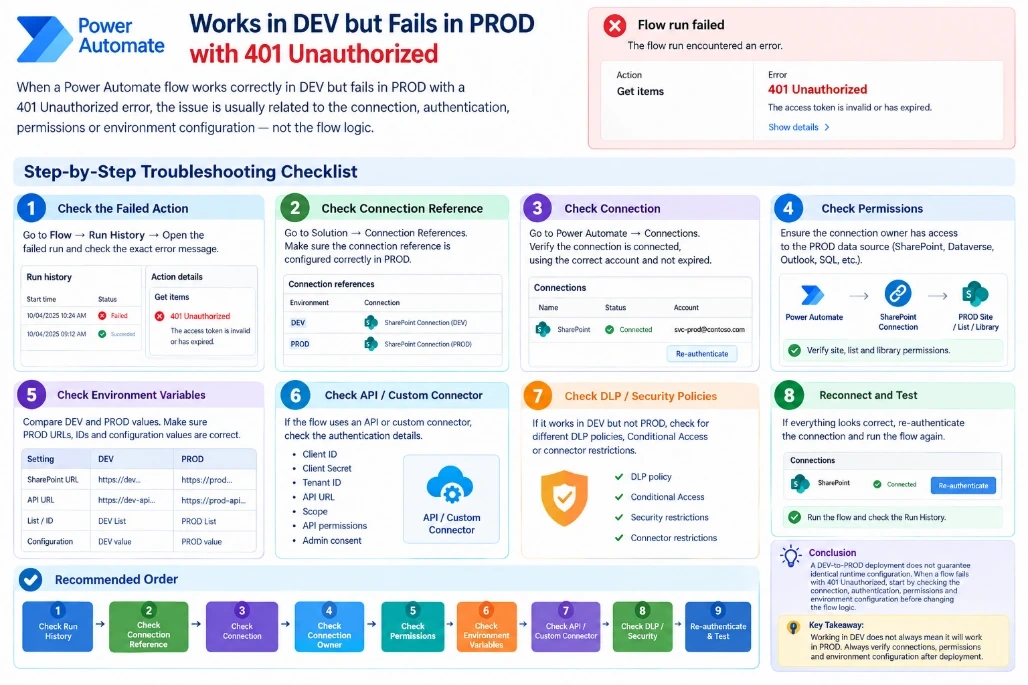
Simple Troubleshooting Checklist
1️⃣ Check the Failed Action
Go to:
Power Automate → Flow → Run History → Failed Run
Open the failed action and check the exact error message.
2️⃣ Check Connection Reference
Go to:
Solution → Connection References
Make sure the connection reference is configured correctly in PROD.
Example:
DEV → DEV SharePoint Connection
PROD → PROD SharePoint Connection
3️⃣ Check Connection
Go to:
Power Automate → Connections
Check:
Connection is Connected
Correct user/service account is used
Authentication has not expired
Connection is not broken
If required, re-authenticate the connection.
4️⃣ Check Permissions
Make sure the connection owner has access to the PROD data source.
For example:
Power Automate
      ↓
SharePoint Connection
      ↓
PROD SharePoint Site
      ↓
List / Library
Check SharePoint, Dataverse, Outlook, SQL, or other resources used by the flow.
5️⃣ Check Environment Variables
Compare DEV and PROD values.
For example:
Setting | DEV | PROD |
|---|---|---|
SharePoint URL | DEV URL | PROD URL |
API URL | DEV API | PROD API |
List/ID | DEV | PROD |
Configuration | DEV | PROD |
Make sure PROD values are correct.
6️⃣ Check API / Custom Connector
If the flow uses an API or custom connector, check:
Client ID
Client Secret
Tenant ID
API URL
Scope
API permissions
Admin consent
An expired secret or incorrect permission can cause 401 Unauthorized.
7️⃣ Check DLP / Security Policies
If the flow works in DEV but not PROD, check whether PROD has:
Different DLP policy
Conditional Access
Security restrictions
Connector restrictions
8️⃣ Reconnect and Test
If everything looks correct:
Connections → Select Connection → Re-authenticate
Then run the flow again and check the Run History.
Recommended Order
PROD Flow Failed
       ↓
Check Run History
       ↓
Check Failed Action
       ↓
Check Connection Reference
       ↓
Check Connection
       ↓
Check Connection Owner
       ↓
Check Data Source Permission
       ↓
Check Environment Variables
       ↓
Check API / Custom Connector
       ↓
Check DLP / Security
       ↓
Re-authenticate
       ↓
Test Again
Conclusion
A DEV-to-PROD deployment does not guarantee identical runtime configuration. When a flow fails with 401 Unauthorized, start by checking the connection, authentication, connection reference, permissions, and environment-specific configuration before changing the flow logic.
Following a systematic troubleshooting approach helps identify the root cause quickly and makes Power Automate deployments more reliable.
DEV → Working ✅
PROD → 401 Unauthorized ❌
First check:
Connection → Authentication → Permissions → Environment Configuration
Don't change the flow logic until these items have been verified.
Key takeaway: Working in DEV does not always mean it will work in PROD. Always verify connections, permissions, and environment configuration after deployment.
Join the conversation! Your thoughts help the community grow.