

Introduction
In this article, I will show how to generate a QR code dynamically using Power Automate without using any premium connectors. This method is useful when you want to create QR codes for URLs, text, or IDs automatically. It is a simple and cost-effective solution that works with standard connectors only. By the end of this article, you will be able to generate QR codes and use them in emails or other processes.
Prerequisites
Basic knowledge of creating flows
You should already have a SharePoint list
Scenario
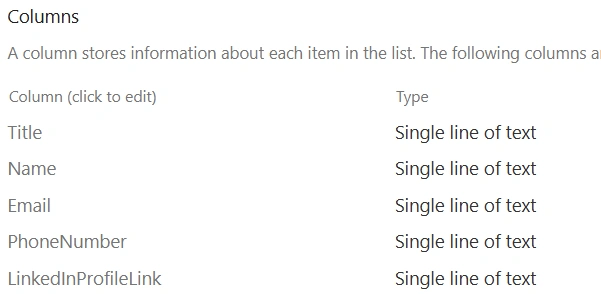
I have Registration list as shown in above image and I want that every time a new item is created, a unique QR code should be generated automatically, and then send an email with the QR code as an attachment using Power Automate.
End Result

Below are the steps to generate QR Code
Step 1:
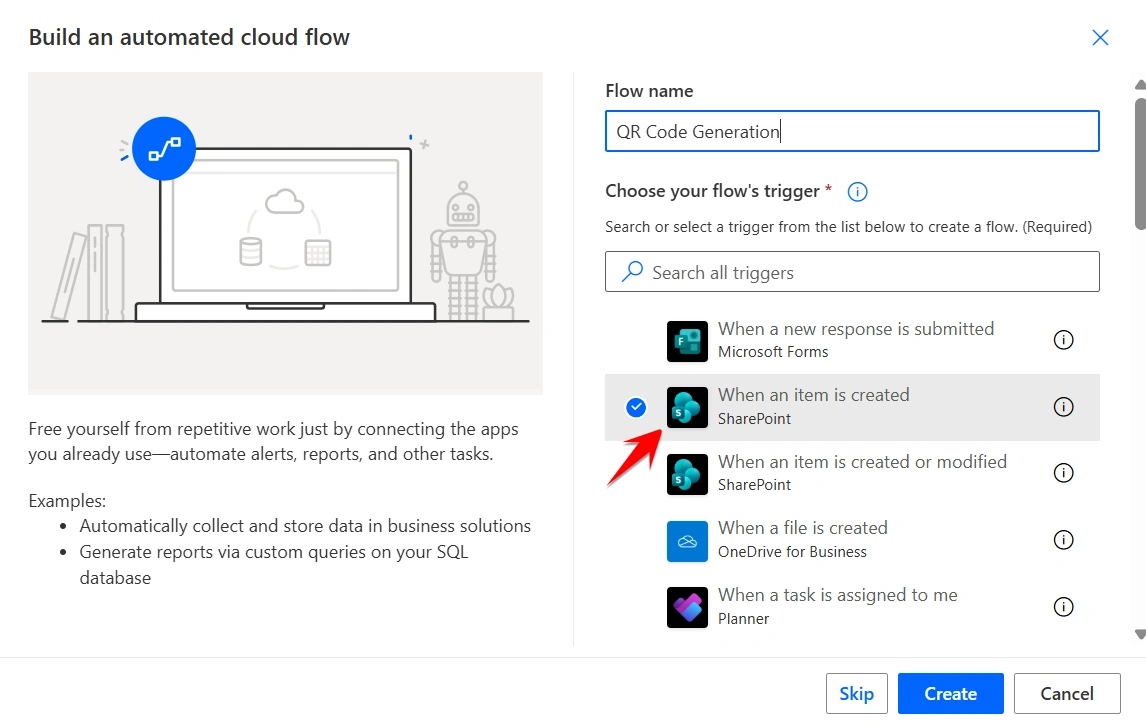
Go to make.powerautomate.com and click on Create. Select Automated cloud flow and choose the trigger When an item is created. Give your flow name like QR Code Generation, and then click on Create.
Step 2:
Add the Upload file from URL action. In the Source URL, pass the QuickChart URL and use the ID from the trigger output.
In the Destination File Path, use the same ID with .png extension. so the file is saved with a unique name.
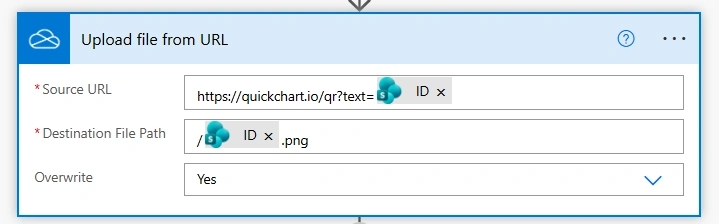
This action will generate the QR code from the URL and store it as an image file.
Step 3:
Add the Get file content action from OneDrive. In the File , pass the ID from the Upload file from URL action.
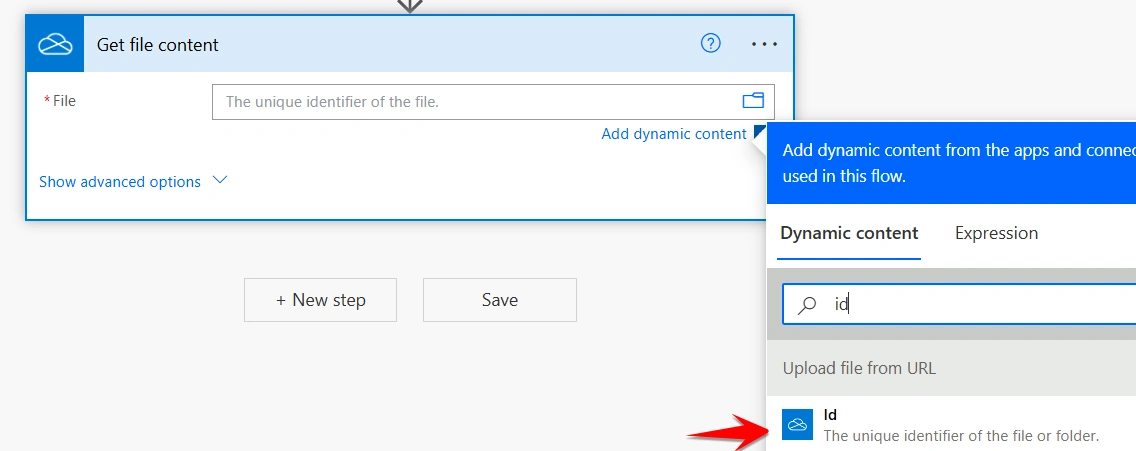
This step gets the QR code image content so it can be used in the next actions.
Step 4:
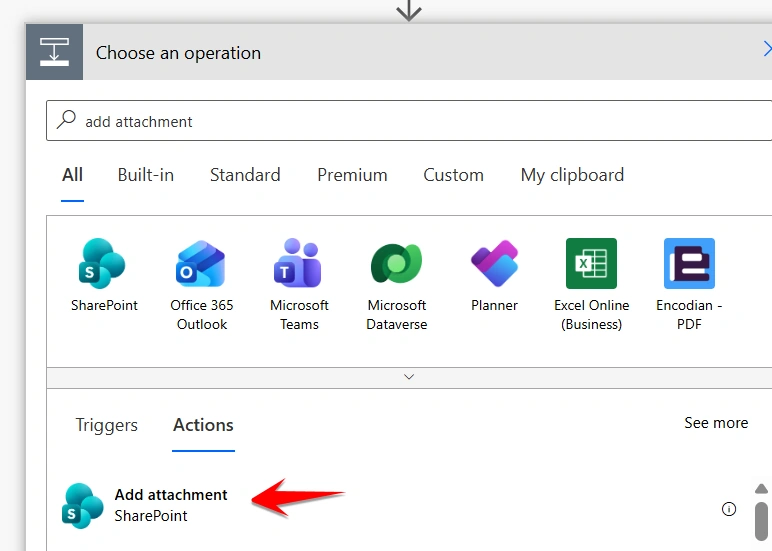
Add the Add attachment action. Select your SharePoint Site Address and List Name, then pass the ID from the trigger output in the ID field. In File Name, pass the Name from the Upload file from URL action, and in File Content, pass the File content from the Get file content action.
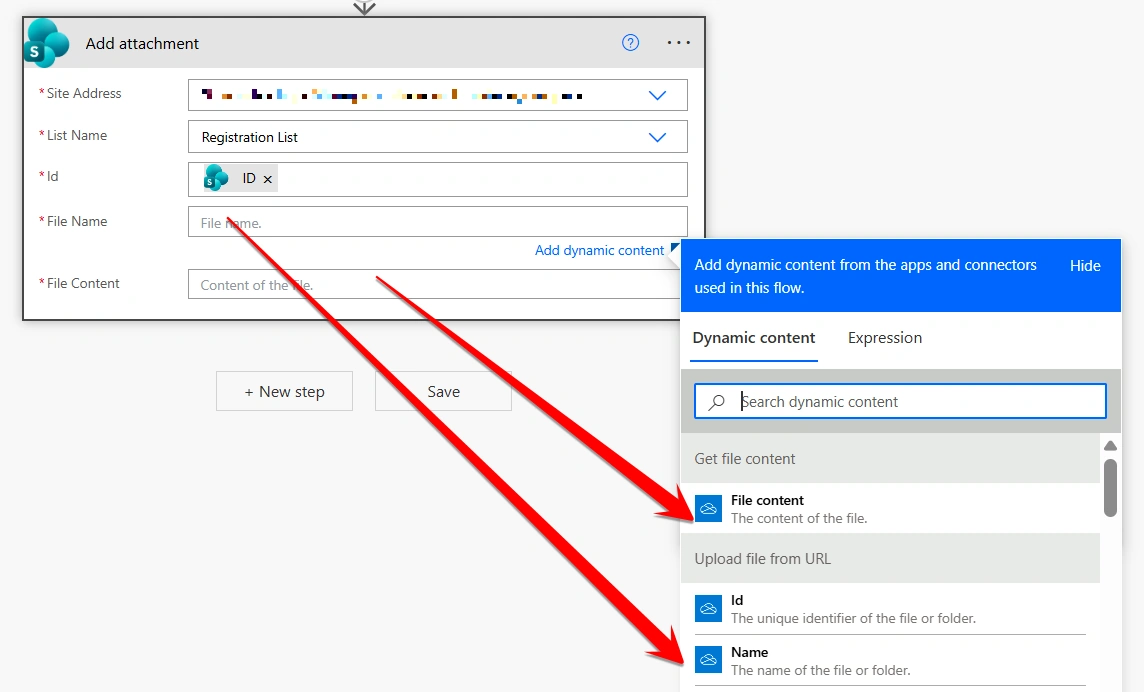
This step attaches the generated QR code image to the SharePoint item.
Step 5:
Add the Send an email action. In Attachments Name, pass the Name from the Upload file from URL action. In Attachments Content, pass the File content from the Get file content action.
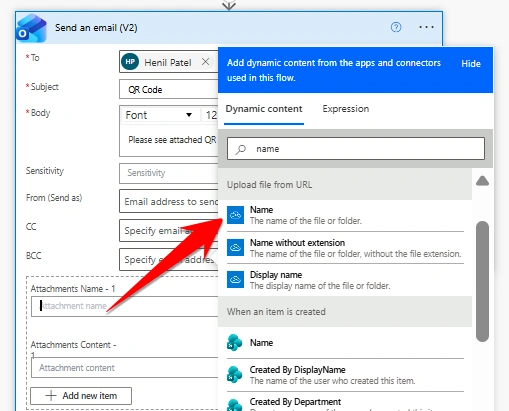
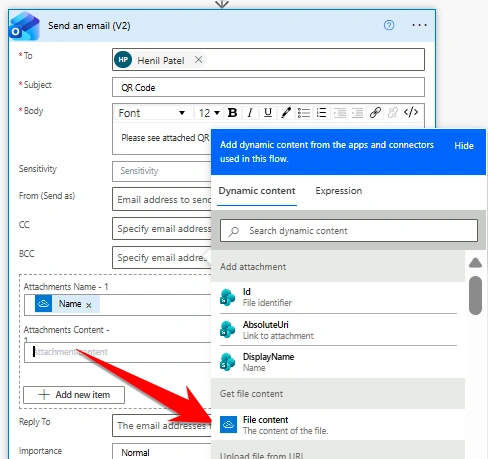
This step sends an email with the generated QR code image as an attachment.
Step 6:
Save the flow and create a new item in the SharePoint list. You will receive an email with the generated QR code as an attachment, and the same QR code will also be attached to the SharePoint item.
Conclusion
In this article, we learned how to generate a dynamic QR code using Power Automate without using any premium connectors. This solution automatically creates a QR code, saves it, and sends it by email. It is easy to implement and useful for many scenarios like registrations or tracking.
Join the conversation! Your thoughts help the community grow.