

How to generate a report from a SQL Server database using the Report Wizard in ASP.NET.
In this article I will explain how to generate a report from a SQL Server database using the Report Wizard and display it in ASP.NET.
Introduction
In this article we will generate a report from a SQL Server database using the Report Wizard and display it in ASP.NET using MicrosoftReportViewer control.
Step 1:

Create a new ASP.NET Web Application:
Step 2:
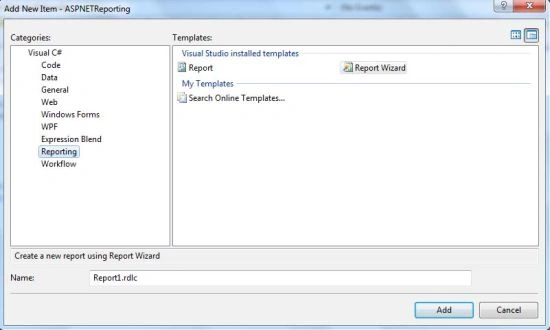
Add a new Report Wizard using right-click on project and Add -> New Item. Click on the Add button. Click Next on the Report Wizard welcome screen.
Step 3:

Choose your Data Connection and click on Next.
Click Next which will save a connection string in the Web.config file.
Step 4:

Select tables and columns to display on the report. Then click on Finish.
Step 5:

Select the Data Source (authors in this case) and click on Next.
Step 6:

Select the Report Type, Tabular or Matrix and click on Next.
Click Next in the "Design the Table" wizard.
Step 7:

Choose the table layout, Stepped or Block and click on Next.
Step 8:

Choose a table style from the left and click on Next and then Finish.
Step 9:
We have generated our report and added it to the project. Our next step is to display this report in a web form. To display the report we will use a Microsoft ReportViewer control.
Drag a Microsoft ReportViewer control to the Default.aspx from the Toolbox. It is found under Reporting tab. Select ReportViewer Tasks button (Little arrow in Top-Right of the ReportViewer) and select "Report1.rdls" from the "Choose Report" dropdown.
Final Output:
hemanth kumarPosted Oct 21, 2015, 1:53 PM
how can i generate a custom reports, which should show calculated values against each header..like net sale between days,between weeks and comparison also. can u please suggest?
MuthuMari MPosted Apr 6, 2012, 7:01 AM
For beginners its very useful to learn reporting services. Thanks.