

Want stunning AI images without a paid plan? Sora’s unpaid version is perfect for experimenting and producing high-quality visuals if you know how to prompt it. This guide walks you through everything — what Sora is, prompt structure, the exact keywords to use, practical prompt examples, and quick refinement tips so you get the best results every time.
What is Sora?
Sora is a generative AI (Gen-AI) image tool that converts text prompts into images — from photorealistic portraits to stylized art and imaginative scenes. In this article, we’re working specifically with the unpaid version of Sora, which still offers powerful capabilities for creators, marketers, and hobbyists who want great outputs without a subscription.
Quick Overview: How to Get Great Results with the Unpaid Version
Write clear, structured prompts.
Use style + quality + mood + composition keywords together.
Start simple, iterate fast, and refine.
Use camera/composition words when you want a photographic look.
Even on an unpaid plan, careful prompting can get results that look premium.
Prompt Structure — A Simple Formula
Use this compact formula to build prompts that Sora understands:
Subject + Style + Quality + Mood/Lighting + Composition/Camera
Example
“A serene mountain lake at sunrise — photorealistic, high-resolution, soft golden light, wide-angle, gentle fog.”
That single line tells Sora what to generate and how it should look.
Essential Keywords & Why They Matter
Below are the keyword groups I use most. Each group controls a different dimension of the image.
Style Keywords
Tell the model what visual language to use.
Examples: Photorealistic, 3D render, digital painting, anime, oil painting, cinematic
Use when: You want a clear visual identity (e.g., “photorealistic” vs “digital painting”).
Quality Keywords
Push for sharper, more detailed outputs.
Examples: High-resolution, ultra-realistic, 4K/8K, HDR, sharp focus
Use when: You want fine detail and clarity (important on unpaid plans where default resolution may be lower).
Mood & Lighting Keywords
Set atmosphere and emotion.
Examples: Cinematic lighting, soft golden hour, dramatic shadows, dreamy, neon glow
Use when: You want a specific emotional tone or time-of-day effect.
Camera & Lens Keywords
Make the image read like a photograph.
Examples: Wide-angle, telephoto, portrait, macro, shallow depth of field, bokeh
Use when: You want realistic camera-like framing and focus.
Composition Keywords
Control framing and subject placement.
Examples: Rule of thirds, centered composition, close-up, aerial view, symmetrical
Use when: You want a particular visual layout.
Detail & Modifier Keywords
Fine-tune textures, color, or material details.
Examples: detailed textures, reflective surfaces, subtle grain, pastel palette, vibrant colors
Use when: You need specific finishing touches.
Step-by-Step Prompts & Examples
Use these as templates — swap subjects, styles, and moods:
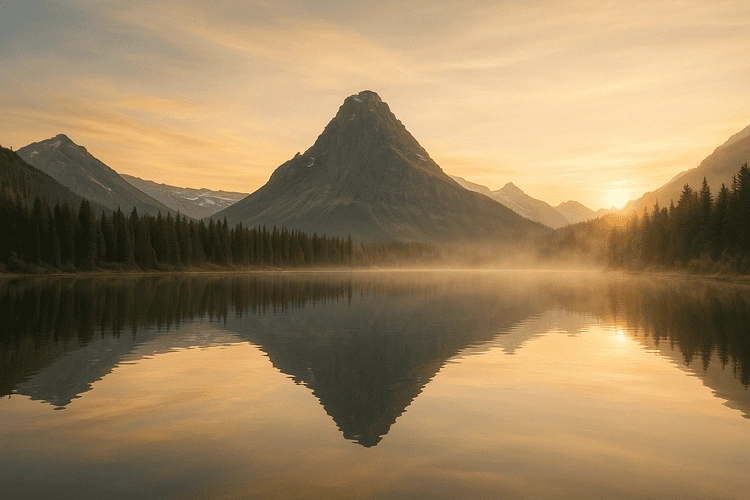
Photorealistic landscape
“A tranquil alpine lake at dawn, photorealistic, high-resolution, soft golden hour light, wide-angle, mist rising from water.”
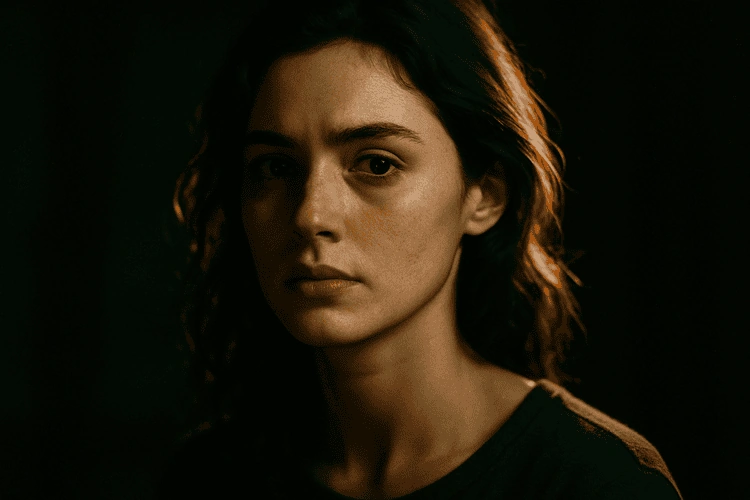
Cinematic portrait
“Female portrait, cinematic lighting, shallow depth of field, film grain, tight head-and-shoulders crop, dramatic rim light.”
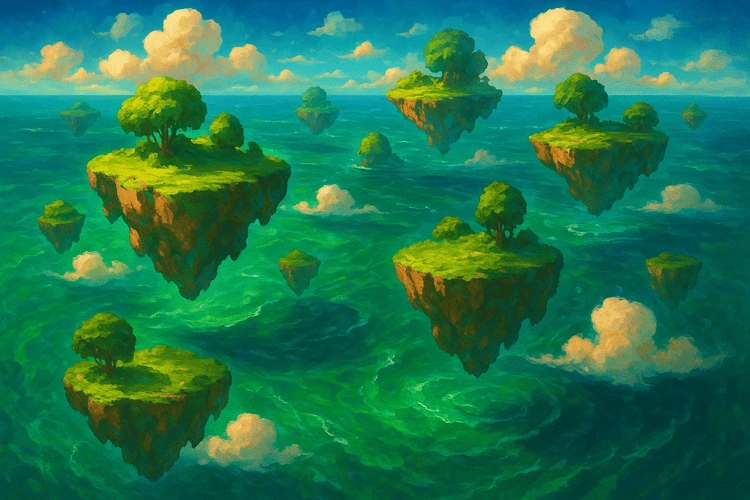
Fantasy environment
“Floating islands over an emerald ocean, digital painting, vibrant colors, high detail, aerial view, whimsical atmosphere.”
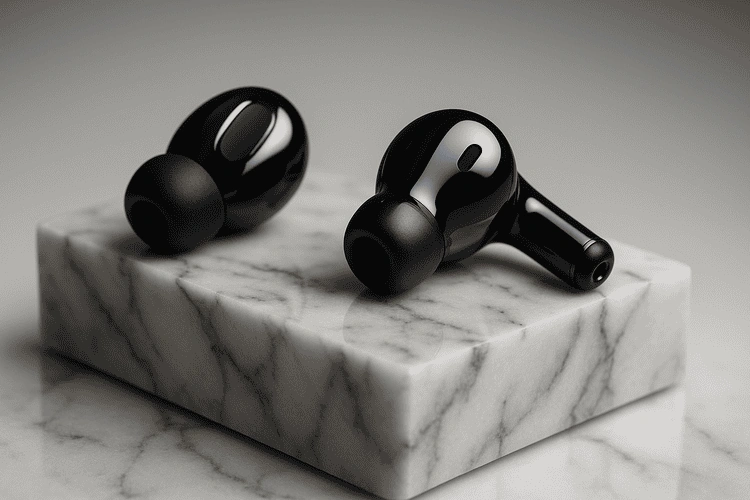
Product mockup
“Sleek wireless earbuds on a marble block, studio lighting, photorealistic, close-up macro, reflections, minimal background.”
Embedding a Logo (Practical Example) — Upload + Composite Workflow
This is a common use case: you want brand-aligned images for articles, social posts, or promo art that include your logo. Below is a practical step-by-step example you can adapt to generate a futuristic Sharp Token hero image (uploading the Sharp Token logo, adding themed graphics/objects, and placing headline/subtext).
Use case example
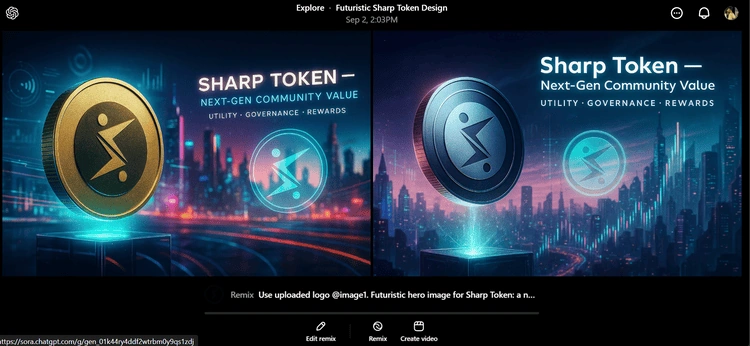
Goal: Create a futuristic hero image for an article about Sharp Token that features the Sharp Token logo integrated into a neon / cyber-tech scene, with supporting graphics (holographic charts, coin render, light trails) and headline/subtext on the image.
Steps
Prepare the logo file
Export the Sharp Token logo as a transparent PNG (800–2000 px longest side). Name it clearly (e.g.,
sharp-logo.png).If possible, also keep a high-contrast monochrome version for engraving/metallic treatments.
Upload the logo to Sora
In Sora’s interface, upload
sharp-logo.pngusing the image upload area.Note the reference token (e.g.,
@image1). If Sora’s UI doesn’t expose tokens, plan to write “use uploaded logo” in the prompt.
Compose a clear prompt that references the uploaded image
Make it explicit which uploaded image to use and exactly how/where to place it.
Be specific about style (futuristic, cyberpunk, neon), objects (coin, hologram, charts), text (headline + subtext), and integration details (emboss, holographic overlay, matched lighting).
Sample prompt — Futuristic Sharp Token Image
Use uploaded logo @image1. Futuristic hero image for Sharp Token: a neon cyber-tech skyline at dusk with glowing data streams and holographic charts floating mid-air, photorealistic + digital-paint blend, cinematic volumetric lighting, high detail. Foreground center-left: a tilted 3D Sharp Token coin hovering above a glass pedestal with subtle particle trails and light streaks. Place the uploaded Sharp Token logo on the coin face (centered, precise engraving, natural bevel, ~28% of coin face) and again as a semi-transparent holographic decal floating to the right of the coin (20% opacity, slight rotation). Integrate a top-right headline area and add text: Headline: “Sharp Token — Next-Gen Community Value” (modern sans-serif, bold, white with soft neon outline). Subtext: “Utility • Governance • Rewards” (regular, small caps). Ensure logo and coin reflections match scene lighting, apply matched reflections and slight curvature to holographic decal, add subtle grain and filmic color grade (cool teal + magenta). High-resolution, no watermark, no extra logos, maintain original logo aspect ratio, seamless integration.
Add negative/instructional cues
Include this as a negative prompt or as extra instructions:
no watermark, no extra logos, no duplicated logos, avoid stretching/skewing of uploaded logo, avoid heavy compression artifacts, no text beyond specified headline/subtext.If Sora supports a negative prompt field, paste that there.
Adjust size/placement & iterate
If the coin logo appears too small - add:
logo on coin face ~40% of coin face.If the holographic decal looks pasted - add:
apply matched lighting, soft edge blending, slight glow and noise to decal; warp to match perspective.If the headline is hard to read - add:
place headline on semi-transparent dark panel (12–18% opacity)orincrease neon outline for headline.If background is too busy - add:
increase background blur (bokeh), reduce saturation of distant neon signs.
Rule: change only one item per generation (size, opacity, or lighting) so you can see what changed.
Final refinement
Add finishing modifiers:
increase micro-detail on coin engraving, sharpen logo edges, slight vignette to focus on coin, subtle chromatic aberration for cinematic look.If the image is intended for social or hero use, request the canvas size in the prompt (e.g.,
1600×900 hero compositionor1200×628 social banner) to help framing.For print or high-res needs, ask
print-ready, high-resolutionif Sora supports higher output on the unpaid tier, otherwise plan to lightly upscale in a dedicated upscaler.

Tips to Maximize Quality on the Unpaid Version
Be precise: Replace vague words (“nice”, “beautiful”) with concrete descriptors (“soft morning light”, “matte ceramic texture”).
Use camera language for realism: “Shallow depth of field,” “50mm portrait lens,” or “macro close-up” helps Sora mimic real photography.
Prioritize keywords: If character limits exist, lead with the most important keywords (subject → style → quality).
Iterate rapidly: Generate variations by changing one keyword at a time (e.g., swap “dramatic lighting” for “soft lighting”).
Add negative cues (if supported): e.g., “no text, no watermark, no busy background” to avoid unwanted elements.
Use short phrases, not long sentences: Compact instructions are easier for the model to follow.
Refinement Workflow — Small Changes, Big Gains
Generate an initial image.
Note what’s off (lighting, composition, detail).
Add one or two corrective keywords:
Too dark - add “bright, natural light”
Lacks depth -add “depth of field, cinematic lighting”
Colors too saturated - add “muted palette, pastel tones”
Re-run and compare. Keep changes incremental.
Common Pitfalls & How to Avoid Them
Overloading the prompt: Too many instructions can confuse the model — prioritize top 5 descriptors.
Vague descriptors: “Beautiful scene” - swap for “sunset, warm tones, soft haze.”
Ignoring composition: Add “close-up” or “aerial view” to avoid awkward framing.
Expecting premium features: The unpaid version may limit resolution or variations—focus on better prompts, not higher specs.
Final Checklist Before You Hit Generate
Subject described clearly
Style keyword chosen (photorealistic / painting / etc.)
Quality keyword added (high-resolution / HDR)
Mood/lighting specified (golden hour / dramatic)
Composition/camera language added (wide-angle / portrait)
Any negatives included (no watermark / no text)
Conclusion
You don’t need a paid plan to create high-quality visuals — with the unpaid version of Sora and the right prompt strategy, you can generate professional, brand-aligned images. By following the Subject + Style + Quality + Mood + Composition formula, refining your prompts step by step, and using precise keywords instead of vague descriptors, you’ll consistently achieve polished results. Whether your goal is product photos, futuristic graphics, fantasy landscapes, or branded hero images, Sora gives you the creative flexibility to bring your ideas to life.
Join the conversation! Your thoughts help the community grow.