Microsoft PowerApps has emerged as one of the fastest app development platforms. You can easily create a native app which can run on any device, like Android/iOS/Windows mobile phones or any desktop browser.
Microsoft has provided tons of connectors to connect to your required data source. Today, we will explore an option to pull data from On-premise SQL Server Database.
There could be two different requirements to pull the data from SQL DB.
- You might need all the records from table or view as is – this is directly possible in PowerApps using SQL Connector.
- You might need to run some SQL queries or execute a stored procedure and get a set of records in return – this is not possible directly in PowerApps. To achieve this, we need to create a FLOW which will indeed call a stored procedure and return a result to PowerApps.
Prerequisite
We need to install an
On-premise Data Gateway on any server, say Server1, in your on-premise network. Make sure your on-premise SQL database is accessible from Server1. Download the latest version of gateway and install it.
Let's start with PowerApps. Open your native app or SharePoint customized forms. From the View menu, select Data Sources >> Add data source >> SQL server.
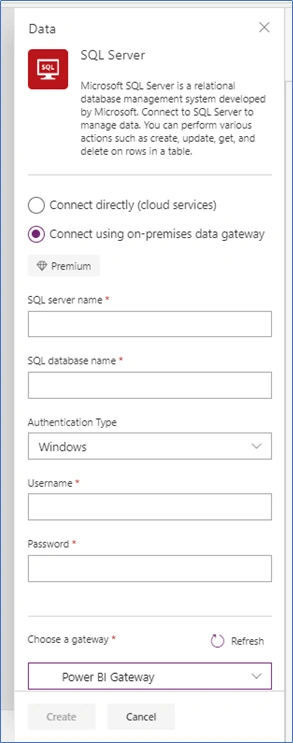
It will ask whether you want to connect to cloud SQL Server or your on-premise SQL Server.
Select "Connect using on-premise data gateway".
Mention the server name, database name - select either Windows authentication or basic authentication whichever is possible.
Select the Gateway which you have installed as mentioned above.
As part of the first requirement where you might need all the records from a table, once the connection is added, you can easily select any table from the database, as shown below.
Now, you can easily bind this table data to the combo box, dropdown list, or Gallery item. It works the same as SharePoint List data source. Now, you can use the filter, sort, and select columns on this data source.
To fulfill the second requirement, we need to create a FLOW.
Login to https://flow.microsoft.com
Click on My Flows >> Create New Flow from blank
Add trigger as PowerApps. We will be calling this FLOW from PowerApps.
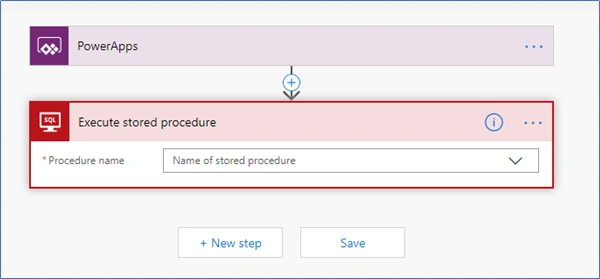
Add a new step >> Search for SQL Server. Select “Execute stored procedure” action.
We need to set up a new connection. If the connection is already added, then it will take it automatically. If not, we need to set up the new one. Click on the three-dot ellipsis icon >> Add new connection (or choose existing).
Similar to the above step, select the Database name, server name, authentication type, and credentials. Select your installed Gateway.
Once you add the connection and select it, it will directly ask you to choose the stored procedure name from that database.
Select the required stored procedure. Within the next second, it will load the UI to specify the parameter value (if your stored procedure needs a parameter).
We can get this parameter dynamically from PowerApps too. For that, set the value of the parameter as “Ask in PowerApps”, as shown below.
Add next action/step as Request/Response. This is needed to respond to the result to PowerApps from where this FLOW will be triggered.
Save the FLOW and test with a manual trigger. This is needed to get a test response from the SQL database stored procedure.
After successfully running FLOW, you will see something like below.
Click on “Execute stored procedure” to see the response.
Copy the result after [ till ]. - Edit the flow again - Edit Response action - Click on “Use sample payload to generate schema” - Paste the copied result from the above response.
In the body field of the above action, paste the below code.
body('Execute_stored_procedure')['resultsets']['Table1']
Replace the highlighted text with the name of stored procedure action.
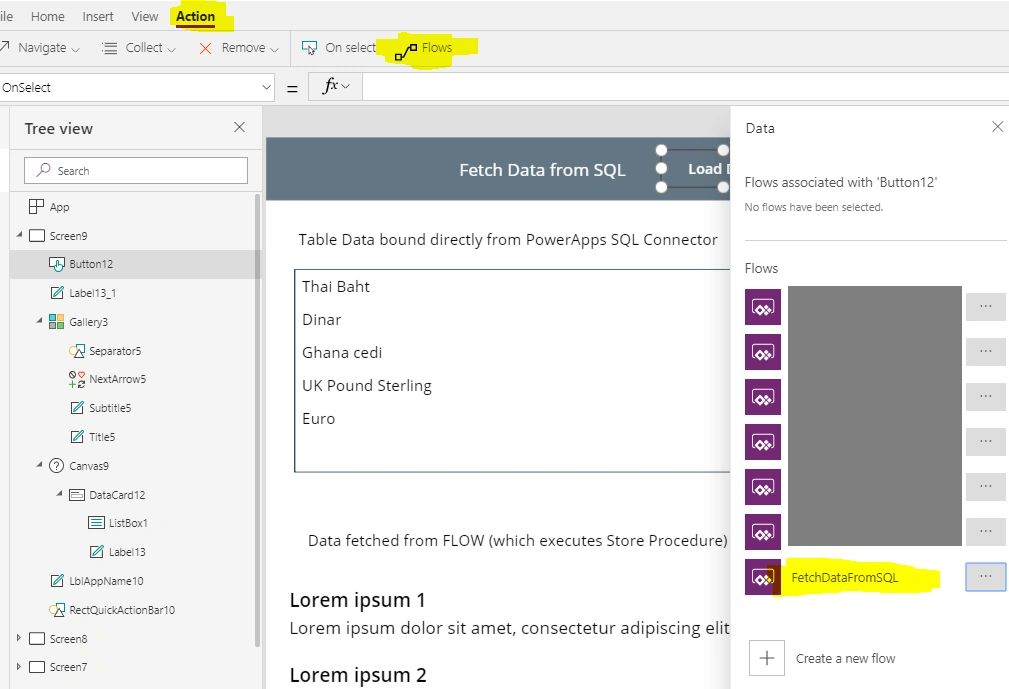
Let's go back to PowerApps now. Open your native app in Edit mode or customized forms. Select the button or screen on the event of which you want to trigger the flow. In my case, it's button onclick event.
From Action menu, select FLOW. Look for the FLOW which you have recently created and click on it. This will add the FLOW connection in the app.
Below is how you can call the FLOW to run. Specify the parameter if any.
From any button, OnSelect in your app, Screen OnVisible event, or App OnStart event, you can write code as shown below to trigger the FLOW.
Collect the result coming from FLOW into a collection.
So, you can easily fetch the data from SQL DB from your on-premise server. You can easily execute a stored procedure in your SQL database from PowerApps. That’s it for now.
Thank you.









Netguy IncPosted Aug 4, 2020, 9:28 AM
I too am having the same problem as both Joe and Jeff. I added a Vertical Gallery and tried to select the data source based on the Data Flow option. The difference with my app is that I am not pulling in two tables but just one. However again the data is not coming up when I add a Vertical data gallery.
Joe CollinsPosted May 5, 2020, 6:13 PM
Hi there! the import step that is not working for me is the final collection of the results from sql. I can see the flow runs fine and shows the correct data in the output of the Response, but I just can't get it to view back in the app. PA also does not show that it actually collected anything. So, I think the flow is correct but my onselect must be wrong. Do you think you can help me?
Ian GarciaPosted Jan 24, 2020, 10:29 PM
I have a question... I make a connection of powerapps with sql through a gateway, the installation proceeds but I cannot modify or insert data, what would be the problem?
Siva KumarPosted Sep 25, 2019, 12:00 AM
My issue got resolved thanks a lot Sarvesh.
Siva KumarPosted Sep 23, 2019, 12:53 PM
I have very simple stored procedure which gives recovery model of database when I pass dbname as input. I have created flow it works absolutely fine till the flow. I’m able to see sp output in flow but I’m not able to read output from flow to PowerApps could you please help ?
Oana SudituPosted Aug 26, 2019, 6:39 AM
Hello, Could you please post the content of the stored procedure? Thank you.
Pradip RathodPosted Jul 18, 2019, 10:09 AM
Thank you Sarvesh! This is very useful!