

Now, we will create our Application. I hope, you will like this.
Background
Normally, we call Google Geolocation API, either from the Server side or from Client side, right? Today, we use the Server side. It is fully dynamic. We will use two tools, one is Postman and other one is Fiddler. Both are used to test Web API. This Google Geolocation API depends on latitude and longitude. Both will control our client. They will give the value.
Creating Database
The following query can be used to create a database in your SQL Server.
- CREATE DATABASE SalesTracking;
- CREATE TABLE [dbo].[crm_DailySalesTask](
- [DailySalesTaskID] [bigint] NOT NULL,
- [UserID] [bigint] NULL,
- [BuyerName] [nvarchar](max) NULL,
- [Description] [nvarchar](max) NULL,
- [Achivement] [nvarchar](max) NULL,
- [Latitude] [nvarchar](max) NULL,
- [Longitude] [nvarchar](max) NULL,
- [Address] [nvarchar](max) NULL,
- [company_name] [nvarchar](max) NULL,
- [CreateDate] [datetime] NULL,
- CONSTRAINT [PK_crm_DailySalesTask] PRIMARY KEY CLUSTERED
- (
- [DailySalesTaskID] ASC
- )WITH (PAD_INDEX = OFF, STATISTICS_NORECOMPUTE = OFF, IGNORE_DUP_KEY = OFF, ALLOW_ROW_LOCKS = ON, ALLOW_PAGE_LOCKS = ON) ON [PRIMARY]
- ) ON [PRIMARY] TEXTIMAGE_ON [PRIMARY]
- GO
Start Virtual Studio File>New>Project and click. New Project window will be shown on your monitor. Select Web and select ASP.NET Web Application (.NET Framework), give the name and click OK button. Again, a new Window will be shown on your monitor. From the following pop up, select Web API and click OK button once.
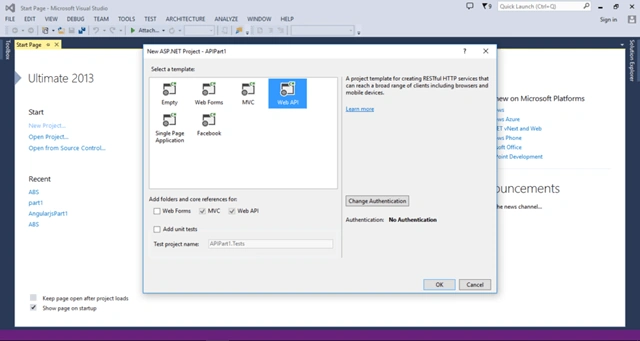
Figure: Web API Template with add folders and core references for MVC and Web API.
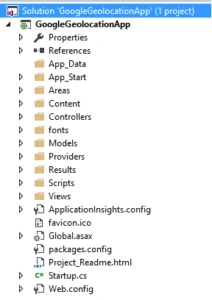
A project as MVC folder structure with core references will be created for you.
Create Entity Data Model
Right click on your model folder and click new, select ADO.NET Entity Data Model. Follow the steps given. Once you have done the process, you can see the EDMX file and other files in your model folder. Here I gave SalesTrackingEntities for our Entity data model name. Now you can see a file with EDMX extension has been created.
Create ResponseModel Class
We will create ResponseModel class in Model folder. Actually, this class will be used for the return type. The code is given below:
- public class ResponseModel
- {
- public string Message { set; get; }
- public bool Status { set; get; }
- public object Data { set; get; }
- }
We will create a virtual class in Model folder and the query is given bellow:
- public class vmTask
- {
- public Int64 UserID { get; set; }
- public string BuyerName { get; set; }
- public string Achivement { get; set; }
- public string Latitude { get; set; }
- public string Longitude { get; set; }
- public string Address { get; set; }
- public string Description { get; set; }
- }
Right click on Controllers folder, add >controller, select Web API 2 Controller-Empty and give the name of the controller. Click OK once.
- public class TaskController : ApiController
- {
- SalesTrackingEntities _dbContext = null;
- // constructor
- public TaskController()
- {
- _dbContext = new SalesTrackingEntities();
- }
- // for Task save
- [HttpPost]
- public ResponseModel SaveTask(vmTask _vmTask)
- {
- ResponseModel _modelObj = new ResponseModel;
- int result = SaveTaskDetails(_vmTask);
- if (result == 1)
- {
- _modelObj.Status = true;
- _modelObj.Message = "Task Saved";
- }
- else
- {
- _modelObj.Status = false;
- _modelObj.Message = "Task Saved faill";
- }
- return _modelObj;
- }
- [HttpGet]
- // for get Task data by UserID
- public ResponseModel GetTaskList(Int64 userID)
- {
- ResponseModel _modelObj = new ResponseModel();
- List<vmTask> taskes = GetTaskDetails(userID);
- if (taskes.Count > 0)
- {
- _modelObj.Data = taskes;
- _modelObj.Status = true;
- _modelObj.Message = "Data get successfully.";
- }
- else
- {
- _modelObj.Data = taskes;
- _modelObj.Status = false;
- _modelObj.Message = "Data not found.";
- }
- return _modelObj;
- }
- private List<vmTask> GetTaskDetails(long userID)
- {
- List<vmTask> taskes = null;
- try
- {
- taskes = (from ds in _dbContext.crm_DailySalesTask
- where ds.UserID == userID
- select new vmTask
- {
- UserID = ds.UserID ?? 0,
- BuyerName = ds.BuyerName,
- Achivement = ds.Achivement,
- Description = ds.Description,
- Address = ds.Address
- }).ToList();
- return taskes;
- }
- catch
- {
- taskes = null;
- }
- return taskes;
- }
- private int SaveTaskDetails(vmTask _vmTask)
- {
- crm_DailySalesTask _objSalesTask = new crm_DailySalesTask();
- int result = 0;
- string Address = "";
- try
- {
- Int64 nextRow = _dbContext.crm_DailySalesTask.Count() + 1;
- _objSalesTask.DailySalesTaskID = nextRow;
- _objSalesTask.UserID = _vmTask.UserID;
- _objSalesTask.BuyerName = _vmTask.BuyerName;
- _objSalesTask.Description = _vmTask.Description;
- _objSalesTask.Achivement = _vmTask.Achivement;
- _objSalesTask.Latitude = _vmTask.Latitude;
- _objSalesTask.Longitude = _vmTask.Longitude;
- Address = GetAddress(_objSalesTask.Latitude, _objSalesTask.Longitude);
- _objSalesTask.Address = Address;
- _dbContext.crm_DailySalesTask.Add(_objSalesTask);
- _dbContext.SaveChanges();
- result = 1;
- }
- catch
- {
- result = 0;
- }
- return result;
- }
- // get Address
- private string GetAddress(string latitude, string longitude)
- {
- string locationName = "";
- string url = string.Format("http://maps.googleapis.com/maps/api/geocode/xml?latlng={0},{1}&sensor=false", latitude, longitude);
- XElement xml = XElement.Load(url);
- if (xml.Element("status").Value == "OK")
- {
- locationName = string.Format("{0}",
- xml.Element("result").Element("formatted_address").Value);
- }
- return locationName;
- }
- }
- SalesTrackingEntities _dbContext = null;
- // constructor
- public TaskController()
- {
- _dbContext = new SalesTrackingEntities();
- }
- // for Task save
- [HttpPost]
- public ResponseModel SaveTask(vmTask _vmTask)
- {
- ResponseModel _modelObj = new ResponseModel();
- int result = SaveTaskDetails(_vmTask);
- if (result == 1)
- {
- _modelObj.Status = true;
- _modelObj.Message = "Task Saved";
- }
- else
- {
- _modelObj.Status = false;
- _modelObj.Message = "Task Saved faill";
- }
- return _modelObj;
- }
- private int SaveTaskDetails(vmTask _vmTask)
- {
- crm_DailySalesTask _objSalesTask = new crm_DailySalesTask();
- int result = 0;
- string Address = "";
- try
- {
- Int64 nextRow = _dbContext.crm_DailySalesTask.Count() + 1;
- _objSalesTask.DailySalesTaskID = nextRow;
- _objSalesTask.UserID = _vmTask.UserID;
- _objSalesTask.BuyerName = _vmTask.BuyerName;
- _objSalesTask.Description = _vmTask.Description;
- _objSalesTask.Achivement = _vmTask.Achivement;
- _objSalesTask.Latitude = _vmTask.Latitude;
- _objSalesTask.Longitude = _vmTask.Longitude;
- Address = GetAddress(_objSalesTask.Latitude, _objSalesTask.Longitude);
- _objSalesTask.Address = Address;
- _dbContext.crm_DailySalesTask.Add(_objSalesTask);
- _dbContext.SaveChanges();
- result = 1;
- }
- catch
- {
- result = 0;
- }
- return result;
- }
- private string GetAddress(string latitude, string longitude)
- {
- string locationName = "";
- string url = string.Format("http://maps.googleapis.com/maps/api/geocode/xml?latlng={0},{1}&sensor=false", latitude, longitude);
- XElement xml = XElement.Load(url);
- if (xml.Element("status").Value == "OK")
- {
- locationName = string.Format("{0}",
- xml.Element("result").Element("formatted_address").Value);
- }
- return locationName;
- }
Get task list by userID:
- private List<vmTask> GetTaskDetails(long userID)
- {
- List<vmTask> taskes = null;
- try
- {
- taskes = (from ds in _dbContext.crm_DailySalesTask
- where ds.UserID == userID
- select new vmTask
- {
- UserID = ds.UserID ?? 0,
- BuyerName = ds.BuyerName,
- Achivement = ds.Achivement,
- Description = ds.Description,
- Address = ds.Address
- }).ToList();
- return taskes;
- }
- catch
- {
- taskes = null;
- }
- return taskes;
- }
Check by Postman
For HttpPost:

Wow, its work is done. Let's go for HttpGet.
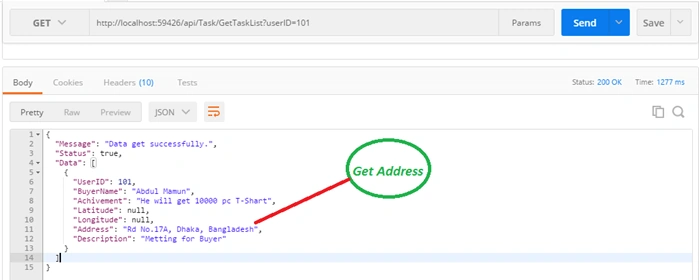
It will always work now.
Check by Fiddler
For HttpPost:
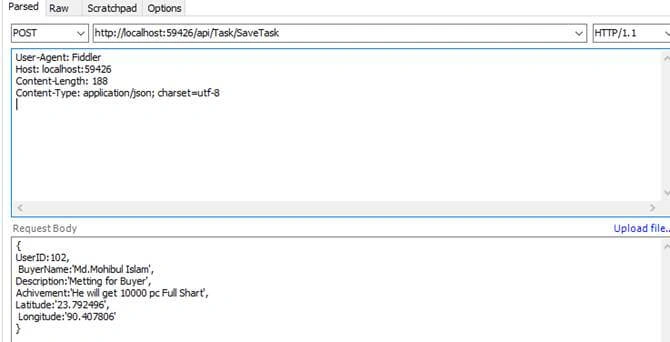
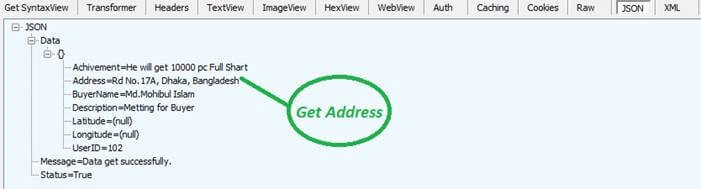
Output result is given below:

Wow its work is done. Let's go for HttpGet.
Samer SamPosted Jun 17, 2020, 5:41 AM
Code is not working ..You must use an API key to authenticate each request to Google Maps Platform APIs
zakir HussainPosted Jan 21, 2019, 1:08 AM
Can you please post the same project without using MVC? Any help will be much aprreciated.
Debendra DashPosted Sep 4, 2016, 10:47 PM
Good one...
Anu VPosted Aug 31, 2016, 4:34 AM
Nice..
Vignesh ManiPosted Aug 23, 2016, 9:12 AM
Nice one
Vignesh ManiPosted Aug 23, 2016, 9:12 AM
Nice
Bhavik PatelPosted Aug 22, 2016, 10:45 PM
Excellent.
Prasanna MuraliPosted Aug 22, 2016, 10:16 AM
Nice one....
Humayun Kabir MamunPosted Aug 22, 2016, 7:58 AM
Nice...
Ramesh PalaniappanPosted Aug 22, 2016, 1:43 AM
Good One
Shamim UddinPosted Aug 22, 2016, 12:48 AM
Thank
RajaPosted Aug 21, 2016, 11:56 PM
Nice Share....