

Introduction
This article shows how to get the timer job status and histories using PowerShell scripts.
Timer Jobs:
A timer job contains a definition of the service to run and specifies how frequently the service is started. The SharePoint 2010 Timer service (SPTimerv4) runs timer jobs. Many features in SharePoint rely on timer jobs to run services according to a schedule.
Timer job reports:
Now I will show you how to export the timer job report into a CSV file. Look at the following code that gets you the information:
- Timer job name
- Timer job status
- Timer job last run time
- Timer job schedule
- Function TimerJobReport()
- {
- $Output = $scriptBase + "\" + "TimerJobReport.csv";
- "Name" + "," + "Status" + "," + "LastRun" + "," + "Schedule" | Out-File -Encoding Default -FilePath $Output;
- write-host "Generating TimerJob generic report" -fore yellow
- $TimerJobs = get-sptimerjob
- foreach($TimerJob in $Timerjobs)
- {
- $TimerJob.name + "," + $TimerJob.status + "," + $TimerJob.lastruntime + "," + $TimerJob.schedule | Out-File -Encoding Default -Append -FilePath $Output;
- }
- write-host "TimerJob genric report collected and placed under " $Output -fore green
- }
When the preceding function is called you get an output in a CSV file (TimerJobReport.csv) that has the preceding stated information on all the timer jobs in your SharePoint Farm.
Timer job Latest history
Now I will show you how to get the latest (last run) history for all the timer jobs in the SharePoint farm. The following code gets you the following information for all the timer jobs in the SharePoint Farm and outputs it to a CSV file (TimerJobHistoryReport.csv).
- Timer job name
- Timer job status
- Server name
- Web application name
- Error message for failures
- Function TimerJobHistory()
- {
- $Output1 = $scriptBase + "\" + "TimerJobHistoryReport.csv";
- "Name" + "," + "Status" + "," + "ServerName" + "," + "WebApplicationName" + "," + "ErrorMessage" | Out-File -Encoding Default -FilePath $Output1;
- write-host "Generating TimerJob history report" -fore yellow
- $TimerJobs = get-sptimerjob
- foreach($TimerJob in $Timerjobs)
- {
- $JobHistories = $TimerJob.historyentries
- foreach($Jobhistory in $JobHistories)
- {
- if($TimerJob.lastruntime.ToUniversalTime() -eq $JobHistory.starttime)
- {
- $TimerJob.Name + "," + $Jobhistory.status + "," + $Jobhistory.servername + "," + $Jobhistory.WebApplicationName + "," + $Jobhistory.ErrorMessage | Out-File -Encoding Default -Append -FilePath $Output1;
- }
- }
- }
- write-host "TimerJob history report generated and placed under " $output1 -fore green
- }
In the preceding function you need to match the last run time with the job history start time to get the latest history for the timer job.
Specific Timer job history
Now I will show you how to get history for a specific timer job and how many latest histories that you want to look at. The following script generates a report for a given specific timer job and it is input from the user to show how much history data they would need to generate the given timer job. The following code helps to do that and exports the output to a CSV file (SpecificTimerJobHistoryReport.csv).
- Function SpecificTimerJob()
- {
- $Output2 = $scriptBase + "\" + "SpecificTimerJobHistoryReport.csv";
- "Name" + "," + "Status" + "," + "ServerName" + "," + "TimerJobStartTime" + "," + "WebApplicationName" + "," + "ErrorMessage" | Out-File -Encoding Default -FilePath $Output2;
- $TimerJobName = read-host "Enter the timer job name "
- $Timerjob = get-sptimerjob -identity $TimerJobName
- $jobHistories = @($timerjob.historyentries)
- $HowManyHistory = read-host "Please enter the number of histories that you want to return for this timerjob "
- for($i = 0 ; $i -le $HowManyHistory; $i++)
- {
- $TimerJob.Name + "," + $jobHistories[$i].status + "," + $jobHistories[$i].servername + "," + $jobHistories[$i].StartTime + "," + $jobHistories[$i].WebApplicationName + "," + $jobHistories[$i].ErrorMessage | Out-File -Encoding Default -Append -FilePath $Output2;
- }
- break;
- }
The preceding function requires input from the user on the following 2 things:
- Timer job name
- How many latest histories they need
Complete code
Please find the following complete code for getting the various reports on timer jobs.
- $LogTime = Get-Date -Format yyyy-MM-dd_hh-mm
- $LogFile = ".\TimerJobReportPatch-$LogTime.rtf"
- # Add SharePoint PowerShell Snapin
- if ( (Get-PSSnapin -Name Microsoft.SharePoint.PowerShell -ErrorAction SilentlyContinue) -eq $null ) {
- Add-PSSnapin Microsoft.SharePoint.Powershell
- }
- $scriptBase = split-path $SCRIPT:MyInvocation.MyCommand.Path -parent
- Set-Location $scriptBase
- #Deleting any .rtf files in the scriptbase location
- $FindRTFFile = Get-ChildItem $scriptBase\*.* -include *.rtf
- if($FindRTFFile)
- {
- foreach($file in $FindRTFFile)
- {
- remove-item $file
- }
- }
- start-transcript $logfile
- Function TimerJobReport()
- {
- $Output = $scriptBase + "\" + "TimerJobReport.csv";
- "Name" + "," + "Status" + "," + "LastRun" + "," + "Schedule" | Out-File -Encoding Default -FilePath $Output;
- write-host "Generating TimerJob generic report" -fore yellow
- $TimerJobs = get-sptimerjob
- foreach($TimerJob in $Timerjobs)
- {
- $TimerJob.name + "," + $TimerJob.status + "," + $TimerJob.lastruntime + "," + $TimerJob.schedule | Out-File -Encoding Default -Append -FilePath $Output;
- }
- write-host "TimerJob genric report collected and placed under " $Output -fore green
- }
- Function TimerJobHistory()
- {
- $Output1 = $scriptBase + "\" + "TimerJobHistoryReport.csv";
- "Name" + "," + "Status" + "," + "ServerName" + "," + "WebApplicationName" + "," + "ErrorMessage" | Out-File -Encoding Default -FilePath $Output1;
- write-host "Generating TimerJob history report" -fore yellow
- $TimerJobs = get-sptimerjob
- foreach($TimerJob in $Timerjobs)
- {
- $JobHistories = $TimerJob.historyentries
- foreach($Jobhistory in $JobHistories)
- {
- if($TimerJob.lastruntime.ToUniversalTime() -eq $JobHistory.starttime)
- {
- $TimerJob.Name + "," + $Jobhistory.status + "," + $Jobhistory.servername + "," + $Jobhistory.WebApplicationName + "," + $Jobhistory.ErrorMessage | Out-File -Encoding Default -Append -FilePath $Output1;
- }
- }
- }
- write-host "TimerJob history report generated and placed under " $output1 -fore green
- }
- Function SpecificTimerJob()
- {
- $Output2 = $scriptBase + "\" + "SpecificTimerJobHistoryReport.csv";
- "Name" + "," + "Status" + "," + "ServerName" + "," + "TimerJobStartTime" + "," + "WebApplicationName" + "," + "ErrorMessage" | Out-File -Encoding Default -FilePath $Output2;
- $TimerJobName = read-host "Enter the timer job name "
- $Timerjob = get-sptimerjob -identity $TimerJobName
- $jobHistories = @($timerjob.historyentries)
- $HowManyHistory = read-host "Please enter the number of histories that you want to return for this timerjob "
- for($i = 0 ; $i -le $HowManyHistory; $i++)
- {
- $TimerJob.Name + "," + $jobHistories[$i].status + "," + $jobHistories[$i].servername + "," + $jobHistories[$i].StartTime + "," + $jobHistories[$i].WebApplicationName + "," + $jobHistories[$i].ErrorMessage | Out-File -Encoding Default -Append -FilePath $Output2;
- }
- break;
- }
- write-host "########################################################################################################" -fore cyan
- write-host "Enter 1 to get SP Timer job generic reports" -fore green
- write-host "Enter 2 to get specific SP Timer job report " -fore green
- write-host "########################################################################################################" -fore cyan
- $option = read-host "Enter the option "
- switch($option)
- {
- 1{
- TimerJobReport
- TimerJobHistory
- }
- 2{
- SpecificTimerJob
- }
- }
- write-host "SCRIPT COMPLETED" -fore green
- stop-transcript
Execution procedure
Step 1: Copy the script to the execution folder.
Step 2: Launch the SharePoint Management Shell.
Step 3: Navigate to the execution folder path.
Step 4: Execute the TimerJobReport.ps1 file.
Enter “1” to get the generic timer job reports. Option “1” captures the following information:
- Report on all the timer jobs in the SP Farm.
- The latest history for all the timer jobs in the SP Farm.
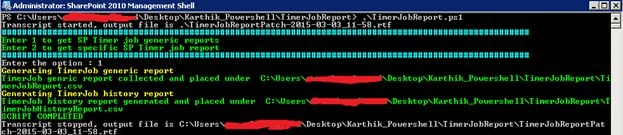
Once the script completes you get the outputs in 2 CSV files. One (TimerJobReport.csv) for the generic timer job report and another (TimerJobHistoryReport.csv) for the latest history for all the timer jobs in the SP Farm.
The output looks as in the following:
- TimerJobReport.csv file.

- TimerJobHistoryReport.csv file.

Error message is only displayed when you encounter failures.
Enter “2” to get specific timer job report.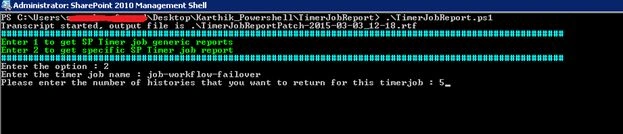
Enter the timer job name for which you want to list the latest number of histories.
You get the output in a CSV file (SpecificTimerJobHistoryReport.csv) that is located under the location where the .ps1 file is placed. The output CSV file has the following details.
Conclusion
Thus this article outlined how to get the timer job reports in a SharePoint 2010 Farm.
Karthik Muthu KaruppanPosted May 27, 2015, 6:00 PM
Thanks Ahmed
Ahmed SkPosted May 26, 2015, 9:08 AM
good post Karthik. this helped me
Karthik Muthu KaruppanPosted Apr 30, 2015, 11:12 AM
Thanks
Vijay SPosted Apr 30, 2015, 3:45 AM
Good
Tom MohanPosted Mar 5, 2015, 2:41 AM
You are welcome Karthik Muthu Karuppan
Karthik Muthu KaruppanPosted Mar 4, 2015, 5:50 PM
Thanks Tom
Tom MohanPosted Mar 4, 2015, 11:09 AM
Good one karthik