

Introduction
In Power Automate, flows can fail due to missing data, service outages, or unexpected inputs. Error handling lets your automation detect and respond to failures using Scopes, Run After, Terminate actions, and retry policies, making flows more reliable and maintainable. It also enables logging, notifications, and prevents cascading errors.
Lets first understand what is Try, Catch and Finally block:
Try
The block where you put the main actions you want to run.
If everything works, it completes normally.
In Power Automate, this is usually a Scope named "Try".
Catch
The block that runs only if something in Try fails.
Used to handle errors, log them, or send notifications.
In Power Automate, it's another Scope with "Configure Run After → has failed".
Finally
The block that runs no matter what—whether Try succeeded or Catch ran.
Useful for cleanup actions, closing resources, or sending final notifications.
In Power Automate, it's a Scope with "Configure Run After → has succeeded, has failed, or is skipped".
Understand this with a power automate Use Case:
Use Case
Flow tries to read excel and move it to another folder on success else will send email notification that flow failed.
Below are the flow design steps:
Step 1. Trigger: You can trigger your flow in different ways: like manually, on file creation, on modification or schedule flow.

Step 2. Configure try block.
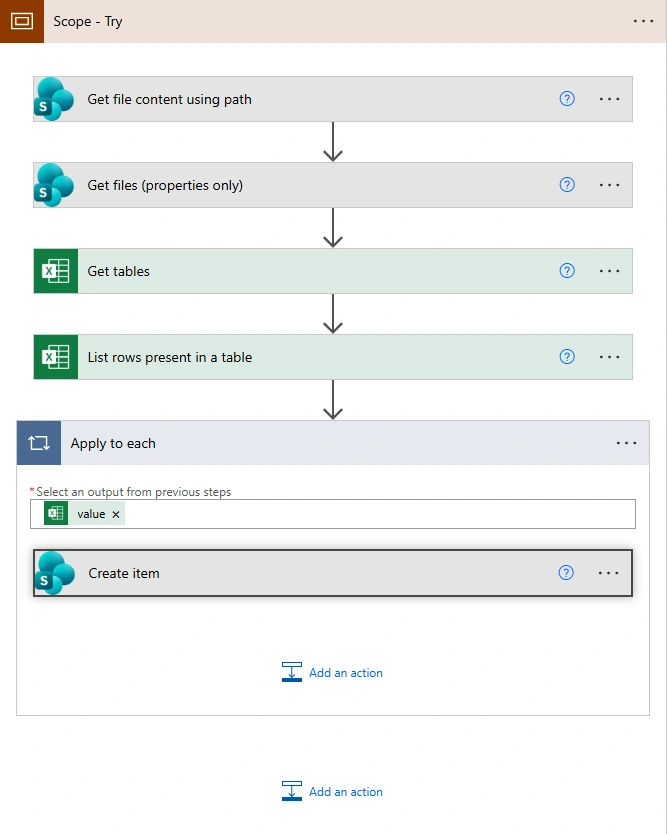
What are we doing here. Similarly you can put all your main actions in the Try block:
Scope – Try
Groups all main actions.
Used as part of a Try–Catch error handling pattern.
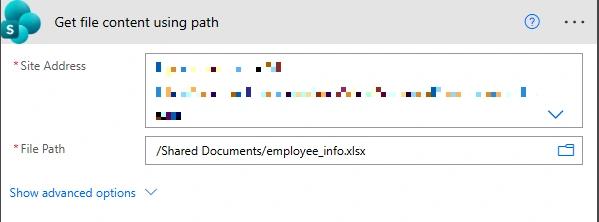
Get file content using path
Retrieves the Excel file from SharePoint.
Confirms the file exists and is accessible for further actions.
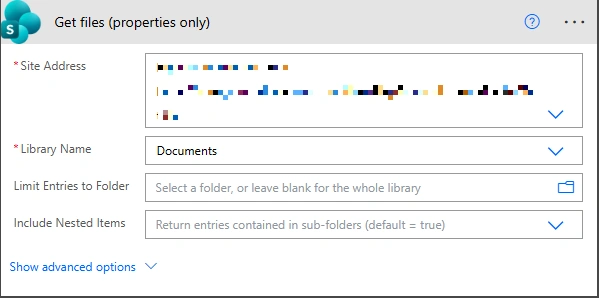
Get files (properties only)
Fetches file metadata, including the File Identifier.
This Identifier is reused in later Excel actions to consistently reference the same file.
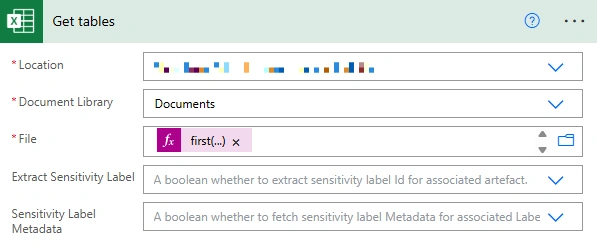
Get tables
Uses the file Identifier obtained earlier to locate the Excel file.
Retrieves all tables present in the Excel file.
Required because Excel data can only be read from tables in Power Automate.
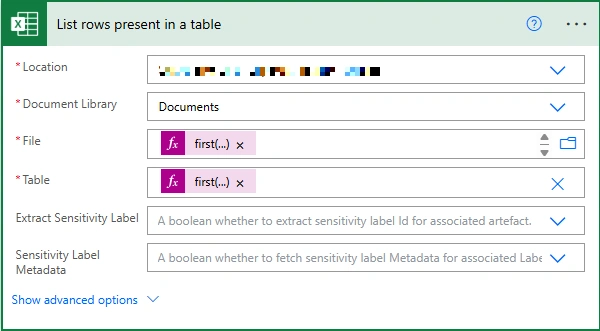
List rows present in a table
Uses the same file Identifier and selected table name.
Reads all rows from the Excel table.
Outputs the rows as an array (
value).
Apply to each (value)
Iterates through each row returned from the Excel table.
Create item
Creates one SharePoint list item for each Excel row.
Maps Excel columns to corresponding SharePoint list columns.
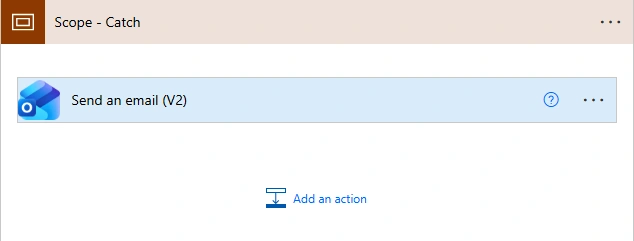
Step 3. Configure catch block.
An email notification is sent when the Try block fails.
The email action is configured using Run after → has failed.
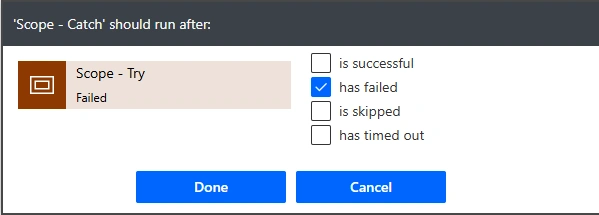
This ensures the email is executed only if the Try scope encounters an error.
Successful runs of the Try block do not trigger the email.
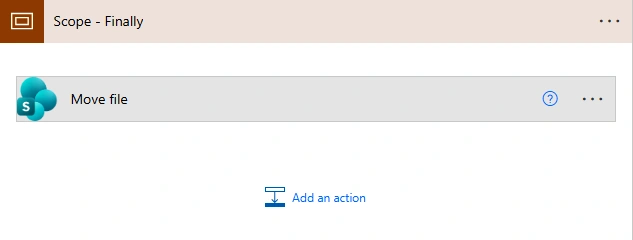
Step 4. Configure finally block.
The file is moved in the Finally block.
The Finally block is configured to run regardless of flow outcome.
It executes whether the flow succeeds, fails, or is skipped.
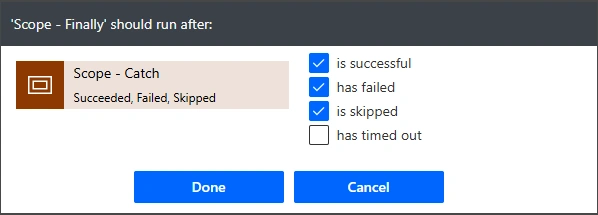
This ensures the file is always moved, maintaining consistency and cleanup.
Conclusion
Try–Catch–Finally in Power Automate ensures robust error handling by running main logic, managing failures, and always executing cleanup actions regardless of the outcome.
Join the conversation! Your thoughts help the community grow.