
This is a real-world scenario where our client wanted to hide the column name in a list grouped-view.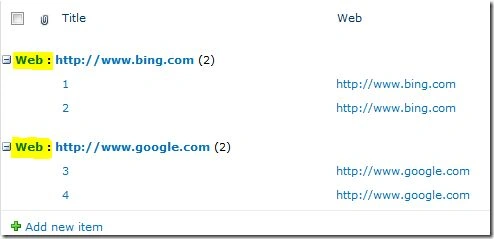
We need to hide the portion highlighted in yellow.
How to hide it?
As you know, the web part does not have any pre-defined property to hide the column name and the colon (:).
We can use JavaScript or CSS for hiding it. I am opting for the second option here.
We can use SharePoint Designer to edit the page or use a content editor web part to attach the CSS to the page. I am using the second option here.
The Trick
Open the site in Internet Explorer and press the F12 button (Developer Tools).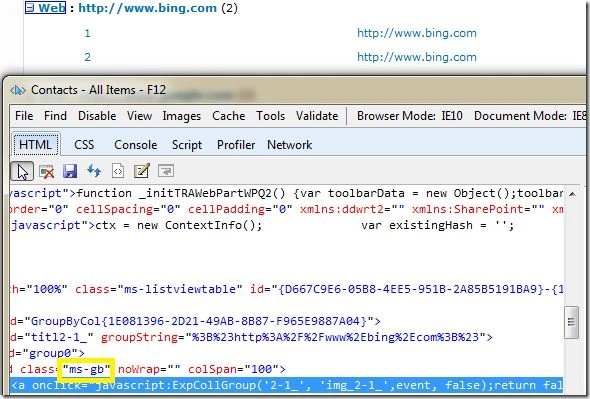
Drag the pointer over the column name and find the class name. Here it is ms-gb. We can use the column name to hide the column.
Solution
Use the following procedure to create the sample.
Step 1: Open the list page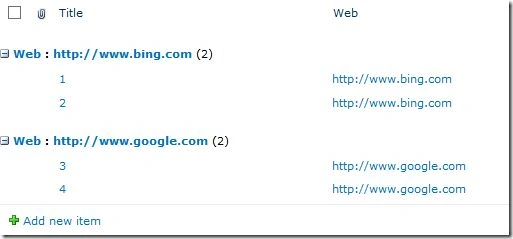
Step 2: Edit the page
Edit the page and insert a Content Editor web part.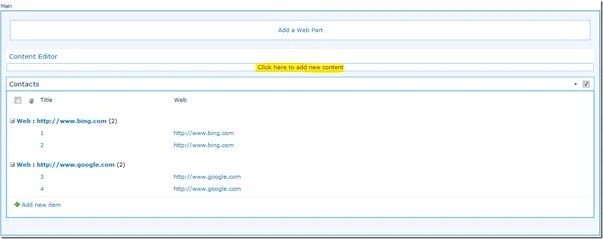
Click on the highlighted area and then from the toolbar choose "HTML" > "Edit HTML Source".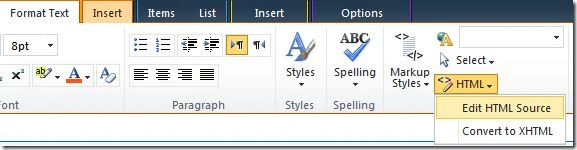
Step 3: Paste Code
Paste the following code into the HTML Editor.
<style>
.ms-gb a:first-child{
display:block;
visibility:hidden;
}
.ms-gb a:link > img {
display:inline;
visibility:visible;
position:relative;
top:13px;
right:5px;
}
.ms-viewheadertr
{
display:none;
}
</style> 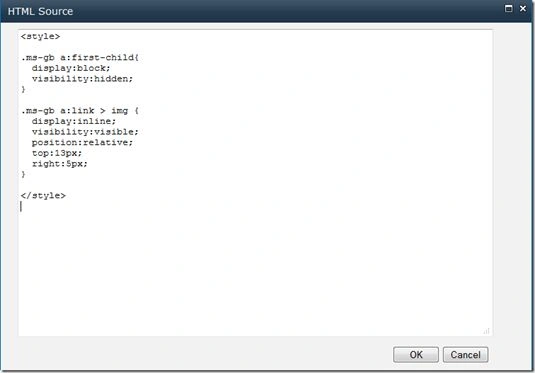
The first block of CSS hides the class first child of class: ms-gb.
The second block of CSS pulls the image (+ sign) up.
For hiding the list header, you can insert the following code too:
.ms-viewheadertr
{
display:none;
}
Please note that the visibility:hidden makes the control invisible, but spaces will be allocated. The display:none makes the control invisible without adding spaces.
Step 4: Test the code
Save the changes made to the web part page and refresh the page.
You can see the following result.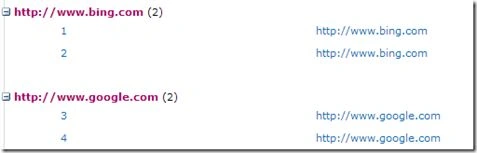
Summary
In this article we explored how to hide the Column Name from a List grouped-view.

How to Hide Column Name in Sharepoint List Grouped View
Join the conversation! Your thoughts help the community grow.
Sign in to leave a comment
It is the same account you read, post and publish with — and you will come straight back to this page.
Jeremy BolichPosted Jul 31, 2015, 10:30 AM
Hi Jean Paul - any thoughts on how to make this work for the second level of grouped columns in a view. I attempted to use your solution but replace "ms-gb" with "ms-gb2" but it doesn't work. HELLLLP PLSSSSS!
Jean PaulPosted Oct 28, 2014, 8:13 AM
Thank You Alex for the notification. Yeah! You should get the ":" div id too & hide.
Alex WebsterPosted Oct 27, 2014, 11:54 PM
Hi Jean Paul, This article does not explain how to get id of the colon (:) after the group by field name??