Introduction
SharePoint is widely used to manage business data, documents, and workflows. While working with SharePoint lists, developers often rename columns to make them more meaningful and user-friendly. However, have you ever noticed that even after renaming a column, its internal name remains unchanged?
This happens because SharePoint maintains two different names for every column: Display Name and Internal Name. Understanding the difference between these two names is important, especially when working with Power Automate, OData Filter Queries, and SharePoint REST APIs.
1. What Is a Display Name?
A Display Name is the name that users see when they open a SharePoint list.
It is used to make columns easy to understand and identify.
Example:
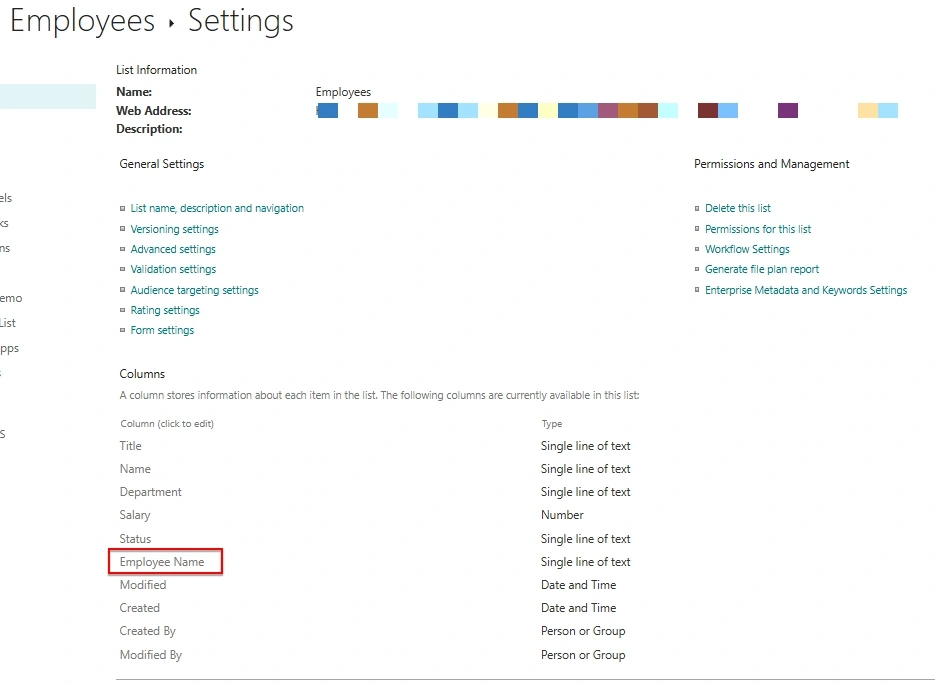
Suppose you create a SharePoint list with a column named:
When users open the SharePoint list, they see the column as Employee Name.
You can rename this column whenever required from the SharePoint list settings.
2. What Is an Internal Name?
An Internal Name is the unique identifier SharePoint creates when a column is initially created.
It is mainly used behind the scenes by SharePoint, Power Automate, OData queries, and REST APIs.
For example:
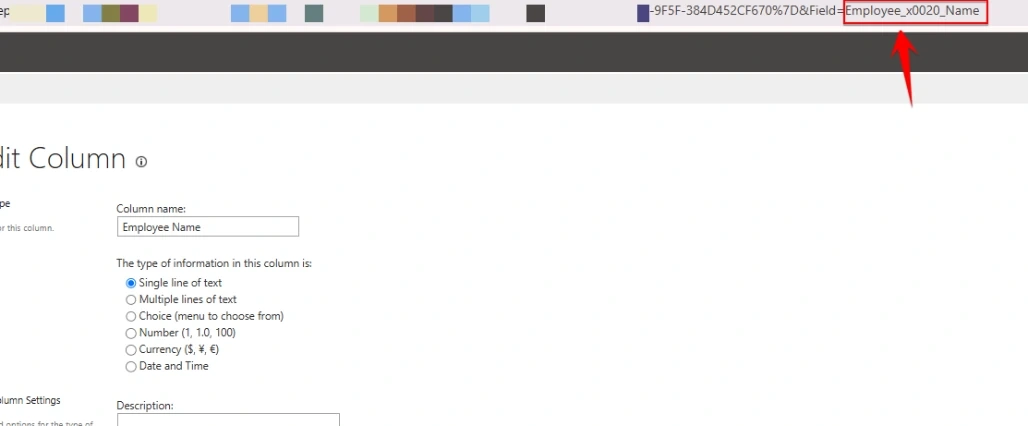
Here, _x0020_ represents the encoded space character.
Important: Renaming the Display Name does not automatically change the Internal Name.
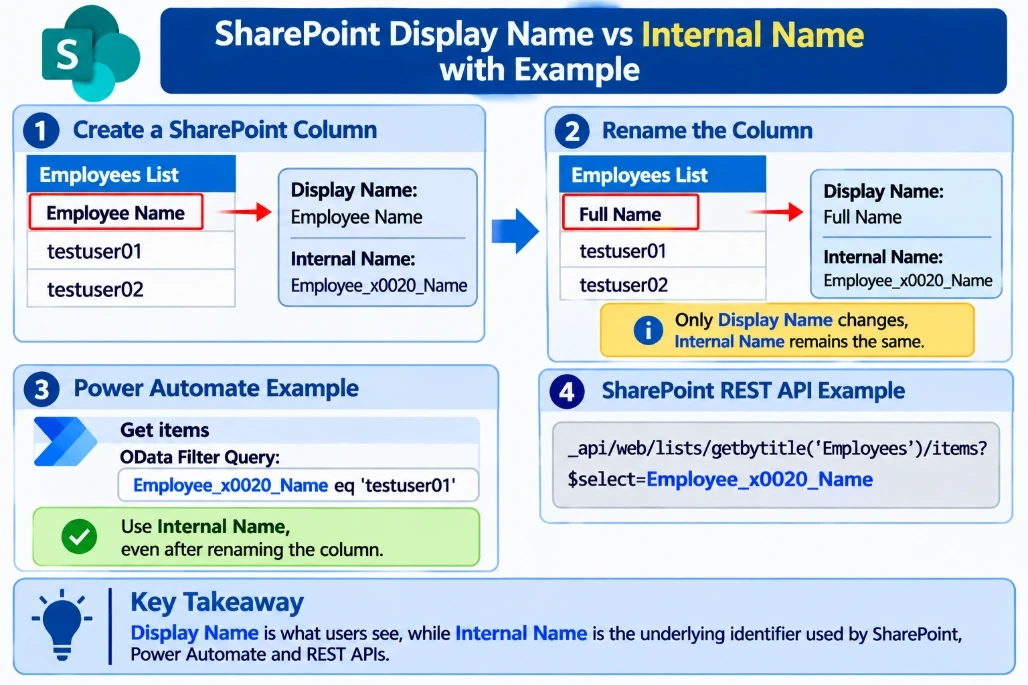
3. Practical Example: Renaming a SharePoint Column
Let's understand what happens when we rename a SharePoint column.
Step 1: Create a SharePoint column
Create a column with the following name:
Property | Value |
|---|
Display Name | Employee Name |
Internal Name | Employee_x0020_Name |
Step 2: Rename the column
Now, suppose you rename the Display Name from Employee Name to Full Name.
After renaming, the column details will look like this:
Property | Before Renaming | After Renaming |
|---|
Display Name | Employee Name | Full Name |
Internal Name | Employee_x0020_Name | Employee_x0020_Name |
As you can see, only the Display Name changes. The Internal Name remains the same.
4. Why Does This Matter in Power Automate?
This becomes particularly important when working with Power Automate.
For example, suppose you want to retrieve SharePoint list items where the Employee Name is John.
You can use the Get items action and configure the OData Filter Query.
Example:
Employee_x0020_Name eq 'John'
Even after renaming the column to Full Name, you must continue using its original Internal Name in the OData Filter Query.
Using the Display Name instead of the Internal Name may cause your filter query to fail.
5. Practical Example: SharePoint REST API
The Internal Name is also important when working with SharePoint REST APIs.
For example, to retrieve the Employee Name field, you can use:
_api/web/lists/getbytitle('Employees')/items?$select=Employee_x0020_Name
This query retrieves the field using its Internal Name.
Even if the column's Display Name changes to Full Name, the Internal Name remains Employee_x0020_Name.
6. How to Find a SharePoint Column's Internal Name
Follow these simple steps:
Open your SharePoint site.
Navigate to the required SharePoint list.
Open List Settings.
Under Columns, select the required column.
Check the browser URL.
Look for the Field= parameter in the URL.
For example:
.../FldEdit.aspx?List=...&Field=Employee_x0020_Name
Here, Employee_x0020_Name is the Internal Name of the column.
7. Developer Tips
Keep these points in mind when developing SharePoint and Power Automate solutions:
Always verify the Internal Name before creating OData Filter Queries.
Use Internal Names when working with SharePoint REST API field references.
Renaming a SharePoint column changes its Display Name, not its Internal Name.
Avoid creating columns with complicated names if possible.
Check Internal Names when troubleshooting Power Automate Get items filter errors.
Conclusion
Understanding the difference between Display Name and Internal Name helps developers avoid common issues when working with SharePoint and Power Automate.
Remember:
Before using a column in an OData Filter Query or REST API, always verify its Internal Name rather than assuming it matches the Display Name.
SharePointSharePoint column internal namesPower AutomateSharePoint REST APIOData filter querySharePoint lists


Join the conversation! Your thoughts help the community grow.