

How to implement Metadata navigation in SharePoint 2010
- Open your site
- Verify that no navigational hierarchies or key filters are displayed in the left-hand column below the Quick Launch control.
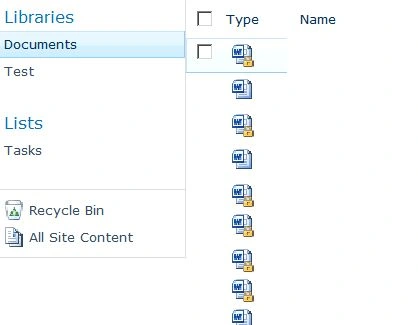
Plan the Navigational Hierarchies and Key Filters
Part of the implementation of metadata navigation is planning the fields to use for hierarchies and filters, which requires an understanding of the user's requirements and the content.
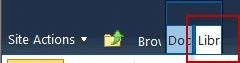
- Navigate to the Library Settings page for the document library and click on the Library ribbon tab.
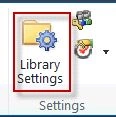
- Click the Library Settings ribbon button.
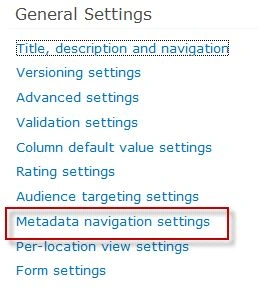
- Click the Metadata navigation settings link located in the General Settings column.
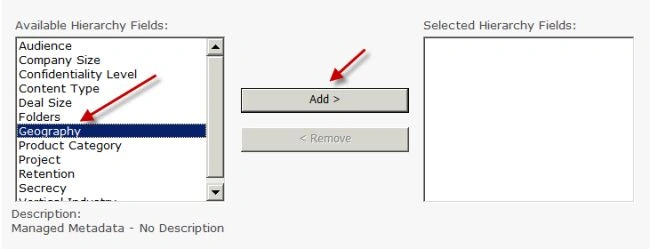
- Review the list of available hierarchy fields. Remember the navigation hierarchies should be broader in scope than the key filters.
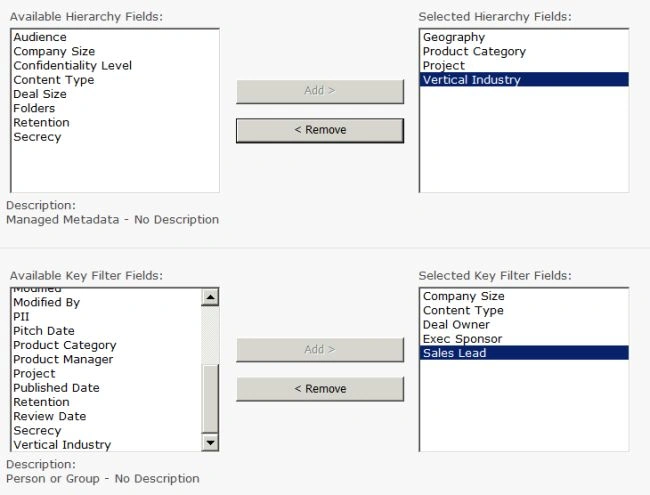
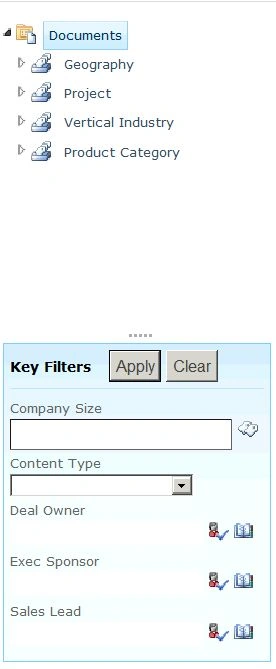
- Determine the fields to configure as navigational hierarchies. In this lab we configure the following four navigational hierarchies:
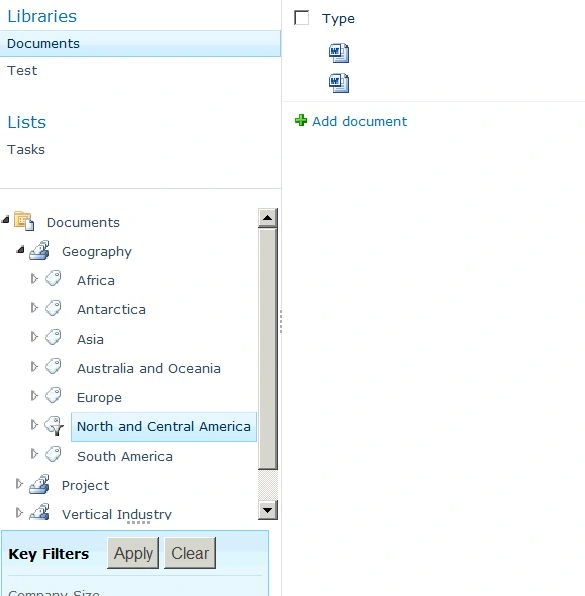
- Geography
- Product Category
- Project
- Vertical Industry
These four columns are broad categories that are effective in limiting our queries to a smaller set.
- Review the list of available Key Filter fields. The Key Filter fields are narrower than the configured hierarchies and are used to narrow the number of results viewed.
- Determine effective Key Filter fields. In this lab we configure six key filters:
- Company Size
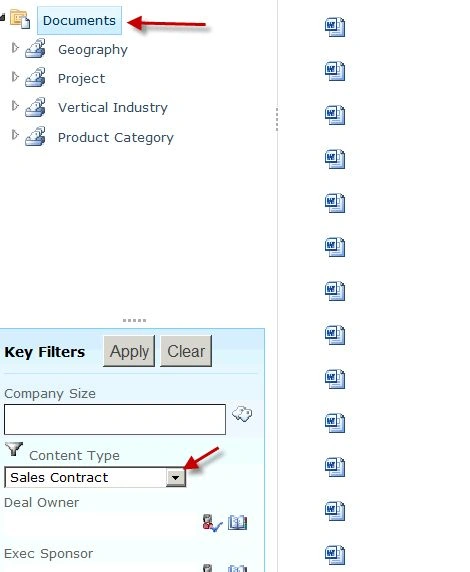
- Content Type
- Deal Owner
- Exec Sponsor
- Product Manager
- Sales Lead
These six Key Filters enable us to narrow our results down to an acceptable size for our queries.
Configure Metadata Navigation

Rupali ShindePosted Nov 24, 2015, 5:14 AM
Nice article, i come across this concept today for my project..
Mahesh BabuPosted Apr 19, 2013, 6:27 AM
Very interesting...thanks