

Introduction
When a Power Apps Canvas App works with a large number of records, displaying everything at once can make the application difficult to use and may affect performance.
Pagination provides a simple solution by dividing records into smaller pages, such as 25 records per page, and allowing users to navigate using Next and Previous buttons.
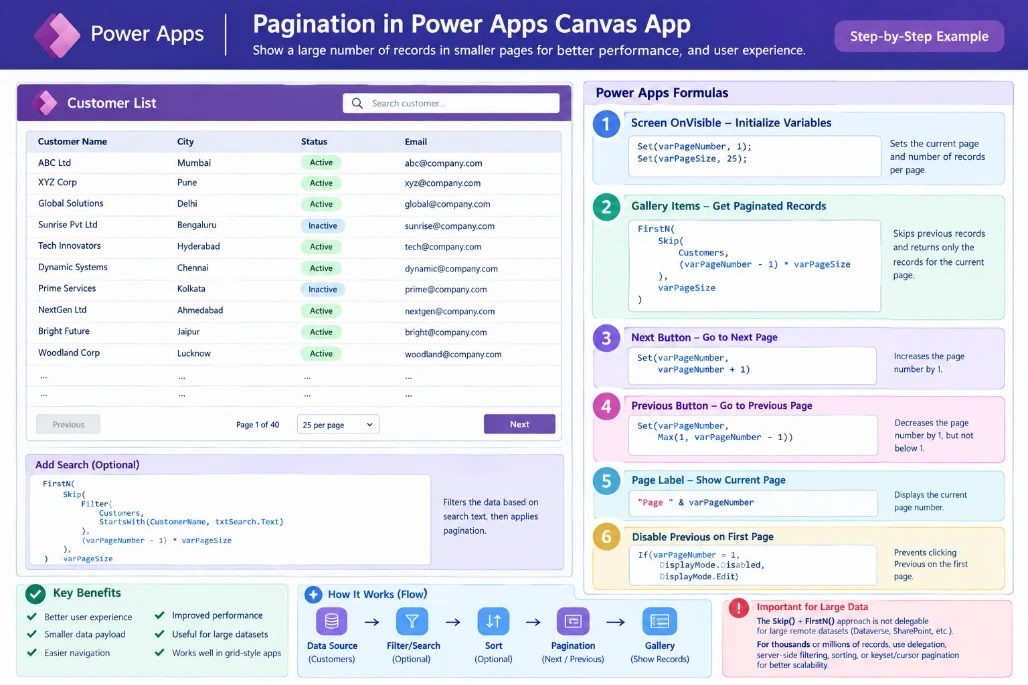
What Is Pagination?
Pagination means dividing a large dataset into smaller groups called pages.
For example, if a Dataverse table contains 1,000 customer records:
Page 1  → Records 1–25
Page 2  → Records 26–50
Page 3  → Records 51–75
...
Page 40 → Records 976–1000
Instead of displaying all 1,000 records together, the app displays only the records required for the current page.
Benefits
Better user experience
Smaller data payload
Easier navigation
Better control over large datasets
Useful for grid-style applications
When Should You Use Pagination?
Pagination is useful when your business requirement includes:
Page numbers
Next and Previous buttons
Fixed records per page
Navigation through a large result set
A traditional table or grid experience
For example:
Customer List

Customer Name       City        Status
----------------------------------------
ABC Ltd             Mumbai      Active
XYZ Ltd             Pune        Active
ABC Corporation     Delhi       Inactive
...

[Previous]     Page 1     [Next]
However, pagination isn't always necessary.
If users mainly need to search, filter, or sort, it is often better to use delegable queries directly against the data source.
Two Common Approaches
There are two approaches you should understand.
1. Automatic Data Loading
If a Gallery is directly connected to a remote data source:
Gallery1.Items = CustomersPower Apps can retrieve data incrementally as needed.
This is the simplest approach when you don't need explicit page numbers.
Use this when:
Users need:
✓ Search
✓ Filter
✓ Sort
✓ Scroll through records
2. Custom Pagination
If the business specifically requires:
Page 1 | Page 2 | Page 3or:
[Previous] [Next]you can create your own pagination logic.
Step-by-Step Custom Pagination
Step 1: Create Pagination Variables
On the screen's OnVisible property:
Set(varPageNumber, 1);
Set(varPageSize, 25);
Here:
varPageNumberstores the current page.varPageSizedefines how many records appear on each page.
For example:
varPageNumber = 1
varPageSize   = 25
means:
Display the first 25 records.
Step 2: Configure the Gallery
For a small dataset, the Gallery Items property can use:
FirstN(
    Skip(
        Customers,
        (varPageNumber - 1) * varPageSize
    ),
    varPageSize
)
The formula works like this:
Page 1
Skip = (1 - 1) × 25
     = 0

Show = 25 records
Result:
Records 1–25Page 2
Skip = (2 - 1) × 25
     = 25

Show = 25 records
Result:
Records 26–50Page 3
Skip = (3 - 1) × 25
     = 50
Result:
Records 51–75Step 3: Add a Next Button
Set the Next button's OnSelect property:
Set(
    varPageNumber,
    varPageNumber + 1
)
When the user clicks Next:
Page 1
   ↓
Page 2
   ↓
Page 3
   ↓
Page 4
The Gallery automatically displays the corresponding records.
Step 4: Add a Previous Button
Set the Previous button's OnSelect:
Set(
    varPageNumber,
    Max(
        1,
        varPageNumber - 1
    )
)
The Max() function ensures that the page number never becomes less than 1.
Step 5: Display the Page Number
Add a Label and use:
"Page " & varPageNumberThe user will see:
Page 1or:
Page 5Step 6: Disable Previous on Page 1
Set the Previous button's DisplayMode:
If(
    varPageNumber = 1,
    DisplayMode.Disabled,
    DisplayMode.Edit
)
This prevents users from clicking Previous when they are already on the first page.
Adding Search
Pagination can also be combined with a search box.
For example:
FirstN(
    Skip(
        Filter(
            Customers,
            StartsWith(
                CustomerName,
                txtSearch.Text
            )
        ),
        (varPageNumber - 1) * varPageSize
    ),
    varPageSize
)
The basic flow becomes:
Search
   ↓
Filter
   ↓
Pagination
   ↓
Gallery
For example, if the user searches:
"ABC"the app first filters the customers and then displays the required page.
Adding Sorting
You can also sort the filtered data.
Example:
SortByColumns(
    Filter(
        Customers,
        StartsWith(
            CustomerName,
            txtSearch.Text
        )
    ),
    "CustomerName",
    SortOrder.Ascending
)
This provides a better user experience:
Search → Filter → Sort → DisplayImportant: Delegation
This is the most important consideration when implementing pagination.
The following formula is easy to understand:
FirstN(
    Skip(
        Customers,
        (varPageNumber - 1) * varPageSize
    ),
    varPageSize
)
But Skip() and FirstN() are not suitable for large remote datasets as a general scalability strategy, because they aren't generally delegable.
For example:
500 records       → Small
2,000 records     → Be careful
10,000 records    → Delegation becomes important
100,000+ records  → Use a scalable approach
A delegation warning can mean that Power Apps is processing only a limited number of records locally instead of querying the complete remote dataset.
Therefore, don't assume that a formula that works with 100 records will work correctly with 100,000 records.
Recommended Approach for Large Data
For large Dataverse, SharePoint, SQL, or other remote datasets, prefer:
Data Source
     ↓
Delegable Filter
     ↓
Delegable Sort
     ↓
Small Data Result
     ↓
Gallery
When explicit page navigation is required for very large datasets, consider keyset/cursor pagination.
Instead of saying:
Skip the first 5,000 records.
you use a unique key:
Give me the next 25 records after the last record I received.
For example:
Page 1
CustomerId > 0
       ↓
Records 1–25
       ↓
LastId = 25

Page 2
CustomerId > 25
       ↓
Records 26–50
       ↓
LastId = 50
This is much more scalable than repeatedly skipping an increasing number of records.
Pagination Decision Guide
Requirement | Recommended Approach |
|---|---|
Small dataset | Simple custom pagination |
Normal Gallery | Direct data-source binding |
Search | Delegable |
Sorting | Delegable |
Page numbers | Custom pagination |
Thousands of records | Delegation-focused design |
Very large dataset | Keyset/cursor pagination |
Enterprise application | Delegation + server-side filtering |
Best Practices
1. Don't load everything into a collection
Avoid unnecessarily doing:
ClearCollect(
    colCustomers,
    Customers
)
for a very large dataset.
2. Use delegation
Let the data source perform filtering and sorting whenever possible.
3. Keep the data payload small
Only retrieve the data the user actually needs.
4. Use a unique key for large datasets
For cursor pagination, use a reliable key such as:
CustomerId
SequenceNumber
CreatedDate + ID
5. Always check delegation warnings
Test your app with realistic data volumes, not just a few sample records.
Final Example
A simple pagination screen can look like:
┌─────────────────────────────────────────┐
│           Customer List                 │
│                                         │
│ Search: [____________________]          │
│                                         │
│ Customer        City       Status       │
│ ─────────────────────────────────────── │
│ ABC Ltd         Mumbai     Active       │
│ XYZ Ltd         Pune       Active       │
│ ABC Corp        Delhi      Inactive     │
│ ...                                     │
│                                         │
│ [Previous]       Page 1       [Next]    │
└─────────────────────────────────────────┘
The basic flow is:
              Customer Data
                    ↓
              Search / Filter
                    ↓
              Sort (Optional)
                    ↓
               Pagination
                    ↓
                 Gallery
                    ↓
          Previous ← Page → Next
Conclusion
Pagination is a useful technique for making large datasets easier to navigate in Power Apps Canvas Apps.
For small datasets, a simple Skip() + FirstN() approach is easy to implement.
For large datasets, don't rely on client-side pagination. Instead, build the solution around delegation, server-side filtering, small data payloads, and keyset/cursor pagination where necessary.
The key rule is simple:
Don't bring a large dataset into Power Apps just to paginate it. Let the data source do the heavy work whenever possible.
Join the conversation! Your thoughts help the community grow.