

Introduction
When working with large datasets in Power Automate, you may notice that an action such as SharePoint – Get items or Dataverse – List rows does not return all available records.
This happens because connectors can have default retrieval limits. Pagination helps Power Automate retrieve additional records so your flow can process a larger dataset.
For example, if a SharePoint list contains 8,000 records, relying only on the default action behavior may result in some records not being retrieved.
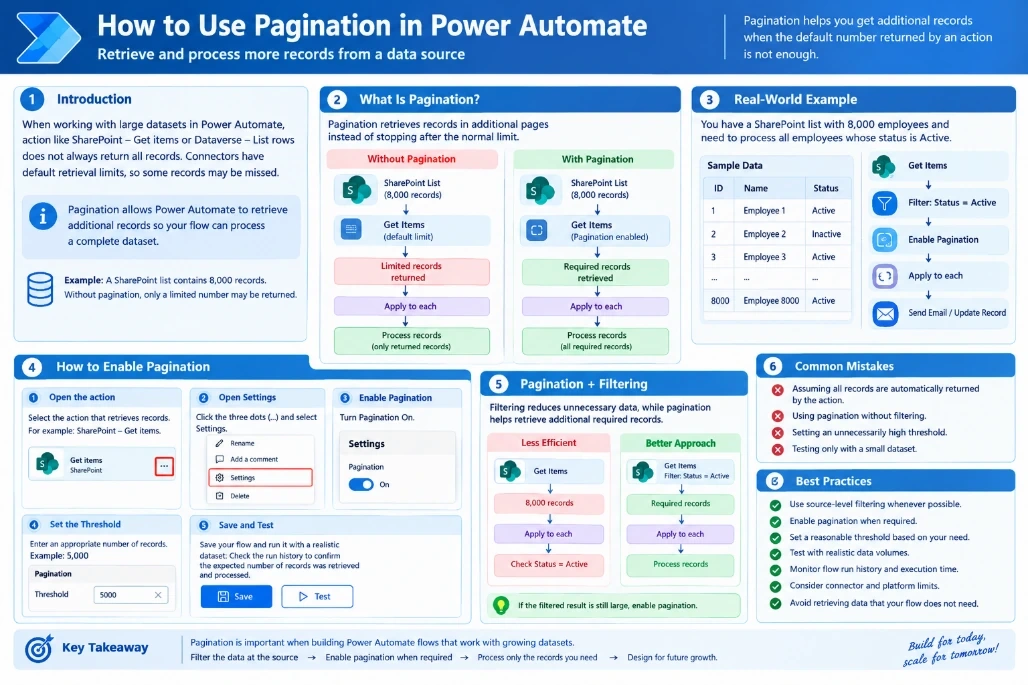
What Is Pagination?
Pagination allows a Power Automate action to retrieve records in additional pages instead of stopping after its normal retrieval limit.
Without Pagination
SharePoint List
     ↓
Get Items
     ↓
Limited records
     ↓
Apply to each
     ↓
Process records
With Pagination
SharePoint List
     ↓
Get Items
(Pagination Enabled)
     ↓
Required records
     ↓
Apply to each
     ↓
Process records
Pagination is useful when your flow needs to work with large lists or tables.
Real-World Example
Suppose a SharePoint list contains 8,000 employees, and you need to process all employees whose status is Active.
Your flow could be:
Get Items
     ↓
Filter Active Employees
     ↓
Pagination
     ↓
Apply to each
     ↓
Send Email / Update Record
Without appropriate pagination and filtering, the flow may process only the records returned by the action rather than the complete dataset required by your business process.
How to Enable PaginationStep 1: Open the Action
Open your Power Automate flow and select the action that retrieves records.
For example:
SharePoint – Get items
Step 2: Open Settings
Click the three dots (...) on the action and select Settings.
Step 3: Enable Pagination
Under the action settings, find Pagination and turn it On.
Step 4: Set the Threshold
Enter an appropriate number of records for your requirement.
For example:
Threshold: 5,000
The appropriate value depends on your dataset, connector, and flow requirements.
Step 5: Save and Test
Save the flow and run it with a realistic dataset.
Check the run history to confirm that the expected number of records was retrieved and processed.
Pagination and FilteringPagination works best when combined with source-level filtering.
For example, instead of retrieving all 8,000 employees and filtering them inside an Apply to each, filter the data when retrieving it.
Less Efficient
Get Items
   ↓
8,000 records
   ↓
Apply to each
   ↓
Check Status = Active
Better Approach
Get Items
Filter: Status = Active
   ↓
Required records
   ↓
Apply to each
If the filtered result is still large, enable pagination.
Filtering reduces unnecessary data, while pagination helps retrieve additional required records.
Common Mistakes1. Assuming all records are automatically returned
Always verify how many records the connector/action actually returns.
2. Using pagination without filtering
Retrieving a very large dataset when only a small subset is required can reduce performance.
3. Setting an unnecessarily high threshold
A larger threshold is not always better. Very large datasets can increase processing time, API calls, and the risk of throttling.
4. Testing only with a small dataset
Always test with data volumes similar to what you expect in production.
Best Practices
Use source-level filtering whenever possible.
Enable pagination when the required dataset exceeds the action's normal retrieval behavior.
Set a reasonable threshold based on your requirement.
Test with realistic data volumes.
Monitor flow run history and execution time.
Consider the connector and platform limits.
Avoid retrieving data that your flow does not actually need.
Conclusion
Pagination helps Power Automate retrieve and process large datasets beyond default limits. Combine it with filtering and proper thresholds to build efficient, reliable, and scalable flows.
Join the conversation! Your thoughts help the community grow.