

In this article you will see how to import a BDCM file into the SharePoint 2013 Online BDC Metadata Store.
Introduction
In my previous article you saw How to Create External Content Type Using OData Source in SharePoint 2013. In that article I deployed the external content type that will generate the WSP file in the bin folder. In this article you will see how to import a BDCM file into the SharePoint 2013 Online BDC Metadata Store.
Import a BDCM file
- Rename the WSP file with the .cab extension as shown below.
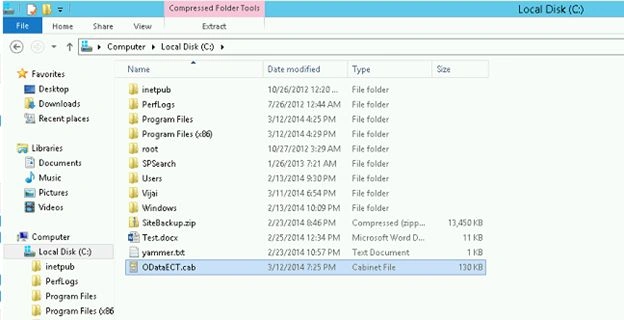
- Double-click on the cab file.
- Right-click on "BDCmetadata.bdcm" and then click on "Extract".
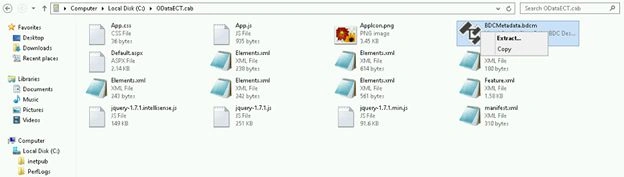
- Select the location and save the bdcm file.
- Open the Office 365 site (Office 365).
- Click on SharePoint from the Admin drop down.
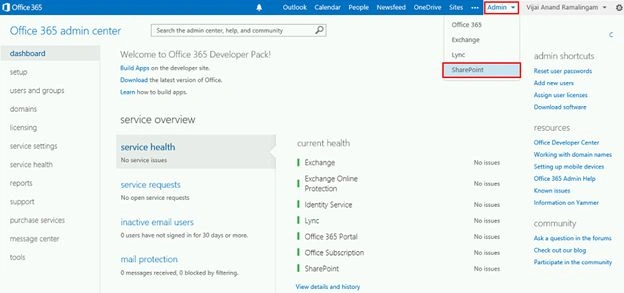
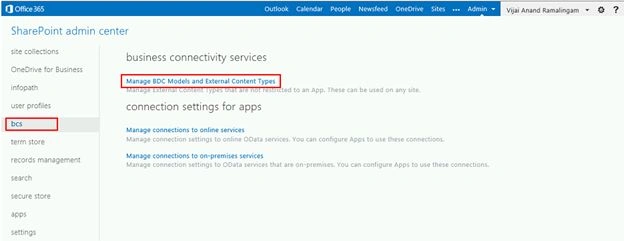
- Click on bcs in the left navigation.
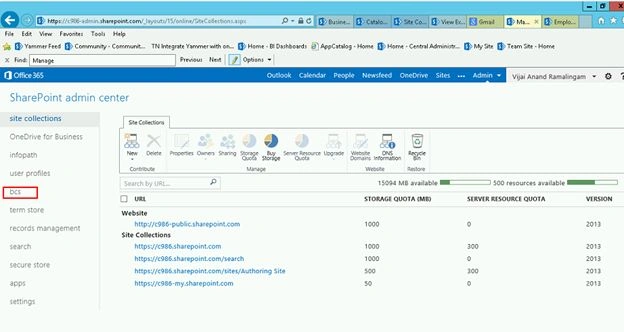
- Click on "Manage BDC Models and External Content Types".
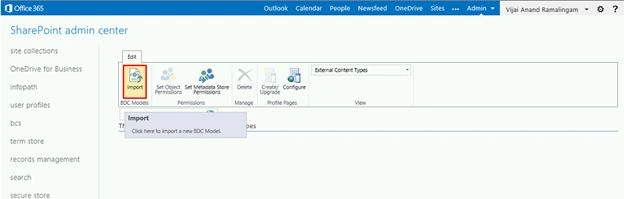
- Click on the "Import" button in the Edit ribbon interface.
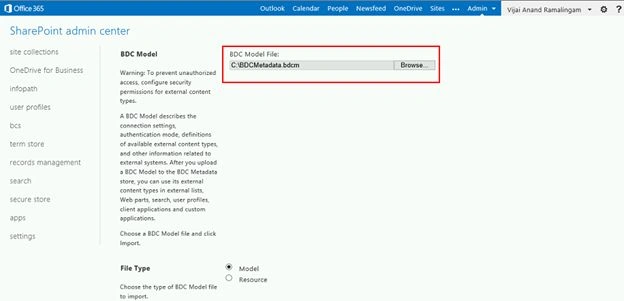
- Select the BDC Model (bdcm file that we extracted from the cab file) and then click on "Import".
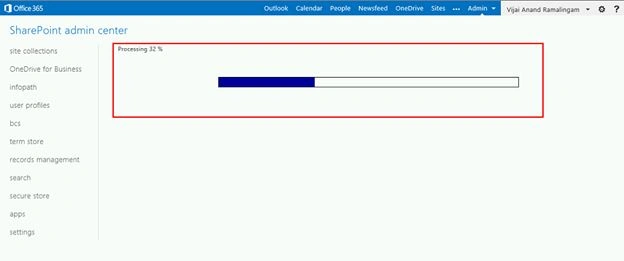
- Importing the BDC model.
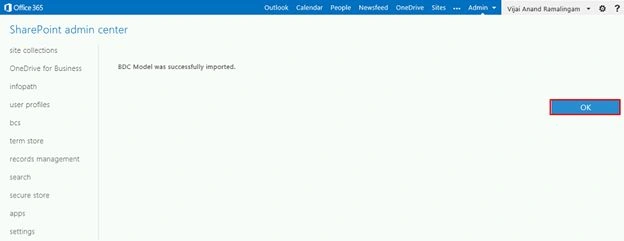
- The BDC Model is imported successfully. Click on "Ok".
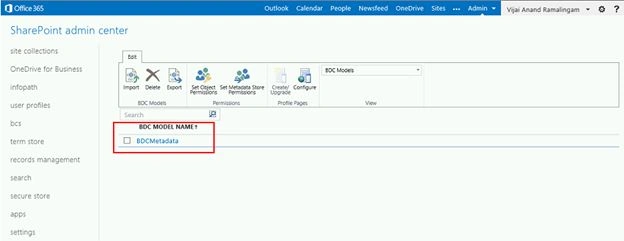
- The BDC Model is imported successfully in the BDC Metadata store.
Summary
Thus in this article you saw how to import a BDCM file into the SharePoint 2013 Online BDC Metadata Store.
SriramPosted Jul 1, 2015, 7:09 AM
Excellent
Norberto DurandoPosted May 28, 2014, 10:53 AM
Hi Vijay!. I could import Northwind BDC Model to SP2013 OnLine with your example. I'm trying to import to SP2013 OnLine my own oData Service http://MyServer:12300/service/MyService.svc with Anonimous Authentication but import fails "Application definition import failed. The following error occurred: Unable to connect to the remote server Error was encountered at or just before Line: '59' and Position: '20'". The same BDC Model can be imported to Sharepoint 2013 on premise successfully. Is there any problem when SP2013 onLine uses a Odata Service with "Server:Port" reference?. Any clue? Thanks!