

Working with notebooks is one of the smoothest ways to build and run data engineering or data science workflows in Databricks. Whether you downloaded a .dbc file, exported a notebook from GitHub, or received a notebook from a colleague, you’ll often need to import it into your Databricks workspace before you can start using it.
In this article, I’ll walk you through how to import notebooks into Databricks using the UI
Why Import a Notebook?
There are several reasons you may need to import a notebook:
You cloned sample code from GitHub
You downloaded a shared
.dbcor.htmlnotebook fileYou're migrating notebooks between workspaces
You're following a tutorial or training course
You’re collaborating in a team and exchanging notebooks regularly
Regardless of your scenario, Databricks makes it easy.
Import Using the Databricks Workspace UI
This is the most common and beginner-friendly option. We will be importing the URL based Notebook from the Databricks Docs: docs.databricks.com/aws/en/notebooks/source/sharepoint-ingestion-pipeline.html
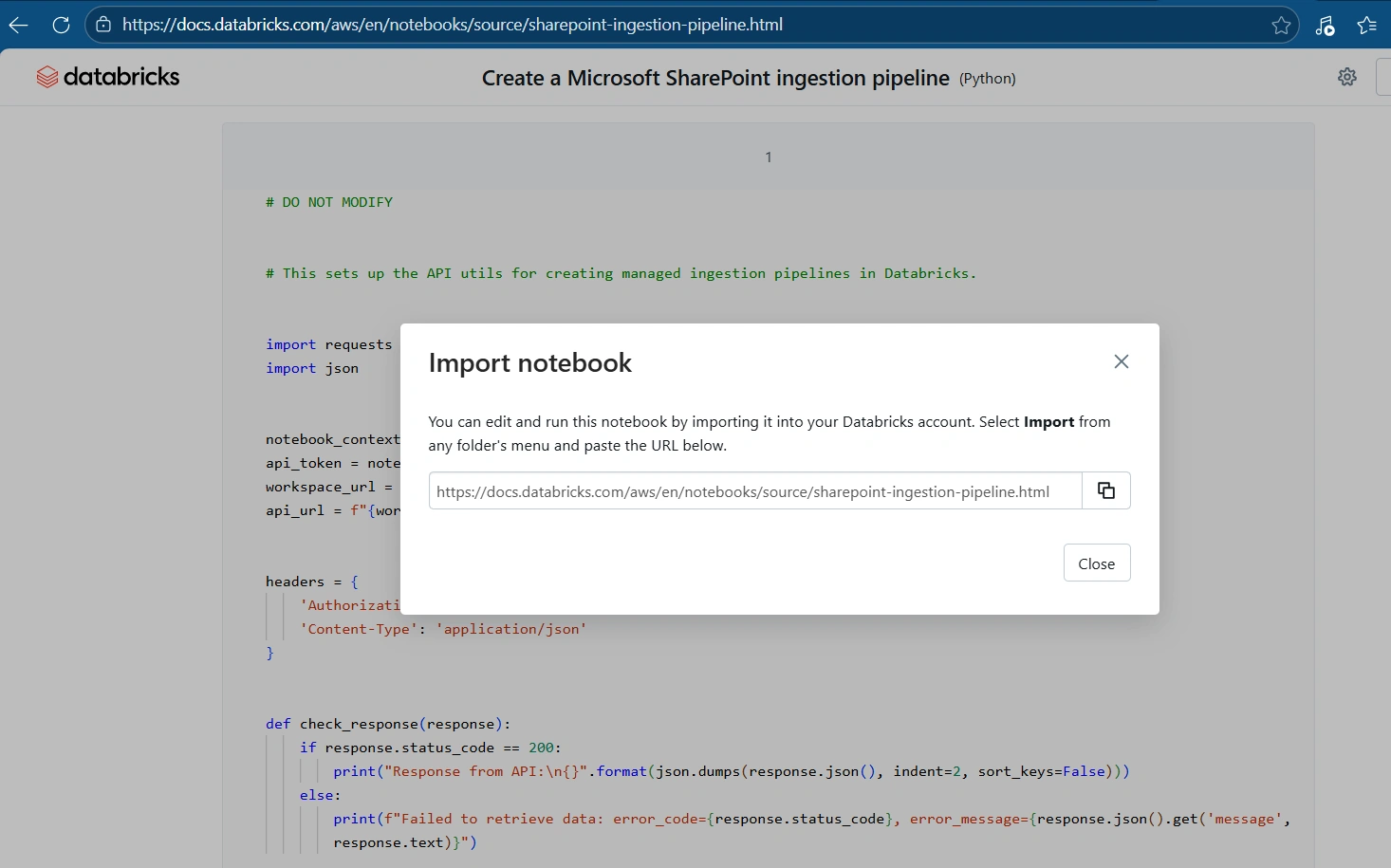
Log into Databricks.
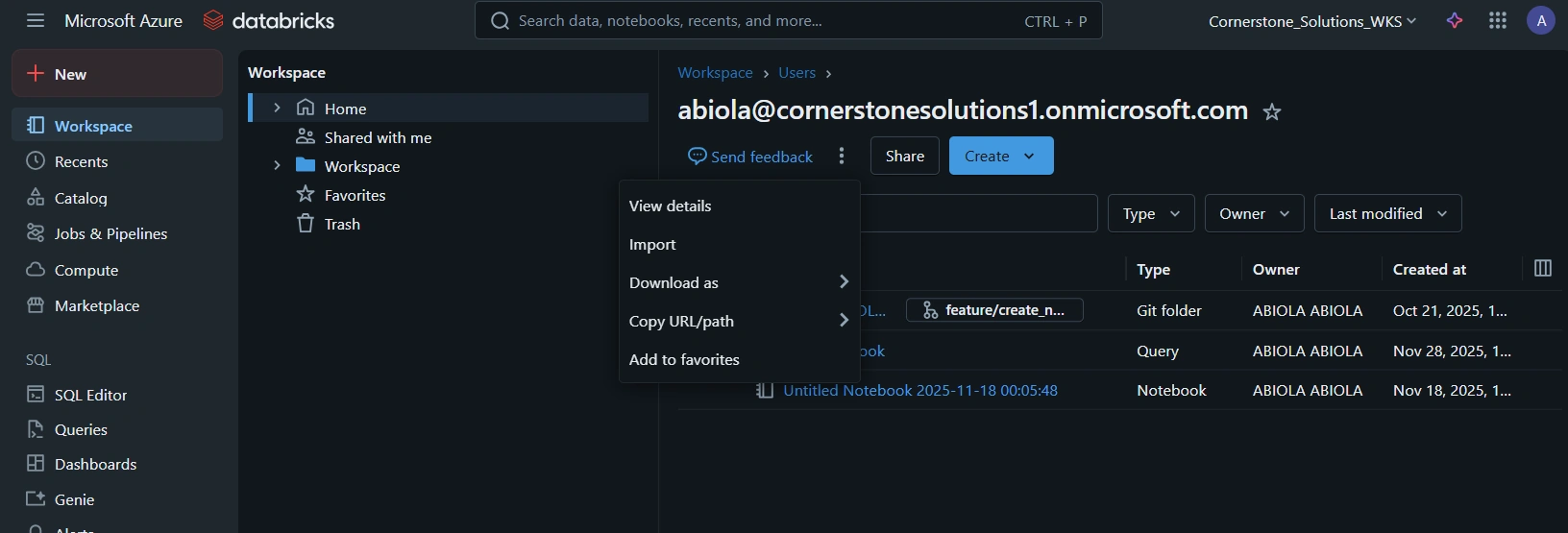
From the sidebar, click Workspace.
In the Workspace, click on the three dots (kebab) and select Import
In the Import window, select URL import type.
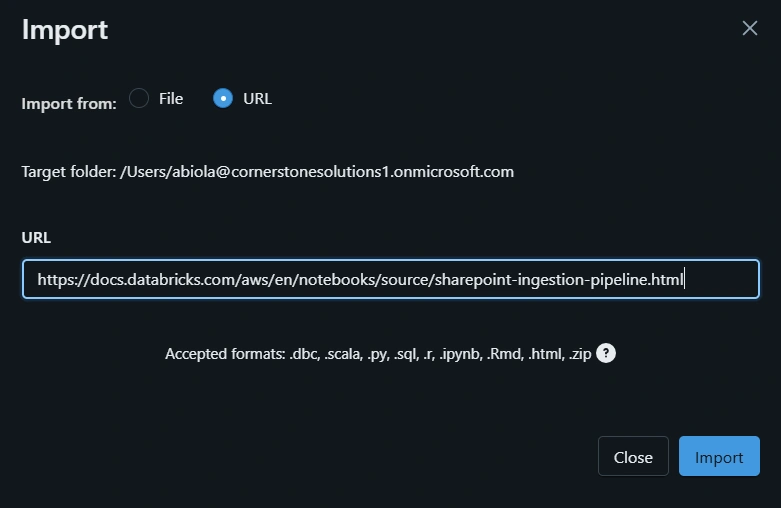
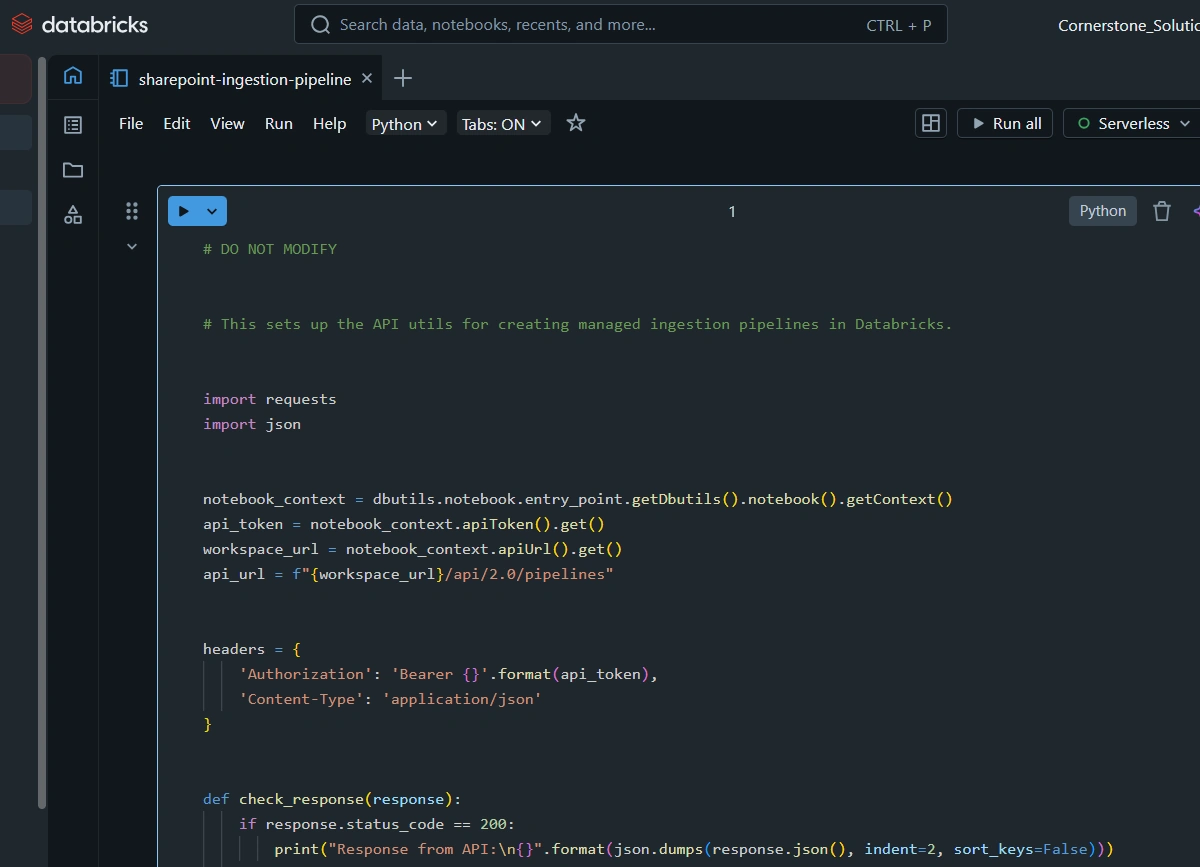
Paste the URL of the Notebook and select Import. There we go! The Databricks Notebook is now successfully imported to the Databricks Workspace
Join the conversation! Your thoughts help the community grow.