

In today’s modern data platform, everything is about accessibility, collaboration, and centralised governance. Many organisations store their Power BI reports in SharePoint for document management, version control, and team collaboration. At the same time, Microsoft Fabric provides a unified analytics environment where you can manage data engineering, data warehousing, and reporting in one place.
This article will walk you through, step by step, how to import a Power BI report stored in SharePoint into a Fabric Workspace in a simple, practical, and human-friendly way.
Why Import Power BI Reports into Fabric Workspace?
Before diving into the steps, let’s understand why this is useful.
When you import your Power BI reports into Fabric Workspace, you get:
Centralised management of reports and datasets
Better integration with Fabric Lakehouse and Warehouse
Improved governance and security
Seamless collaboration with your team
Unified analytics within the Microsoft Fabric ecosystem
Instead of reports being scattered across SharePoint folders, everything becomes organised and manageable in one analytics platform.
Prerequisites
Before you begin, ensure you have the following:
Access to Microsoft Fabric
Access to the Fabric Workspace (Admin, Member, or Contributor role)
A Power BI report file (.pbix) stored in SharePoint
Permission to download files from SharePoint
Implementation
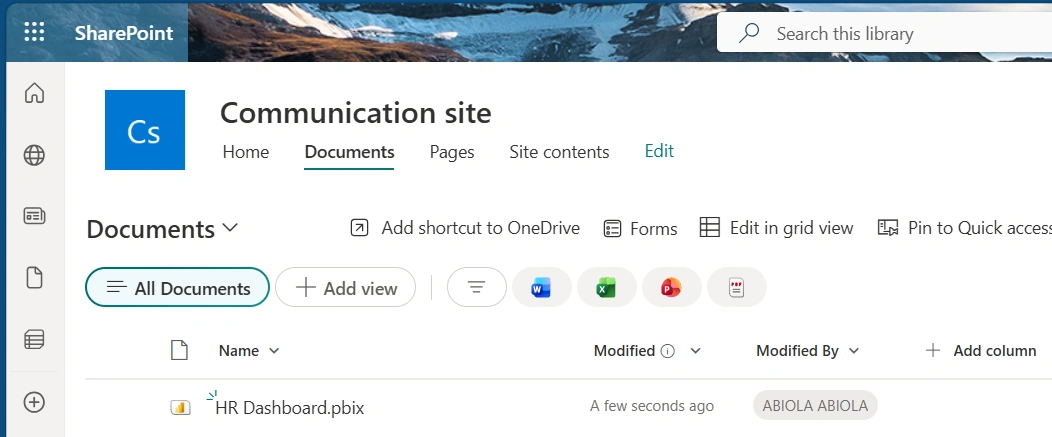
In this article, I have an HR Dashboard Power BI Report in my SharePoint as seen below which I intend to import to Fabric Workspace
To import to Fabric workspace, I proceeded to the prod workspace and clicked on Import --> Report, Paginated Report or Workbook fly-out as seen below
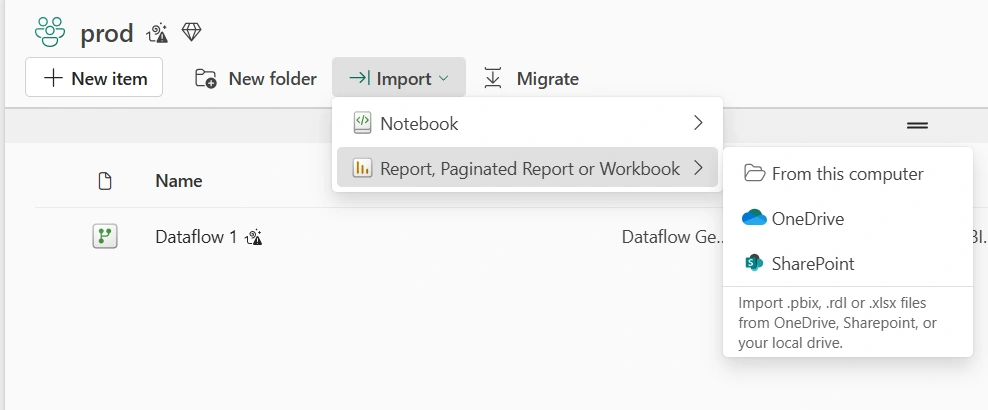
Then, I selected the SharePoint. From the pop out window, I can see content of the SharePoint which includes the Power BI Report I intend to import
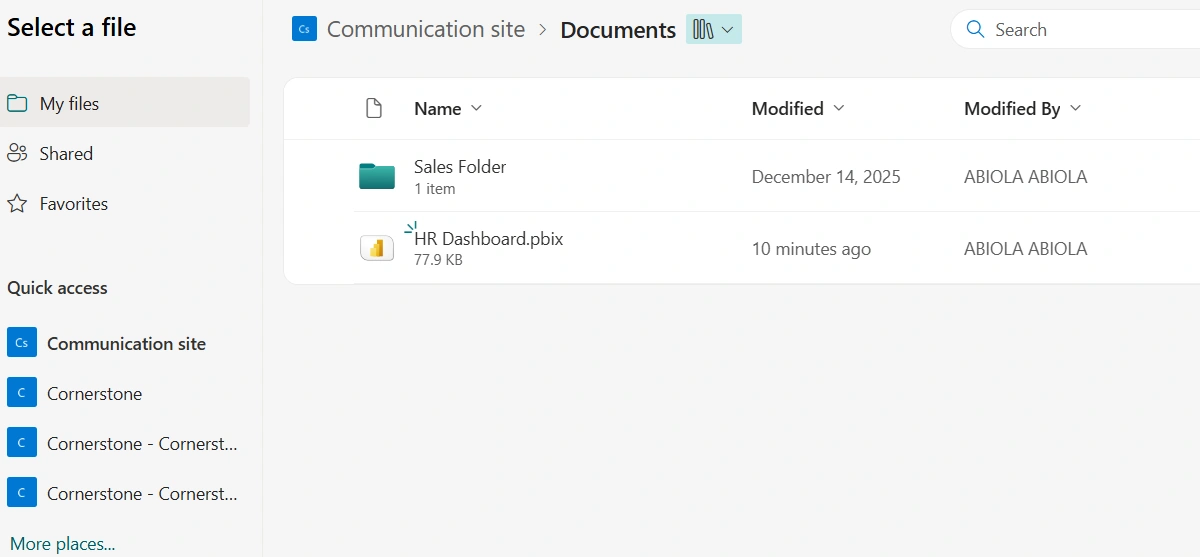
I selected the Power BI report and click on upload
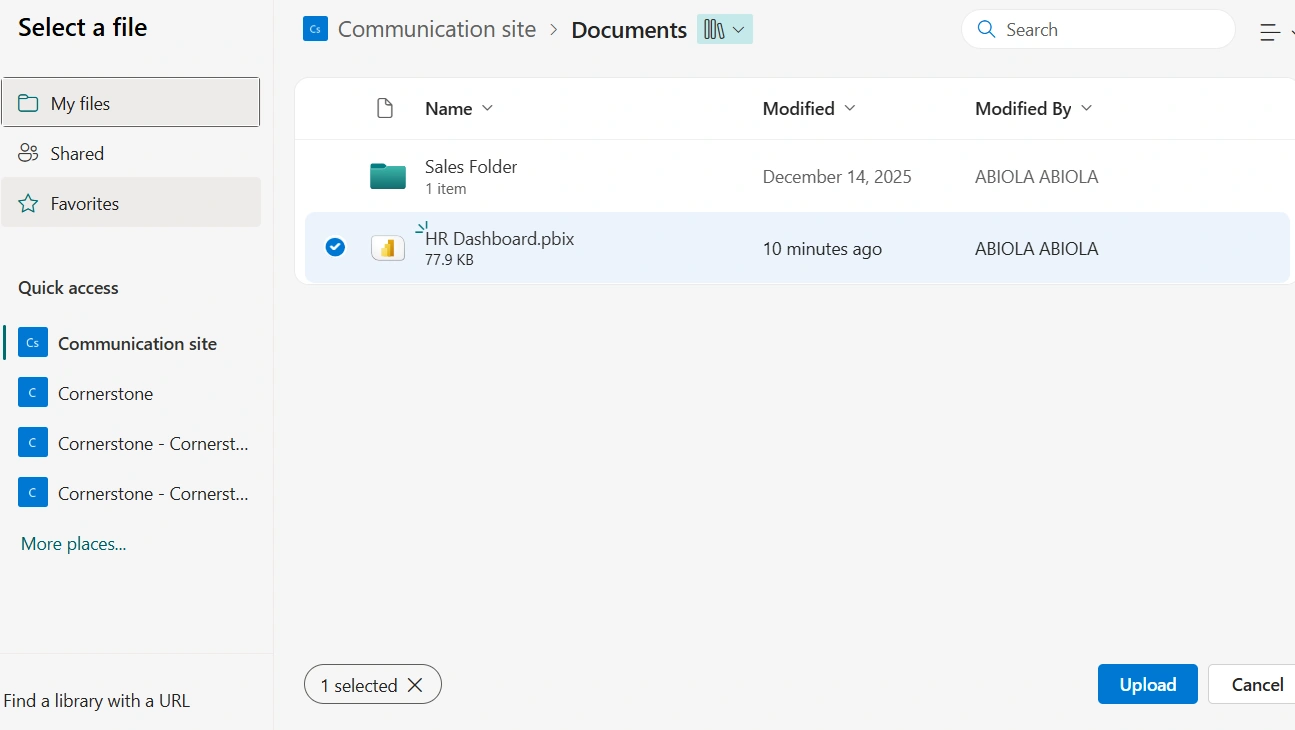
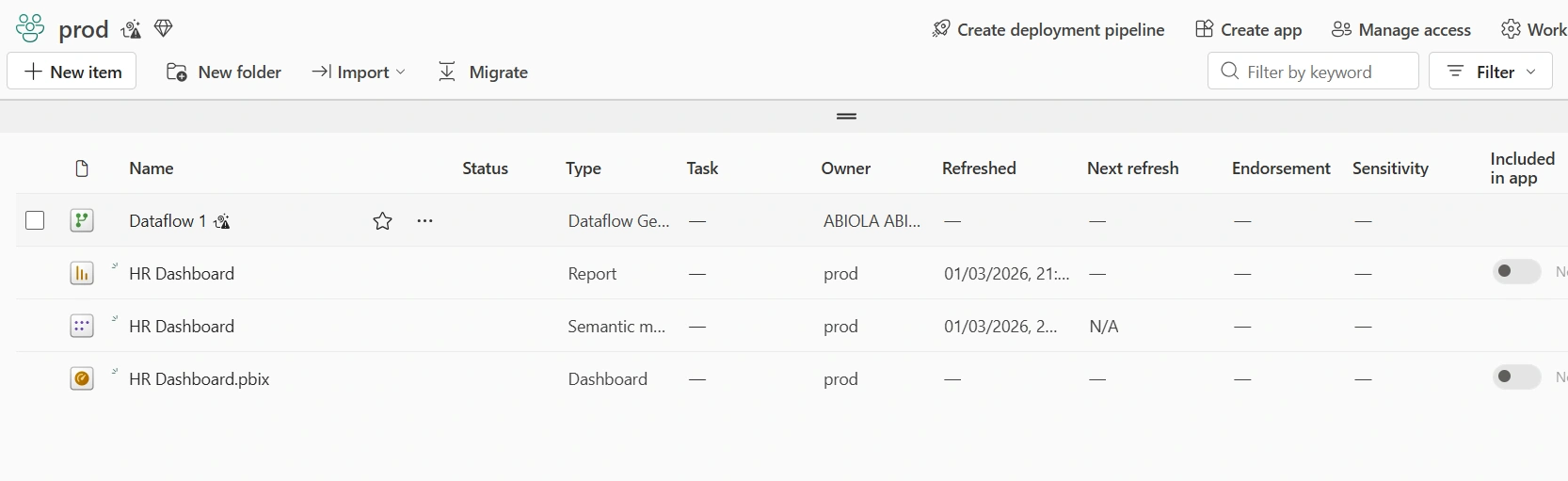
And as seen below, the HR Dashboard Power BI Report is now successfully uploaded to the prod Fabric Workspace
What Happens Behind the Scenes?
When you upload a Power BI report into Fabric Workspace:
The dataset becomes part of Fabric
The report connects to the dataset
The report becomes fully manageable inside Fabric
You can now integrate it with Lakehouse, Warehouse, or Pipelines
Conclusion
Importing Power BI reports from SharePoint into Fabric Workspace is simple, yet extremely powerful. It allows you to combine document management with enterprise analytics. Once imported, your reports become part of a unified, scalable analytics ecosystem.
Join the conversation! Your thoughts help the community grow.