

In this article, we'll create an Azure API Management instance to import and configure the OpenAPI specification for the backend API using the Azure portal. Also, test the API and operations to verify that they function correctly and respond as expected. After this exercise, you will be able to import the API into the API Management and test it using the Azure portal.
The following tasks were performed in this exercise:
Create and retrieve an Azure API Management instance
Import and publish API
Test API
Clean up resources
Create and Retrieve Azure API Management Instance
Let’s first create a new Azure API Management instance by using the Azure portal. First step is to sign in to the Azure portal to begin the work.
Create API Management Instance
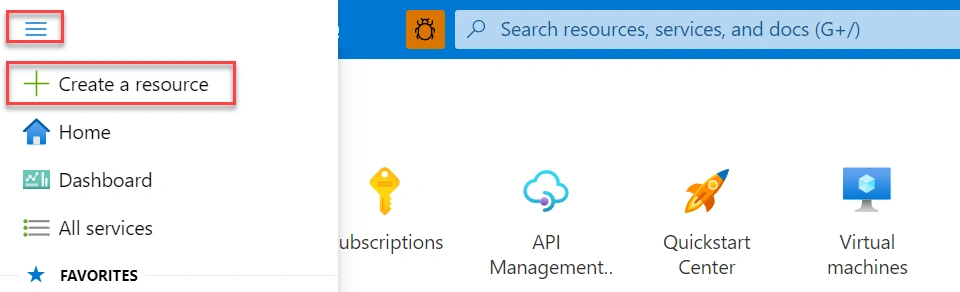
Click on the menu bar and then select the " Create a resource option to create a new resource instance.
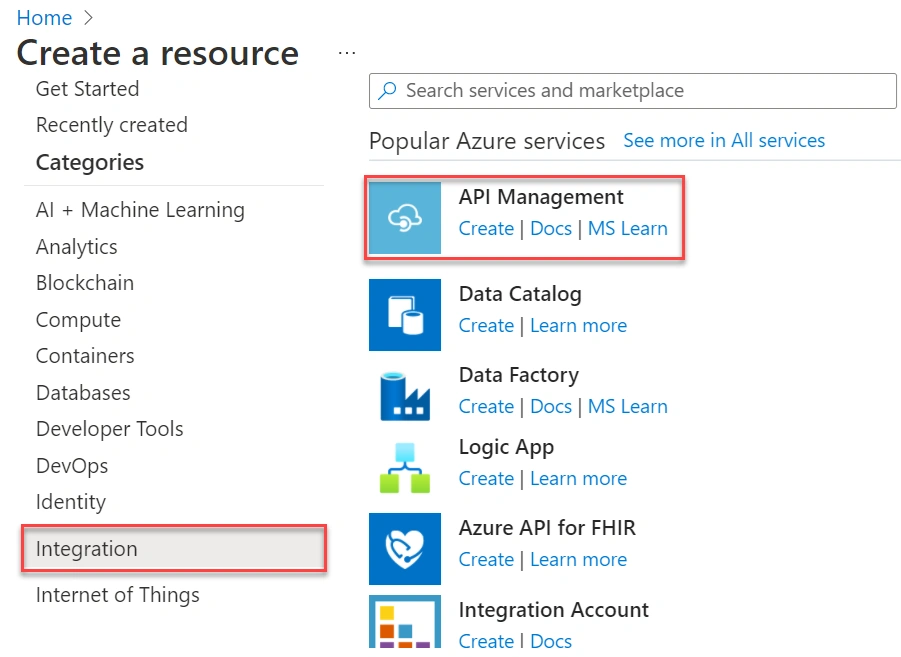
Create a resource page will be open. Select the Integration option and then click on Create option into API Management selection.
Create API Management page will be open. Here, there are various tabs such as Basics tab, Monitor plus secure tab, Virtual network tab, Managed identity tab, Tags tab, etc. Enter below information in first Basic tab.
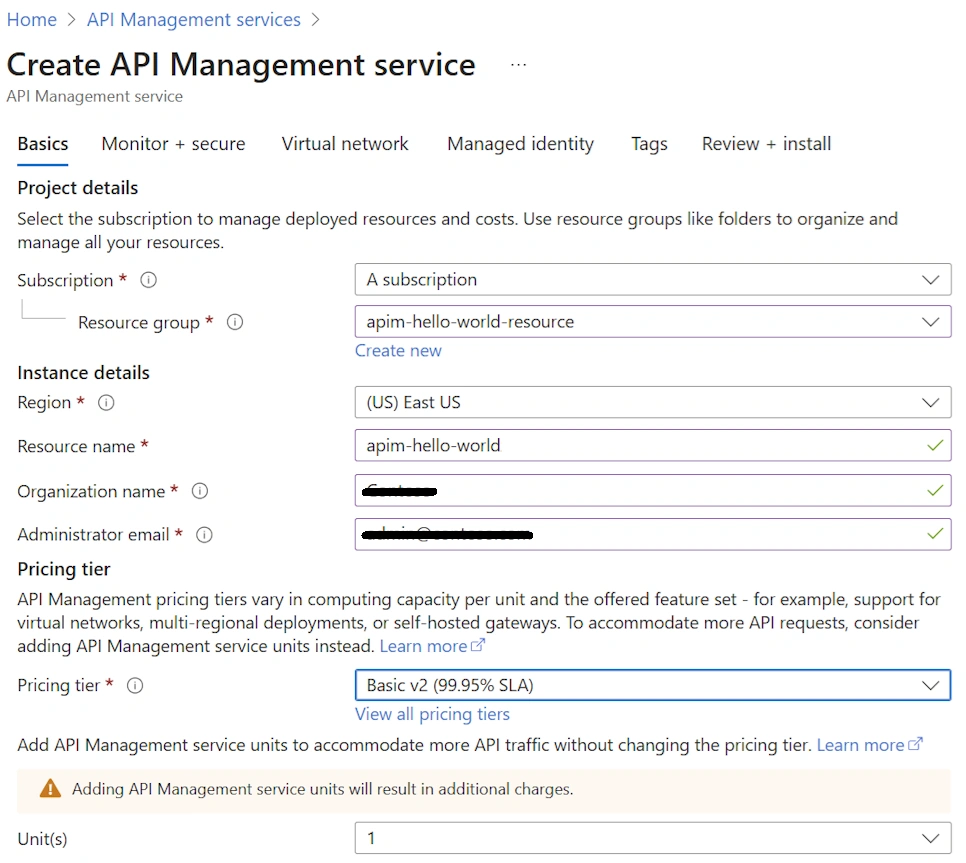
Key configurations
Subscription: Select the subscription in which new service instance is to be created.
Resource group: Select an existing resource group or create a new resource. Resource group is a logical container used to hold related resources.
Region: Select nearest geographic region location near to available API Management service locations.
Resource name: Unique name is required for API Management instance. Name is not editable later.
Organization name: This name is used at several places such as including the title of developer portal, sender notification emails, etc.
Administrator email: This email address used to receive all system notifications from API Management.
Pricing tier: Use Basic v2 tier is economical choice for the development and testing purpose.
Retrieve API Management Instance
One can go to a particular existing API Management instance using following steps:
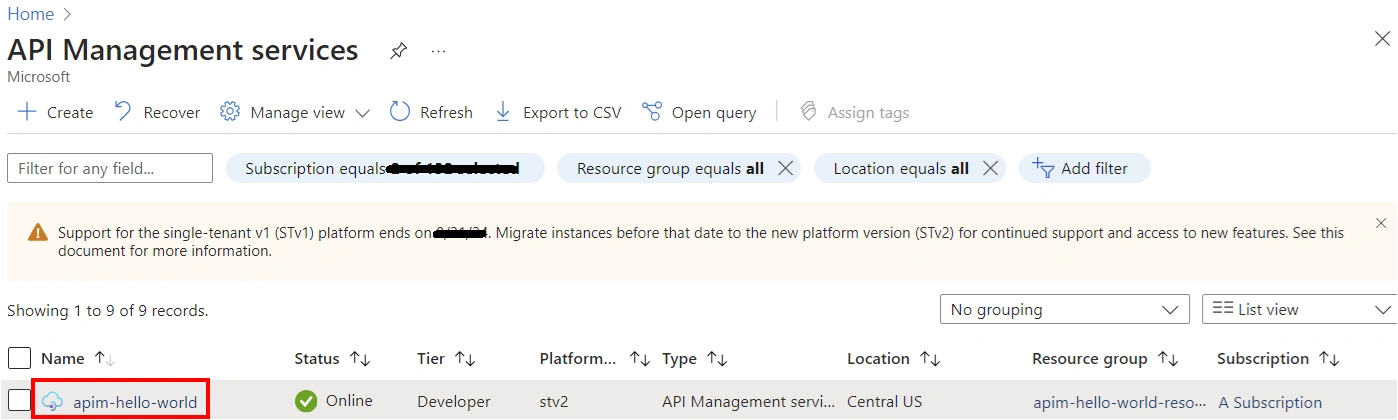
In Azure portal, click on Search bar and search for API Management services and then click on that option appeared.
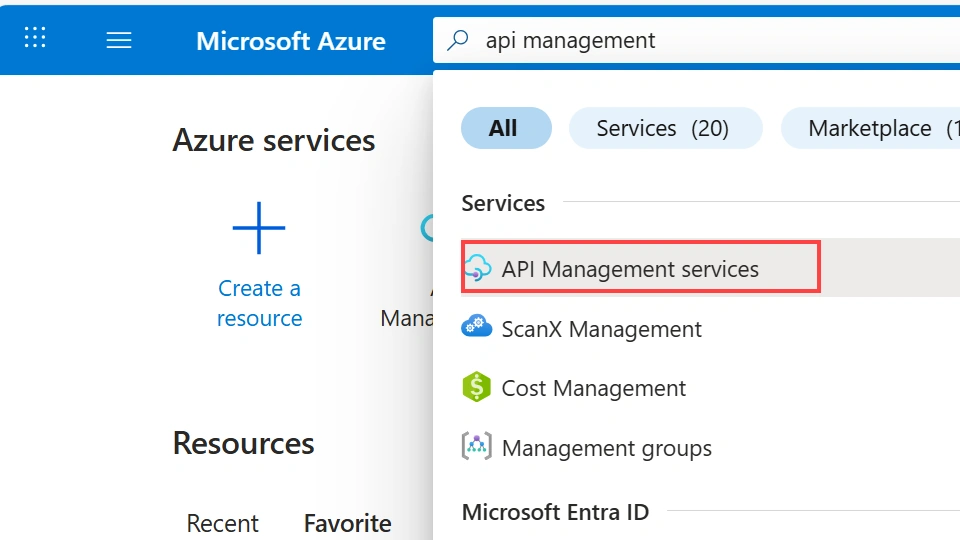
API Management services page will be open. Select appropriate API Management instance from the list.
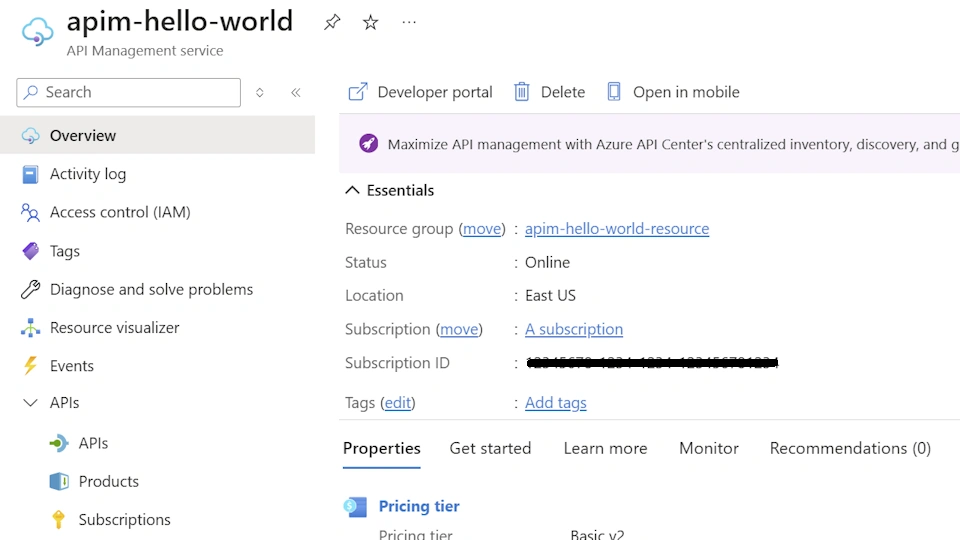
Overview page will be open. From here review all the properties of a service.
Import and Publish API
Now, after creating an instance let’s use Azure portal to import an API in API Management instance. Perform the following steps one by one to import and publish an OpenAPI specification backend API.
Retrieve API Management instance - Perform the same above mentioned steps to “Retrieve API Management instance” and it will open Overview page.
Overview page to create/import new API.
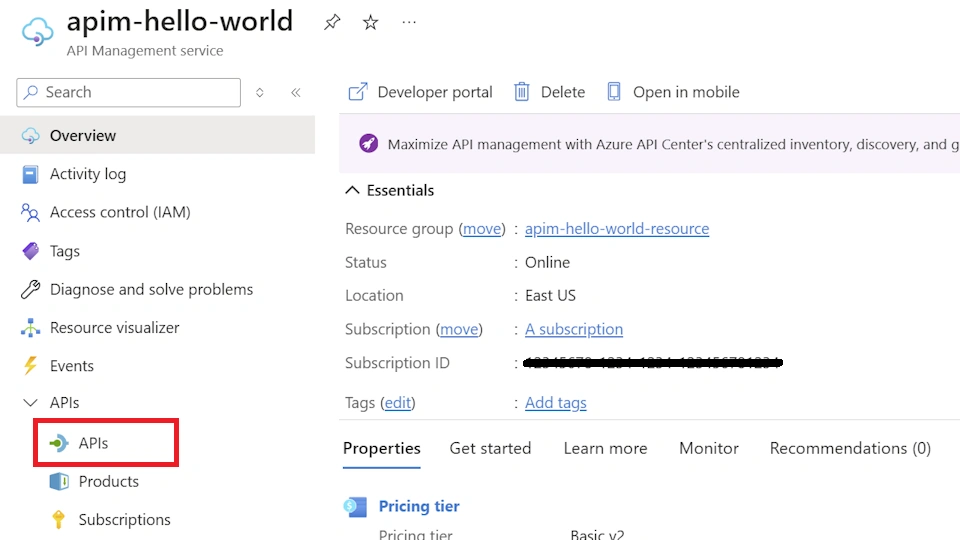
From the left menu select APIs and then click on + Add API option.
Under Create from definition select OpenAPI tile option.
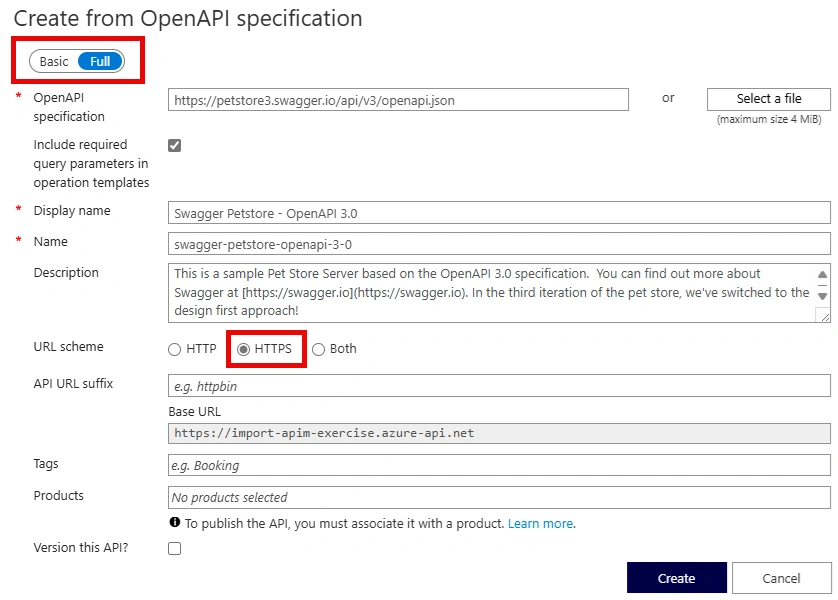
Create from OpenAPI specification page will be open as like below and change Basic/Full toggle button to Full option selected. Full detailed option settings will be displayed. Enter below information/settings in this window for the API configuration.
Key configurations
OpenAPI specification: Provide the backend service implementing API and operations which API supports. Enter https://petstore3.swagger.io/api/v3/openapi.json for our example. This is a mandatory field.
Include query parameters in operation templates: Specifies either to import required query parameters or not in specification as the template parameters in API Management. Default is Selected.
Display name: This name will be displayed in developer portal. It auto fills out based on the JSON for the entered OpenAPI specification URL. This is a mandatory field.
Name: This is a unique API name. It auto fills out based on the JSON for the entered OpenAPI specification URL. This is a mandatory field.
Description: This is description of the API. It auto fills out based on the JSON for the entered OpenAPI specification URL. This is an optional field.
URL scheme: It defines security level for HTTP protocol for API. Select HTTPS option for secured protocol.
Pricing tier: Use Basic v2 tier is economical choice for the development and testing purpose.
Save and close - After entering all key configuration details click on Create button to save and close.
That’s it. API has been imported and configured successfully. Next task is to test the imported API.
Test API
Let’s test API operations from Azure portal. It provides convenient way to view and test API operations.
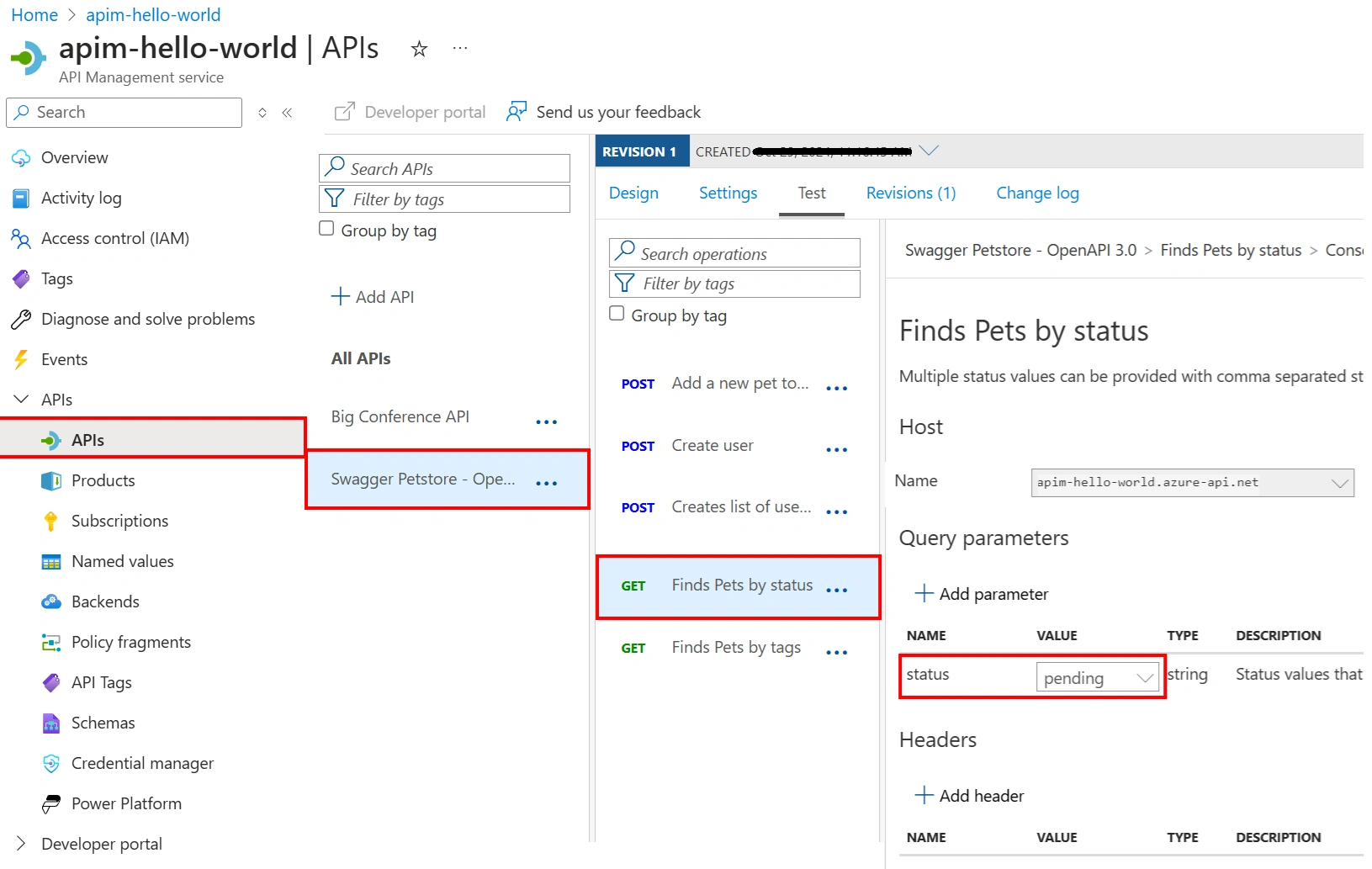
Navigate to created API Management instance as mentioned above in "Retrieve API Management Instance" section. Click on APIs option from left menu options and then select Swagger Petstore option.
Select the Test tab from couple of tabs and then click on "Finds Pets by status" selection. Test page will be open and shows status Query parameters. Select a value from available values such as pending.
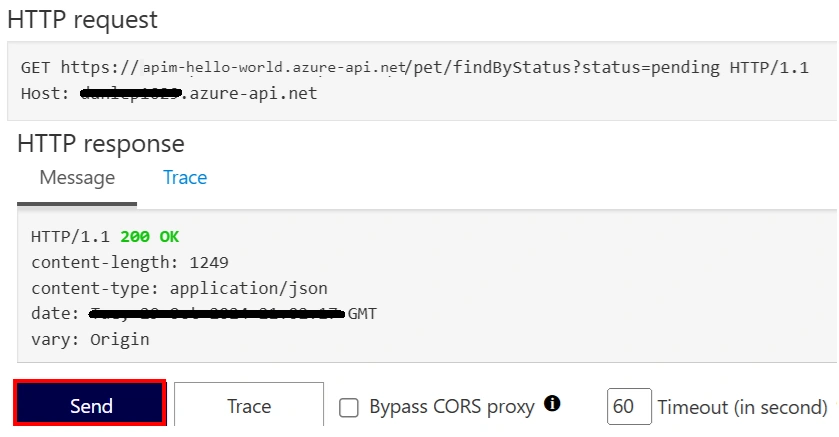
Click on Send button at bottom right side to send API request and it will return the response. HTTP response section loads API request response such as 200 OK and some data.
Clean up resources
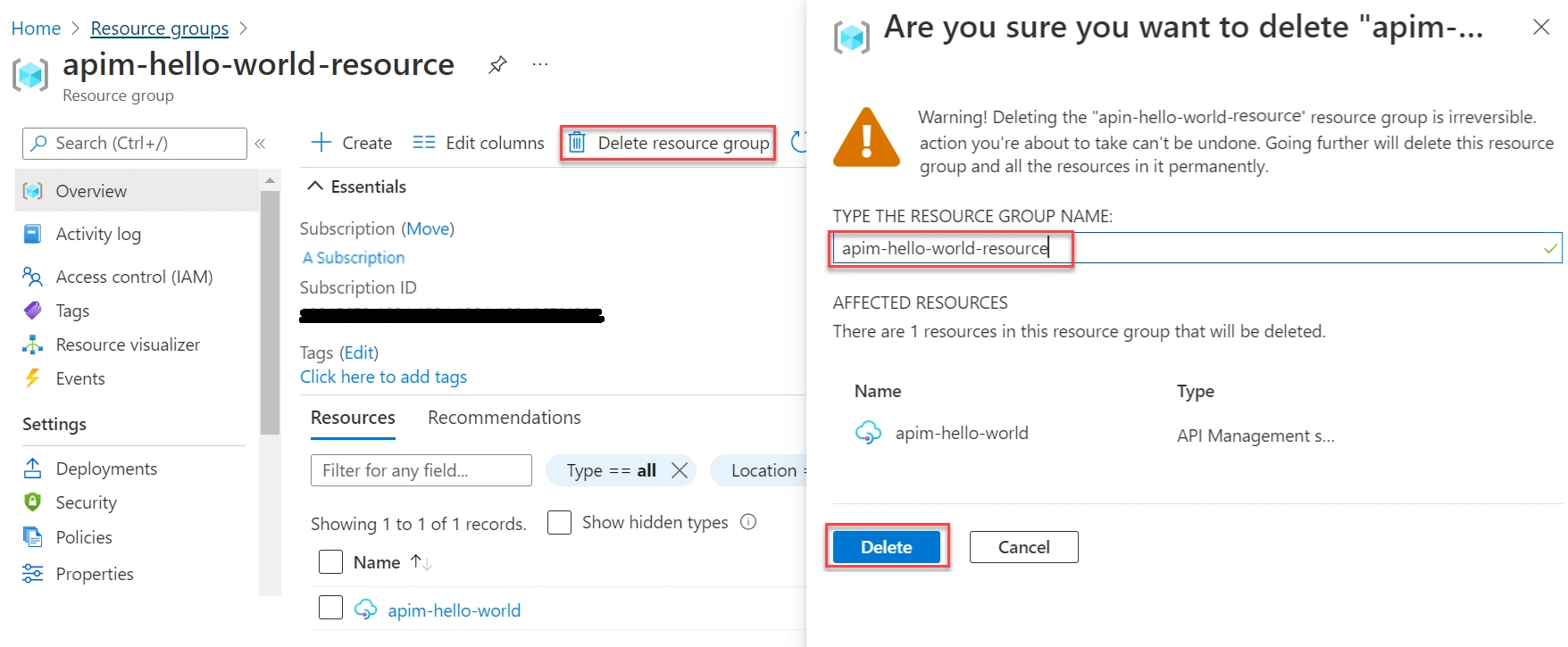
After finishing the exercise its recommended to delete cloud resources are being created to avoid the unnecessary resource usage and any future cost. Deleting a resource group will delete all resources contained within it. Perform following steps one by one into Azure Portal to achieve this:
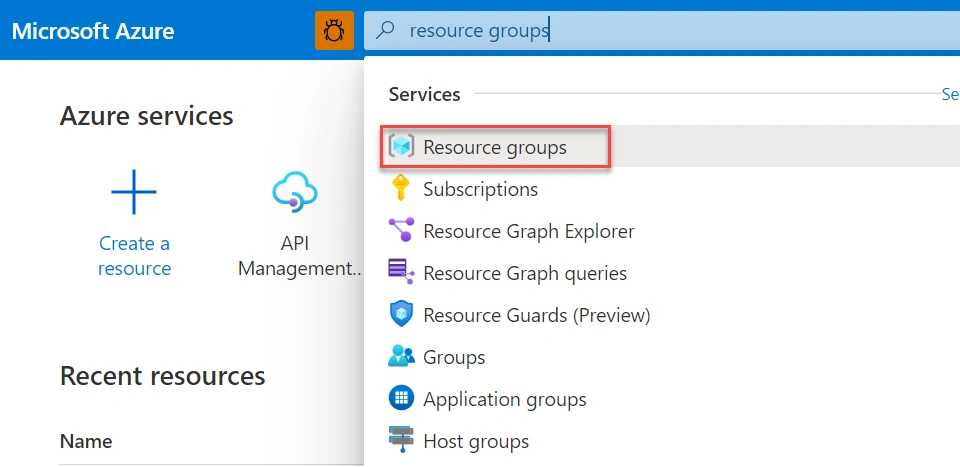
In Azure portal, click on Search bar and search for Resource groups and then click on option appeared.
Resource group page will be open. Select appropriate resource instance from the list.
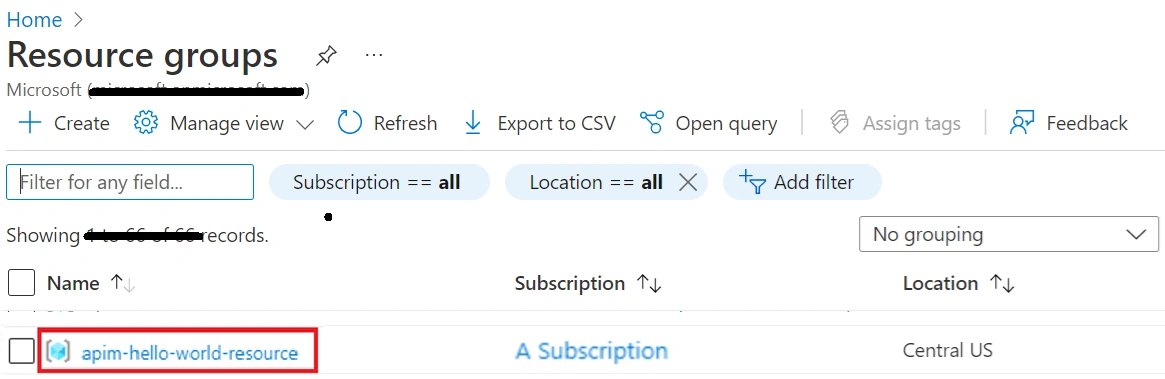
Resource group page will be open. Click on Delete resource group option and it will open one more panel to type/select resource and then select Delete button to perform the actual delete or cleanup operation.
Summary
Here, a complete process flow is described in detailed to import and configure API with Azure API Management by using Azure portal. First, created an Azure API Management instance. Then, imported and configured the OpenAPI specifications back-end API by using Azure portal. Later, tested API and operations to verify work correctly and response. At the end, resources cleaned up. Now, one will be able to import API into API Management and test API by using Azure portal.
Join the conversation! Your thoughts help the community grow.