

Introduction
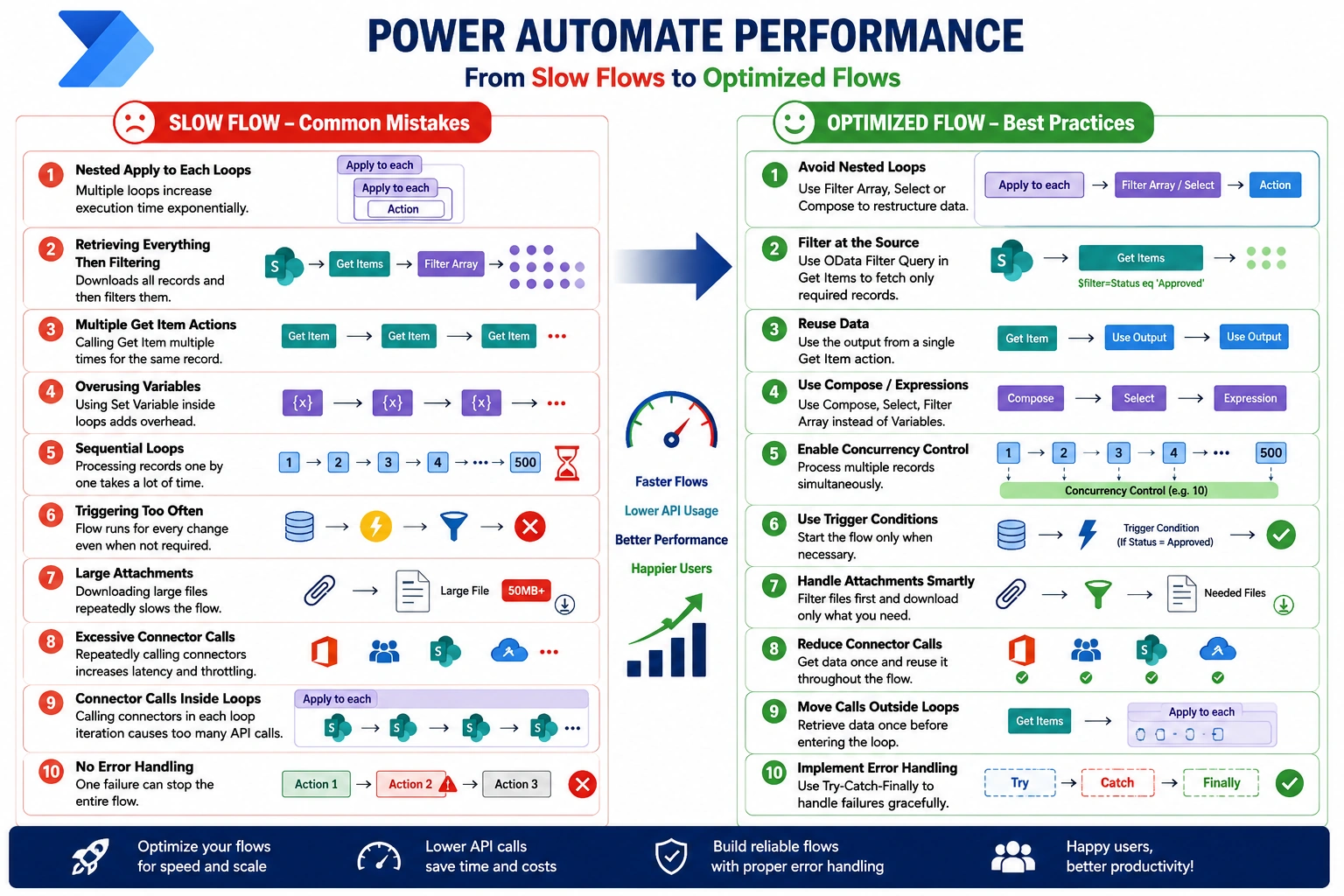
Is your Power Automate flow taking too long to run? Slow flows not only increase execution time but also consume more API calls, making automation less efficient.
In this article, we'll explore 10 common mistakes that slow down Power Automate flows and learn the best practices to improve performance.
1. Nested Apply to Each Loops
Problem
Using an Apply to each loop inside another loop increases execution time dramatically.
Example
Loop through Orders
Inside each Order, loop through Order Items
Better Approach
Use Filter Array
Use Select
Restructure your data before looping
Benefit
Faster execution
Fewer iterations
2. Retrieving Everything Then Filtering
Problem
Many developers use Get Items to retrieve every SharePoint item and then apply Filter Array.
Get Items
↓
Filter Array
This downloads unnecessary records.
Better Approach
Use an OData Filter Query
Example:
Status eq 'Approved'Instead of retrieving 5,000 items, retrieve only the required records.
Benefit
Lower API usage
Faster execution
Less memory consumption
3. Multiple Get Item Actions
Problem
Calling Get Item repeatedly for the same record.
Example
Get Item
Get Item
Get Item
Better Approach
Reuse outputs from previous actions using dynamic content or Compose.
Benefit
Fewer SharePoint calls
Reduced latency
4. Overusing Variables
Problem
Using variables inside loops.
Set Variable
Set Variable
Set Variable
Variables increase processing overhead.
Better Approach
Use
Compose
Select
Filter Array
Expressions
instead of variables whenever possible.
Benefit
Cleaner and faster flows.
5. Sequential Loops
Problem
Processing records one by one.
Example
500 records
1
2
3
...
500
Better Approach
Enable Concurrency Control.
Multiple records can be processed simultaneously.
Benefit
Join the conversation! Your thoughts help the community grow.