Introduction
Microsoft SharePoint is widely used to store and manage business data using lists and document libraries. As an application grows, SharePoint lists can contain thousands of records.
When a list contains more than 5,000 items, users may experience performance issues or encounter the List View Threshold error while filtering, sorting, or retrieving records.
To handle large lists efficiently, SharePoint provides a feature called Column Indexing.
In this article, we will understand SharePoint column indexing, why it is important, how to configure it, and how to use it with a real-world example.
What is SharePoint Column Indexing?
Column indexing is a SharePoint feature that improves the performance of filtering and retrieving list items.
An index helps SharePoint identify the required records more efficiently instead of scanning the entire list.
For example, suppose we have an Invoice Details list containing 20,000 records. If users frequently search for invoices based on Invoice Number or Invoice Status, creating indexes on these columns can improve filtering performance.
Why Do We Need Column Indexing?
Column indexing is useful when working with large SharePoint lists.
Some important benefits include:
Improved Performance: Helps retrieve filtered records more efficiently.
Large List Management: Helps manage lists containing thousands of records.
Faster Filtering: Improves filtering on frequently used columns.
Reduced Threshold Issues: Helps create filtered views that work within the List View Threshold.
Better User Experience: Makes working with large lists more efficient.
Note: SharePoint Online has a default List View Threshold of approximately 5,000 items per database operation. Column indexing helps manage this threshold, but it does not increase or remove the limit.
Real-World Example: Invoice Management System
Let's consider an Invoice Management System built using Power Apps and SharePoint.
We have a SharePoint list named InvoiceDetails with the following columns:
Column Name | Data Type |
|---|
Invoice Number | Single line of text |
Vendor Name | Single line of text |
Invoice Status | Choice |
Invoice Amount | Currency |
Invoice Date | Date and Time |
Subsidiary | Choice |
Suppose the list contains 20,000 invoice records.
Users frequently filter invoices based on Invoice Status, Invoice Number, and Invoice Date.
Without appropriate indexing, filtering a large list may result in threshold errors or slower queries.
To improve performance, we can create indexes on frequently used columns.
Step 1: Open SharePoint List Settings
Open your SharePoint site.
Navigate to the InvoiceDetails list.
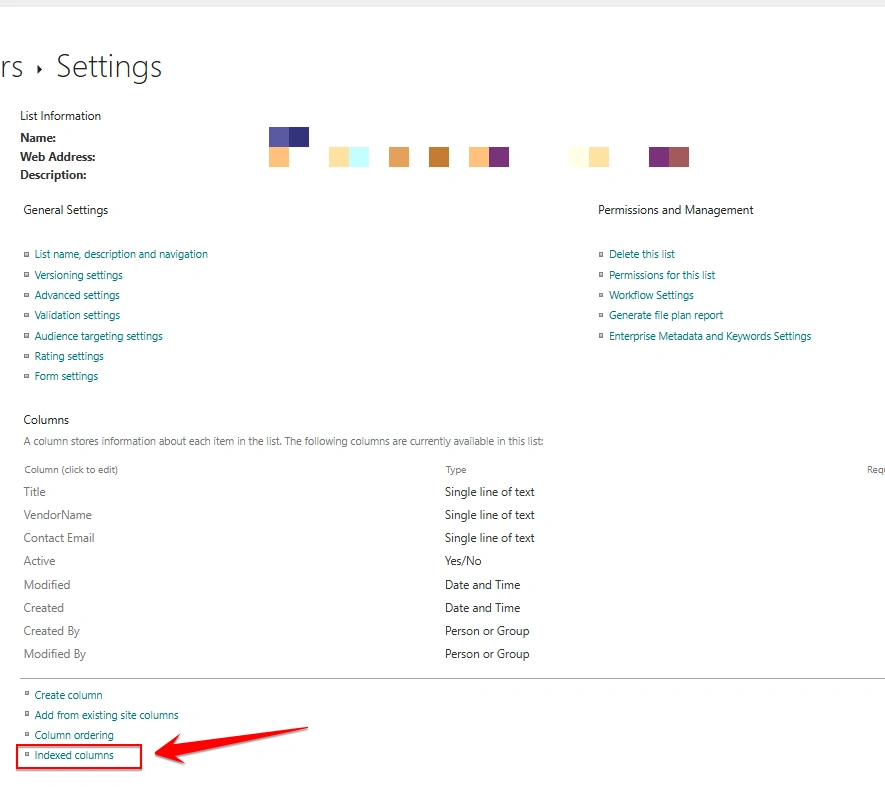
Click the Settings (gear) icon.
Select List settings.
Scroll down to the Columns section.
Step 2: Open Indexed Columns
Under the Columns section, select Indexed columns.
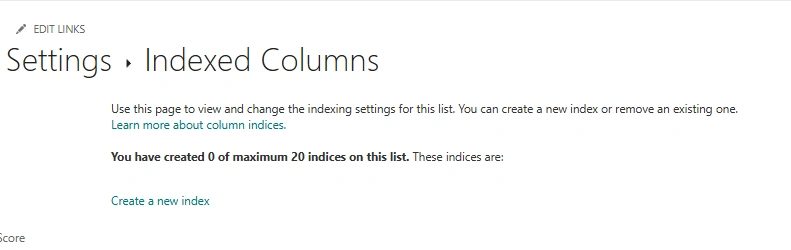
The Indexed Columns page will open.
Select Create a new index.
Step 3: Create a Column Index
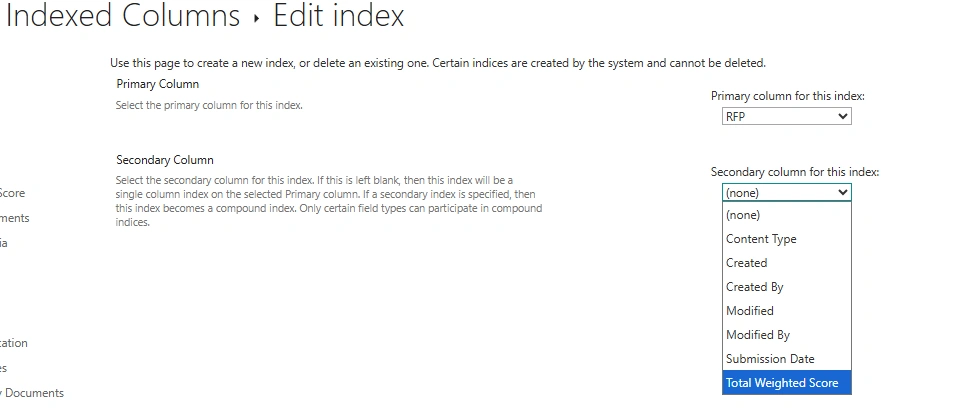
Under Primary Column, select RFP.
Click Create.
SharePoint will create an index for the selected column.
Repeat the same process for other frequently used columns, such as:
You can create up to 20 indexes per list or library.
Step 4: Create a Filtered SharePoint View
After creating the index, create a view that uses the indexed column.
For example, create a view named Pending Invoices.
Configure the filter:
Show items only when the following is true:
Column: Invoice Status
Condition: Is equal to
Value: Pending
Now SharePoint can use the indexed Invoice Status column to filter invoice records.
Step 5: Use Column Indexing with Power Apps
Column indexing is also useful when designing Power Apps applications connected to SharePoint.
For example, we can retrieve pending invoices using the following Power Fx formula:
Filter(
    InvoiceDetails,
    'Invoice Status'.Value = "Pending"
)
For a text-based Invoice Number column:
Filter(
    InvoiceDetails,
    'Invoice Number' = txtInvoiceNumber.Text
)
Important: Creating a SharePoint index does not automatically make every Power Apps query delegable. Always check delegation warnings and use supported delegable filters.
What Types of Columns Can Be Indexed?
SharePoint supports indexing several common column types.
Supported column types:
Unsupported column types:
What is a Compound Index?
SharePoint also supports compound indexes, which use two columns together.
For example:
This can be useful when designing views that filter invoices using both status and date.
A compound index requires a supported non-Lookup primary column to be paired with a supported non-Lookup secondary column?
Note: In SharePoint's compound index configuration, the primary column must be a Lookup column, and the secondary column must be a supported non-Lookup column. However, indexed Lookup columns cannot be relied upon to overcome the List View Threshold.
Best Practices for SharePoint Column Indexing
Create indexes only on frequently filtered columns.
Use indexed columns in SharePoint views.
Choose a filter that reduces the number of returned records as much as possible.
Prefer AND conditions instead of OR conditions when combining filters for large lists.
Avoid indexing unnecessary columns because indexes add maintenance overhead.
Keep SharePoint views simple and display only required columns.
Remember that indexing does not remove the 5,000-item List View Threshold.
Conclusion
SharePoint Column Indexing is an important feature for managing large lists and improving filtering performance.
When developing business applications using Power Apps, Power Automate, and SharePoint, properly indexing frequently used columns can help create more efficient solutions.
By combining column indexing with filtered views and delegable Power Apps queries, developers can build scalable applications that work effectively with large SharePoint lists.


Join the conversation! Your thoughts help the community grow.