

Introduction
In my previous three articles you learned about:
- How to Install the Windows Deployment Services (WDS) in Windows Server 2012.
- How to Configure the Windows Deployment Services in Windows Server 2012.
- How to Add Install Image to the Windows Deployment Services.
This article is a continuation of:
-
How to Install the Operating System Without CD or Through the Network-Part 1
-
How to Install the Operating System Without CD or Through the Network-Part 2
-
How to Install the Operating System Without CD or Through the Network-Part 3
This article is the fourth and final part of the series How to Install Operating System Without CD or Through the Network.
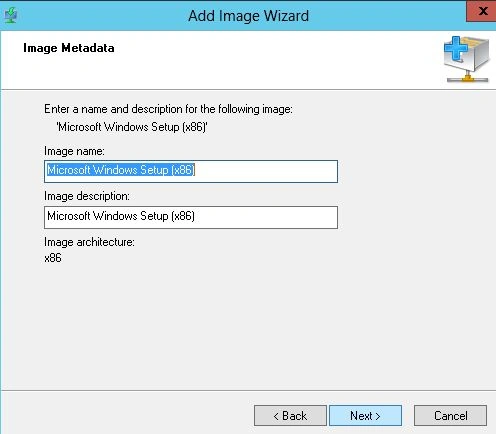
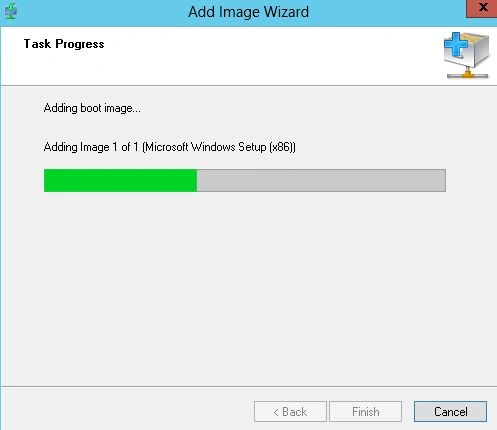
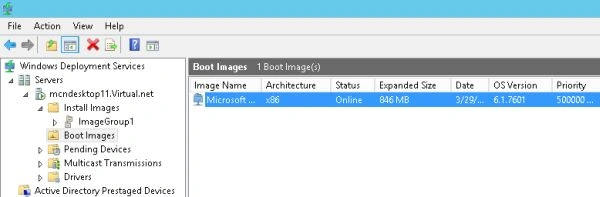
In this article you will learn how to add a Boot Image to the Windows Deployment Services to install the OS on any system.
As you configure the server, many options will be available for the server, like Install Image, Boot Image etc.
Step 1
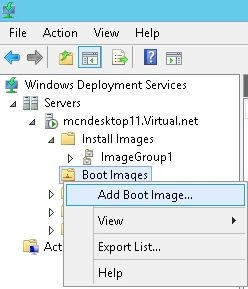
Right-click on "Boot Image" under the server and click on "Add Boot Image".
Step 2
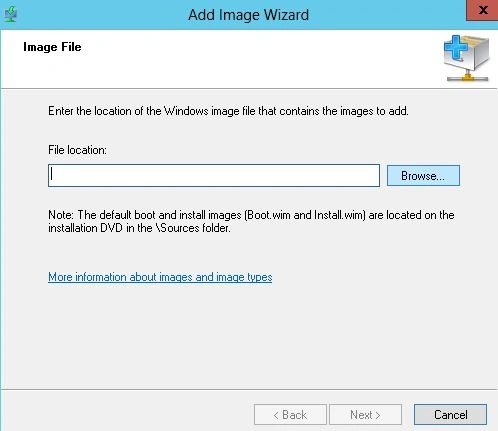
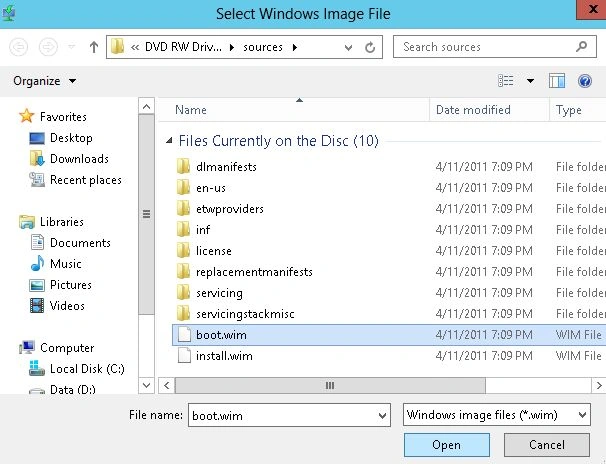
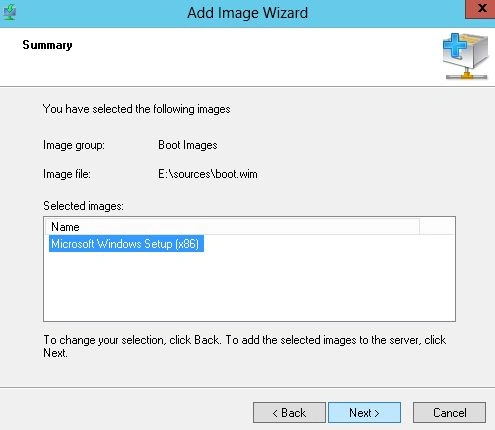
The next page will ask for the path of the image file. Click on the "Browse" button to specify the path.
Join the conversation! Your thoughts help the community grow.