

Introduction
Installing Ubuntu Server on VMware ESXi lets you run a Linux server in a virtual environment. VMware ESXi is a tool that helps you create and manage many virtual machines on one physical server. Using the ESXi web client, you can easily set up and install Ubuntu Server, which is a strong operating system for running apps and managing data. This simple guide will show you how to create a virtual machine, install Ubuntu Server, and get your server working quickly.
What is VMware ESXi?
VMware ESXi is a software that lets you run many virtual computers (called virtual machines or VMs) on one physical server. It divides the server’s resources like memory, storage, and processing power so each virtual machine can run its own programs and operating system. This helps businesses save space and money because they can use one server to do the job of many.
What is the VMware ESXi Client browser?
The VMware ESXi Client browser is a tool you use in a web browser to manage your VMware ESXi server. It lets you create, control, and monitor virtual machines easily from any computer. You don’t need to install extra software, and you can access your server from anywhere. With this tool, you can add or remove virtual machines and change settings using a simple interface.
Requirements for Installing Ubuntu Server on VMware ESXi
- VMware ESXi: A working VMware ESXi server to create and run virtual machines.
- VMware Client Browser: A web tool that lets you connect to and control the ESXi server from any computer.
- Ubuntu Server ISO file: A file you can download from the Ubuntu website that contains the Ubuntu Server operating system for installation.
- Internet browser: A web browser like Chrome or Firefox to access the ESXi web client and manage your virtual machines.
Step 1. Access the ESXi Web Client.
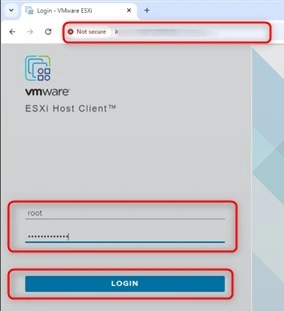
Open your web browser and type the IP address of your ESXi host Ex: https://192.168.1.200.
Log in with your ESXi username and password.
Step 2. Create a New Virtual Machine (VM).
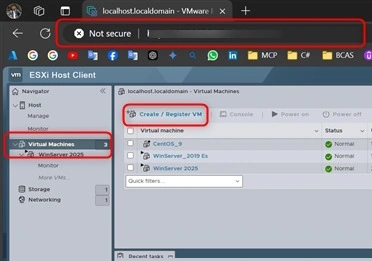
- Click on Virtual Machine.
- Then, Click Create/Register VM.
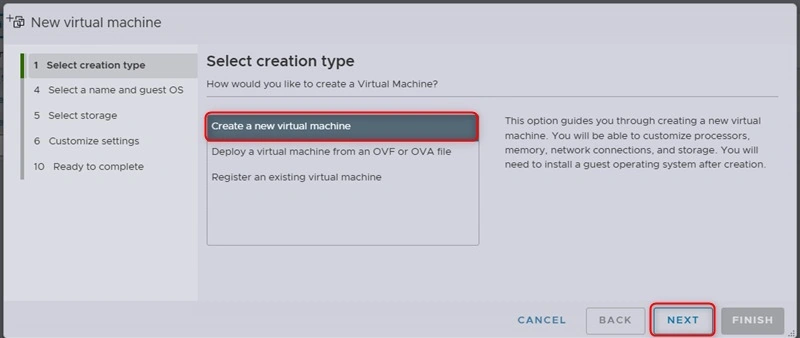
- Select Create a new virtual machine and click Next.
Step 3. Set Up the Virtual Machine.
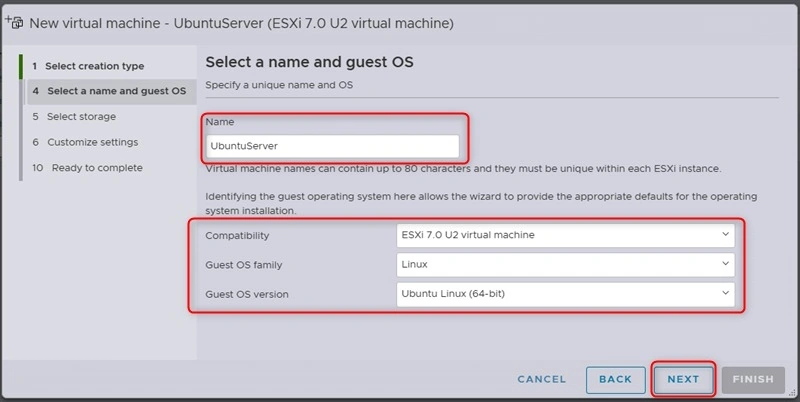
- Name your VM (example: Ubuntu_Server).
- Under Guest OS Family, choose Linux.
- For Guest OS Version, select Ubuntu Linux (64-bit).
- Click Next.
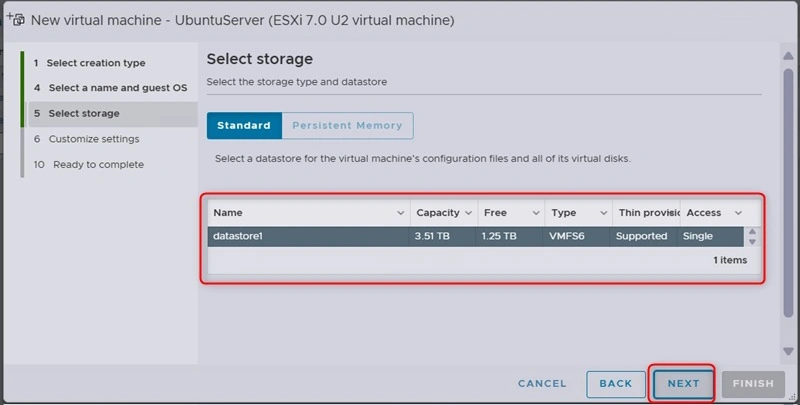
Step 4. Select the Storage.
- Choose the data store for the VM.
- Then Click Next.
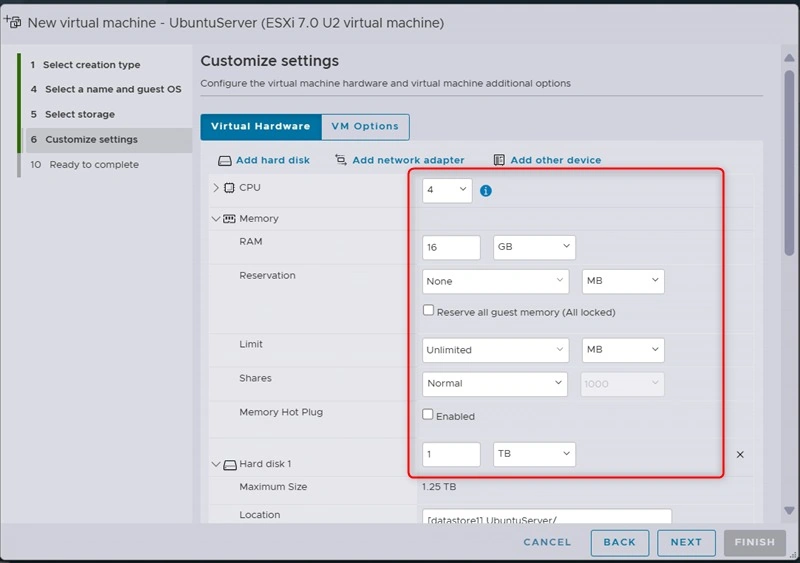
Step 5. Configure VM Settings.
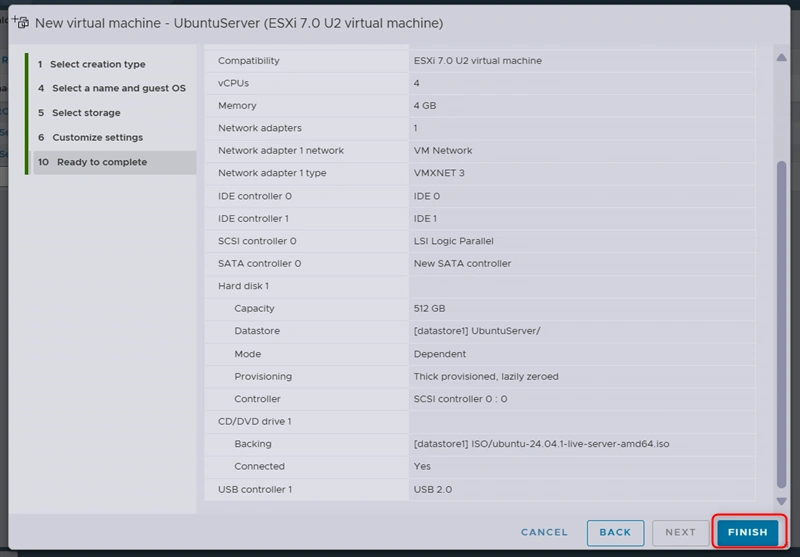
- Choose the amount of CPU and memory the VM will use.
- Set the size of the hard disk (at least 20GB is recommended).
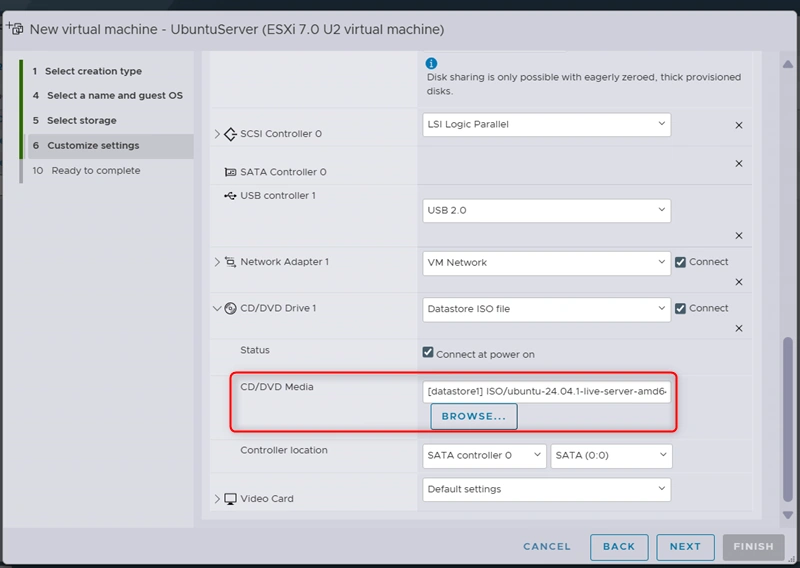
- Select the Datastore ISO file for the CD/DVD drive to upload the Ubuntu ISO file.
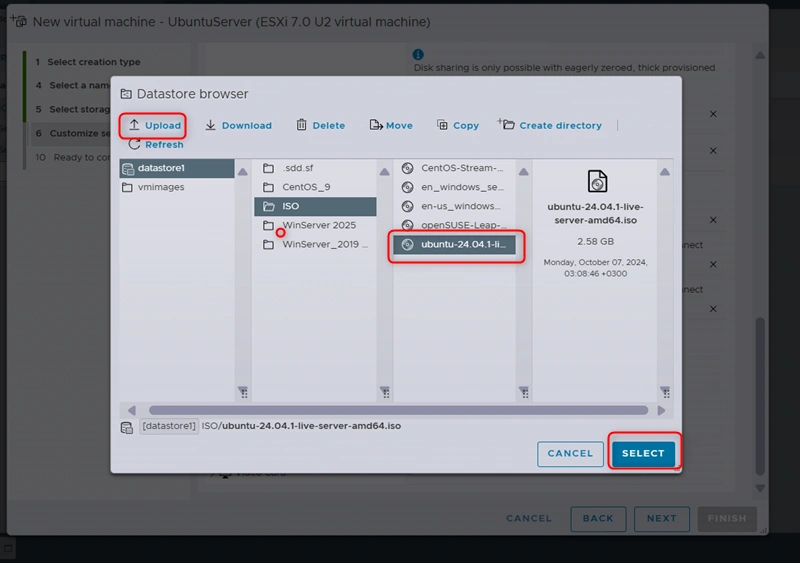
Step 6. Upload the Ubuntu Server ISO.
- In the Datastore section, click Upload.
- Upload the Ubuntu Server ISO file from your computer.
- After uploading, select this ISO file for the VM's CD/DVD drive.
Step 7. Complete VM Creation.
- Review all settings and click Finish.
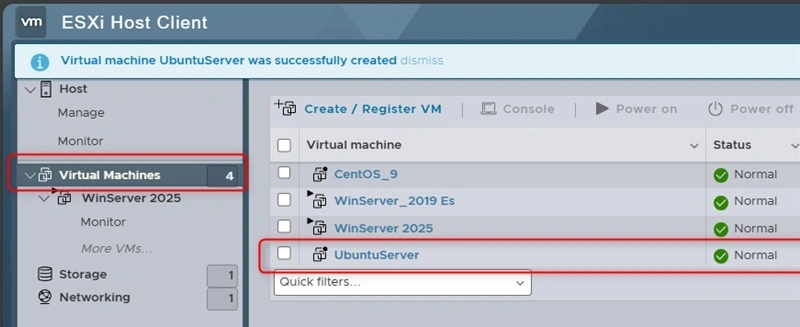
- The new VM should now be listed on the ESXi dashboard.
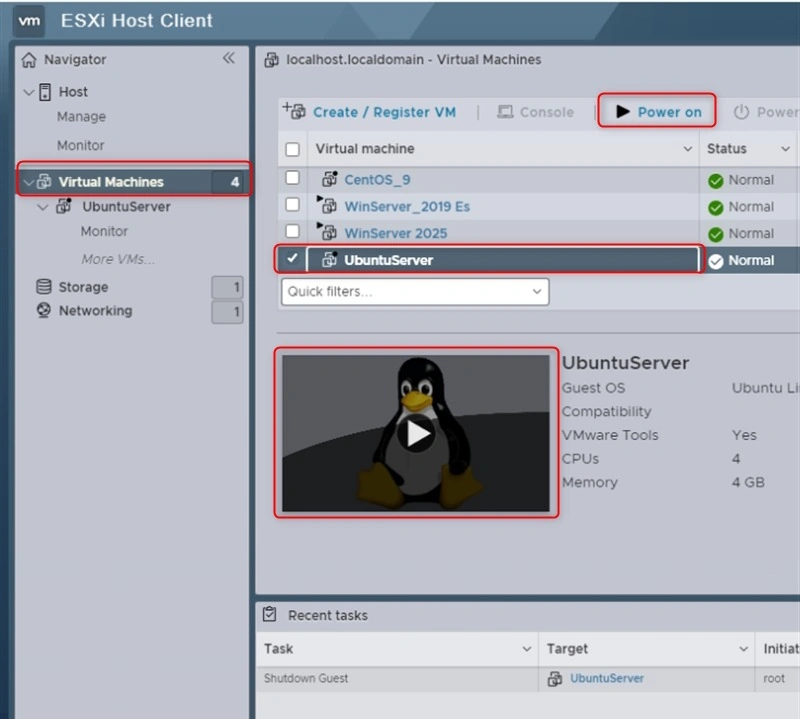
Step 8. Start the VM and Open the Console.
- Select VM (UbuntuServer) and Click Power On.
- Click on Console to view the VM’s screen.
- The Ubuntu installation menu will appear.
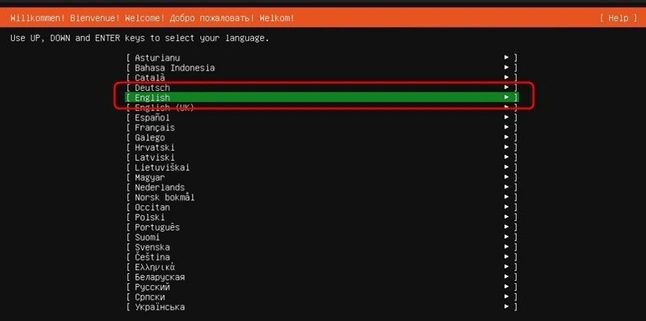
Step 9. Install Ubuntu Server.
- Select your language and press Enter.
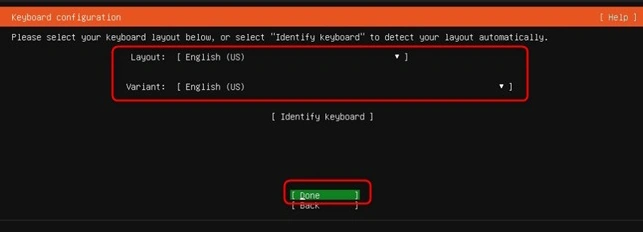
- Set the keyboard layout.
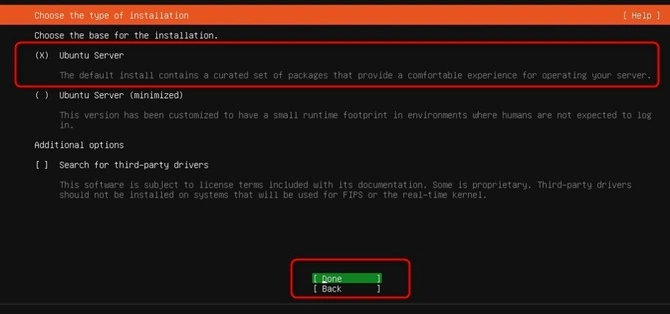
- Choose the installation type.
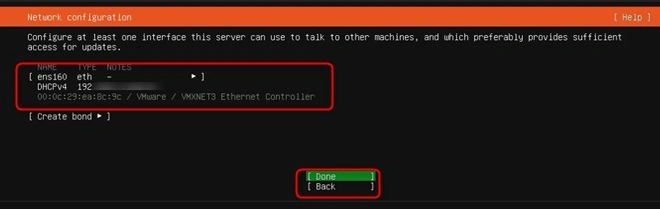
- Configure the network.
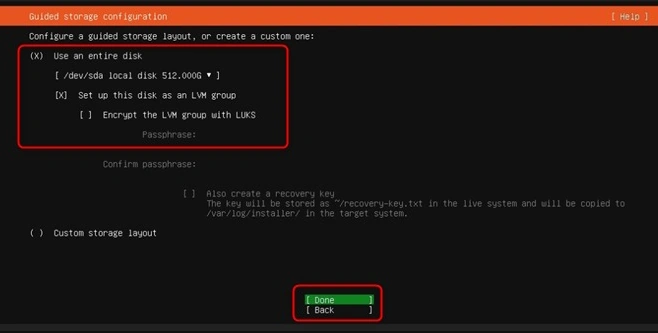
- Set up storage.
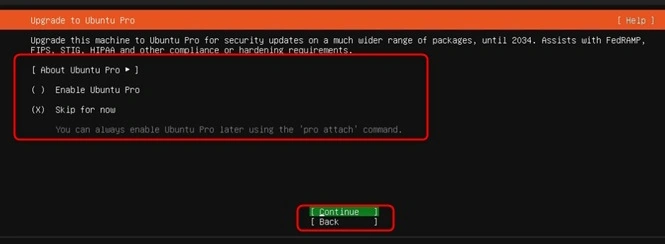
- Chose Ubuntu Pro or skip for now
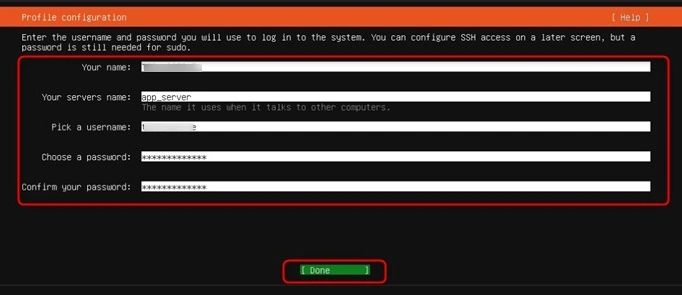
- Create your user profile (username and password).
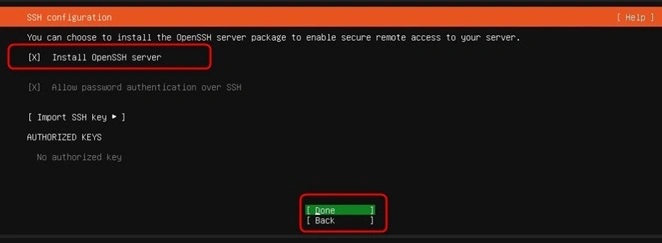
- Install OpenSSH server to enable secure remote access to the server.
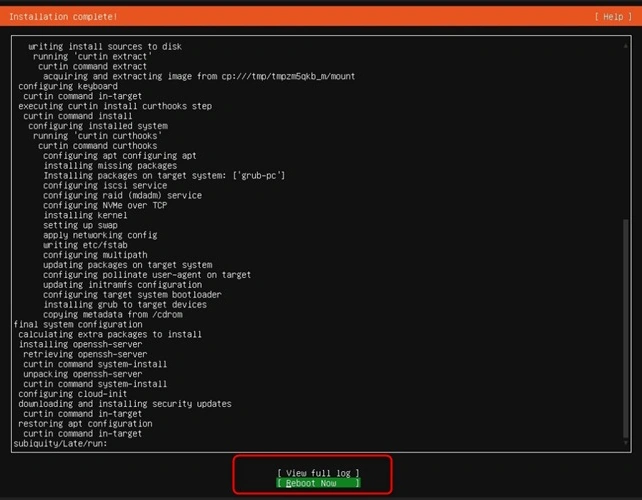
- After completing the installation, Click Reboot Now.
Step 10. Remove the ISO File.
- After installation, go to the VM settings in the ESXi Web Client.
- In the CD/DVD Drive section, select Client Device to detach the ISO.
- Reboot the VM.
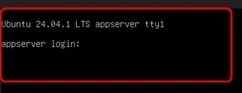
Step 11. Log Into the Ubuntu Server.
After rebooting, log in with the username and password you created during installation.
Conclusion
Installing Ubuntu Server on VMware ESXi using the web client is easy and quick. By following the steps to create a virtual machine, upload the Ubuntu ISO file, and finish the installation, you can have a working Ubuntu Server ready to use. This setup helps you run multiple systems on one server, saving space and resources. Once it's done, your server will be ready to run apps, manage data, or do other tasks as needed.
Join the conversation! Your thoughts help the community grow.