

Introduction
In this article, I am going to explain how to download and install Visual Studio 2022 Version 17.0, step by step, and create a simple .NET 6.0 Console application.
Microsoft’s 64-bit Visual Studio IDE officially launched on November 8, 2021.
Visual Studio 2022 Version 17.0 supports .Net 6.0 applications. Here we have downloaded and install Visual Studio 2022 Version 17.0 Community edition.
Visual Studio 2022 Community edition is free.
Step 1
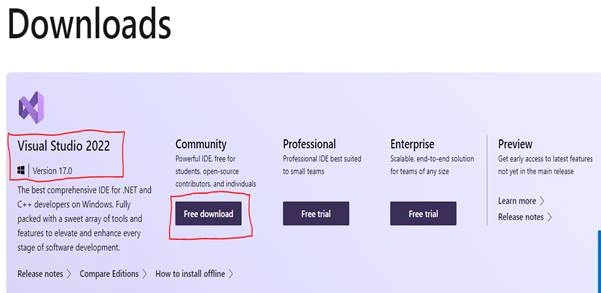
You can download and install Visual Studio 2022 version 17.0 from this link.
Step 2
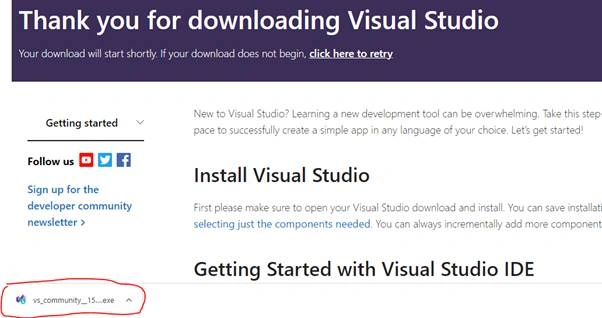
Click the "Download" button for downloading the VS 2022 executable file on the downloaded path.
Step 3
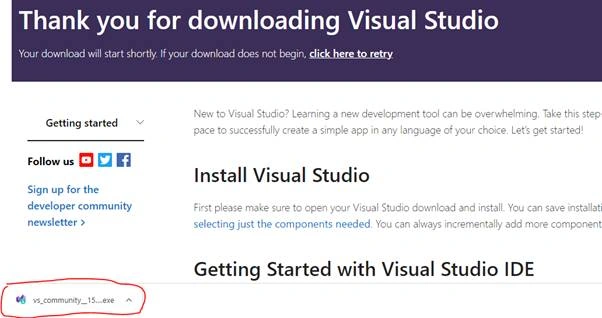
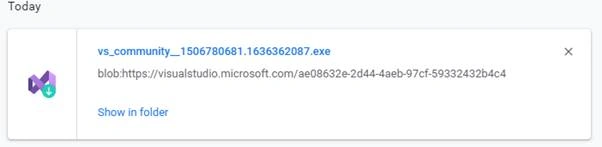
Open your systems download path and find the .exe file.

Step 4
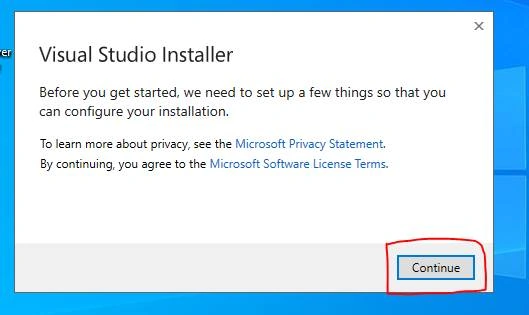
Double-click the .exe file, the Visual Studio installer window will open. Click "Continue".
Step 5
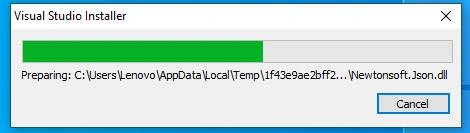
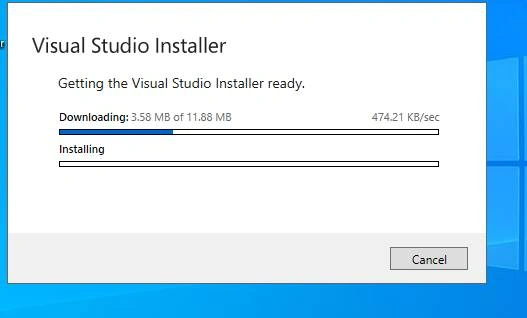
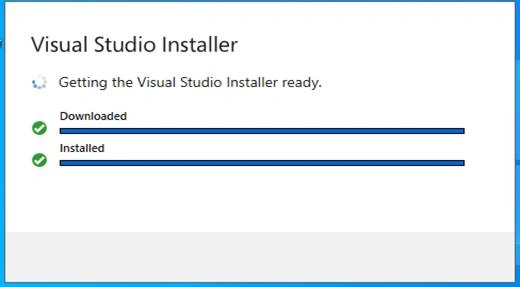
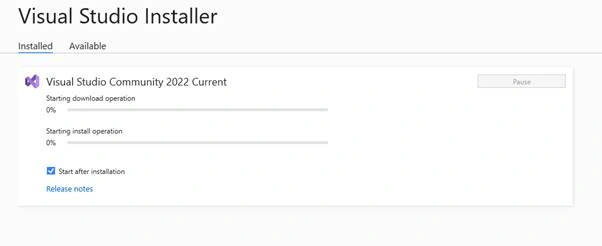
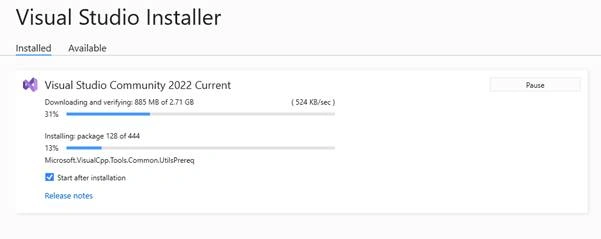
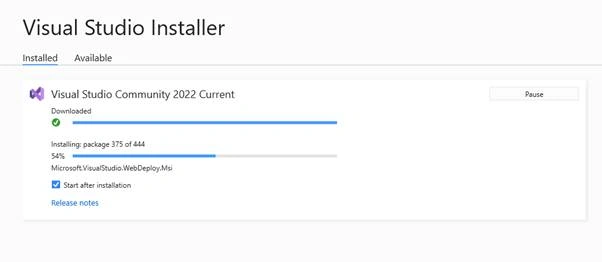
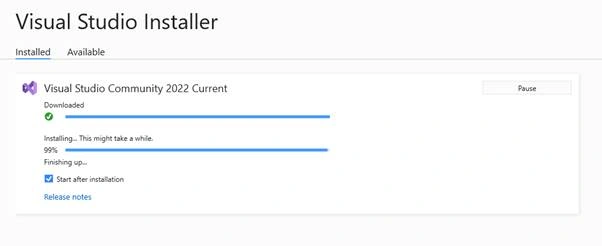
Downloading and installing the progress bar window will open after clicking the continue button.
Step 6
After completing the download and installation, then workloads will open. We need to select what are the workloads we need. Here, we selected ASP.NET and web development, Azure development.
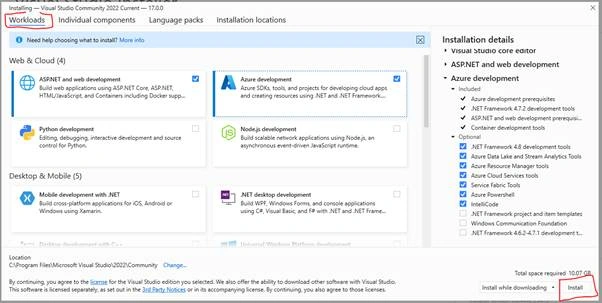
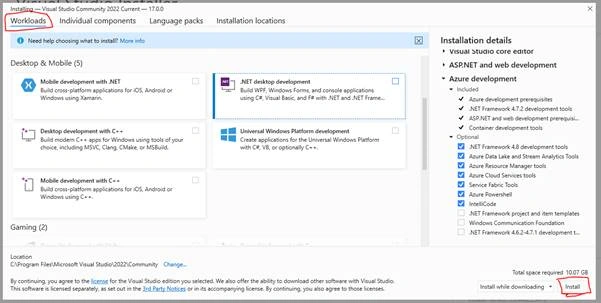
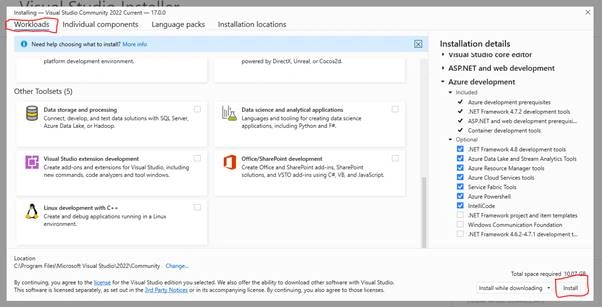
This workload will install the following packages by default.
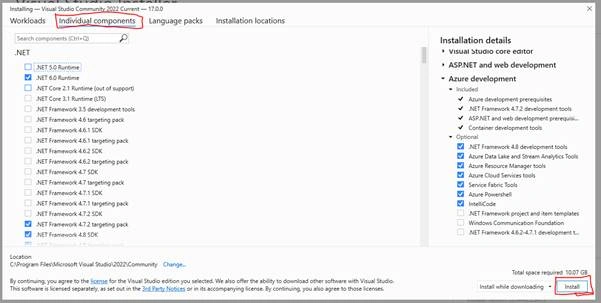
Now, you can add or remove any optional package or individual components from the list.
Step 7
After selecting the desired packages, just click the “Install” button to install.
Step 8
Once the installation is completed. Visual Studio 2022 lunched for the first time.
Now Visual Studio has been successfully launched. When we open Visual Studio for the first time, it takes 15-30 seconds for its initial internal setup.
Step 9
It will load your existing Visual Studio profile. It may also ask you to login into your Microsoft account. If you don’t have a Microsoft account, you can create a new account.
The sign-in step is optional so it can be skipped. But, don’t skip this! Sign in with your Gmail / Microsoft account so that you can activate Visual Studio and get a lifetime license for Free.
If you have no account then click Not now, Maybe later.
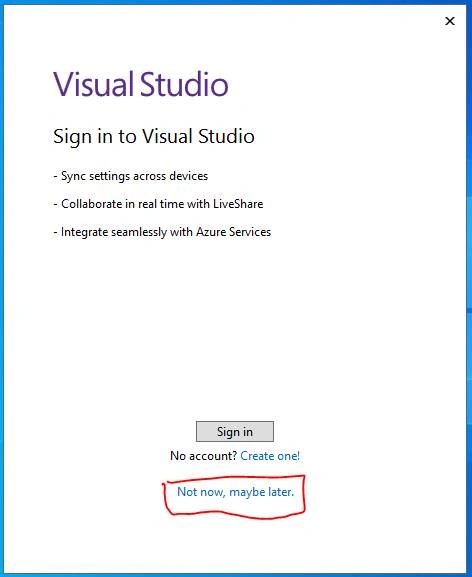
Step 10
Once done, you will be asked to choose the Development Settings and color theme.
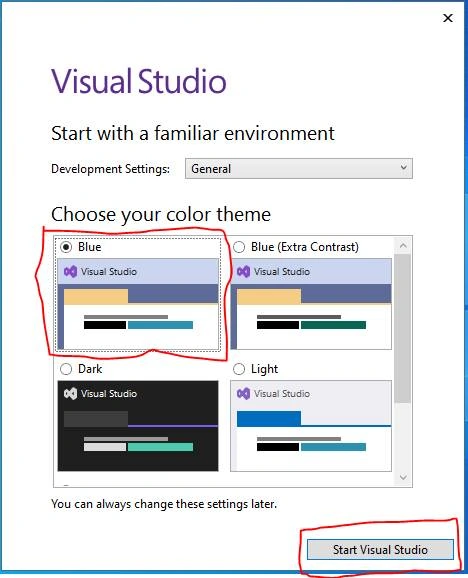
- Select a color theme of your choice, here we have selected the Blue theme and by default Development Settings select General.
- Select Start Visual Studio
Step 11
After selecting the required options, click on the Start Visual Studio option. We can see a newly designed landing page of Visual Studio where we see a list of recent projects. We can also clone or check out the code from GitHub and Azure DevOps. We can open a project or solution and a folder. Also, we can create a new project.
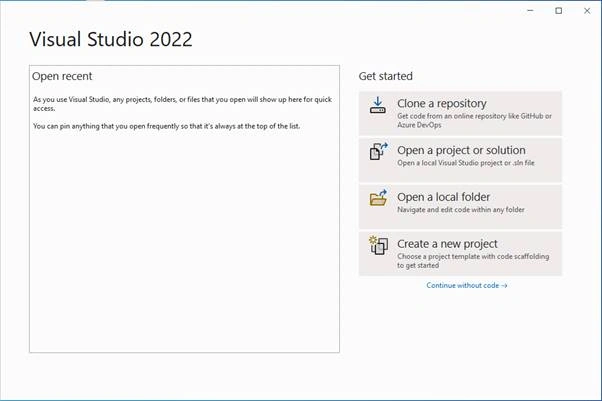
Creating Your First Project
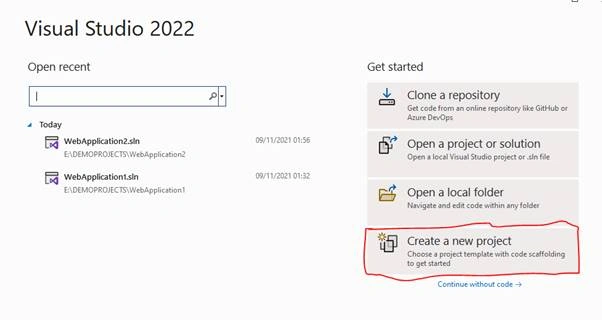
Click on Create a new Project to create a new project.
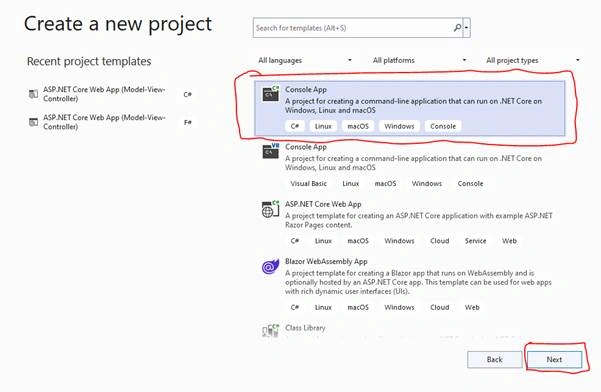
You can see various project types there. Choose “Console Application” project type for now.
Select console Application and click Next.
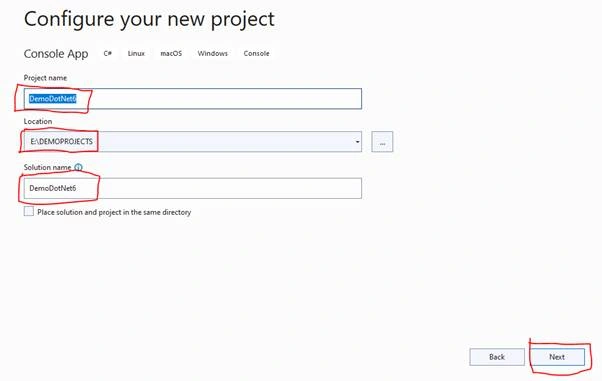
Give a valid name to your project and select a path for it. Then click Next button.
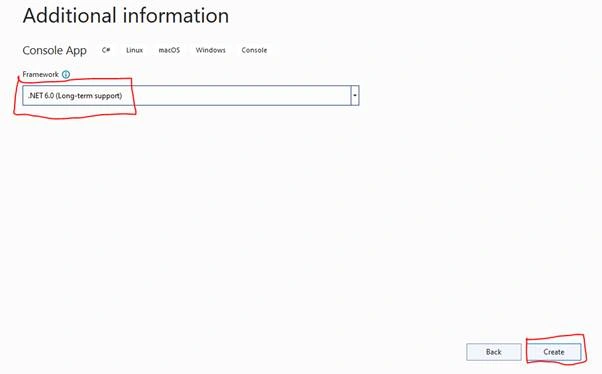
Now, choose framework .NET 6.0.Then click the create button.
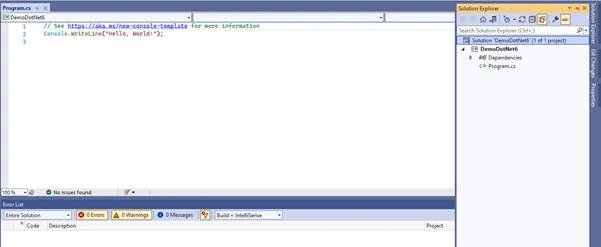
The Console application project structure is shown below,
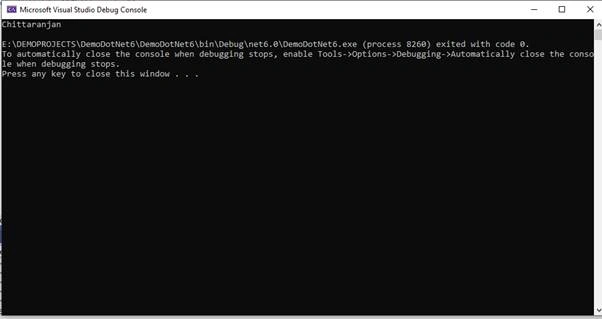
Now, build and run the application.
Output
Conclusion
In this article, we explained how to download and install Visual Studio 2022 Version 17.0 and install .NET 6.0 web development workload. Also created a simple Console application.
Sudarshan BhatPosted May 11, 2022, 5:07 AM
Visual Studio Installer is not working sir. It says 0 B/sec only. What to do now?
Million BIllPosted Apr 11, 2022, 3:55 PM
Thanks for your sharing , i install the visual Studio 2022 Pro from the microsoft , and get a product key from the keyingo.com, so far so good
Allan McKenziePosted Dec 14, 2021, 2:59 PM
Hi. I think I followed your instructions but when I run it it says 'The project doesn't know how to run the profile ConsoleApp1'. Note that I installed Visual Studio onto my C: drive but have put the code onto my H: drive. Is there some kind of path problem?
Mouna ZouaouiPosted Nov 15, 2021, 9:28 PM
Hello , please i have a problem in the installation. while installing i get that the "VC runtimeMinimum X64.msi" is not found. what should i do please i need the WPF C# template to create my project. Thank you for your understanding.
Sudarshan BhatPosted Nov 10, 2021, 2:20 PM
But, should I uninstall VS2019... or no need sir? Even for .NET 6.0 SDK also, do we need to remove all its previous versions?
Sudarshan BhatPosted Nov 10, 2021, 2:18 PM
Thank you for your step by step info sir. Very clearly explained.