Introduction
This article demonstrates how to integrate SharePoint Framework with Angular 4 which is one of the most powerful front-end development frameworks which is emerging day by day.
Prerequisites
Before starting, make sure you have the development environment ready by following official Microsoft SPFx documentation. Once you set up the development environment please follow building your first SharePoint Framework (SPFx) webpart to get your first SPFx web part ready.
Currently, SPFx provides default setup support for react and knockout so please choose “No Javascript framework” option when it asks to choose a framework while creating the SPFx app.
Now, let’s get ready to integrate Angular4 in your SPFx webpart by following the below steps,
Integrating Angular packages in SPFx
Step 1
Make sure you have the below packages added under the dependencies section in the package.json file
- "@angular/animations": "~4.0.0",
- "@angular/common": "~4.0.0",
- "@angular/compiler": "~4.0.0",
- "@angular/core": "~4.0.0",
- "@angular/forms": "~4.0.0",
- "@angular/http": "~4.0.0",
- "@angular/platform-browser": "~4.0.0",
- "@angular/platform-browser-dynamic": "~4.0.0",
- "@angular/router": "~4.0.0",
- "lodash": "^4.17.4",
- "reflect-metadata": "0.1.10",
- "rxjs": "~5.0.1",
- "systemjs": "0.19.40",
- "typescript-string-operations": "~1.1.0",
- "typings": "^2.1.1",
- "zone.js": "~0.8.4",
Code Snippet: 1
Now, go to your npm command prompt and make sure that the terminal is pointing to your project directory and restore the newly added Angular 4 package dependencies by using the command npm install
Example: E:\your project directory >npm install
Step 2
Now, open the tsconfig.json file and match the below contents with that file,
- {
- "compilerOptions": {
- "target": "es5",
- "forceConsistentCasingInFileNames": true,
- "module": "commonjs",
- "jsx": "react",
- "declaration": true,
- "sourceMap": true,
- "experimentalDecorators": true,
- "skipLibCheck": true,
- "typeRoots": [
- "./node_modules/@types",
- "./node_modules/@microsoft"
- ],
- "types": [
- "webpack-env"
- ],
- "lib": [
- "dom",
- "dom.iterable",
- "es2015",
- "scripthost"
- ],
- },
- "compileOnSave": true
- }
Code Snippet: 2
The highlighted contents are the modified ones from the actual file.
Now, we have the required packages imported into our application and config files are updated accordingly.
Implementing Angular project setup in SPFx
Step 1
Add a new folder app in the following hierarchy \\{solutiondirectory} > src > webparts > {webpartName}
Example - E:\first-spfx-webpart\src\webparts\helloworld
Step 2
Add a new folder “Components” under app folder, which is created in previous step, where you will maintain all your Angular 4 components.
Step 3
Create a typescript file named as “app.module.ts” in your “app” folder.
Step 4
Create a typescript file named as “app.component.ts” file in “app/Components” folder.
Step 5
Make sure the app.module.ts file looks like the below snippet for the initial setup by registering the AppComponent then once your application grows you can add other stuff too.
- import { NgModule } from '@angular/core';
- import { BrowserModule } from '@angular/platform-browser';
-
- import { AppComponent } from './Components/app.component';
-
- @NgModule({
- imports: [ BrowserModule ],
- declarations: [ AppComponent ],
- providers: [ ],
- bootstrap: [ AppComponent ]
- })
- export class AppModule { }
Code Snippet: 3
Step 6
Modify the app.component.ts file to look like below in order to take the SPFx user context inside Angular 4 instance and display a Welcome message for the user.
- import { Component, Input, OnInit,Inject } from '@angular/core';
- import {IWebPartContext} from '@microsoft/sp-webpart-base';
-
- @Component({
- selector: 'my-spfx-app',
- template: `<h1>Welcome to SPFx {{name}}!!</h1>`
- })
- export class AppComponent implements OnInit {
- public name: string = '';
- public context:IWebPartContext;
-
- constructor(){
- }
-
- public ngOnInit() {
- this.context= window["webPartContext"];
- this.name= this.context.pageContext.user.displayName;
- }
- }
Code Snippet: 4
The default user context info given by SPFx is loaded into Angular instance by reading from the window using the below piece of code only,
- this.context= window["webPartContext"];
Code Snippet: 5
Step 7
Now, add the following lines at the top of the default webpart.ts file which is located in the below location \\{solutiondirectory} > src > webparts > {webpartName}\{solutionName} WebPart.ts file generated by SPFx generator where you will append your HTML code to the DOM element.
Example - E:\first-spfx-webpart\src\webparts\helloworld\helloworldWebPart.ts
- import "reflect-metadata";
-
- import { platformBrowserDynamic } from '@angular/platform-browser-dynamic';
- import { AppModule } from './app/app.module';
- require('zone.js');
Code Snippet: 6
Replace the contents of the render() method in the same file like below, which will trigger the Angular app component through its selector.
- public render(): void {
- window['webPartContext'] = this.context;
-
- this.domElement.innerHTML = '<my-spfx-app>Loading..</my-spfx-app>';
- platformBrowserDynamic().bootstrapModule(AppModule);
- }
Code Snippet: 7
The default user context information given by SPFx is loaded into Angular instance by assigning it to window and reading it in Angular components,
Now, save all the files in your IDE and run gulp serve in the command prompt, you should be able to see the below screen.
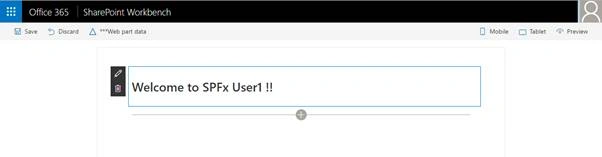 Figure: 1
As it is running in localhost workbench username is displayed as “User1” if you run it in your SharePoint site workbench.
https://{yourtenant}.sharepoint.com/{yourSiteUrl}/_layouts/15/workbench.aspx You should be able to see the current username which is read from the SPFx page context through the Angular 4 component like below,
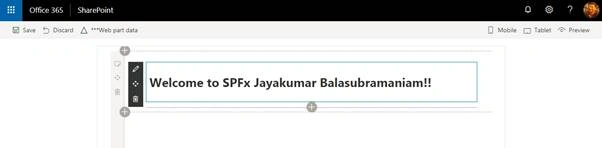 Figure: 2
Summary
In this article, I discussed how we can integrate Angular with SharePoint Framework by updating the npm packages and did some basic config setup to trigger Angular. Also, we have seen how to take the SharePoint context into the Angular instance.
If you have any questions/issues about this article, please let me know in the comments.


Rahul RamachandranPosted Jan 20, 2022, 6:49 PM
Hi, I tried the same solution but changed the Angular version to 13 by updating the dependencies in the package.json as well. Does this approach work for other versions of Angular?
Faizal KhanPosted Aug 27, 2019, 12:33 AM
Hi Jay,I tried with your steps but its not working as excepted,Since Angular version is updated to 8. it would be better if updated this article or suggest some solution.
Navneet KumarPosted May 20, 2019, 5:25 AM
Hi Jay. I am attaching zip file of my solution and i am unable to display hard coded table details in the webpart no error is coming.
Navneet KumarPosted May 13, 2019, 7:13 AM
Hi Jay, Can you please share the complete code for both the solutions.
Navneet KumarPosted May 13, 2019, 7:13 AM
Hi Jay, I am getting error at the time of integrate it with angular 7. can you please let me know which version of sharepoint package we are using here in package.json. Or it will be better if you share the code for this.
Sagar SontakkePosted Jan 30, 2019, 9:15 AM
Hi, We get error if we try to use 'templateUrl' for component. Error says '404 app.component.html' cannot be found. Any solution?
Sagar SontakkePosted Jan 30, 2019, 8:38 AM
Excellent article. Thank you. :)
sajjad ahmadPosted Oct 4, 2018, 5:37 AM
After following the steps and snippets , I am able to get only "Loading .." in the webpart. Where could I go wrong? Can you provide the whole code and some more explanation?