

Introduction
Android is an open-source operating system based on Linux with a Java programming interface for mobile devices such as Smartphone (Touch Screen Devices who supports Android OS) as well as for Tablets. With over 85% market share worldwide, Android Operating System dominates the mobile platform market. Today, I will show you how to load the Data to RecyclerView and search the Data in Kotlin Android. In this part I will show the User Interface (UI)
Requirements
-
Android Studio version 3.6.1
-
Little bit XML and KOTLIN knowledge
-
Android Emulator (or) Android mobile
Steps to be followed,
Follow these steps to load the Data to RecyclerView and search the Data in Kotlin Android.
Step 1
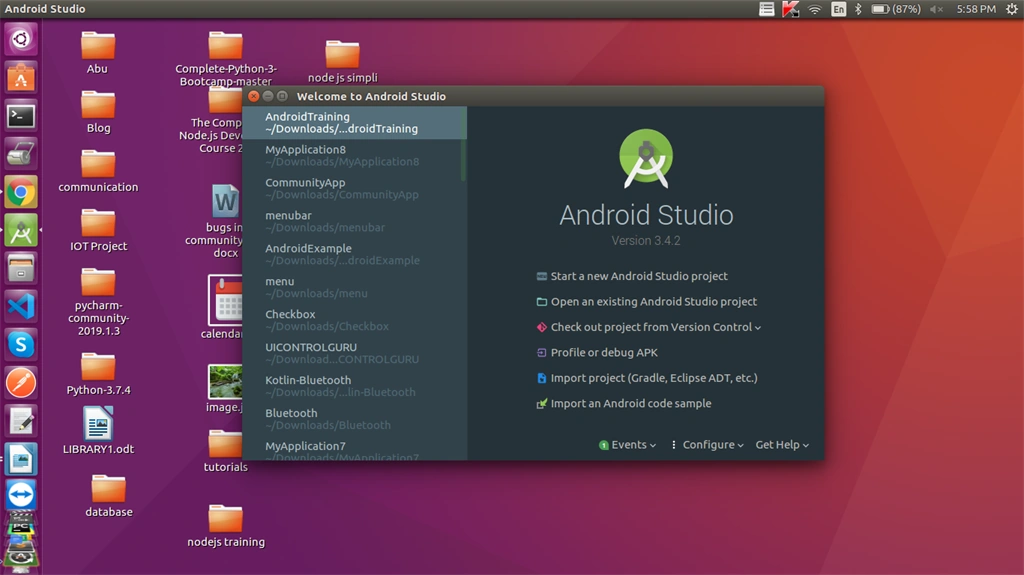
Open Android Studio and start a new Android Studio Project.
Step 2
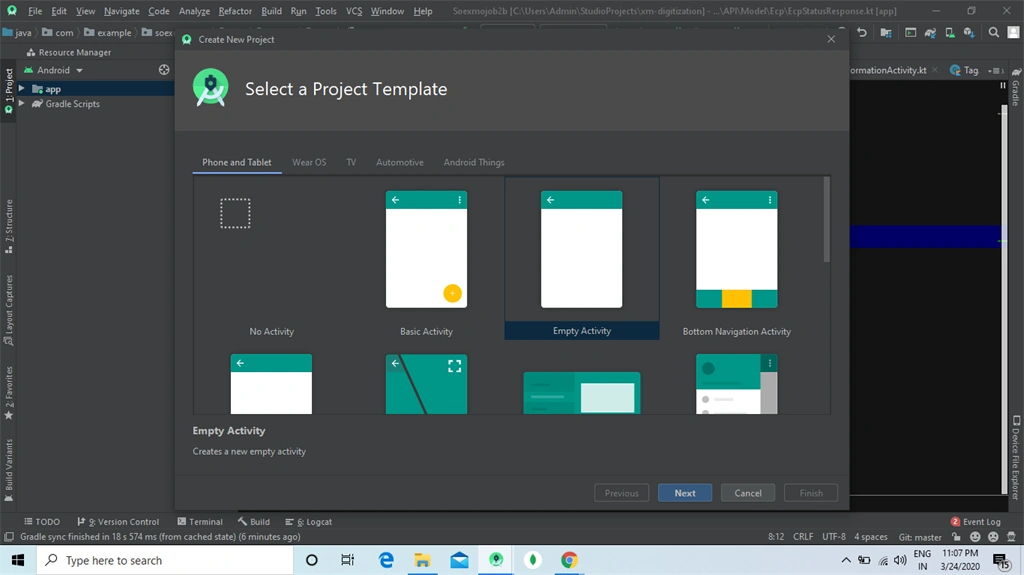
Now, add the activity and click the "Next" button.
Step 3
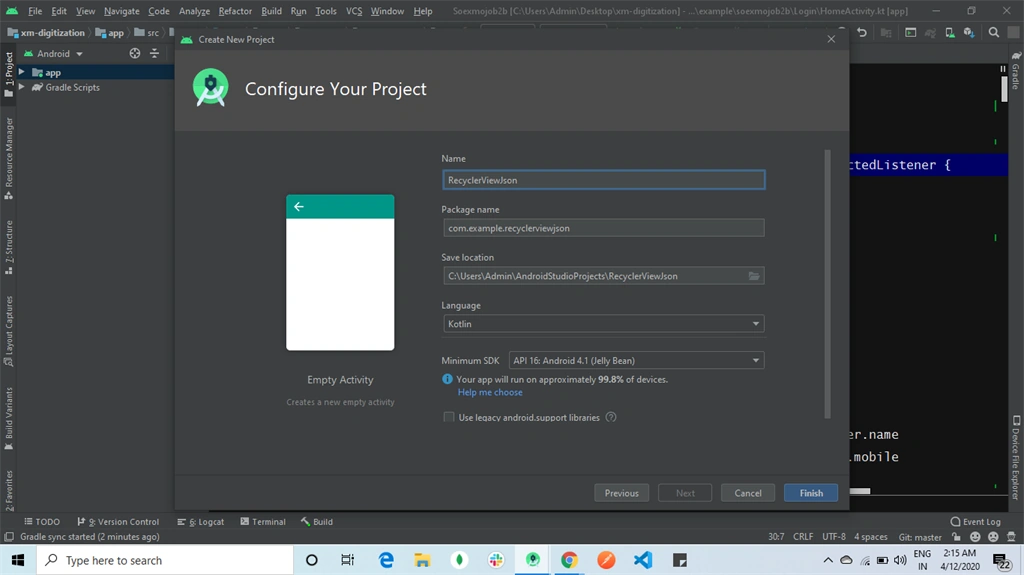
You can choose your application name and choose where your project is to be stored and choose Kotlin language for coding the project. Now, select the version of Android and select the target Android devices, and click the "Finish" button.
Step 4
Go to Drawable file. Add rectangle.xml to show the searchview of Data.
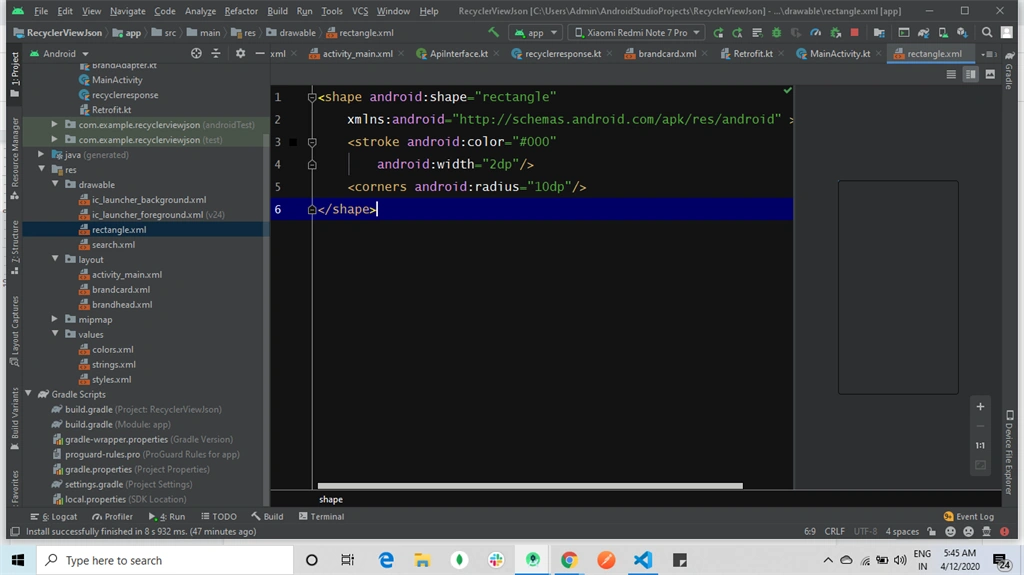
The XML code is given below,
- <shape android:shape="rectangle"
- xmlns:android="http://schemas.android.com/apk/res/android" >
- <stroke android:color="#000"
- android:width="2dp"/>
- <corners android:radius="10dp"/>
- </shape>
Step 5
Go to Drawable file. Add search.xml to show the searchview of Data.
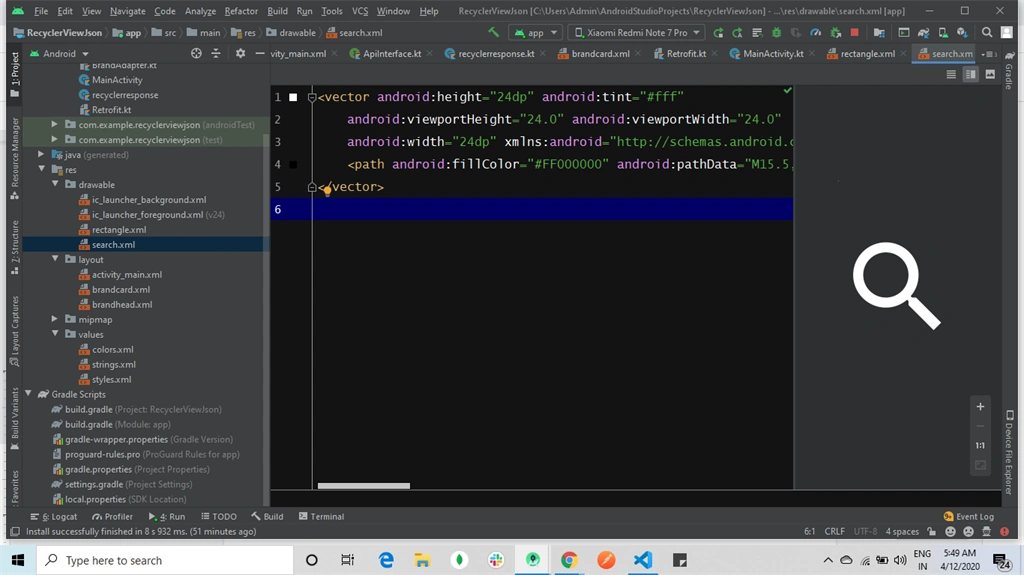
The XML code is given below,
- <vector android:height="24dp" android:tint="#fff"
- android:viewportHeight="24.0" android:viewportWidth="24.0"
- android:width="24dp" xmlns:android="http://schemas.android.com/apk/res/android">
- <path android:fillColor="#FF000000" android:pathData="M15.5,14h-0.79l-0.28,-0.27C15.41,12.59 16,11.11 16,9.5 16,5.91 13.09,3 9.5,3S3,5.91 3,9.5 5.91,16 9.5,16c1.61,0 3.09,-0.59 4.23,-1.57l0.27,0.28v0.79l5,4.99L20.49,19l-4.99,-5zM9.5,14C7.01,14 5,11.99 5,9.5S7.01,5 9.5,5 14,7.01 14,9.5 11.99,14 9.5,14z"/>
- </vector>
Step 6
Go to layout folder. Add the listcard.xml. This XML file contains the designing code for recyclerview.
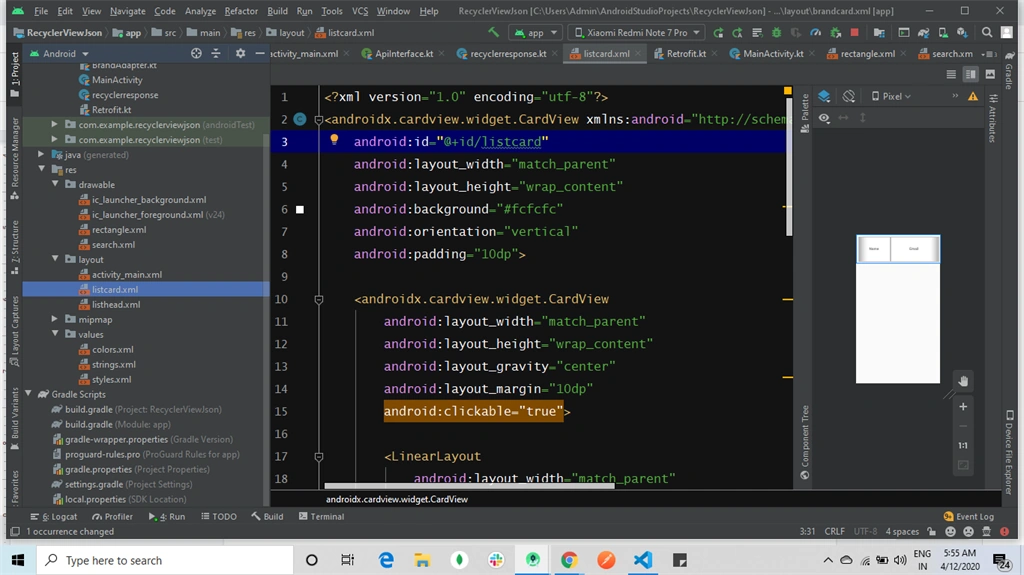
The XML code is given below,
- <?xml version="1.0" encoding="utf-8"?>
- <androidx.cardview.widget.CardView
- xmlns:android="http://schemas.android.com/apk/res/android"
- android:id="@+id/listcard"
- android:layout_width="match_parent"
- android:layout_height="wrap_content"
- android:background="#fcfcfc"
- android:orientation="vertical"
- android:padding="10dp">
- <androidx.cardview.widget.CardView
- android:layout_width="match_parent"
- android:layout_height="wrap_content"
- android:layout_gravity="center"
- android:layout_margin="10dp"
- android:clickable="true">
- <LinearLayout
- android:layout_width="match_parent"
- android:layout_height="120dp"
- android:orientation="horizontal">
- <androidx.appcompat.widget.AppCompatTextView
- android:id="@+id/name"
- android:layout_width="0dp"
- android:layout_height="match_parent"
- android:layout_weight="1"
- android:gravity="center"
- android:text="Name"
- android:textSize="18sp"
- android:textStyle="bold"/>
- <TextView
- android:id="@+id/url"
- android:layout_width="0dp"
- android:layout_height="match_parent"
- android:layout_weight="1.5"
- android:gravity="center"
- android:text="Email"
- android:textSize="18sp"
- android:textStyle="bold"/>
- </LinearLayout>
- </androidx.cardview.widget.CardView>
- </androidx.cardview.widget.CardView>
Step 7
Go to layout folder. Add the listhead.xml. This XML file contains the designing code for recyclerview header.
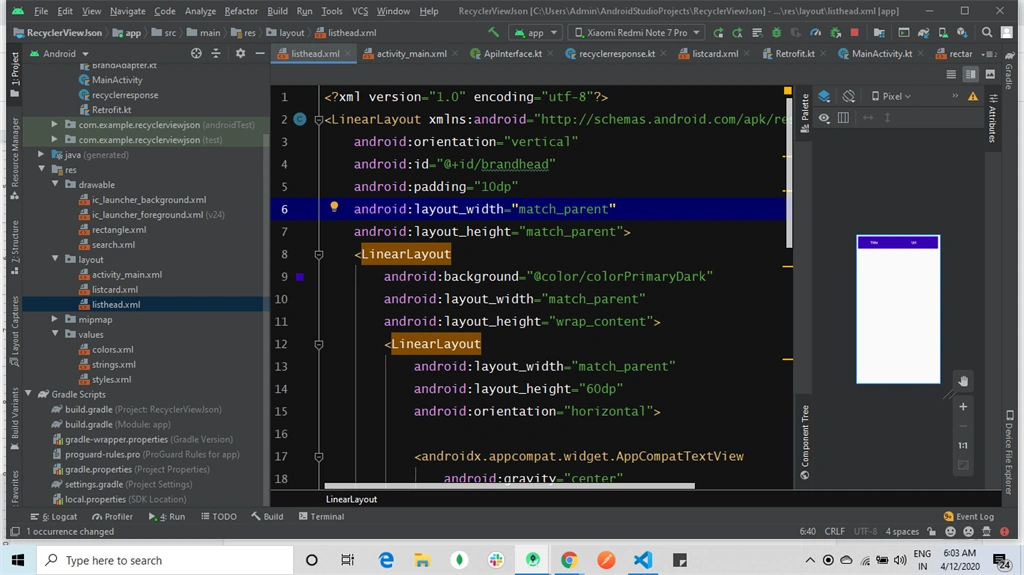
The XML code is given below,
- <?xml version="1.0" encoding="utf-8"?>
- <LinearLayout
- xmlns:android="http://schemas.android.com/apk/res/android"
- android:orientation="vertical"
- android:id="@+id/brandhead"
- android:padding="10dp"
- android:layout_width="match_parent"
- android:layout_height="match_parent">
- <LinearLayout
- android:background="@color/colorPrimaryDark"
- android:layout_width="match_parent"
- android:layout_height="wrap_content">
- <LinearLayout
- android:layout_width="match_parent"
- android:layout_height="60dp"
- android:orientation="horizontal">
- <androidx.appcompat.widget.AppCompatTextView
- android:gravity="center"
- android:textColor="#fff"
- android:textSize="18sp"
- android:text="Title"
- android:textStyle="bold"
- android:layout_width="0dp"
- android:layout_weight="1"
- android:layout_height="match_parent"></androidx.appcompat.widget.AppCompatTextView>
- <TextView
- android:gravity="center"
- android:textColor="#fff"
- android:textSize="18sp"
- android:text="Url"
- android:textStyle="bold"
- android:layout_width="0dp"
- android:layout_weight="1.5"
- android:layout_height="match_parent"></TextView>
- </LinearLayout>
- </LinearLayout>
- </LinearLayout>
Step 8
Go to activity_main.xml. This XML file contains the designing code for your Android app.
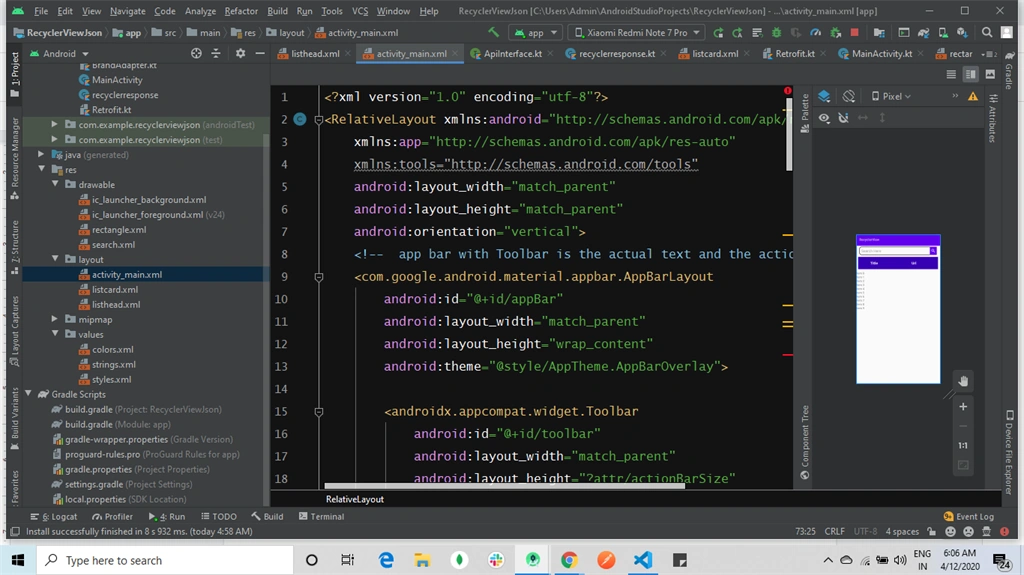
The XML code is given below,
- <?xml version="1.0" encoding="utf-8"?>
- <RelativeLayout
- xmlns:android="http://schemas.android.com/apk/res/android"
- xmlns:app="http://schemas.android.com/apk/res-auto"
- xmlns:tools="http://schemas.android.com/tools"
- android:layout_width="match_parent"
- android:layout_height="match_parent"
- android:orientation="vertical">
- <!-- app bar with Toolbar is the actual text and the action items -->
- <com.google.android.material.appbar.AppBarLayout
- android:id="@+id/appBar"
- android:layout_width="match_parent"
- android:layout_height="wrap_content"
- android:theme="@style/AppTheme.AppBarOverlay">
- <androidx.appcompat.widget.Toolbar
- android:id="@+id/toolbar"
- android:layout_width="match_parent"
- android:layout_height="?attr/actionBarSize"
- android:background="?attr/colorPrimary"
- app:popupTheme="@style/AppTheme.PopupOverlay">
- <RelativeLayout
- android:layout_width="match_parent"
- android:layout_height="match_parent">
- <TextView
- android:layout_gravity="center"
- android:id="@+id/navLogoIv"
- android:layout_width="130dp"
- android:layout_height="40dp"
- android:layout_marginTop="15dp"
- android:textSize="16sp"
- android:textStyle="bold"
- android:text="RecyclerView" />
- </RelativeLayout>
- </androidx.appcompat.widget.Toolbar>
- </com.google.android.material.appbar.AppBarLayout>
- <!-- SearchBar -->
- <RelativeLayout
- android:id="@+id/searchbrandrelativelayout"
- android:layout_width="wrap_content"
- android:layout_height="wrap_content"
- android:layout_below="@+id/appBar"
- android:layout_marginTop="5dp">
- <com.google.android.material.textfield.TextInputEditText
- android:id="@+id/searchbrandedit"
- android:layout_width="match_parent"
- android:layout_height="40dp"
- android:layout_centerVertical="true"
- android:paddingStart="10dp"
- android:layout_marginStart="16dp"
- android:layout_marginEnd="16dp"
- android:background="@drawable/rectangle"
- android:hint="Search Here"
- android:paddingLeft="10dp" />
- <androidx.appcompat.widget.AppCompatImageButton
- android:id="@+id/searchbrand"
- android:layout_width="wrap_content"
- android:layout_height="wrap_content"
- android:layout_alignTop="@+id/searchbrandedit"
- android:layout_alignEnd="@+id/searchbrandedit"
- android:layout_alignBottom="@+id/searchbrandedit"
- android:background="@color/colorPrimary"
- android:padding="5dp"
- android:src="@drawable/search" />
- </RelativeLayout>
- <!-- Add Brand Button -->
- <!-- No Records Found Text-->
- <!-- Brand Header-->
- <include
- layout="@layout/listhead"
- android:id="@+id/brandid"
- android:layout_width="match_parent"
- android:layout_height="wrap_content"
- android:layout_below="@id/searchbrandrelativelayout"/>
- <!-- Brand List-->
- <androidx.recyclerview.widget.RecyclerView
- android:id="@+id/brandlist"
- android:layout_width="match_parent"
- android:layout_height="wrap_content"
- android:layout_below="@id/brandid"></androidx.recyclerview.widget.RecyclerView>
- </RelativeLayout>
Step 9
Go to values ->styles.xml. These are the styles for your app.
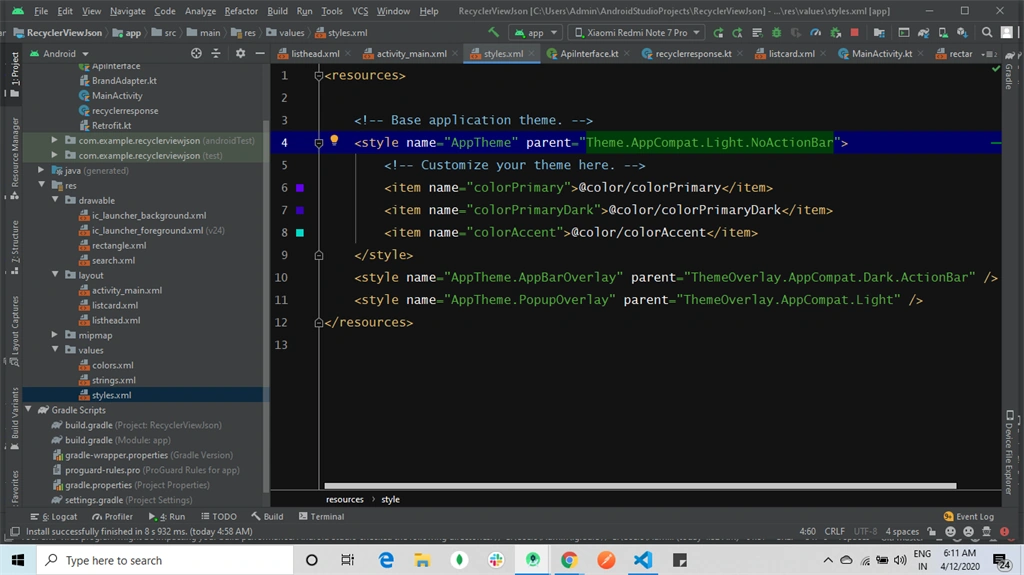
The XML code is given below,
- <resources>
- <!-- Base application theme. -->
- <style name="AppTheme" parent="Theme.AppCompat.Light.NoActionBar">
- <!-- Customize your theme here. -->
- <item name="colorPrimary">@color/colorPrimary</item>
- <item name="colorPrimaryDark">@color/colorPrimaryDark</item>
- <item name="colorAccent">@color/colorAccent</item>
- </style>
- <style name="AppTheme.AppBarOverlay" parent="ThemeOverlay.AppCompat.Dark.ActionBar" />
- <style name="AppTheme.PopupOverlay" parent="ThemeOverlay.AppCompat.Light" />
- </resources>
Conclusion
In this part, I showed about the front end of how to load the Data to RecyclerView and search the Data in Kotlin Android. In the next part I will show about the backend of how to load the Data to RecyclerView and search the Data in Kotlin Android.
Join the conversation! Your thoughts help the community grow.