

Introduction
PowerShell is a task-based command line shell and scripting language designed especially for System Administrators. Use PowerShell to manage the computer from the command line. Windows PowerShell helps IT professionals and power users to control and automate the Administration of the Windows operating system and Windows applications.
Windows 8 includes a new version of PowerShell, PowerShell version 3. But you have many Scripts that was written for Powershell 2 that throws an exception in PowerShell 3. To run a PowerShell 2 script you have to launch PowerShell 2 without loss of PowerShell 3.
PowerShell 3
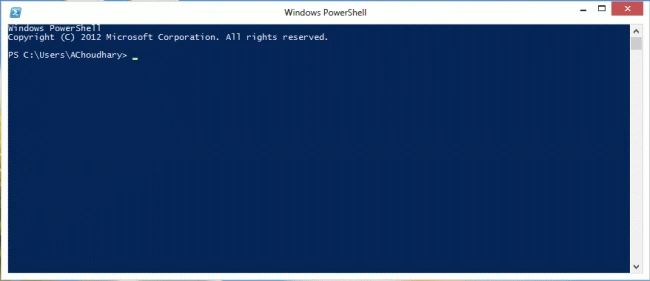
Launching PowerShell 2 in Windows 8
Step 1
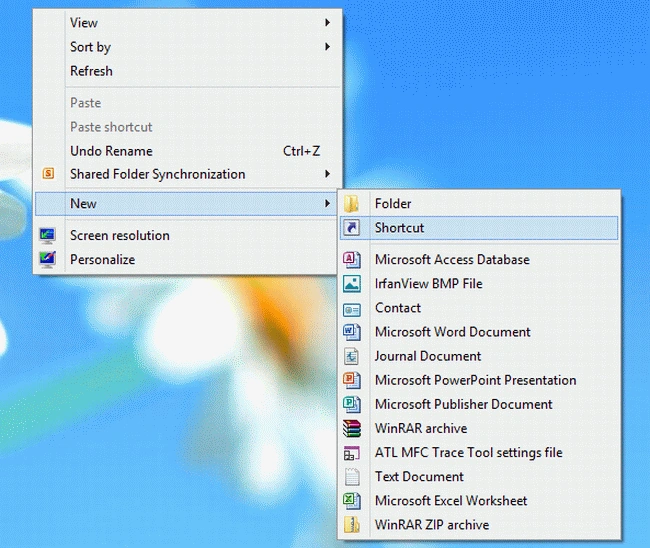
Right-click on the Desktop and choose "ShortCut" from the "New" option.
Step 2
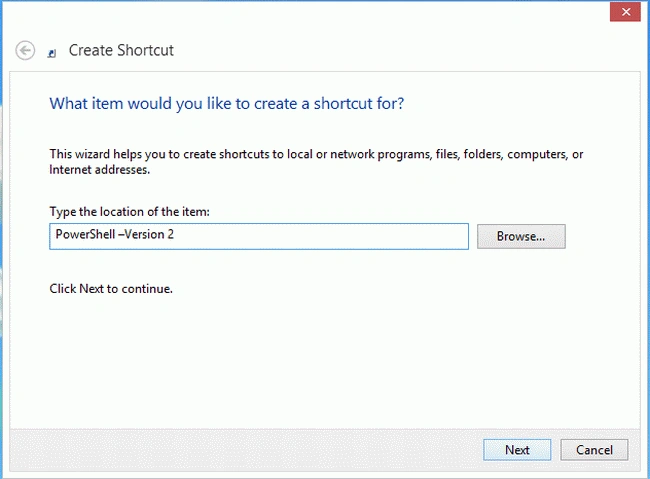
In the ShortCut Window enter the following path and click "Next".
PowerShell –Version 2
Step 3
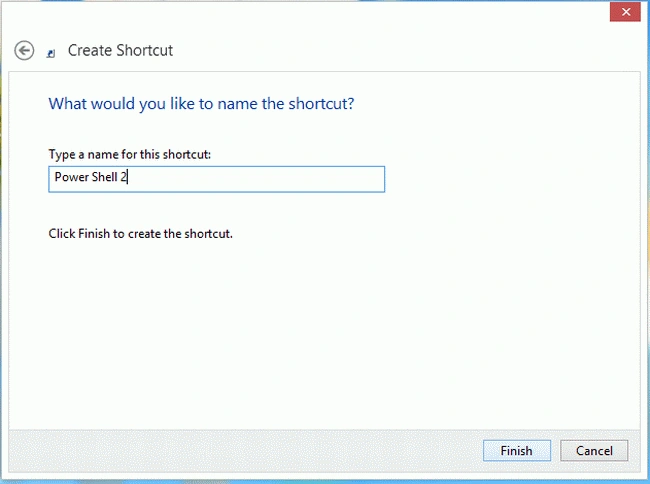
In this step enter the PowerShell name and click "Finish".
Step 4
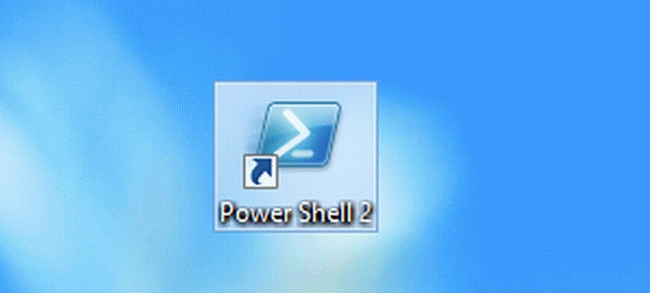
On the Desktop a PowerShell 2 ShortCut Icon will be appear; double-click on this Icon.
Step 5
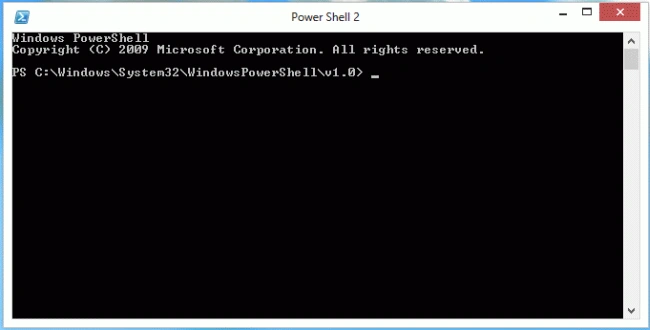
PowerShell 2 will open.
Summary
In this article, we learned about How to Launch PowerShell 2 in Windows 8.
Join the conversation! Your thoughts help the community grow.