

Introduction
Windows 8 provides many options to customize the Desktop screen. But in this article, we are explaining how to make everything larger on the Metro screen. For that we have to change a Metro Control Panel setting.
By default in Windows 8, everything is shown at the normal size but we might want to increase the size of every element. To increase the size of every element of the screen use the Metro Control Panel.
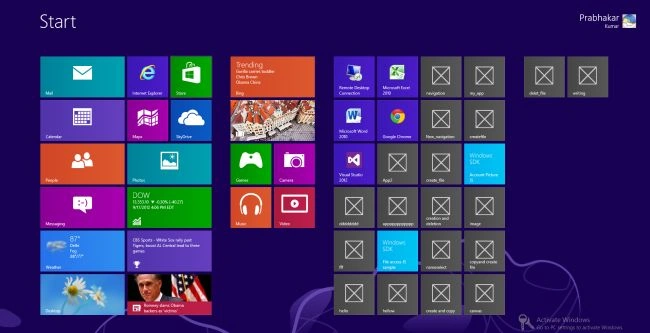
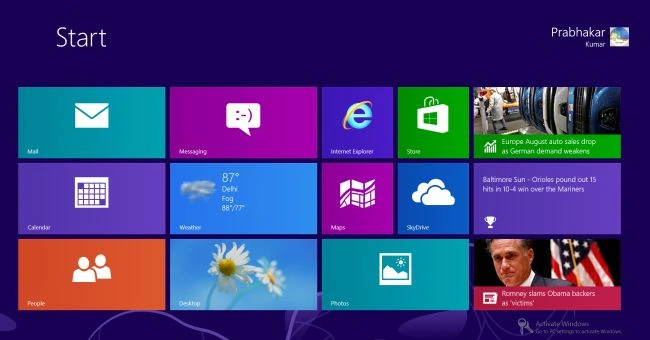
By default, the Metro Screen display is in this view.
How to increase the size of every element in Windows 8
Step 1
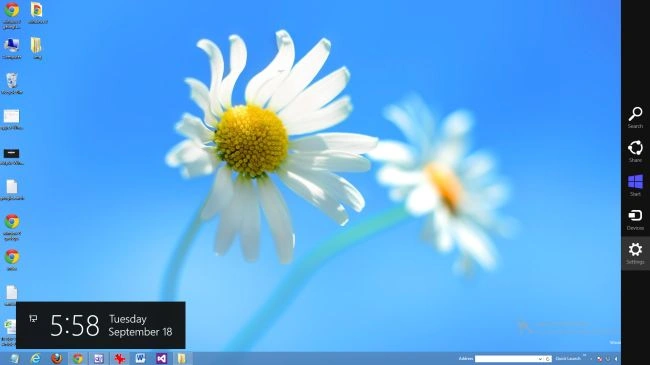
Move the cursor on the bottom-right and click on "Settings".
Step 2
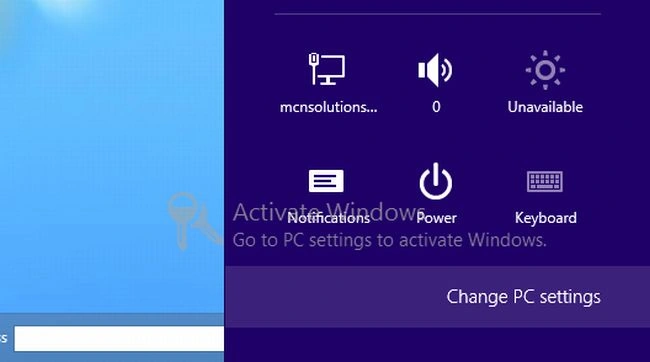
In the Settings window click on "Change PC Setting".
Step 3
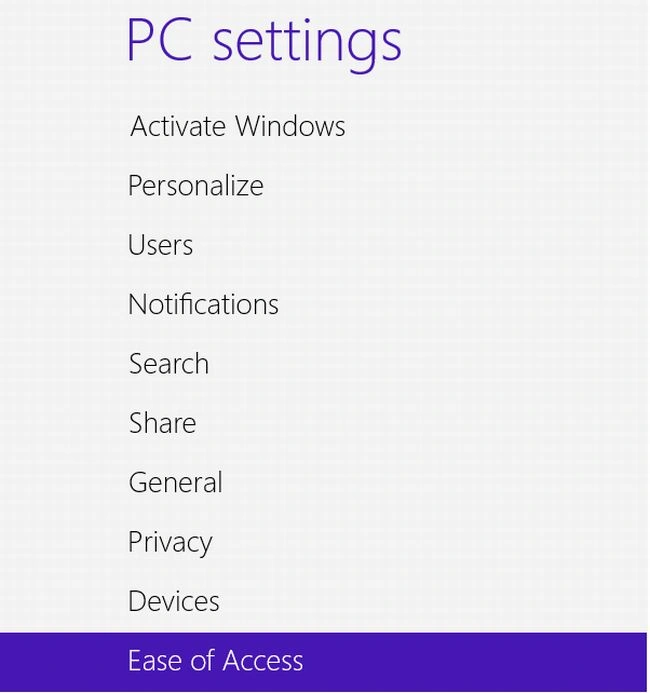
In the "PC Setting" window click on "Each of Access".
Step 4
In Each of Access tab turn "on" to "Make everything on your screen bigger".
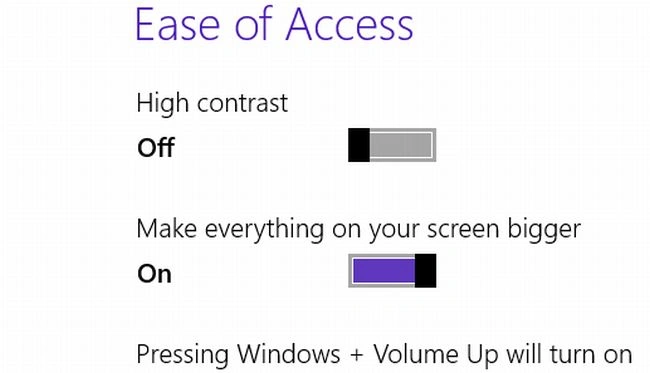
Step 5
And now go on the Metro Start Screen; everything will be displayed larger.
Summary
In this article, we learned about How to Make Everything Bigger on Screen in Windows 8.
Join the conversation! Your thoughts help the community grow.