

JS Link
JS Link property is a new addition in SharePoint 2013. This is a great feature with which users can control the rendering of fields, items, and even Web Parts, using a JavaScript File (referenced in JS Link property field of a Web Part).
This example will explain how we can make SharePoint fields as hyperlinks based on the other fields. In the previous versions of SharePoint, we used to create this using calculated field. Calculated column sometime gives us a problem in displaying the HTML content (even if we add it as a type number).
JS Link provides elegant ways for accessing the SharePoint fields and customizing in the client side to display the client View.
Modifying Field to Hyperlink
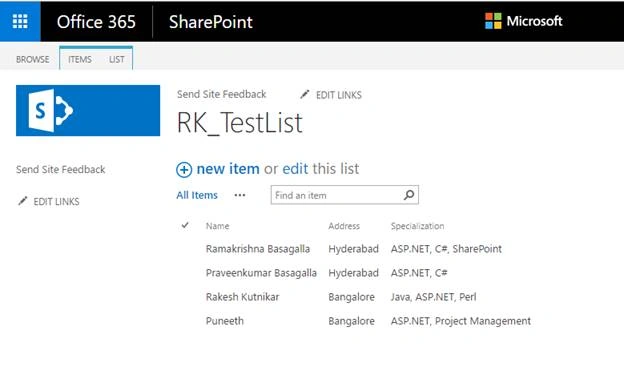
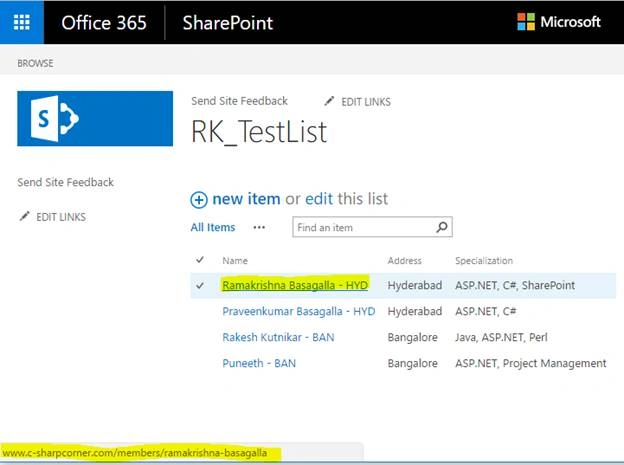
In the below example, I have created sample list RK_TestList. In this, I have created Name, Address, and Specialization fields. My requirement is to navigate to the selected user profile on clicking on the name, and the name should display by combining the address location.
SharePoint List
Add some sample information to the list.
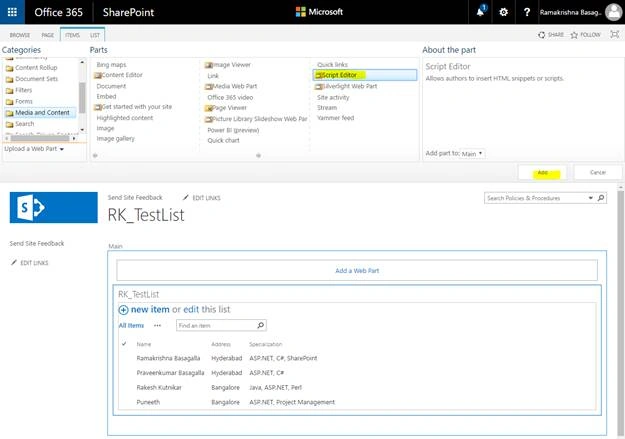
Edit the page and add web part.
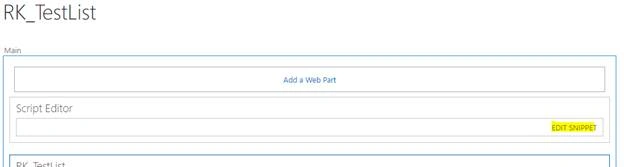
Click on the "Edit Snippet" link. This opens the popup where we can add our custom JS code.
Add the below code to generate the links.
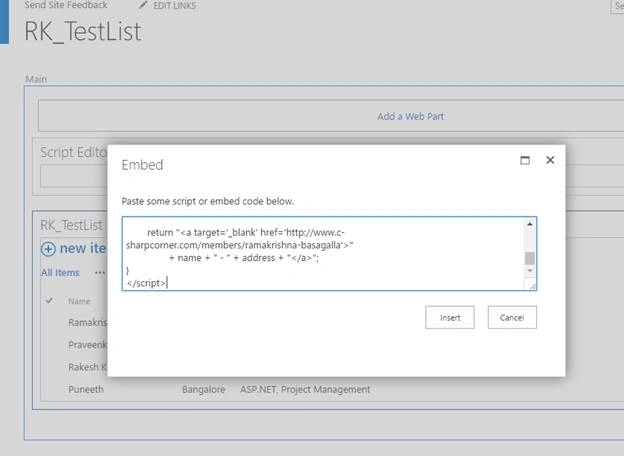
In this code, I am overriding the existing name field data with my custom data; this code also tells us how we can access the list item fields.
JavaScript Code
- <script type="text/javascript">
- (function () {
- // Create an object that have the context information about the fields that we want to change the rendering of.
- var nameFiledContext = {};
- nameFiledContext.Templates = {};
- nameFiledContext.Templates.Fields = {
- // Apply the new rendering for these fields on List View
- "Name": { "View": nameFiledTemplate }
- };
- SPClientTemplates.TemplateManager.RegisterTemplateOverrides(nameFiledContext);
- })();
- // This function provides the rendering logic for the list view
- function nameFiledTemplate(ctx) {
- var name = ctx.CurrentItem.Name;
- var address = ctx.CurrentItem.Address;
- if(address == "Hyderabad"){
- address = "HYD";
- }
- else{
- address = "BAN";
- }
- return "<a target='_blank' href='http://www.c-sharpcorner.com/members/ramakrishna-basagalla'>"
- + name + " - " + address + "</a>";
- }
- </script>
Stop editing the page. Now, you can see the result.
Hope this article will help you in understanding the JS Link concept and its usages in the project.
Happy Coding!!!
Thiruppathi RPosted May 13, 2017, 12:30 AM
Nice article.Thanks for sharing..