

INITIAL CHAMBER
- Open Visual Studio 2010 and create an empty website. Give a suitable name connectionstring_demo.
- In Solution Explorer you get your empty website. Add a web form, SQL Database. Here are the steps:
For Web Form
- connectionstring _demo (Your Empty Website) - Right Click, Add New Item, click Web Form. Name it connectionstring _demo.aspx.
For SQL Server Database
- connectionstring _demo (Your Empty Website) - Right Click, Add New Item, click SQL Server Database. Add Database inside the App_Data_folder.
DESIGN CHAMBER
- Now open your connectionstring _demo.aspx file, where we create our design for encrypting our Connection String.
- <%@ Page Language="C#" AutoEventWireup="true" CodeFile="Default.aspx.cs" Inherits="_Default" %>
- <!DOCTYPE html PUBLIC "-//W3C//DTD XHTML 1.0 Transitional//EN" "http://www.w3.org/TR/xhtml1/DTD/xhtml1-transitional.dtd">
- <html
- xmlns="http://www.w3.org/1999/xhtml">
- <head runat="server">
- <title></title>
- </head>
- <body>
- <form id="form1" runat="server">
- <div>
- <asp:Button ID="Button1" runat="server" onclick="Button1_Click"
- Text="Press to Encrypt your Connection String" />
- </div>
- <p>
- </p>
- <p>
- </p>
- <p>
- <asp:Label ID="Label1" runat="server" Text="Label"></asp:Label>
- </p>
- </form>
- </body>
- </html>
CODE CHAMBER:
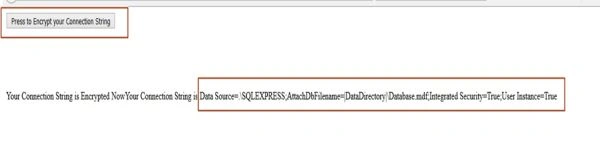
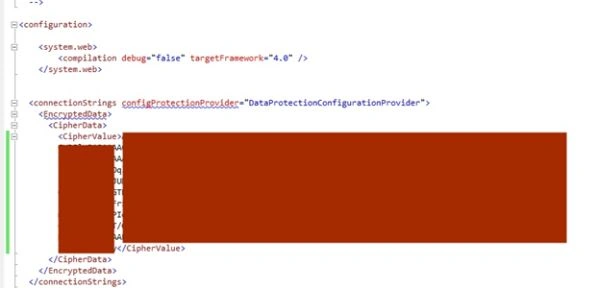
- Open your connectionstring _demo.aspx.cs and write some code so that our application starts working.
Sonu ChaudharyPosted Mar 17, 2016, 7:35 AM
good share
Harshad PansuriyaPosted Nov 1, 2015, 10:58 PM
Nice one
Ali AhmedPosted Nov 1, 2015, 11:48 AM
Nice.
Praveen KumarPosted Nov 1, 2015, 11:39 AM
Very nice Nilesh Jadav