

Introduction
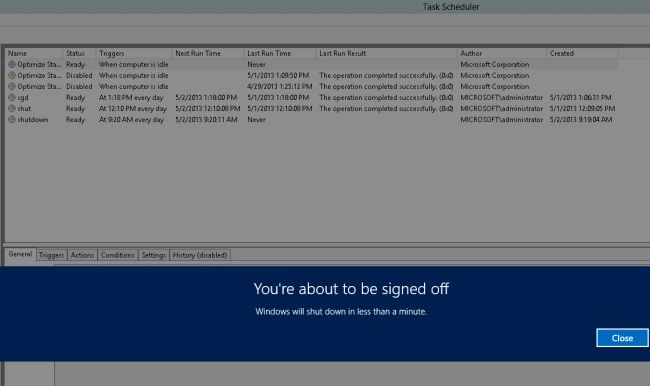
In this article I explain how to make your system automatically shutdown using the Task Scheduler.
It might happen that you are working late at night on your system and you want your system to automatically shut down so that you can go and get some sleep. In those cases you can make your system automatically shut itself down after a specific time, this can be done using the Task Scheduler.
You must use the following simple steps to make your system automatically shut down.
Step 1
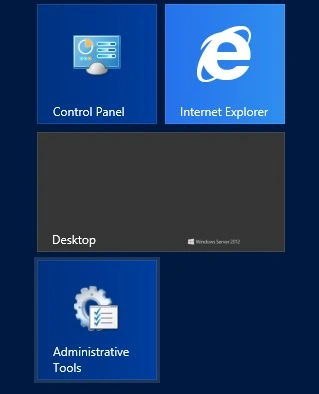
First of all open the "Administrative Tools" from the Start Menu.
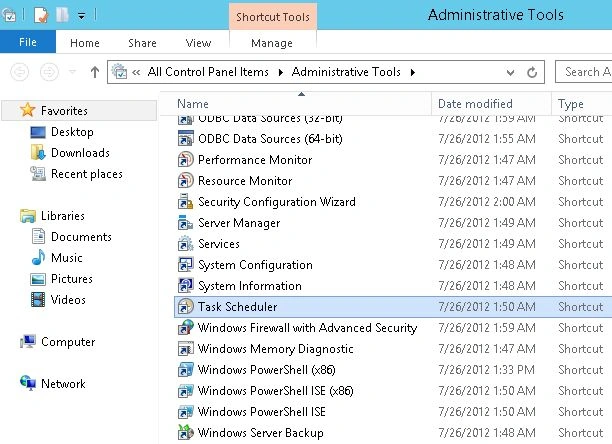
The Administrative Tools Window will be opened, here you will find an option named "Task Scheduler", double-click on this option to open it.
Step 2
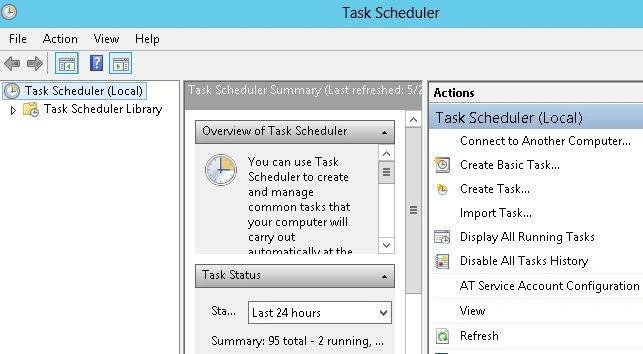
Now the Task Scheduler Window will be opened that will look something like this:
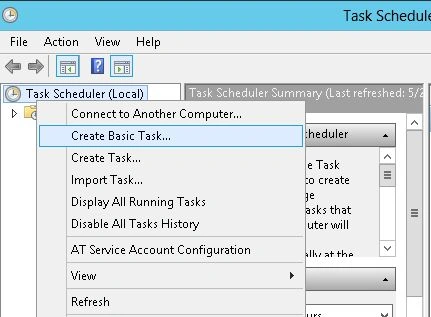
Now left-click on the Task Scheduler (Local) and choose "Create Basic Task...".
Step 3
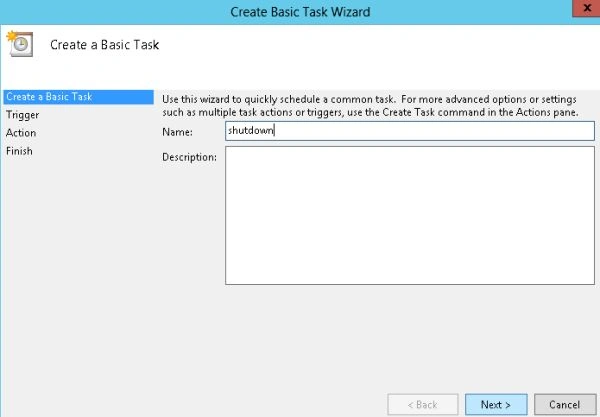
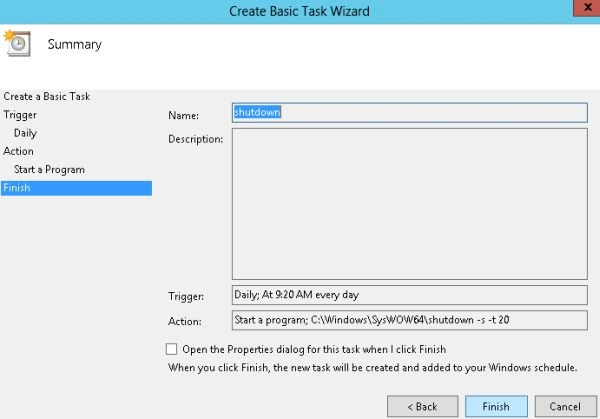
Now the Create Basic Task Wizard will be opened where you first need to provide the name for the task. You can also provide a description for this task. After providing the name click on "Next".
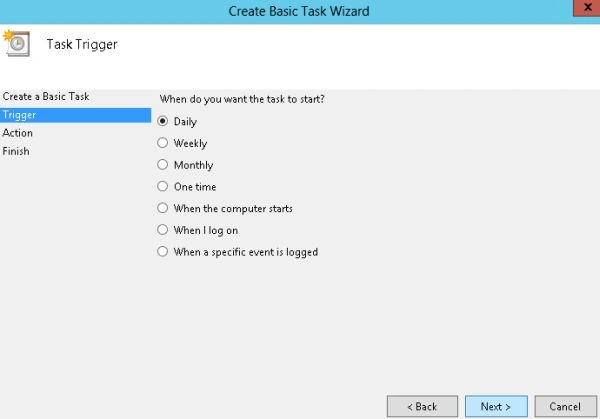
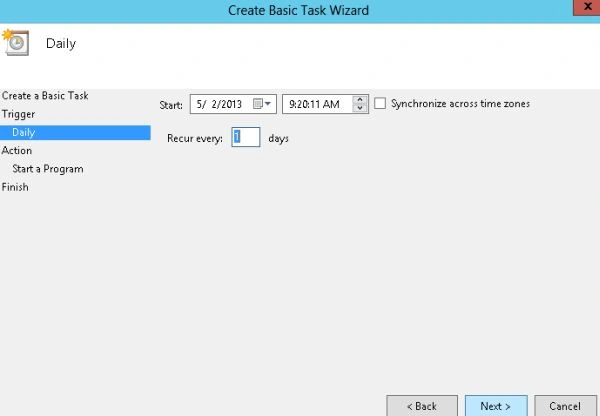
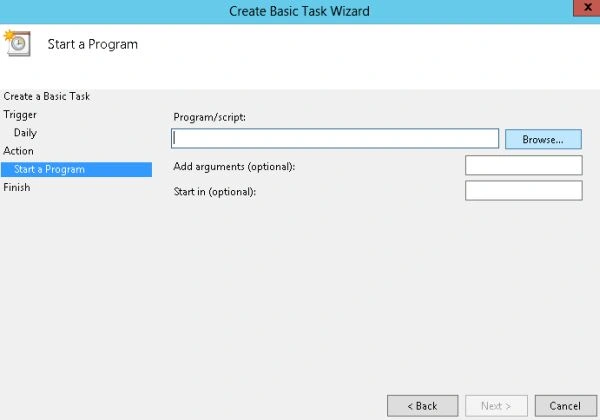
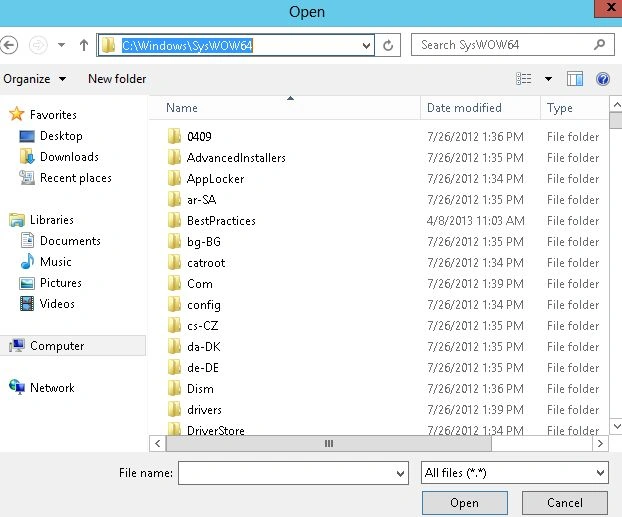
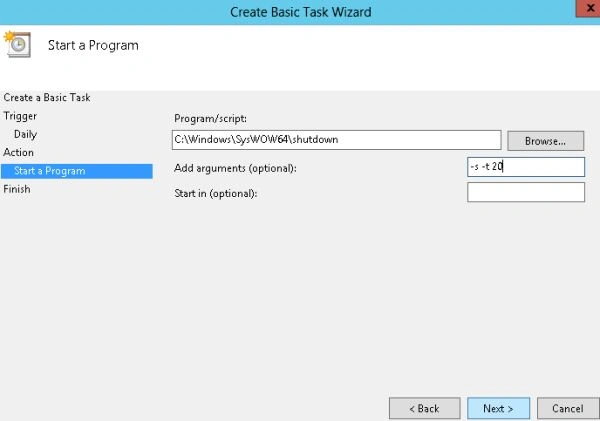
In the next page, named Task Trigger, you will be asked to define the days on which the Task should be scheduled, you can provide the days according to your requirements. If you want your system to be shut down daily at the specific time then you can click on Daily or you can trigger it Weekly etcetera.
Join the conversation! Your thoughts help the community grow.