

Customize the Navigation
Today, I am writing about how to manage navigation on SharePoint Online or any of the Office 365 Businesses.
The most important part of any online site or page is the navigation of site links. The word "Navigation" is meant only to show shortcuts and the easiest way to access any list, page, site, etc. With the help of site navigation, we can customize our site page to be used smoothly or easily (avoid steps to access any list page or collections).
We can add, remove, or edit the links on the SharePoint page for top link or quick launch bar which will show on the left side of the screen.
Today, I will cover the following topics.
- Quick Launch bar
- Top Navigation setting
- Create link by drag and drop
- Navigation Setting page from Site Settings
- Adding and deleting Navigation
- View the types of Navigation
So, we are starting from "Quick Launch bar" from the left side of the SharePoint pages or sites. Below are the steps to configure the same.
- Open any site or page and look at the left side of the screen. We will have some links which will navigate to or launch the respective site/ page.
- When click on the edit option, we get the screen like the below screenshots. We will add new links in the navigation pane.
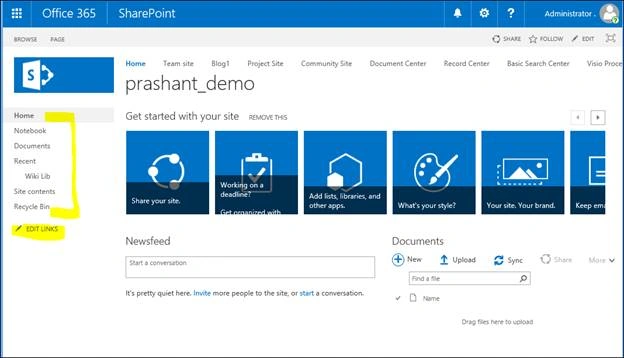
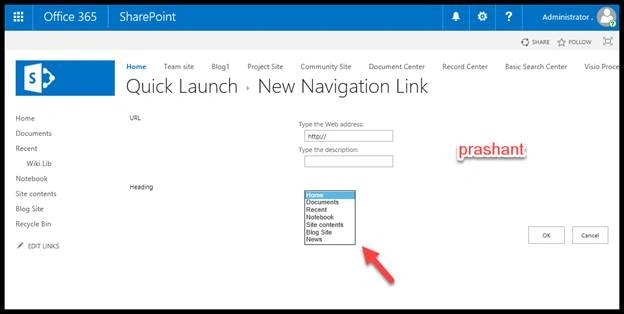
- Now, we will add a link by entering the URL. To add a link of another site, type in the URL.
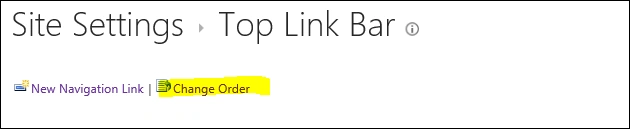
- Click "EDIT LINKS" on the Quick Launch or Top link bar, depending on where you want to add a link.
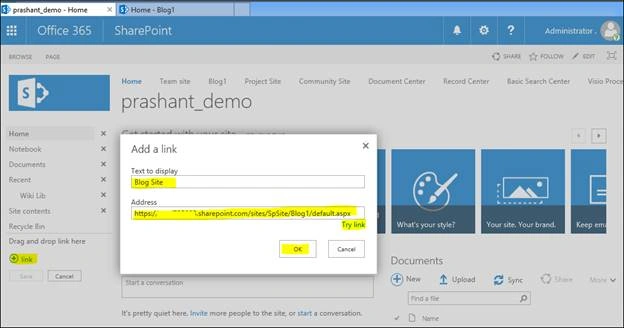
- Click on "+ link" and type a display name for the link, a target location while making sure that you include the http:// at the start of the link. For example, http://www.sample.com
- Click OK to add the new link to the Quick Launch or Top link bar.
Rename a link or remove a link
- Click "EDIT LINKS" on the Quick Launch or Top link bar, depending on where we want to edit a link.
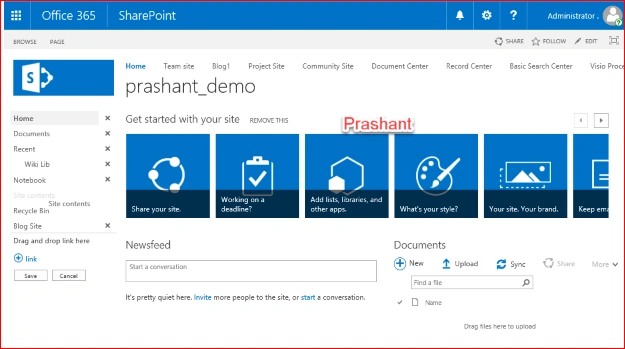
- Rename - Click directly on the link that you want to rename and start typing the new name. Click outside the name, and then click save. Renaming a link doesn't affect the page that the link references.
- Remove - Click the X corresponding to the link to remove it from the navigation panel, then click Save.




Join the conversation! Your thoughts help the community grow.