Introduction
Microsoft Power Automate provides different loop actions to automate repetitive tasks. Two commonly used actions are Apply to Each and Do Until.
Both actions repeat a set of steps, but they work differently. Apply to Each processes every item in a collection, while Do Until repeats actions until a specified condition becomes true.
Understanding the difference helps you build efficient flows and avoid unnecessary loop executions.
1. What Is Apply to Each?
Apply to Each is a loop action that processes each item in an array or collection individually.
For example, suppose you have 10 invoices in a SharePoint list. If you want to update the status of every invoice, you can use Apply to Each to process all 10 invoices.
Example: Update Multiple SharePoint Items
Suppose a SharePoint list contains the following invoices:
Invoice Number | Amount | Status |
|---|
INV001 | $100 | Pending |
INV002 | $200 | Pending |
INV003 | $300 | Pending |
You want to update every invoice status to Approved.
Flow configuration:
- Add the Get items action to retrieve invoices from SharePoint.
- Add an Apply to Each action.
- Select the
value output from Get items. - Inside Apply to Each, add the Update item action.
- Set the invoice status to Approved.
How it works:
- First iteration: Updates INV001.
- Second iteration: Updates INV002.
- Third iteration: Updates INV003.
The loop processes each invoice until all items have been handled.
When to Use Apply to Each
- Processing multiple SharePoint list items.
- Sending emails to multiple recipients.
- Processing email attachments.
- Updating multiple records in Dataverse or Excel.
- Performing an action for every item returned by an API.
Microsoft's documentation explains how Apply to Each processes collections and how concurrency can be configured. Read the official documentation.
2. What Is Do Until?
Do Until is a loop action that repeats a set of actions until a specified condition becomes true.
It is useful when you do not know exactly how many times an action needs to run.
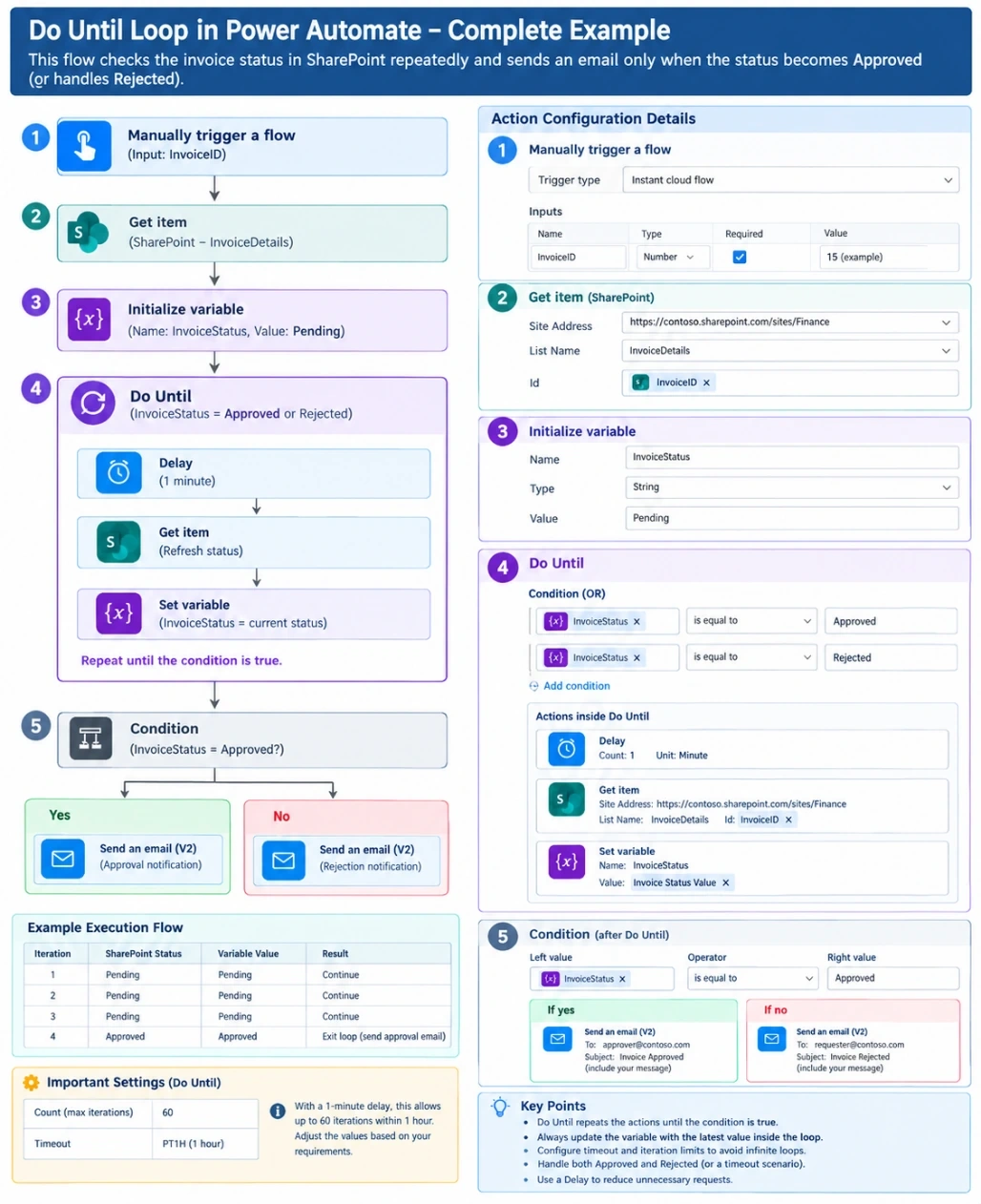
For example, suppose an invoice approval process is still Pending. You want to check its status repeatedly and continue when the invoice becomes Approved.
Example: Wait Until an Invoice Is Approved
Suppose a SharePoint invoice has the following status:
Invoice Number | Initial Status | Expected Final Status |
|---|
INV001 | Pending | Approved |
Flow configuration:
- Add a trigger to start the flow.
- Add a Do Until action.
- Configure the exit condition so that the invoice status equals Approved.
- Inside Do Until, add actions to retrieve the latest invoice status from SharePoint.
- Add a Delay action, such as 1 minute, before checking again.
- Configure a suitable timeout and iteration limit in the Do Until settings.
How it works:
- First check: Status is Pending, so the loop continues.
- Second check: Status is still Pending, so the loop continues.
- Third check: Status is Approved, so the loop exits.
- The flow continues to the next action outside the loop.
Important: The condition must be evaluated using an up-to-date status. If you only check a value retrieved before the loop, the condition might never change. Also, configure a timeout and iteration limit to prevent the flow from running indefinitely.
When to Use Do Until
- Waiting for an approval status to change.
- Checking whether a file has been created.
- Waiting for an asynchronous process to complete.
- Polling an API until a job finishes.
- Repeating an action until a required value is available.
3. Key Differences Between Apply to Each and Do Until
Feature | Apply to Each | Do Until |
|---|
Purpose | Processes each item in a collection | Repeats actions until a condition is met |
Input | An array or collection | A condition |
Number of iterations | Depends on the number of items | Depends on when the condition becomes true |
Typical use | Processing invoices or attachments | Waiting for approval or process completion |
Loop termination | After processing all items | When the exit condition is met, or a configured limit is reached |
Parallel execution | Can support concurrency | Repeats iterations sequentially |
Main consideration | Correctly select the collection | Ensure the condition can change and configure limits |
4. Real-World Example: Invoice Approval System
Imagine you are developing an invoice approval system using SharePoint and Power Automate.
Scenario A: Apply to Each
You have 50 invoices in a SharePoint list, and you want to send an email to the vendor for every approved invoice.
Flow:
Get items → Apply to Each → Condition → Send Email
Apply to Each processes the retrieved invoices individually. The Condition checks whether each invoice is Approved, and the flow sends an email only when the condition is satisfied.
Scenario B: Do Until
You submit one invoice for approval and need to wait until its status changes to Approved or Rejected.
Flow:
Submit Invoice → Do Until → Get Latest Status → Delay
Configure the Do Until exit condition to check whether the status is either Approved or Rejected. Once either status is reached, the loop exits, and the flow can perform the next action.
Conclusion
Apply to Each and Do Until are both useful loop actions in Microsoft Power Automate, but they solve different problems.
Apply to Each is best when you need to process every item in a collection, such as multiple invoices, SharePoint records, or email attachments.
Do Until is best when you need to repeat an action until a condition is satisfied, such as waiting for an invoice approval or checking whether a process has completed.
Choosing the correct loop makes your Power Automate flows easier to maintain and helps improve their performance and reliability.


Join the conversation! Your thoughts help the community grow.