

In this article, we will look at how to manage Teams channel policies step by step using the Microsoft Teams Admin Center. You’ll learn how to control things like creating private or shared channels and inviting external users.
Introduction
Good communication and teamwork are very important in today’s work environment. Microsoft Teams is a useful tool that helps teams work well together, but it needs proper management to keep everything safe and organized. This guide will teach you how to manage Teams channel policies using the Microsoft Teams Admin Center. By learning these policies, administrators can control who can create private or shared channels, limit outside access, and ensure that team settings follow company rules. Whether you want to restrict access or make teamwork better, knowing how to manage these policies is important for getting the most out of Microsoft Teams
What is Microsoft Teams?
Microsoft Teams is a tool that helps people work together and communicate easily. It lets users send messages, make video calls, and share files with each other. Teams can be divided into different groups for various projects or topics, which helps keep conversations focused. The platform also connects with other Microsoft apps like Word and Excel, making it simple to work on documents together. Overall, Microsoft Teams makes it easier for people to work together and stay connected, whether they are in the office or working from home.
What is Microsoft Admin Center?
The Microsoft Admin Center is a website that helps administrators manage Microsoft 365 services and users in a company. It is a central place where IT admins can add or remove user accounts, change settings for services like Teams and SharePoint, and manage security features to keep the company safe. They can also check reports on how users are using the services. The Admin Center provides support and tools for fixing problems, making it important to keep Microsoft 365 running well and securely in organizations.
What is Microsoft Teams Admin Center?
The Microsoft Teams Admin Center is a website that helps administrators manage Microsoft Teams for their organization. It provides a central place where IT admins can control settings and features related to Teams. They can create and manage teams and channels, decide who can use certain features (like private channels or guest access), and check how Teams is being used. The Admin Center also has tools for fixing problems and getting support, making it easier for everyone in the organization to keep Microsoft Teams running well.
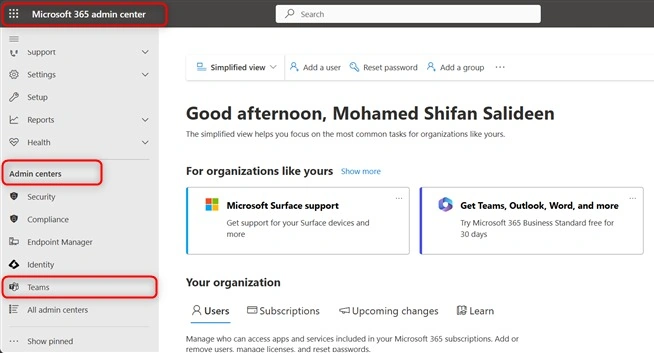
Step 1. Open the Teams Admin Center.
- Go to admin.microsoft.com: Sign in with your administrator account.
- Go to Admin Centers
- And then Scroll down and click on Teams to enter the Teams Admin Center.
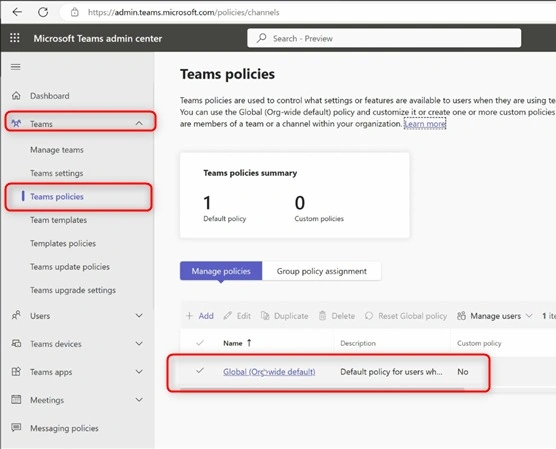
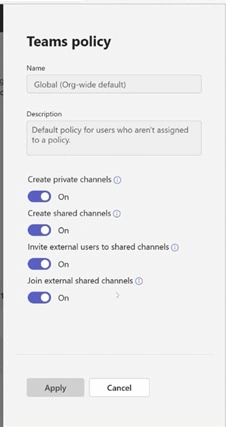
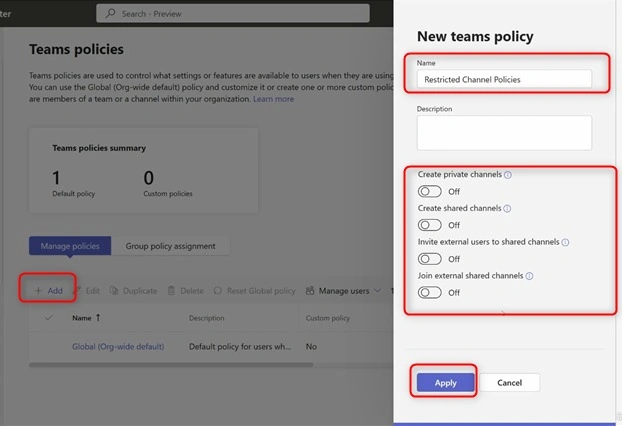
Step 2. Go to Teams Policies.
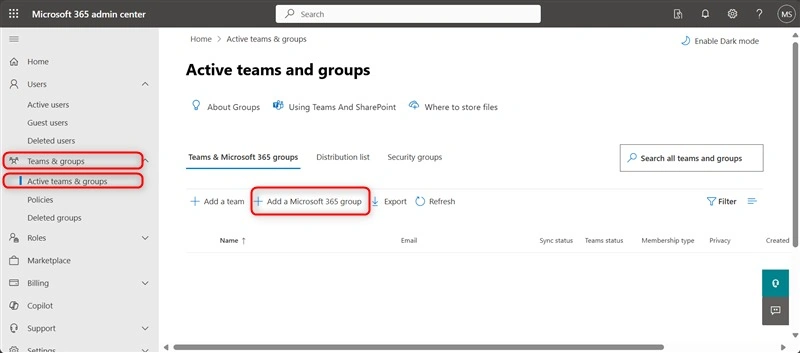
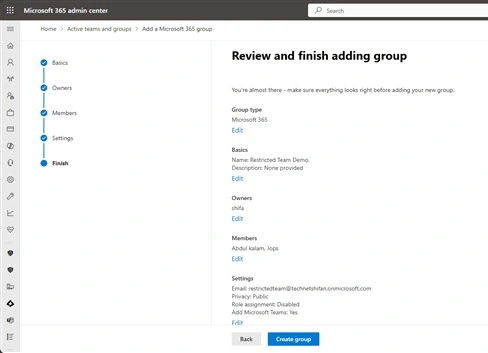
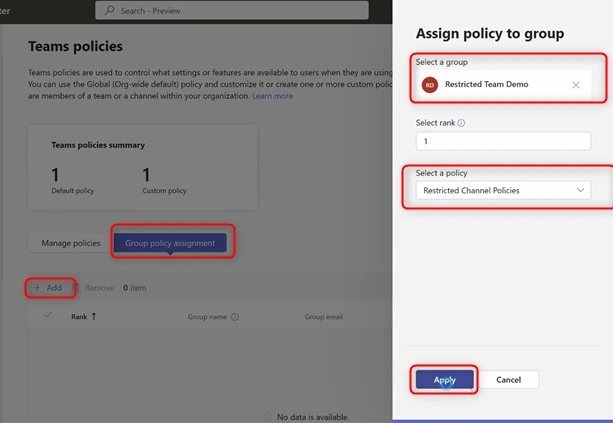
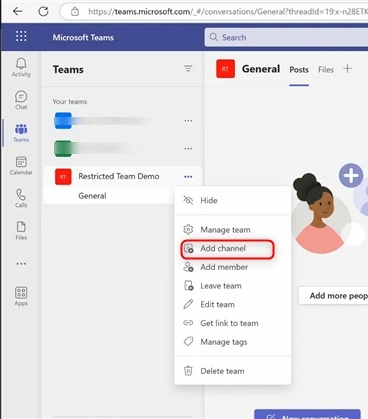
Join the conversation! Your thoughts help the community grow.