

Introduction
Anyone who works with shared files in SharePoint has hit this problem at some point: a colleague overwrites a document, a key paragraph is deleted by mistake, or a saved change breaks a spreadsheet that the whole team depends on. Without a safety net, you would have to rebuild the content by hand or hope someone kept a backup copy.
SharePoint's version history solves this problem. Every time a file or list item is edited and saved, SharePoint can keep the earlier state as a version. You can see who made each change and when, open older copies, and restore any of them in a few clicks. Restoring never erases your newer work. SharePoint saves the old version as the newest one, so the full history stays intact.
SharePoint automatically keeps earlier copies of your files and list items. If someone overwrites content, deletes a paragraph by mistake, or saves a change that breaks a file, version history lets you see what changed and go back to a good copy.
What version history does
Each time an item is edited and saved, SharePoint can store the previous state as a version. For each version you can see:
The version number (for example 1.0, 2.0, or 2.3)
The date and time of the change
Who made the change
The size of the file
Any comment entered when the file was checked in or saved
Version history works on files in document libraries (Word, Excel, PowerPoint, PDFs, and so on) and on items in SharePoint lists.
Major and minor versions
Libraries can be configured in two ways:
Major versions only: every saved change creates a whole-number version (1, 2, 3...). This is the simplest option and the default for modern libraries.
Major and minor (draft) versions: drafts are numbered 0.1, 0.2, and so on, and become a major version (1.0, 2.0) when published. Drafts are visible only to people with edit permissions, which suits content that needs review before it goes live.
How to turn on and configure versioning
You need Owner or Full Control permissions on the site, or at least Manage Lists permission on the library.
Open the document library or list.
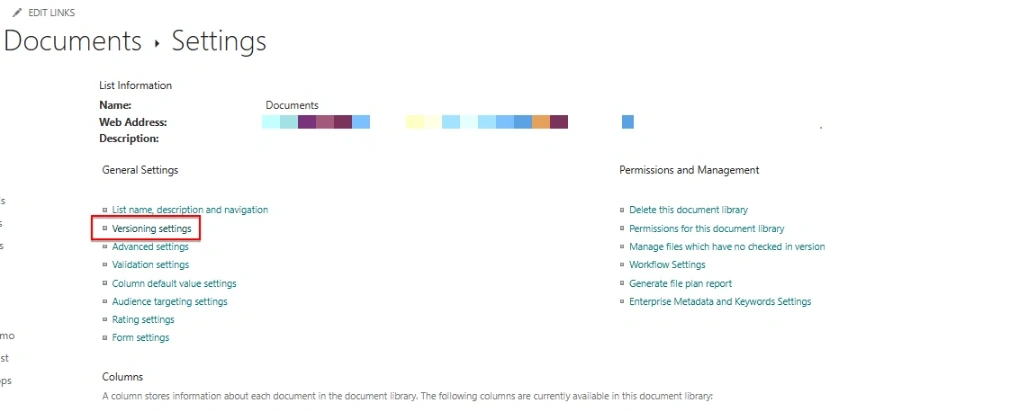
Select the Settings gear, then Library settings (or List settings).
Choose Versioning settings.
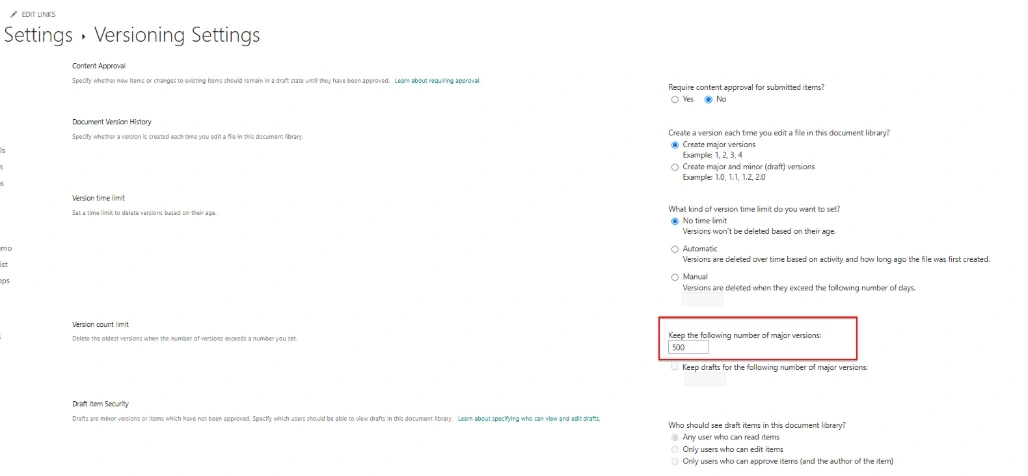
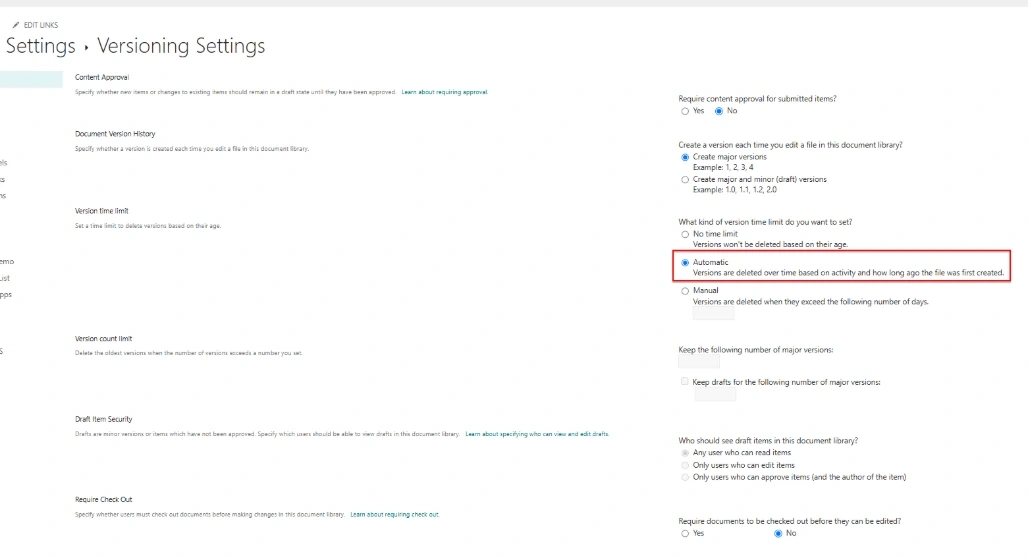
Under Document Version History, pick whether to create major versions only or major and minor versions.
Set a limit on how many versions to keep, if your environment allows it. Keeping too many versions of large files can consume storage quickly.
Optionally, require check-out before editing.
Select OK.
How to view version history
For a file in a library:
Go to the document library.
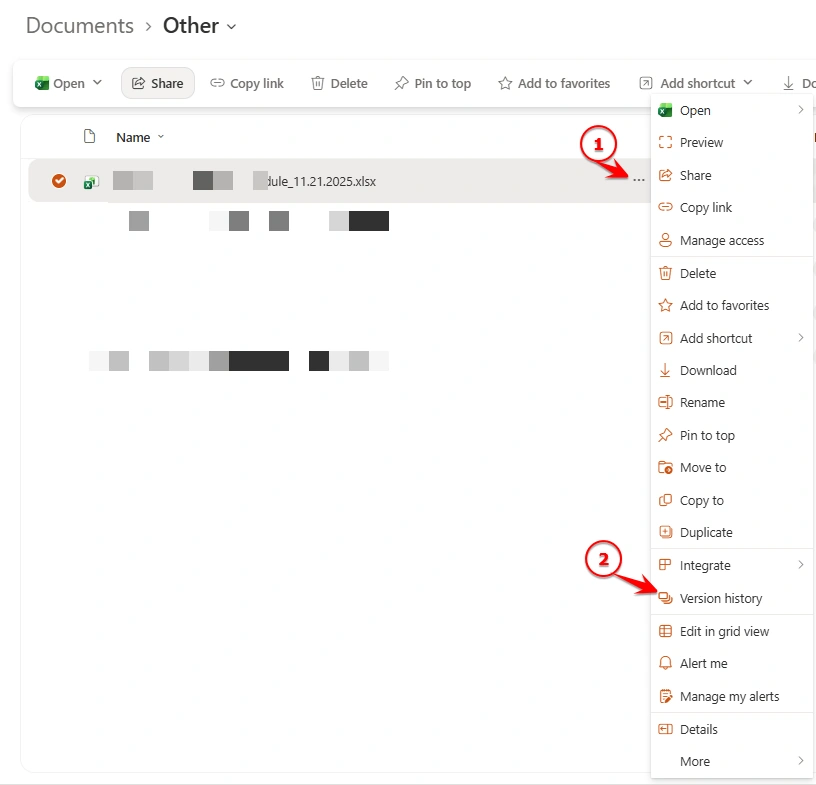
Select the file, or right-click it.
Choose Version history. In some views it's under the ... (More) menu, or in the Details pane.
A panel opens listing all saved versions.
For a list item:
Open the list and select the item.
Open the ... menu and choose Version history.
Review the list of changes, including which fields were modified.
From inside Office apps: in Word, Excel, or PowerPoint, open File > Info > Version History to browse and open earlier versions of a SharePoint-hosted file.
How to restore a previous version
Open Version history for the file or item, as described above.
Find the version you want to go back to. Open it first if you need to confirm it's the right one.
Select the dropdown arrow next to the version's date.
Choose Restore.
Confirm when prompted.
Restoring does not delete newer versions. SharePoint takes the old version and saves it as a new, latest version. For example, if a file is at version 6.0 and you restore version 3.0, the file becomes version 7.0 with the contents of version 3.0, and versions 4.0 to 6.0 remain in the history.
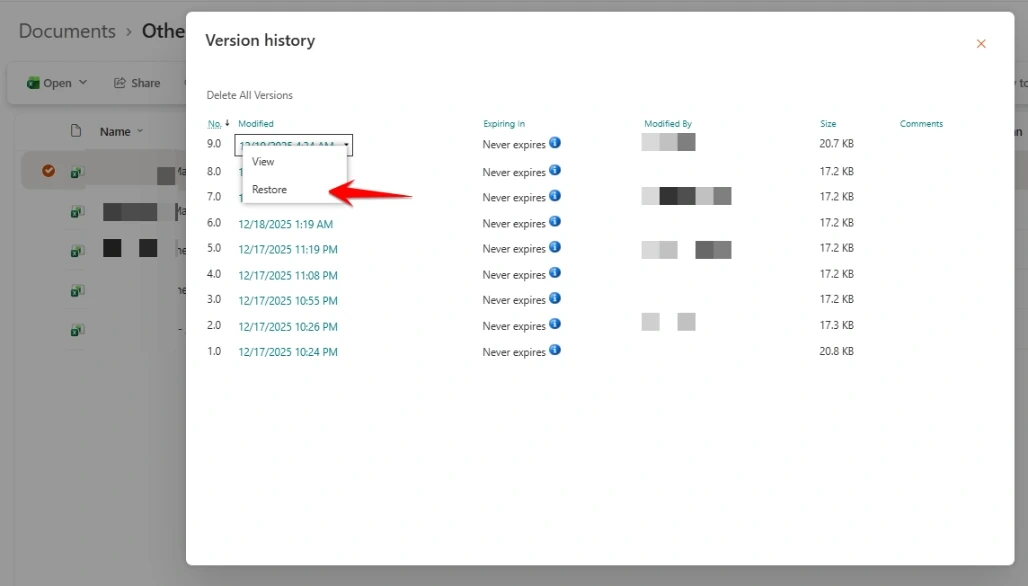
Other options in the version menu
View: opens a read-only copy of that version so you can compare it with the current one.
Delete: permanently removes a single version. Deleted versions go to the recycle bin where they can be recovered for a limited period.
Delete all versions / Delete all minor versions: frees space, but use it carefully, since you lose the ability to roll back.
Quick comparison
Action | What it does | Can it be undone? |
|---|---|---|
View | Opens a read-only copy | Nothing to undo |
Restore | Makes the old version the newest one | Yes, restore a different version |
Delete | Removes one version | Yes, from the Recycle bin for a limited time |
Delete all versions | Removes all earlier versions | Only through the Recycle bin, so check first |
Delete all minor versions | Removes draft versions only | Only through the Recycle bin, so check first |
What if the whole file was deleted?
Version history only helps while the file still exists. If the whole file or item was deleted, check the site Recycle bin first, and then the Second-stage recycle bin (in site settings). Restoring from there brings back the file along with its version history.
Best practices
Turn on versioning for any library where people collaborate. It is the simplest protection against accidental edits.
Use check-in comments so each version explains what changed. This makes it far easier to pick the right one later.
Set a sensible version limit. Keeping every version of large files wastes storage, while too low a limit removes your safety net.
Use minor versions and approval for content that must be reviewed before publishing.
Restore rather than overwrite. Restoring keeps a complete audit trail of what was done.
Check permissions. Users need edit permissions to restore versions, and read-only users can usually view history but not restore.
Troubleshooting
Problem | Likely cause |
|---|---|
"Version history" option is missing | Versioning is turned off, or you lack permissions |
Restore option is greyed out | Your role is view-only, or the file is checked out by someone else |
Older versions are missing | The version limit was reached and older ones were trimmed, or they were deleted |
Version history is very large | Versioning limits are too high, or large files are edited frequently |
Conclusion
Version history is one of SharePoint's most useful safeguards. Enable it on your libraries and lists, add meaningful comments, and use Restore whenever you need to roll back. Because a restore is saved as a new version, nothing is lost in the process.
Menu names and available options can vary slightly between SharePoint Online, SharePoint Server, and tenant settings, so it's worth checking against your own environment before publishing.
I can also put this in a Word doc, or adjust the tone for an internal knowledge base, a blog post, or a user training guide.
Join the conversation! Your thoughts help the community grow.