

Introduction
When building Power Automate flows, trigger inputs are often used to receive information from Power Apps, other flows, HTTP requests, or automated processes.
In some scenarios, not every input parameter is required. Making trigger parameters optional allows the flow to run even when a value is not provided.
This is especially useful when designing reusable and flexible flows.
What Are Trigger Input Parameters?
Trigger input parameters are values that a flow receives when it starts.
For example, a Power Automate flow called from Power Apps might receive:
Invoice ID
User Email
Action
Comments
Status
A typical flow might look like:
Power Apps
    ↓
Trigger
    ↓
Validate Parameters
    ↓
Process Business Logic
    ↓
Update SharePoint
Required vs Optional Parameters
By default, some trigger inputs may be treated as required.
Required Parameter
The flow expects the value to be provided.
Example:
InvoiceID = 12345If the value is missing, the flow may fail or the caller may need to provide it.
Optional Parameter
The value can be provided, but the flow can also run without it.
Example:
InvoiceID = 12345
Comments = Blank
The flow can continue even though Comments is not provided.
How to Mark Trigger Inputs as Optional
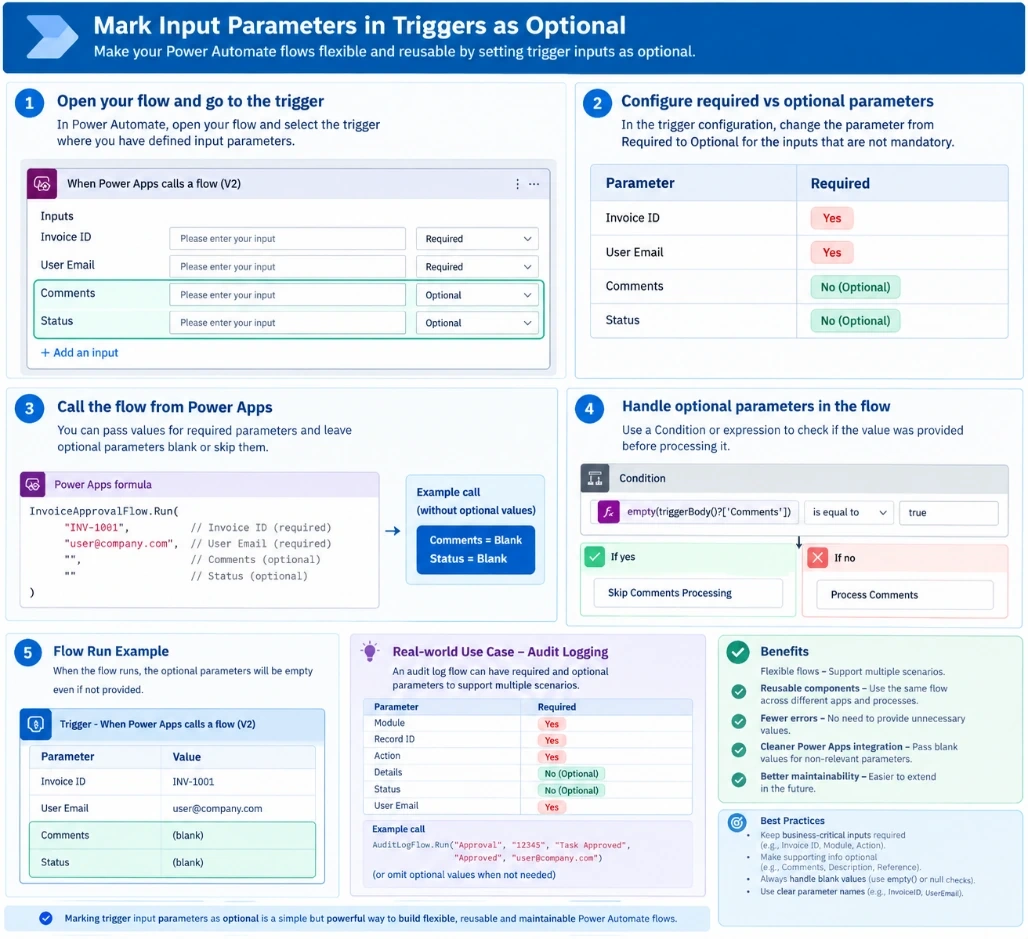
The exact option depends on the type of trigger you are using.
Step 1 – Open the Flow
Open your flow in Power Automate.
Go to the trigger where you have defined the input parameters.
For example:
When Power Apps calls a flow (V2)or another trigger that supports configurable inputs.
Step 2 – Identify the Input Parameters
For example:
Invoice ID
User Email
Comments
Status
You may have a requirement where:
Invoice ID → Required
User Email → Required
Comments → Optional
Status → Optional
Step 3 – Configure the Parameter
Open the parameter/input configuration.
Where the trigger supports it, change the parameter from Required to Optional.
The configuration should conceptually look like:
Parameter          Required
----------------------------
Invoice ID         Yes
User Email         Yes
Comments           No
Status             No
Example: Power Apps → Power Automate
Suppose Power Apps calls a flow:
InvoiceApprovalFlow.Run(
    InvoiceID,
    UserEmail,
    Comments,
    Status
)
Previously, all four parameters might be expected.
After making Comments and Status optional, the flow can handle scenarios such as:
InvoiceApprovalFlow.Run(
    "INV-1001",
    "[email protected]",
    "",
    ""
)
The flow receives:
InvoiceID = INV-1001
UserEmail = [email protected]
Comments = Blank
Status = Blank
Handling Optional Parameters in the Flow
Join the conversation! Your thoughts help the community grow.