
In the last article we saw how to use the out of box Case process in Microsoft Dynamics CRM 2015. In this article we will see how to modify this process to suit our requirements.
Step 1
You can click on the edit process as shown below.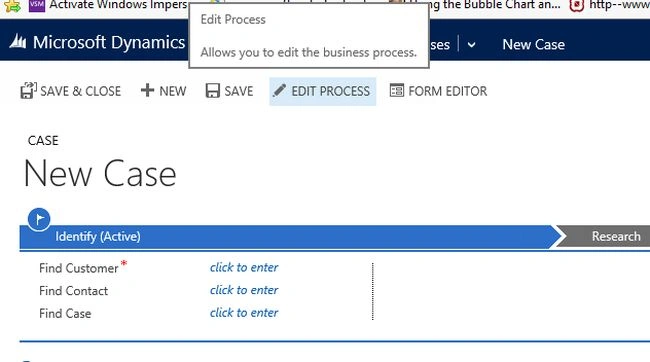
Step 2
You will see the default business process as modeled below. It is very easy to modify the process in the same editor. There is no need for different editors. You can add stages or add branches to a stage. These branches must then converge into a single stage.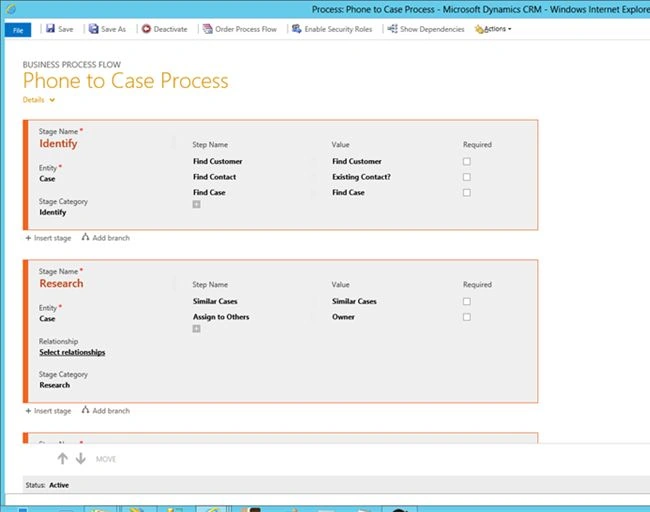
Step 3
Let's suppose we want to add a new stage called "Set Priority" after the case identification and depending on priority you need to route the case to different sets on individuals. In this example, I am focussing only on setting the priority but additional branches and rules can be built just as easily.
Provide the stage a Name and choose the Stage Category. I am choosing from the categories available though these also can be customised.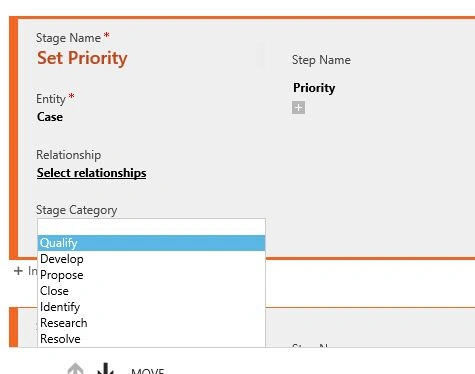
Step 4
You can customise this procedure to have as many data elements as you like. I am choosing a drop down field called "Priority" and setting the Required field to be true. Again I am choosing the field from the entities available that can be customised.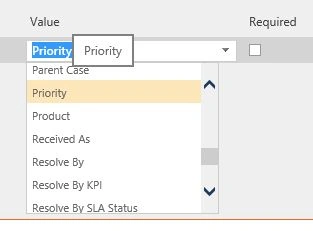
Step 5
Once you are done with editing the process you can save it, either overwrite the existing process or give it a new name. You will then see the process changed as shown below.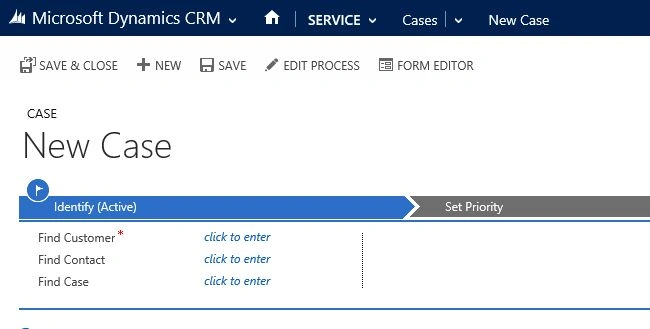
Step 6
In the new step you see the form as specified by you.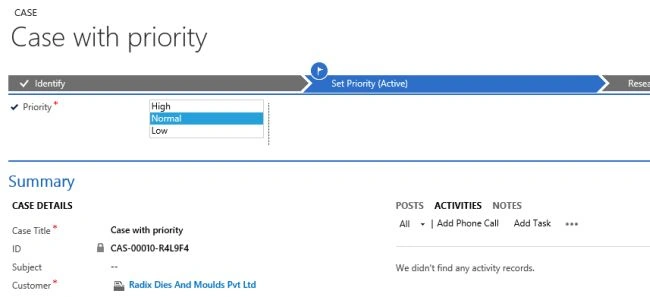
Step 7
Now let's see how this is displayed in the default view. The service stage does not give a correct depiction of our cases. So let us modify the view.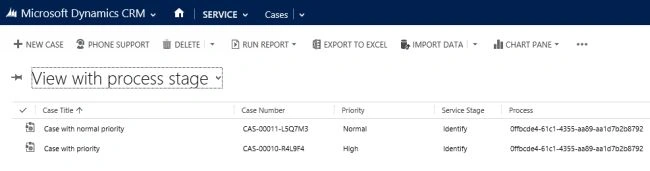
Step 8
To modify the view, choose the correct entity, Process Stage Entity; you will see the columns as below.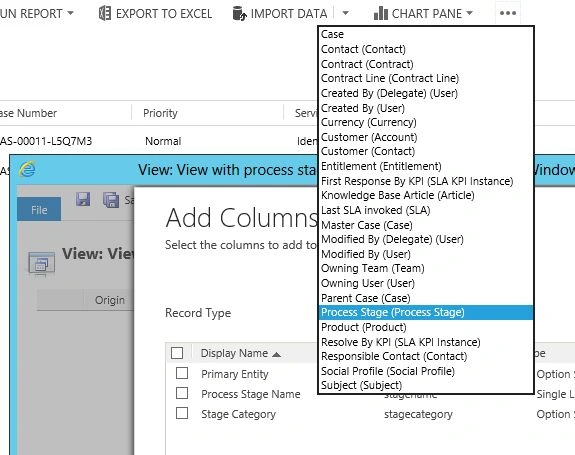
Step 9
Select the Process Stage Name and Stage Category, adjust their display length and save the view as a new view. You will now see the correct values in the view.
Step 10
You can even add a graphical view to the cases. For this select the icon as shown below.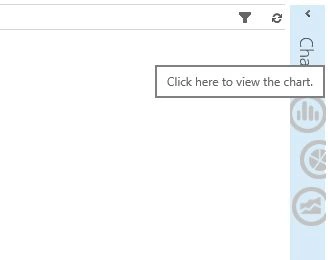
Step 11
You will see a number of out-of-box views. To create your own click on the + sign. Select the Priority or Stage Categories and you can see the graphical representation of the cases. You can also do a drill-down on the graphs.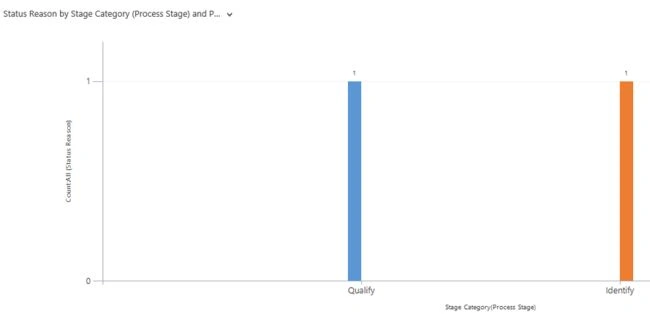
I am very impressed with the simplicity of the editing tools. Simple yet powerful.

How to Modify a Business Process in Microsoft Dynamics CRM 2015
Join the conversation! Your thoughts help the community grow.
Sign in to leave a comment
It is the same account you read, post and publish with — and you will come straight back to this page.
Bhuvanesh MohankumarPosted Apr 30, 2016, 3:14 PM
Good one...
Vithal WadjePosted Dec 31, 2014, 10:15 PM
nice explanation