

In this article, let’s create Azure Web App resources and create a Web App from Marketplace. Enable application insights using Basics tab and Monitor + secure tab configurations. Configure instrumentation settings to enables monitoring without changing the application code. Setup a .NET project to create and deploy Blazor application. View metrics (application activities) in Application Insights to monitor Failed requests, Server response time, Server requests, Availability, etc. After this exercise, you will be able to implement a comprehensive monitor an application with autoinstrumentation without changing the application code along with deployments and migrations simpler.
Following tasks are performed in this article:
Create Azure Web App Resources and Web App.
Enable Application Insights.
Configure Instrumentation Settings.
Create and Deploy Blazor App.
View metrics (application activities) in Application Insights.
Clean up resources.
Create Azure Web App Resources and Web App Page
First basic task is to create and make ready Azure web app resources to Azure using Azure Portal and create a Web App from Marketplace. Perform following steps one by one in to Azure Portal to achieve this.
Create Azure Web App Resource
Sign in to Azure portal.
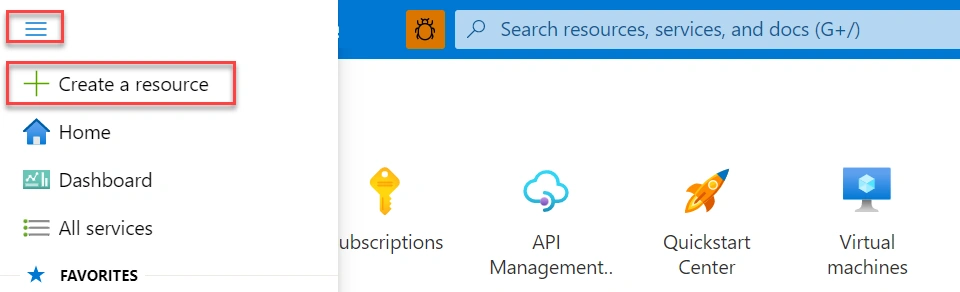
Click on menu bar and than select + Create a resource option to create a new resource instance.
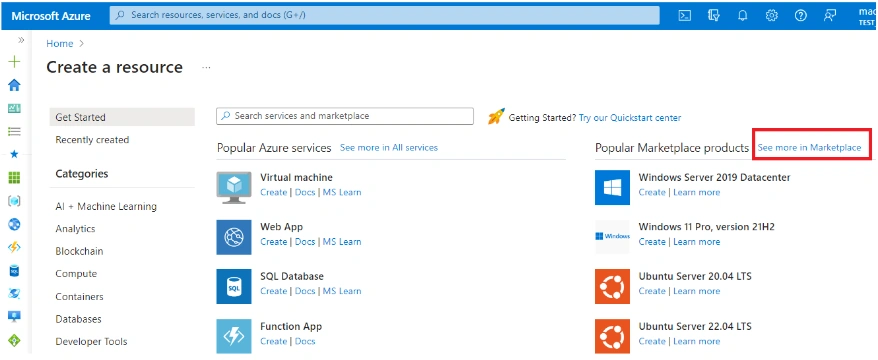
Create resource page will be open. Click on See more in Marketplace link on the top right side to access the Marketplace within Azure portal.
Marketplace page will be open. In search bar search for “web app” and press enter key to view the searching results.
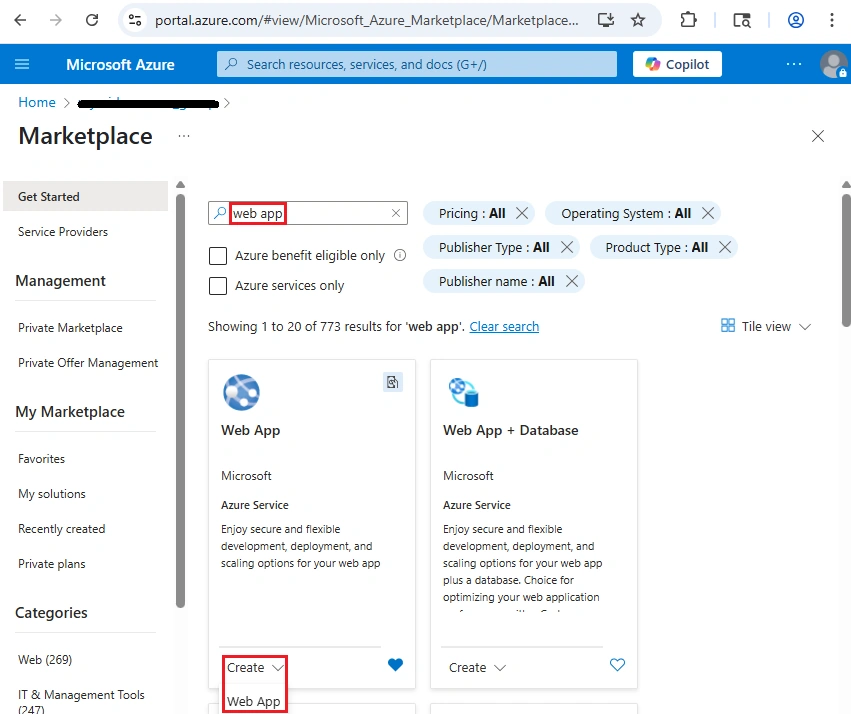
Web App tile will be appear. Select Create from drop-down option and then select Web App. It will open a Create Web App window with various tabs configurations.
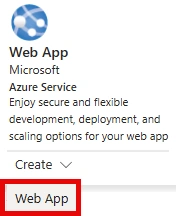
Create Web App
Once click on Web App option it will open Create Web App page with various configuration options as mentioned in next below section.
Enable Application Insights
In Create Web App page there are various tabs such as Basics, Database, Container, Monitor + secure, Tags, Review + create, etc. to be configured appropriately. Perform the following steps one by one to configure Basics and Monitor + secure tab configuration .
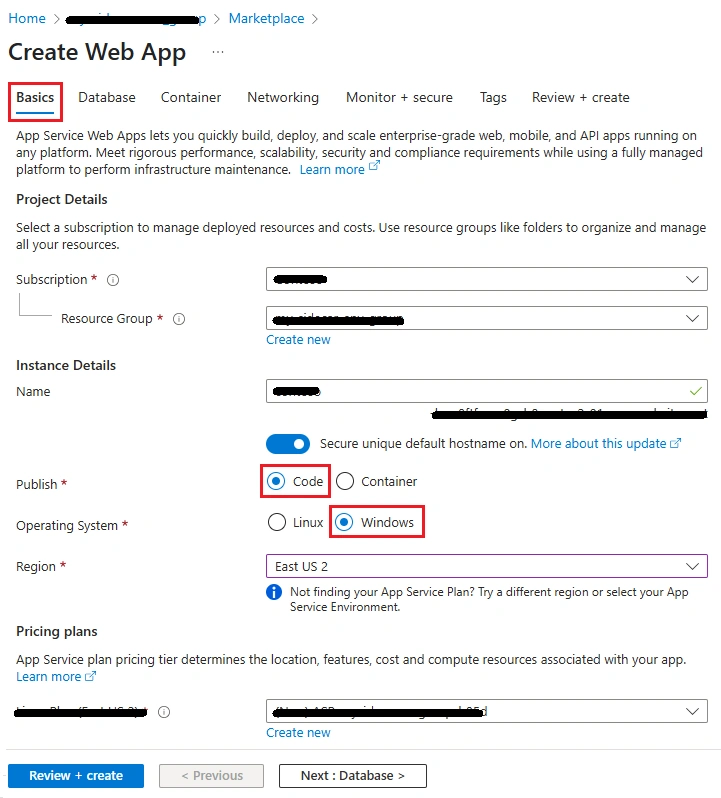
Basics tab configuration
Now it’s time to enter the basic settings for Basic panel configuration to create a web app resource. For unspecified options leave to their default values as it is. Following are important setting to be configured:
Subscription: Select the subscription in which new service instance is to be created or keep the default value as it is.
Resource Group: Create new resource group with name myResourceGroup1 through Create new option or select an existing resource group.
Name: Choose and enter a unique name because it must be unique name.
Publish: Choose Code radio-button option.
Runtime stack: Select .NET 8 (LTS) from drop-down menu options.
Operating System: Select Windows option.
Region: Select a nearest region or keep the default value as it is.
Pricing plans: Select Free F1 plan from the drop-down options.
Monitor + secure tab settings
Click on “Monitor + secure” tab and enter below details as described to enable application insights:
Enable Application Insights: Choose Yes radio-button option.
Application Insights: Create new application insight with name autoinstrumentInsights1 through Create new option or select an existing one from drop-down options.
Review + create tab submit
Navigate to “Review + create” tab to review and validate the configured deployment details. Complete final save by click on Create button to create the resources. It will take few minutes to complete the operation process.
Configure Instrumentation Settings
Now, let’s configure instrumentation settings for web app at service level. This section enables monitoring without changing the application code. Configure the following settings to configure instrumentation for an app at service level.
Go to left navigation menu bar and click on Monitoring and then select Application Insights option.
Locate to application’s Instrument section and then select .NET Core.
In Collection level section choose Recommended option.
Click on Apply button and then confirm changes.
Create and Deploy Blazor App
Let’s set-up the .NET Blazor application and deploy it to above created Web App resource. Perform the following steps one by one in to Cloud Shell to achieve this.
.NET Project Setup
Set up one blazor application using .NET Client Library.
Create project directory and change to that directory. First create a directory for the project using below command and move to that directory.
mkdir blazor1
cd blazor1
Create Blazor application for created Web App resource through dotnet new blazor command.
dotnet new blazorBuild application to make sure that there is no any error for created Blazor app. Run dotnet build command to build an application and to test any error in project.
dotnet buildNow, blazor application is completed and tested for any build time error. Next task is to deploy the Blazor application using Cloud Shell and then use the Azure Portal to view the application activities in Application Insights.
Deploy Blazor App
Now it’s time to deploy above created Blazor application to the App service. First, task is to publish it and then create a .zip file for the deployment.
Publish app - Execute dotnet publish command as following to publish an app into the publish1 directory.
dotnet publish -c Release -o ./publish1Zip published app - Change directory and create a .zip file of above published application using zip command.
cd publish1
zip -r ../app.zip .
cd ..
Deploy app to App Service - Now deploy the created publish .zip file to App Service using az webapp deploy command. Replace MY-WEB-APP-NAME with actual value which is used in above section while creating App Service resources. It will take few minutes to complete the deployment process and then click on Default domain link located inside Essentials section to open an application into the new browser tab.
az webapp deploy --name MY-WEB-APP-NAME \
     --resource-group myResourceGroup1\
     --src-path ./app.zip
Now it's done. Let’s view application metrics in Application Insights as mentioned in next section. Here, don't close this tab as it will be used to view the results.
View metrics (application activities) in Application Insights
Perform following steps one by one in to Azure Portal to view metrics (application activities) in Application Insights.
Go to Azure Portal and navigate to previously created Application Insights resource.
Application Insights Overview page will be open and it displays four basic charts such as:
Failed requests
Server response time
Server requests
Availability
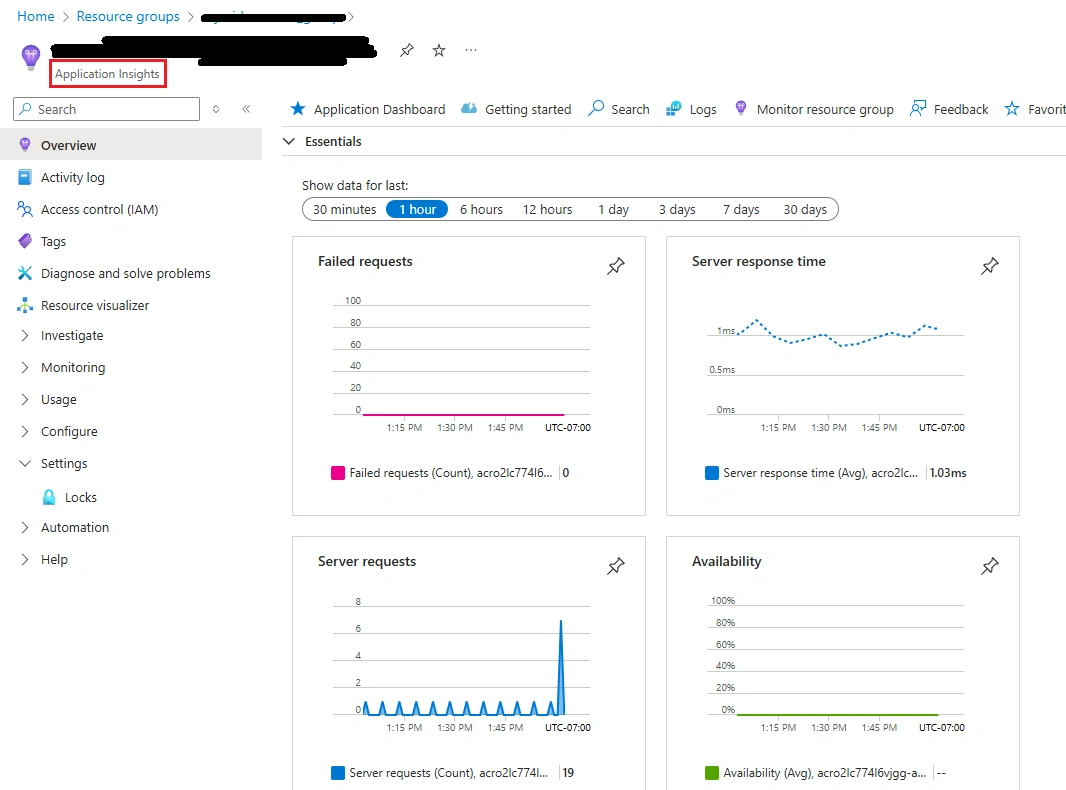
Check Web Application Insights: To monitor what is happening in Overview page. Go to the web application and perform couple of actions and then come back to this Overview page and refresh it to reflect the chart movement updates.
Check Failed Requests: Click on Investigate section in left-navigation menu bar and then choose Failures option. It will show failed request count with more detailed details.
Other Reporting Options: There are other several options to explore the other reporting information in detailed.
Clean up resources
Once finished the exercise it’s recommended to delete cloud resources are being created to avoid the unnecessary resource usage and any future costs. Deleting a resource group will delete all resources contained within it. Perform following steps one by one in to Azure Portal to achieve this:
Navigate to resource group which is being created here and view it’s contents.
Delete resource group selection from the toolbar.
Choose resource group name and then follow next directions to delete resource group and all the resources it contains.
One can also clean up resources using Azure CLI as following:
Delete resource group - az group delete command is used to remove resource group.
az group delete \
     --name myResourceGroup1
Summary
Here, a complete process flow is described to create Azure Web App resources and Web App is created from Marketplace. Application insights is enabled using Basics tab and Monitor + secure tab configurations. Instrumentation settings are configured to enabled monitoring without changing the application code. .NET project is setup to create and deploy Blazor application. Metrics (application activities) in Application Insights are viewed to monitor the Failed requests, Server response time, Server requests, Availability, etc. Now,, you will be able to implement a comprehensive monitor an application with autoinstrumentation without changing the application code along with deployments and migrations simpler. Finally, resources are cleaned up.
Join the conversation! Your thoughts help the community grow.