Start new Activity by existing Activity on a button click
Hi, guys. In this article we will see how to start a new Activity on a button click in the current activity.
There are two types of ways to open a new activity.
Using the "startactivity(Intent intent)" method and "startActivityforResult(Intent intent, requestCode requestCode)" method.
When we open a folder or file using another for importing or save some data then we use startActivityforResult(),
Because by calling this second Activity the open is only for some time and provides some output.
Whereas startActivity() opens a separate new activity.
Step 1
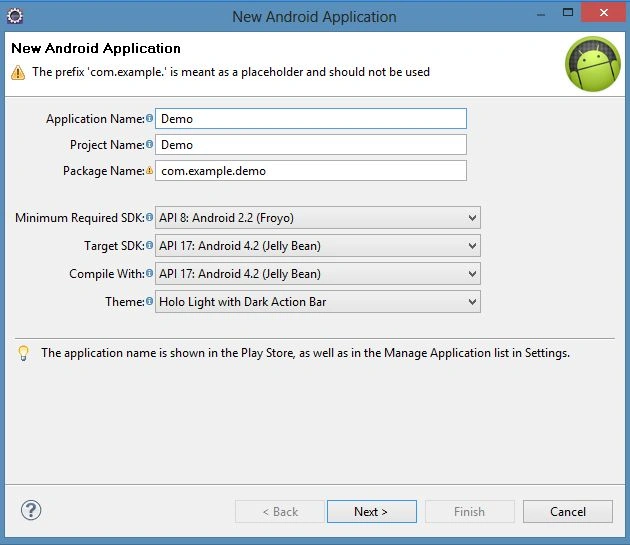
Create a new project: "DemoActivity File" --> "New" --> "Android Application Project".
Step 2
Open "DemoActivity /res/values/string.xml" and update it as in the following code:
- <?xml version="1.0" encoding="utf-8"?>
- <resources>
- <string name="app_name">MyDemo</string>
- <string name="hello_world">Hello world!, this is my android application </string>
- <string name="lblBtn">Open Activity Demo</string>
- <string name="btn"></string>
- <string name="lblTxt">This is another activity sarting by main activity</string>
- <string name="menu_settings">Settings</string>
- </resources>
Step 3
Open "DemoActivity/AndroidManifest.xml" and update it as in the following code:
- <?xml version="1.0" encoding="utf-8"?>
- <manifest xmlns:android="http://schemas.android.com/apk/res/android"
- package="com.example.mydemo"
- android:versionCode="1"
- android:versionName="1.0" >
- <uses-sdk
- android:minSdkVersion="8"
- android:targetSdkVersion="17" />
- <application
- android:allowBackup="true"
- android:icon="@drawable/ic_launcher"
- android:label="@string/app_name"
- android:theme="@style/AppTheme" >
- <activity
- android:name="com.example.mydemo.MainActivity"
- android:label="@string/app_name" >
- <intent-filter>
- <action android:name="android.intent.action.MAIN" />
- <category android:name="android.intent.category.LAUNCHER" />
- </intent-filter>
- </activity>
- <activity
- android:name=".AnotherActivity"
- android:label="@string/app_name">
- <intent-filter >
- <action android:name="in.wptrafficanalyzer.AnotherActivity"/>
- <category android:name="android.intent.category.DEFAULT"/>
- </intent-filter>
- </activity>
- </application>
- </manifest>
Step 4
Create a new Java file in the "com.example.mydemo" package named "AnotherActivity.java" with the following code:
- package com.example.mydemo;
- import android.app.Activity;
- import android.os.Bundle;
- public class AnotherActivity extends Activity{
- @Override
- protected void onCreate(Bundle savedInstanceState) {
-
- super.onCreate(savedInstanceState);
- setContentView(R.layout.another);
- }
- }
Step 5
Create a new XML file in the "Demo/res/layout/" directory as "activity_another.xml" with the following code:
- <?xml version="1.0" encoding="utf-8"?>
- <LinearLayout xmlns:android="http://schemas.android.com/apk/res/android"
- android:layout_width="match_parent"
- android:layout_height="match_parent"
- android:orientation="vertical" >
- <TextView
- android:id="@+id/txt"
- android:layout_width="match_parent"
- android:layout_height="wrap_content"
- android:text="@string/lblTxt"
- />
- </LinearLayout>
Step 6
Open "Demo/src/com.example.mydemo/MainActivity.java" and update it as in the following code:
- package com.example.mydemo;
- import android.os.Bundle;
- import android.app.Activity;
- import android.content.Intent;
- import android.view.Menu;
- import android.view.View;
- import android.view.View.OnClickListener;
- import android.widget.Button;
- public class MainActivity extends Activity {
- @Override
- protected void onCreate(Bundle savedInstanceState) {
- super.onCreate(savedInstanceState);
- setContentView(R.layout.activity_main);
- OnClickListener listnr=new OnClickListener() {
- @Override
- public void onClick(View v) {
- Intent i= new Intent("AnotherActivity");
- startActivity(i);
- }
- };
- Button btn =(Button) findViewById(R.id.btn);
- btn.setOnClickListener(listnr);
- }
- }
Step 7
Open "Demo/res/layout/activity_main.xml" and update it with the following code:
- <?xml version="1.0" encoding="utf-8"?>
- <LinearLayout xmlns:android="http://schemas.android.com/apk/res/android"
- xmlns:tools="http://schemas.android.com/tools"
- android:layout_width="match_parent"
- android:layout_height="match_parent"
- tools:context=".MainActivity" >
- <TextView
- android:layout_width="125dp"
- android:layout_height="wrap_content"
- android:text="@string/hello_world" />
- <Button
- android:id="@+id/btn"
- android:layout_width="134dp"
- android:layout_height="wrap_content"
- android:text="@string/lblBtn" />
- </LinearLayout>
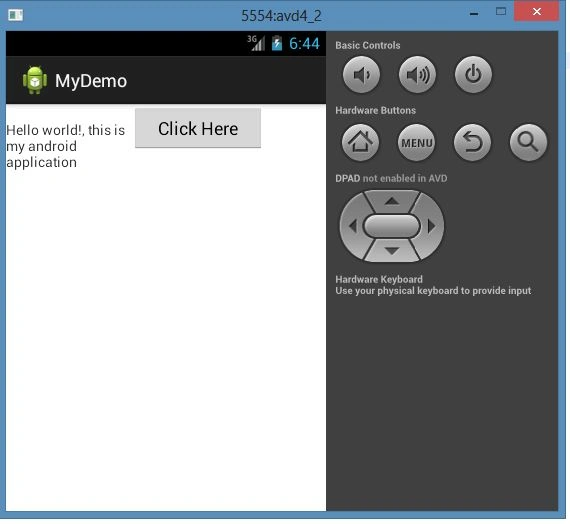
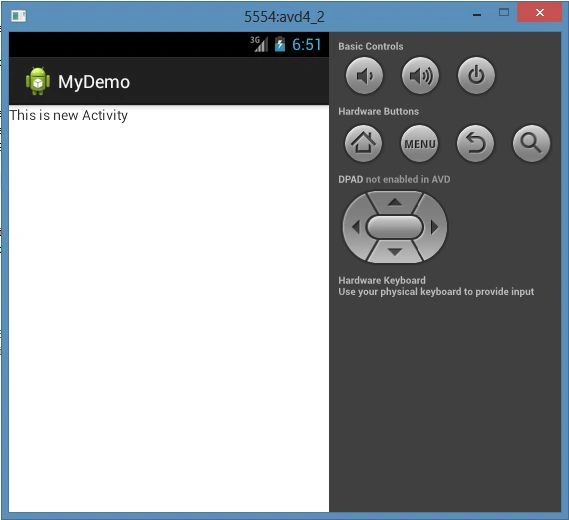
Run the Application and see the output.
Current Activity:
New Activity:


kalu singh raoPosted Jul 12, 2016, 6:25 AM
Nice...
Maryam JamilPosted Jul 28, 2015, 6:10 AM
what if i want to start activity without button click: See my code else{ // }