

Introduction
In my previous article, I already explained how to open a selected document In File Viewer (Word, Excel, PowerPoint, and PDF) in SharePoint modern sites.
Here, let us see about using modern web parts, and how we can view the selected list item without any customization using List Properties Viewer.
Scenario
The requirement is to open the selected List item without open it in a new tab of the browser window and Popup window of the model dialog box.
This should be achieved using Modern in OOB web parts.
Objective
The below OOB web parts will be used in this solution.
- List – connect to List & select Item
- List properties - The web part will Connect to a list or list web part on this page to dynamically display a selected item in the list.
Follow the below steps.
Step 1
Navigate to your SharePoint 2013 site -> Create Modern Page in Site Pages.
Step 2
From this page,
- Edit the page.
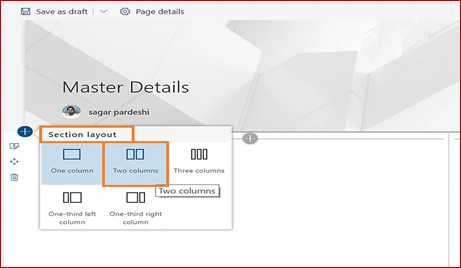
- Hover over the canvas where you would like to add layout section.
- Click on the “+” Sign.
- Add New section “Two Column” from the Section layout.
Step 3
You will see two sections to add web parts,
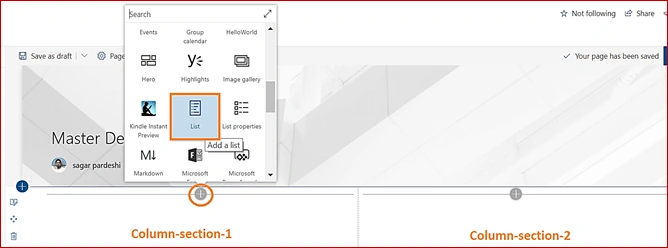
- In the first column-section1,
- Click on the “+” sign.
- Select “List” from the web part toolbox.
- Select relative List; then the below screen appears.
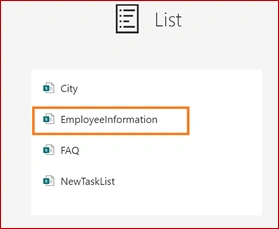
- After the final selection of your selected List, the below screen will appear.
Step 4
- In the second Column-section2,
- Click on the “+” sign.
- Select “List properties” from the web part toolbox.
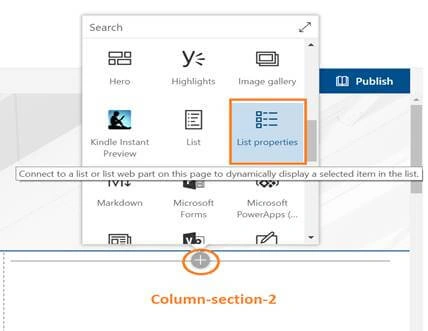
- After you select the List properties Viewer Modern Web part, the below screen appears
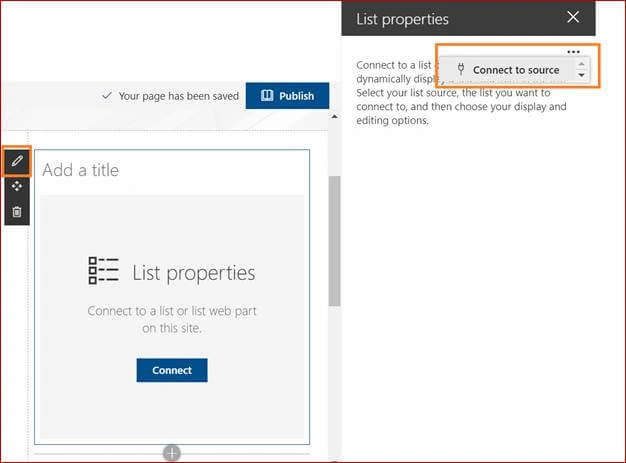
- Click Edit web part on the left side of the List properties web part.
- Click the ellipses (...) at the top right of the property pane, and then click Connect to the source.
- Click Edit web part
 on the left side of the List properties web part.
 - Click the ellipses (...) at the top right of the property pane, and then click Connect to the source.
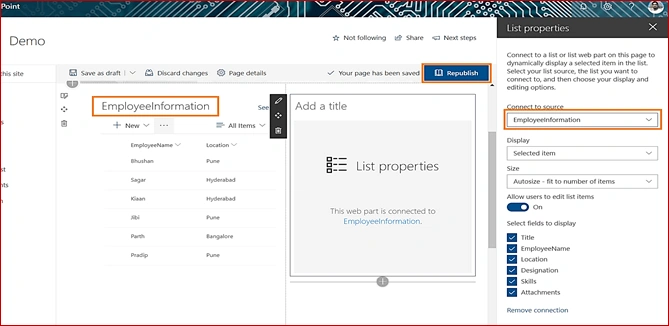
- Under Connect to source, select the list of First section “EmployeeInformation” List Name to use from the drop-down list.
- Under Display, select what you want the user to see on your page.
- Under Fields to display, select the check boxes next to the columns that you want to show values from.
- Click Republish at the top of the page.
Final Step
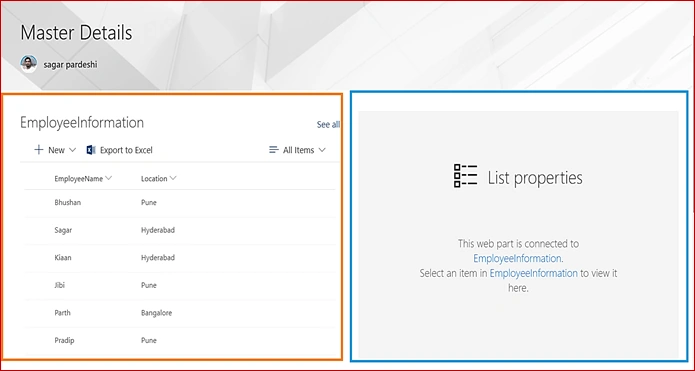
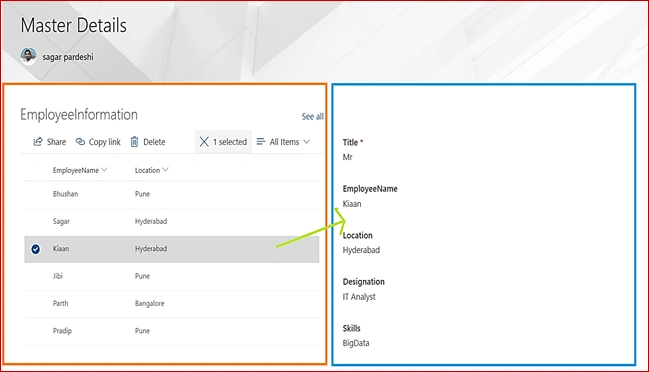
- Select any List item from the left side List
- The file should be opened in the right-side List properties viewer web part
Without Selected List Item Screen
With Selected List item
Conclusion
When we have a large list with many columns, it can be hard for users to find the specific information they are looking for. In List view we are showing two-column information, a user can select an item from a List web part, and see the detailed information of all related columns in the List properties web part.
Join the conversation! Your thoughts help the community grow.