

Previous part
Introduction
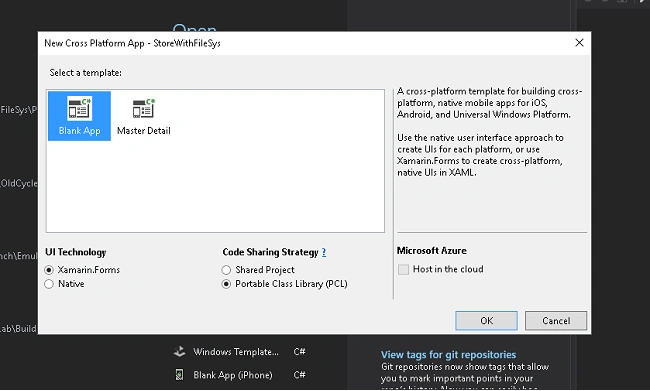
Welcome back to the "Data Persistence in Xamarin.Forms" series. In the previous chapter, we saw how to save the user’s preferences. In this one, I’ll show you how to use file system to save data using Xamarin with the .Forms UI Technology and the PCL (Portable Class Library) code sharing strategy.
Before coding, just a little refresher about the Xamarin.Forms code sharing logic.
When we code in Xamarin.Forms environment, we’ve got to keep in mind that not all code can be sharable. Indeed, the following are not sharable and they need to be implemented with a platform-specific approach:
- Uses files and folders on the device (We are concerned about in this tutorial)
- Access system information
- Access personal information
- Uses external devices.
Also, we can use three methods to implement the write/read text using the file system:
- Text
- Json
- Xml
To simplify the argument, in this tutorial, I’ll use only the text method.
Moreover, I’ll not show you how to manipulate saved data because that is out of the scope of the present tutorial. I’ll cover the manipulation data methods in a future article.
It’s important to say, before starting, that I’ll use “basic code method” and not the “clean code” one, because the purpose of the present tutorial is to show you the basics to save data.
Prerequisites
- IDE: Visual Studio 2017 Community Edition.
The steps given below will lead you to the goal.
Part 2
File System
Step 1
Launch Visual Studio and create a default application.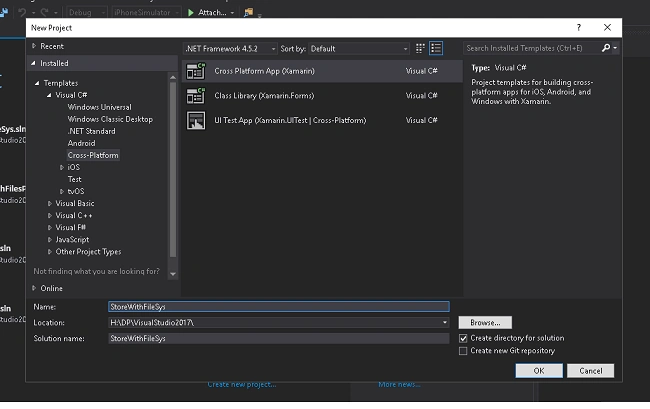
Step 2
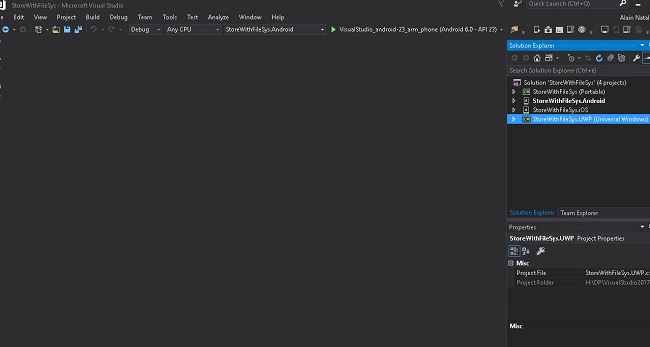
Now, we need to customize the User Inteface, adding an Entry, a Button and a ListView. Please note that the ListView has been added to show you that the code works. To do that, go to Solution Explorer, expand the solution Portable node, open the MainPage.xaml file, and replace the auto-generated code with the given one.
- <?xml version="1.0" encoding="utf-8" ?>
- <ContentPage xmlns="http://xamarin.com/schemas/2014/forms"
- xmlns:x="http://schemas.microsoft.com/winfx/2009/xaml"
- xmlns:local="clr-namespace:StoreWithFileSys"
- x:Class="StoreWithFileSys.MainPage">
- <ContentPage.Padding>
- <OnPlatform x:TypeArguments="Thickness" iOS="0,20,0,0" />
- </ContentPage.Padding>
- <StackLayout>
- <Entry x:Name="wroteText"
- Placeholder="Insert your text here"HorizontalTextAlignment="Center" />
- <Button x:Name="saveBtn" Text="Save" Clicked="saveBtn_Clicked" />
- <ListView x:Name="textsList">
- <ListView.ItemTemplate>
- <DataTemplate>
- <TextCell Text="{Binding}" />
- </DataTemplate>
- </ListView.ItemTemplate>
- </ListView>
- </StackLayout>
- </ContentPage>
Step 3
To do that, go to Solution Explorer, expand the solution Portable node, open the MainPage.xaml.cs file , delete the auto-generated code and write the following.
- using System;
- using System.Collections.Generic;
- using System.Linq;
- using System.Text;
- using System.Threading.Tasks;
- using Xamarin.Forms;
- using StoreWithFileSys;
- namespace StoreWithFileSys
- {
- public partial class MainPage : ContentPage
- {
- FileEngine fileEngine = new FileEngine();
- public MainPage()
- {
- InitializeComponent();
- Refresh();
- }
- async void saveBtn_Clicked(object sender, EventArgs e)
- {
- string storedText = wroteText.Text;
- await fileEngine.WriteTextAsync(wroteText.Text, "");
- wroteText.Text = "";
- Refresh();
- }
- async void TextsList_Selected(object sender, SelectedItemChangedEventArgs e)
- {
- string storedText = (string)e.SelectedItem;
- wroteText.Text = storedText;
- }
- async void Refresh()
- {
- textsList.ItemsSource = await fileEngine.GetFilesAsync();
- textsList.SelectedItem = null;
- }
- }
- }
Step 4
Now we need to implement the engine to store our data. When we use the Xamarin.Forms Environment, to save data with File System we’ve got to use Dependency Service to have access to Input/Output functions, add an Interface in the PCL Project to define functions, implement the interface with a platform-specific approach for each OS and connect the entire code using a Class added in a PCL project. Let me show you the code:
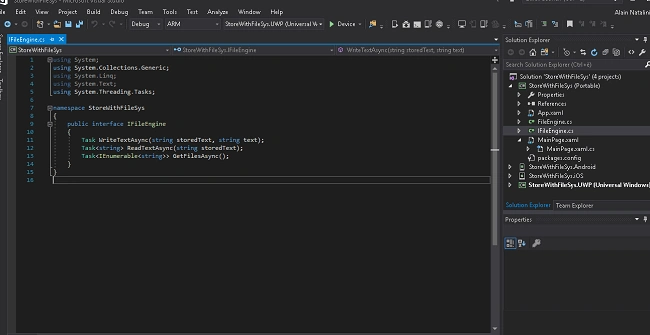
Create an interface in PCL Project
(right click on the Portable Project -> Add -> New Item -> Code -> Interface) and write the following code,
- using System;
- using System.Collections.Generic;
- using System.Linq;
- using System.Text;
- using System.Threading.Tasks;
- namespace StoreWithFileSys
- {
- public interface IFileEngine
- {
- Task WriteTextAsync(string storedText, string text);
- Task<string> ReadTextAsync(string storedText);
- Task<IEnumerable<string>> GetFilesAsync();
- }
- }
Implement the Interface for Android Engine
(right click on the Android Project -> Add -> New Item -> Visual C# ->Class) and write the following code,
- using System;
- using System.Collections.Generic;
- using System.Linq;
- using System.Text;
- using System.IO;
- using Xamarin.Forms;
- using StoreWithFileSys;
- using System.Threading.Tasks;
- [assembly: Dependency(typeof(StoreWithFileSys.Droid.FileEngine))]
- namespace StoreWithFileSys.Droid
- {
- class FileEngine : IFileEngine
- {
- public Task<IEnumerable<string>> GetFilesAsync()
- {
- IEnumerable<string> storedTexts =
- from filePath in Directory.EnumerateFiles(DocsPath())
- select Path.GetFileName(filePath);
- return Task<IEnumerable<string>>.FromResult(storedTexts);
- }
- public async Task<string> ReadTextAsync(string storedText)
- {
- string filePath = FilePath(storedText);
- using (StreamReader reader = File.OpenText(filePath))
- {
- return await reader.ReadToEndAsync();
- }
- }
- public async Task WriteTextAsync(string storedText, string text)
- {
- string filePath = FilePath(storedText);
- using (StreamWriter writer = File.CreateText(filePath))
- {
- await writer.WriteAsync(text);
- }
- }
- private string FilePath(string storedText)
- {
- return Path.Combine(DocsPath(), storedText);
- }
- private string DocsPath()
- {
- return Environment.GetFolderPath(Environment.SpecialFolder.MyDocuments);
- }
- }
- }
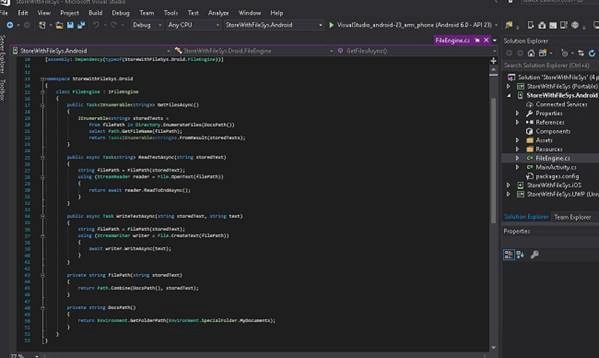
Implement the Interface for iOS Engine
(right click on the Android Project -> Add -> New Item -> Code ->Class) and write the following code,
- using System;
- using System.Collections.Generic;
- using System.Linq;
- using System.Text;
- using System.IO;
- using Xamarin.Forms;
- using StoreWithFileSys;
- using System.Threading.Tasks;
- [assembly: Dependency(typeof(StoreWithFileSys.iOS.FileEngine))]
- namespace StoreWithFileSys.iOS
- {
- class FileEngine : IFileEngine
- {
- public Task<IEnumerable<string>> GetFilesAsync()
- {
- IEnumerable<string> storedTexts =
- from filePath in Directory.EnumerateFiles(DocsPath())
- select Path.GetFileName(filePath);
- return Task<IEnumerable<string>>.FromResult(storedTexts);
- }
- public async Task<string> ReadTextAsync(string storedText)
- {
- string filePath = FilePath(storedText);
- using (StreamReader reader = File.OpenText(filePath))
- {
- return await reader.ReadToEndAsync();
- }
- }
- public async Task WriteTextAsync(string storedText, string text)
- {
- string filePath = FilePath(storedText);
- using (StreamWriter writer = File.CreateText(filePath))
- {
- await writer.WriteAsync(text);
- }
- }
- private string FilePath(string storedText)
- {
- return Path.Combine(DocsPath(), storedText);
- }
- private string DocsPath()
- {
- return Environment.GetFolderPath(Environment.SpecialFolder.MyDocuments);
- }
- }
- }
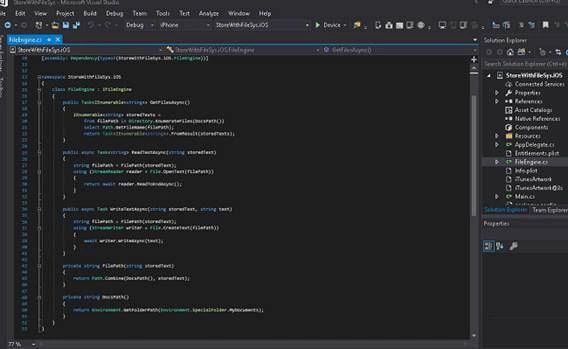
Implement the Interface for UWP Engine
- using System;
- using System.Collections.Generic;
- using System.Threading.Tasks;
- using Xamarin.Forms;
- using Windows.Storage;
- using System.Linq;
- [assembly: Dependency(typeof(StoreWithFileSys.UWP.FileEngine))]
- namespace StoreWithFileSys.UWP
- {
- class FileEngine : IFileEngine
- {
- public async Task WriteTextAsync(string storedText, string text)
- {
- StorageFolder userLocalFolder = ApplicationData.Current.LocalFolder;
- IStorageFile userStorageFile = await userLocalFolder.CreateFileAsync(storedText, CreationCollisionOption.ReplaceExisting);
- await FileIO.WriteTextAsync(userStorageFile, text);
- }
- public async Task<string> ReadTextAsync(string storedText)
- {
- StorageFolder userLocalFolder = ApplicationData.Current.LocalFolder;
- IStorageFile userStorageFile = await userLocalFolder.GetFileAsync(storedText);
- return await FileIO.ReadTextAsync(userStorageFile);
- }
- public async Task<IEnumerable<string>> GetFilesAsync()
- {
- StorageFolder userLocalFolder = ApplicationData.Current.LocalFolder;
- IEnumerable<string> storedTexts =
- from userStorageFile in await userLocalFolder.GetFilesAsync()
- select userStorageFile.Name;
- return storedTexts;
- }
- }
- }
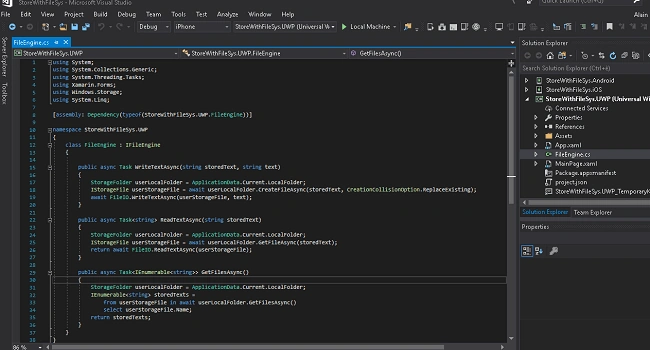
Create a class to connect the entire code
(right click on the PCL Project -> Add -> New Item -> Code ->Class) and write the following code,
- using System;
- using System.Collections.Generic;
- using System.Linq;
- using System.Text;
- using System.Threading.Tasks;
- using System.IO;
- using Xamarin.Forms;
- namespace StoreWithFileSys
- {
- class FileEngine : IFileEngine
- {
- IFileEngine fileEngine = DependencyService.Get<IFileEngine>();
- public Task<IEnumerable<string>> GetFilesAsync()
- {
- return fileEngine.GetFilesAsync();
- }
- public Task<string> ReadTextAsync(string storedText)
- {
- return fileEngine.ReadTextAsync(storedText);
- }
- public Task WriteTextAsync(string storedText, string text)
- {
- return fileEngine.WriteTextAsync(storedText, text);
- }
- }
- }
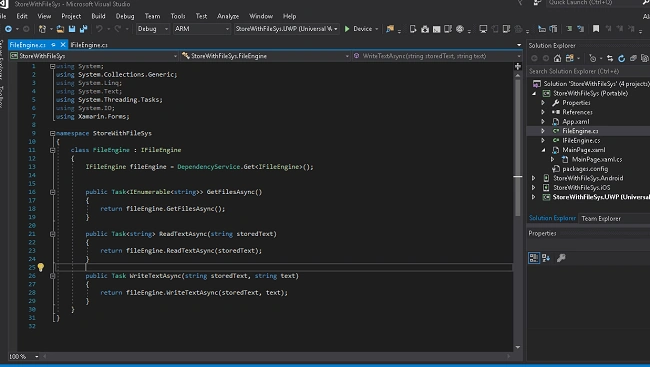
Step 5
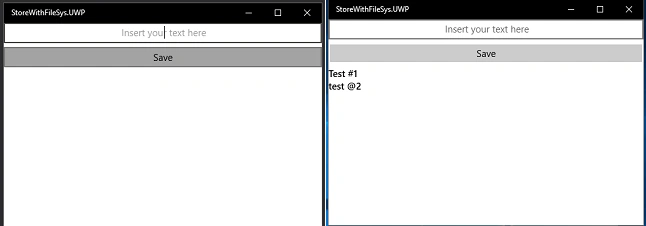
Windows 10 Desktop
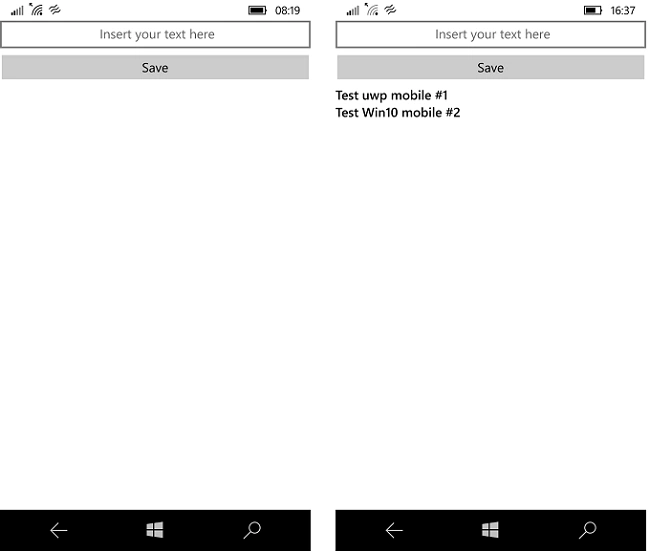
Windows 10 mobile
iOS

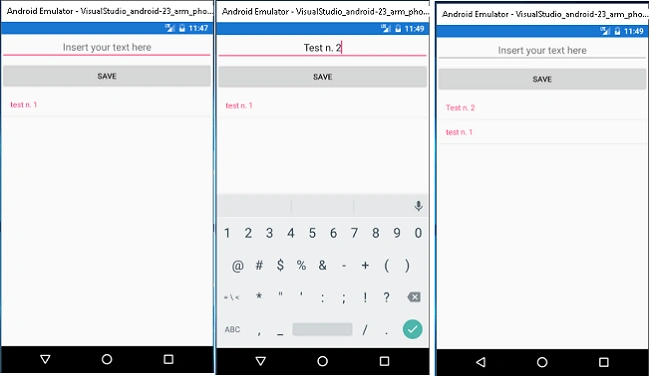
Android
Conclusions
In this tutorial I have shown you how to save data using the OS File System.
As you saw, the code above contains the “async method”. That’s important to avoid the block of the user interface during the data saving process. Indeed, the UWP data saving method must be asyncronus. Moreover, it’s a bit complicated to keep in mind that the data saving code is not sharable and needs the platform-specific implementation.
The “roadmap” of a build like that is the following
- Build User Interface: -> Step n.2: to interact with the user.
- Build Code Behind -> Step n. 3: to connect the UI to the engine of the app.
- Build Interface -> Step n. 4: to say to the program what to do, but not how.
- Implement interface for each concerned OS platform -> Step n. 4: because, as I said before, saving data process must be implemented with the platform-specific approach.
- Build the class to unify the entire code -> Step n. 4: to allow the parts of the program to work together.
Of course, you can improve it, but that is out of our scope at this time.
Just another thing: the code shown above has an instructive purpose, but, if you are seaching for a easier way, you can use the PCLStorage plugin by Daniel Plaisted ( https://www.nuget.org/packages/PCLStorage/1.0.2/ ). You can find it in NuGet: PCL Storage provides a consistent, portable set of local file IO APIs for .NET, Windows Phone, Windows Store, Xamarin.iOS, Xamarin.Android, and Silverlight. This makes it easier to create cross-platform .NET libraries and apps.
I’ll cover this solution in a future tutorial, while, in the next one, I’ll show you how to save data in a database.
Thank you for your attention and interest
Raffaele BortoliPosted Oct 18, 2018, 11:54 PM
Perfect Alain, for some reason Visual Studio was not automatically adding the Xamarin.Forms.Forms.Init() call in the AppDelegate for IOS and in the MainActivity for Android. That was preventing the DependencyService to get the implementation from the right platform.
Raffaele BortoliPosted Oct 17, 2018, 12:36 AM
Hi Alain, I tried to follow your instruction to introduce the same functionality inside an app I'm developing, but the application is generating an exception when the DependencyService is trying to get the platform specific implementation. can I see the full code of your test app, to check what I did wrong/different? or if the setup of my machine will generate the same issue with your code?
Marcos GramelichPosted Aug 22, 2018, 7:30 AM
Thanks... but, is there Part 3 ?