

In this guide, we will learn how to create, rename, and delete folders in a SharePoint Document Library using the Send an HTTP Request to SharePoint action in Power Automate.
Goal
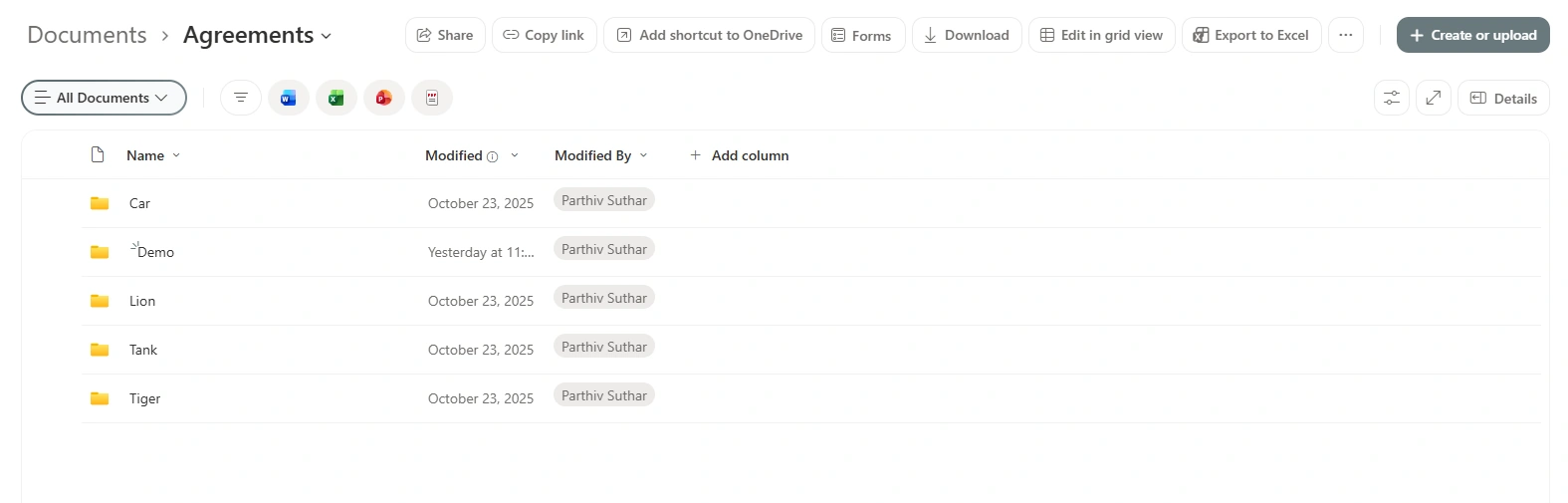
As i have already created folder named Agreements under root folder (Shared Documents), so i will perform operations in Agreements folder.
Stepwise Implementation
1 - Create a flow from Power Automate
Go to Microsoft Power Automate
Click Create
Choose a trigger (for example i have used instant, you can choose any based on your requirements)
2 - Add SharePoint HTTP Action
Click New Step
Search for SharePoint
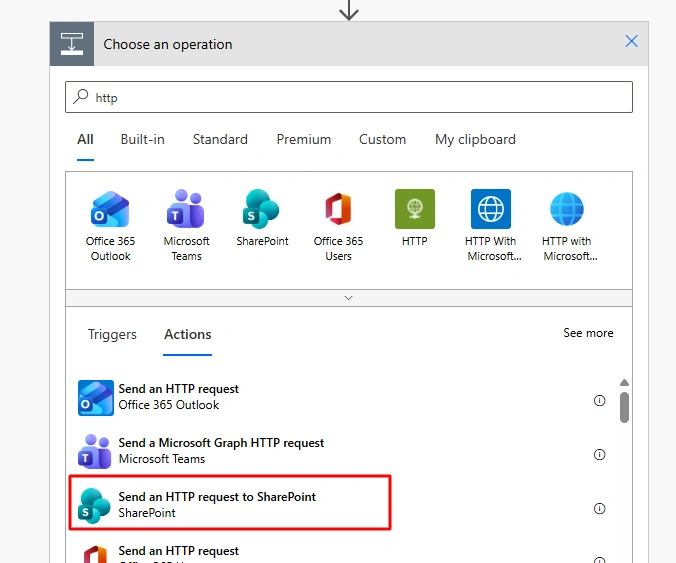
Select Send an HTTP request to SharePoint
3 - Create folder in Document library.
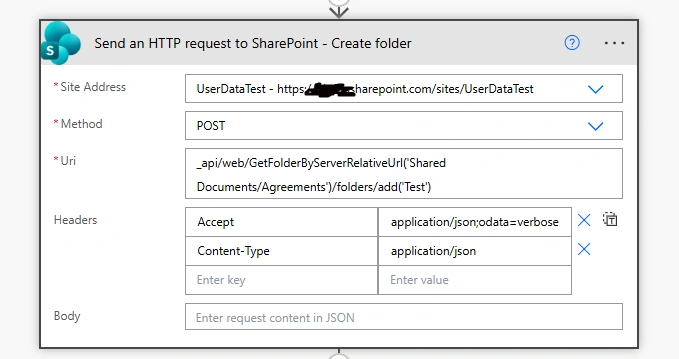
I am creating folder in Agreements folder so base url will be:
_api/web/GetFolderByServerRelativeUrl('Shared Documents/Agreements')/folders/add('Test')Here, add() is the function used to create a folder.
Where 'Test' is folder name to be created.
4 - Rename folder
I will be renaming newly created folder 'Test' to 'Test-renamed'
_api/web/GetFolderByServerRelativeUrl('Shared Documents/Agreements/Test')/ListItemAllFieldsIt will list item object from folder.
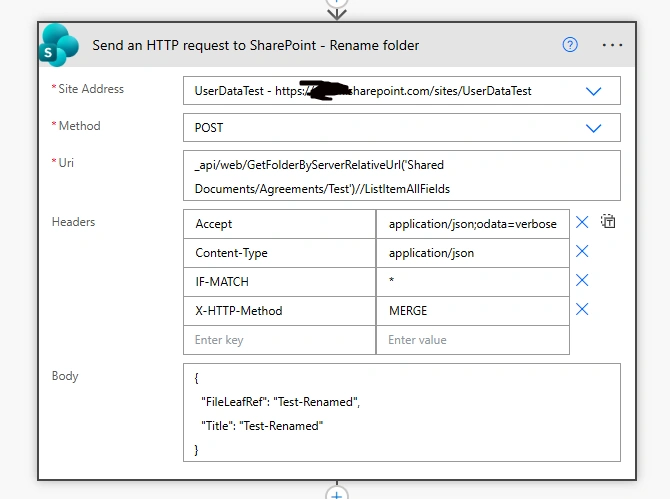
This JSON body is used in SharePoint REST API (often in Power Automate) to update folder properties, especially when renaming a folder.
5 - Delete folder
I will delete renamed folder.
_api/web/GetFolderByServerRelativeUrl('Shared Documents/Agreements/Test-Renamed')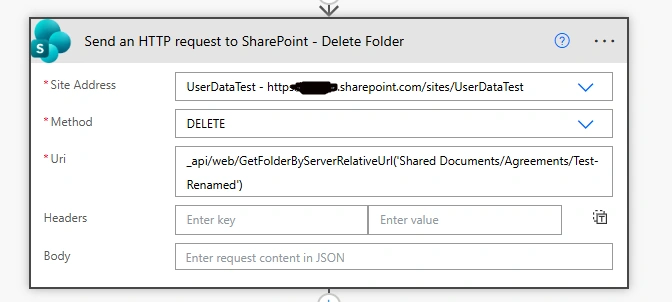
Conclusion
We learnt that by using the SharePoint HTTP action, we can manage folder operations in a Document Library in Microsoft Power Automate.
Join the conversation! Your thoughts help the community grow.