

Introduction
In this article, we will see how to play a flash (.swf) file in a Windows Forms application.
We have generally two methods for playing a flash animation in a Windows Forms application.
- Using the COM component, Shockwave Flash Object
- Playing Flash inside a WebBrowser control
Method 1
Step 1. Create a new Windows Forms Application.
Step 2. Right-click anywhere on the Toolbox and select "Choose Items".

Step 3. Check "Shockwave Flash Object" under the "COM Components" tab of the "Choose Toolbox Items" window and click "OK".
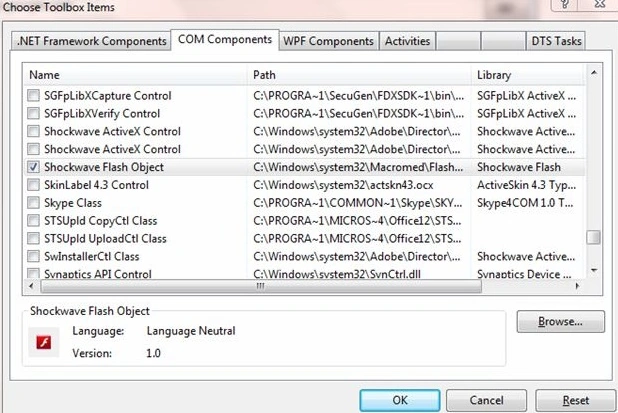
Step 4. Drag the Shockwave Flash Object onto the form and add two buttons to "Play" and "Stop" the flash.

Two references are added to the project after adding the Shockwave Flash Object, AxShockwaveFlashObjects, and ShockwaveFlashObjects. These dlls are required to play Flash.
Step 5. Write the following to start and stop the flash.
public partial class Form1 : Form
{
    public Form1()
    {
        InitializeComponent();
    }

    private void btnStop_Click(object sender, EventArgs e)
    {
        axShockwaveFlash1.Stop();
    }

    private void btnPlay_Click(object sender, EventArgs e)
    {
        axShockwaveFlash1.Movie = @"C:\Users\DEEPAK\Desktop\MyAnimation.swf";
        axShockwaveFlash1.Play();
    }
}
The "Movie" property of the ShockwaveFlash Object sets the flash file to play and the "Play" method is called to play it. The "Stop" method is called to stop the flash but unfortunately, it pauses the flash instead of stopping it. However, we can use the following code to play and stop the flash by adding a ShockwaveFlash Object dynamically.
public partial class Form1 : Form
{
    AxShockwaveFlashObjects.AxShockwaveFlash axShockwaveFlash1;

    public Form1()
    {
        InitializeComponent();
    }

    private void btnStop_Click(object sender, EventArgs e)
    {
        axShockwaveFlash1.Dispose();
    }

    private void btnPlay_Click(object sender, EventArgs e)
    {
        axShockwaveFlash1 = new AxShockwaveFlashObjects.AxShockwaveFlash();
        axShockwaveFlash1.Dock = DockStyle.Fill;
        panel1.Controls.Add(axShockwaveFlash1);
        axShockwaveFlash1.Movie = @"C:\Users\DEEPAK\Desktop\MyAnimation.swf";
        axShockwaveFlash1.Play();
    }
}
Here, we have declared a ShockwaveFlash Object under the class declaration. In the Click event of the Play button, first, we initialize the ShockwaveFlash Object, then we set its Dock property to DockStyle.Fill it in the Panel object that we have added to the form to hold the ShockwaveFlash Object. Then the ShockwaveFlash Object is added to the Panel using its Controls. Add method. Finally, we set the Movie property to the flash file and call the Play method to play the flash. To stop the flash we just dispose of the ShockwaveFlash Object.
Note. To use the AxShockwaveFlashObjects.AxShockwaveFlash class you must set a reference to the AxShockwaveFlashObjects and ShockwaveFlashObjects DLLs. You can add it manually from the web or you can use Steps 2 to 4 above. You can remove the dragged ShockwaveFlash Object after these references are added to your project.
Method 2
Step 1. Create a new Windows Forms Application.
Step 2. Add two buttons to the form for playing and stopping the flash.
Step 3. Use the following to play and stop the flash using a web browser control
public partial class Form2 : Form
{
    WebBrowser webBrowser1;

    public Form2()
    {
        InitializeComponent();
    }

    private void btnPlay_Click(object sender, EventArgs e)
    {
        webBrowser1 = new WebBrowser();
        webBrowser1.Size = new System.Drawing.Size(578, 446);
        webBrowser1.Dock = System.Windows.Forms.DockStyle.Top;
        this.Controls.Add(webBrowser1);
        webBrowser1.Navigate(@"C:\Users\DEEPAK\Desktop\MyAnimation.swf");
    }

    private void btnStop_Click(object sender, EventArgs e)
    {
        webBrowser1.Dispose();
    }
}
Here first, we declare a WebBrowser control and then inside the Play button it is initialized and its Size and Dock property is set. Then it is added to the form dynamically using the Controls. Add method. Finally, the Navigate method of the WebBrowser control is called to open the flash file. The Navigate method takes a path as the parameter.
Step 4. The WebBrowser control inherits from Internet Explorer. So Flash will play inside the WebBrowser control if it is playing in IE. Thus, please ensure that the Flash plug-in for IE is installed in your system. It can be downloaded from here.
madhura lakshmiPosted Jul 3, 2018, 11:06 PM
Deepak my 15 minutes shockwave vedio is not playing completely its stoped for 10 minutes plzz any one help me
santu kPosted May 12, 2016, 11:18 AM
getting error run the ur code Unable to get the window handle for the 'AxShockwaveFlash' control. Windowless ActiveX controls are not supported.
santu kPosted May 12, 2016, 11:17 AM
not working your code getting error "Cross-thread operation not valid: Control 'axShockwaveFlash2' accessed from a thread other than the thread it was created on."
Mike GPosted Aug 27, 2014, 4:31 AM
Could you please mention the cool component F-IN-BOX for .Net, it may play flash movies and FLV from memorystream, it may create forms with shapes based on semitransparent movies etc. etc. etc.
jishad shaPosted May 27, 2013, 2:17 AM
can we move the flashplayer around the form